Last Updated: May 2026 | By Erdem Ugurluol | This article contains affiliate links. If you buy through them, I may earn a small commission at no extra cost to you.
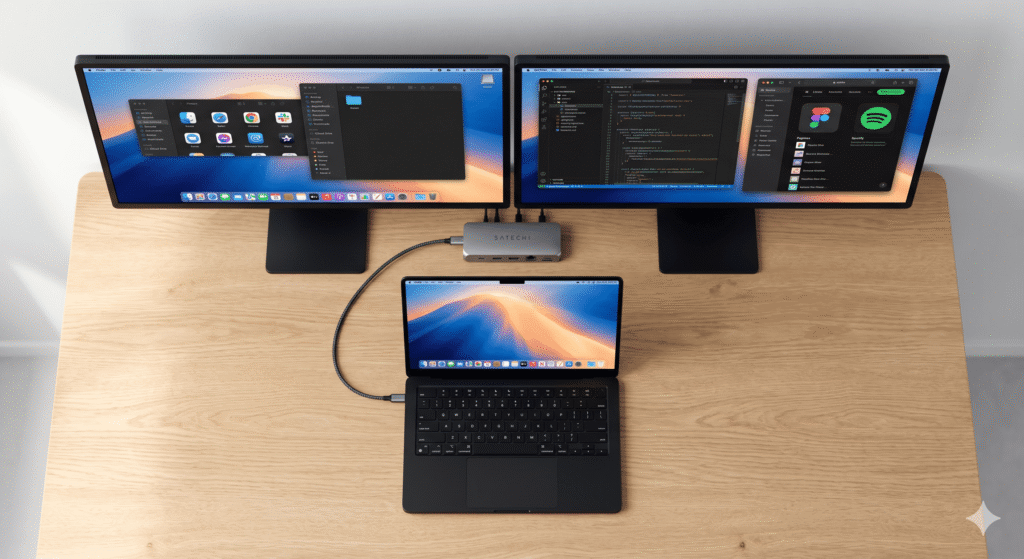
You just got a new MacBook. You want to connect an external monitor — maybe two. You buy a dock, plug everything in, and suddenly one screen stays dark. Or you Google “how many monitors can my Mac support” and end up more confused than when you started.
This happens constantly. And it’s not your fault. Apple’s display support varies dramatically depending on which chip is inside your Mac — not just which model you have. A “MacBook Pro M3” can mean a machine that supports one external monitor, or one that supports four, depending on whether it has the base M3, M3 Pro, or M3 Max chip.
This guide covers every current MacBook Air and MacBook Pro model, with exact display counts, maximum resolutions, and the caveats that actually matter when you’re setting up your desk. All specs are sourced directly from Apple’s official support documentation.
Quick Answer — Your Mac at a Glance
Before getting into the full breakdown, here’s the short version by chip generation:
| MacBook Model | Chip | External Displays (Lid Open) | External Displays (Lid Closed) |
|---|---|---|---|
| MacBook Air M1 | M1 | 1 | 1 |
| MacBook Air M2 13″ | M2 | 1 | 1 |
| MacBook Air M2 15″ | M2 | 1 | 1 |
| MacBook Air M3 | M3 | 1 | 2 |
| MacBook Air M4 | M4 | 2 | 2 |
| MacBook Air M5 | M5 | 2 | 2 |
| MacBook Pro 13″ M1 | M1 | 1 | 1 |
| MacBook Pro 13″ M2 | M2 | 1 | 1 |
| MacBook Pro 14″ M1 Pro | M1 Pro | 2 | 2 |
| MacBook Pro 14″ M1 Max | M1 Max | 4 | 4 |
| MacBook Pro 14″ M2 Pro | M2 Pro | 2 | 2 |
| MacBook Pro 14″ M2 Max | M2 Max | 4 | 4 |
| MacBook Pro 14″ M3 (base) | M3 | 1 | 2 |
| MacBook Pro 14″ M3 Pro | M3 Pro | 2 | 2 |
| MacBook Pro 14″ M3 Max | M3 Max | 4 | 4 |
| MacBook Pro 14″ M4 (base) | M4 | 2 | 2 |
| MacBook Pro 14″ M4 Pro | M4 Pro | 2 | 2 |
| MacBook Pro 14″ M4 Max | M4 Max | 4 | 4 |
| MacBook Pro 14″ M5 (base) | M5 | 2 | 2 |
| MacBook Pro 14″ M5 Pro | M5 Pro | 3 | 3 |
| MacBook Pro 14″ M5 Max | M5 Max | 4 | 4 |
| MacBook Pro 16″ M1 Pro | M1 Pro | 2 | 2 |
| MacBook Pro 16″ M1 Max | M1 Max | 4 | 4 |
| MacBook Pro 16″ M2 Pro | M2 Pro | 2 | 2 |
| MacBook Pro 16″ M2 Max | M2 Max | 4 | 4 |
| MacBook Pro 16″ M3 Pro | M3 Pro | 2 | 2 |
| MacBook Pro 16″ M3 Max | M3 Max | 4 | 4 |
| MacBook Pro 16″ M4 Pro | M4 Pro | 2 | 2 |
| MacBook Pro 16″ M4 Max | M4 Max | 4 | 4 |
| MacBook Pro 16″ M5 Pro | M5 Pro | 3 | 3 |
| MacBook Pro 16″ M5 Max | M5 Max | 4 | 4 |
One important note: All “external display” counts above are in addition to the built-in MacBook screen, unless the lid is closed.
Why Your Chip Determines Everything
Before diving model by model, you need to understand why this happens.
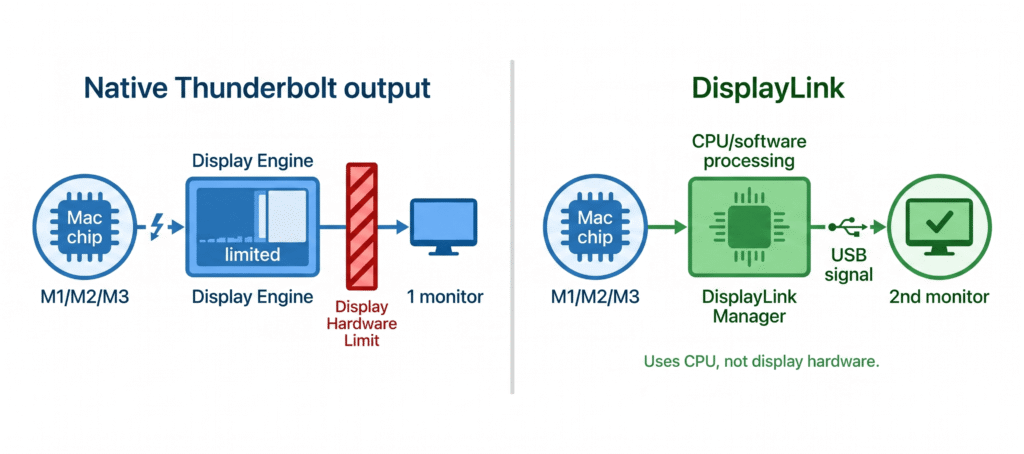
Apple Silicon chips have a fixed number of hardware display engines built into the silicon itself. These are dedicated circuits that push pixels to screens. You can’t add more through software, and connecting a fancier dock doesn’t change what the chip can physically do.
This is why a MacBook Air M1 with a Thunderbolt dock still only drives one external monitor. The dock can have ten HDMI ports — it doesn’t matter. The M1 chip has one display engine allocated for external output. That’s the hardware ceiling.
The only way around this is DisplayLink — a software-based video compression technology that uses your CPU instead of the dedicated display engine. It works, but it comes with trade-offs. More on that below.
Each chip generation from Apple improved this in specific ways:
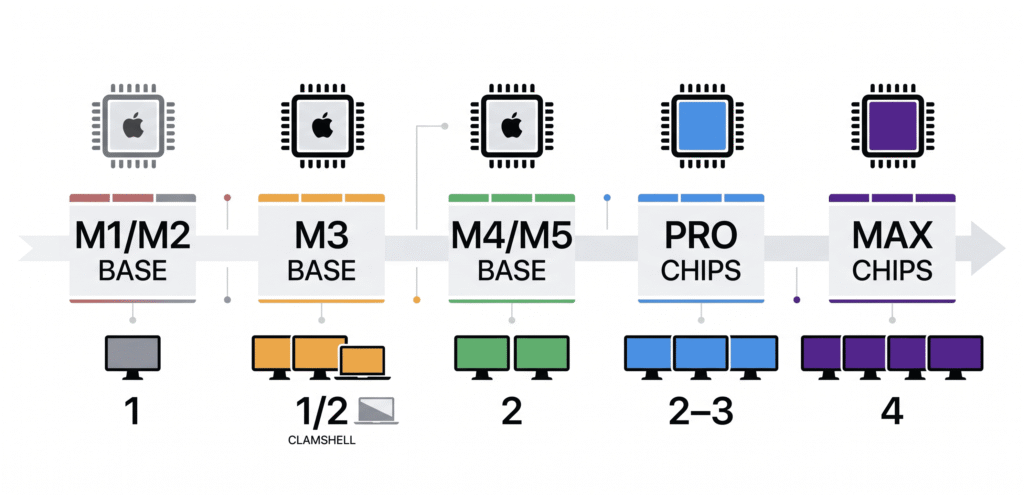
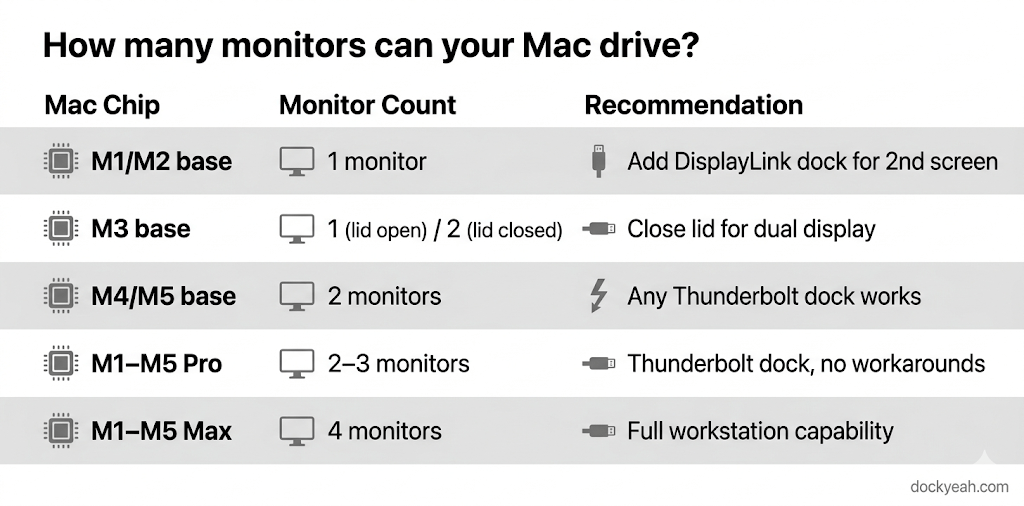
- M1 and M2 base chips: One external display. Period.
- M3 base chip: Still one external display with the lid open, but gained the ability to run two external displays with the lid closed (clamshell mode).
- M4 and M5 base chips: Two external displays natively, lid open or closed. The first base chips that genuinely support a dual-monitor desk without workarounds.
- Pro chips (M1–M5 Pro): Generally two external displays (M5 Pro is the first to get three).
- Max chips (M1–M5 Max): Four external displays across all generations.
MacBook Air — Complete Breakdown
MacBook Air M1 (Late 2020)
External displays supported: 1
The M1 Air supports one external display, full stop. Closing the lid doesn’t give you a second screen — the lid-closed trick was introduced later with M3. The one display it does support is excellent though: up to 6K at 60Hz, which means it drives the Apple Pro Display XDR natively.
- 1 external display: Up to 6K at 60Hz or 4K at 144Hz
- Lid closed: Still 1 external display
- Built-in HDMI: No
- Thunderbolt version: Thunderbolt 3 / USB 4 (40Gbps)
- Want dual monitors? You’ll need a DisplayLink dock
The real-world verdict: If you’re working from a desk with one good monitor, the M1 Air is perfectly capable. The single-display limit only becomes a problem if you’re trying to run a proper dual-monitor setup.
MacBook Air M2 13-inch (2022)
External displays supported: 1
Same story as M1, just with faster internals. The display architecture didn’t change for the base M2 chip. One external display natively, regardless of which dock you use.
The M2 Air did bring MagSafe back, which matters for docking — it means both USB-C ports are free for data and display use. But it still won’t drive two monitors without DisplayLink.
- 1 external display: Up to 6K at 60Hz or 4K at 144Hz
- Lid closed: Still 1 external display
- Built-in HDMI: No
- Thunderbolt version: Thunderbolt 3 / USB 4 (40Gbps)
- MagSafe: Yes (charges separately, frees up both USB-C ports)
- Want dual monitors? You’ll need a DisplayLink dock
The real-world verdict: If you own an M2 Air and want dual monitors, the Plugable UD-6950PDH or TobenONE DisplayLink dock are your best options. They work well, but require installing the free DisplayLink Manager app.
MacBook Air M2 15-inch (2023)
External displays supported: 1
Same chip as the 13-inch M2 Air, same display limits. The larger chassis makes zero difference to how many external monitors it can drive — that’s entirely about the chip.
- 1 external display: Up to 6K at 60Hz or 4K at 144Hz
- Lid closed: Still 1 external display
- Built-in HDMI: No
- Thunderbolt version: Thunderbolt 3 / USB 4 (40Gbps)
- MagSafe: Yes
The real-world verdict: The 15-inch M2 Air buyer is often considering it as a desktop replacement. If that’s your plan, know the display limit upfront. One great 4K monitor or a DisplayLink dock for two screens.
MacBook Air M3 (2024) — 13-inch and 15-inch
External displays supported: 1 (lid open) / 2 (lid closed)
This is where things get interesting. M3 was a meaningful upgrade for desk users. Apple quietly gave the M3 Air the ability to run two external monitors — but only when the laptop lid is closed (clamshell mode). This arrived with the macOS Sonoma 14.6 update.
With lid open:
- 1 external display up to 6K at 60Hz (via Thunderbolt)
- Or 1 external display up to 4K at 144Hz
With lid closed (clamshell):
- Display 1: Up to 6K at 60Hz
- Display 2: Up to 5K at 60Hz
- Both connected via Thunderbolt ports
Built-in HDMI: No Thunderbolt version: Thunderbolt 3 / USB 4 (40Gbps) MagSafe: Yes
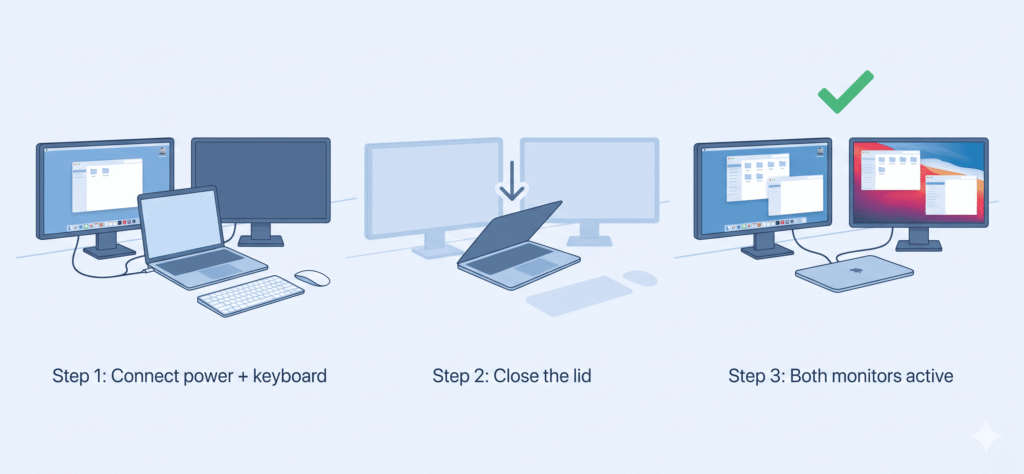
The clamshell requirement explained: When you close the lid, the display engine that was powering your MacBook’s built-in screen gets reassigned to a second external monitor. Your Mac needs to be connected to power, an external keyboard, and a mouse for this to work. You lose the portability of the built-in screen, but gain the second monitor.
Want dual monitors? -> A standard Thunderbolt dock handles this without DisplayLink.
The real-world verdict: M3 Air clamshell dual-monitor is a legitimate setup for anyone who parks their MacBook on a desk and uses it like a desktop. If you want both the built-in screen and two external monitors simultaneously, you need DisplayLink.
MacBook Air M4 (2025) — 13-inch and 15-inch
External displays supported: 2 (lid open or closed)
This is the one. M4 Air is the first MacBook Air that genuinely supports a two-monitor desk setup without any caveats, workarounds, or lid gymnastics.
With lid open or closed:
- 1 external display: Up to 8K at 60Hz, 5K at 120Hz, or 4K at 240Hz
- 2 external displays: Up to 6K at 60Hz each, or 4K at 144Hz each
Built-in HDMI: No Thunderbolt version: Thunderbolt 4 (40Gbps) MagSafe: Yes DisplayLink needed? No — for 2 monitors.
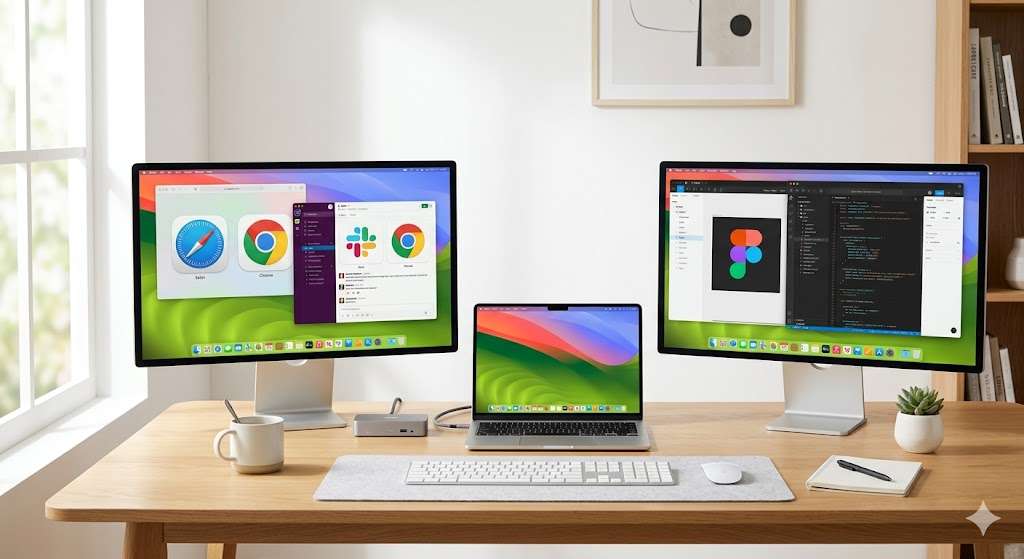
The real-world verdict: If you’re buying a MacBook Air in 2026 and planning a dual-monitor desk, the M4 Air is the first model where you won’t hit a wall. The upgrade from M3’s clamshell-only limitation is genuinely significant.
MacBook Air M5 (2026) — 13-inch and 15-inch
External displays supported: 2 (lid open or closed)
Same external display support as M4 Air. The M5 brings faster processing, Wi-Fi 7, better memory bandwidth, and larger base storage — but the display architecture for the base chip stayed the same.
With lid open or closed:
- 1 external display: Up to 8K at 60Hz, 5K at 120Hz, or 4K at 240Hz
- 2 external displays: Up to 6K at 60Hz each, or 4K at 144Hz each
Built-in HDMI: No Thunderbolt version: Thunderbolt 4 (40Gbps) MagSafe: Yes DisplayLink needed? No — for 2 monitors.
The real-world verdict: Same display setup as M4. If you already have an M4 Air dock and monitor setup, nothing changes with M5. If you’re buying new, both M4 and M5 give you the same dual-monitor experience.
→ See our best docks for MacBook Air M5
MacBook Pro 13-inch — Complete Breakdown
MacBook Pro 13-inch M1 (Late 2020)
External displays supported: 1
The 13-inch M1 Pro uses the same base M1 chip as the MacBook Air of the same era. One external display, up to 6K at 60Hz. The main practical difference from the Air: it has a fan, so it handles sustained workloads better when docked.
- 1 external display: Up to 6K at 60Hz
- Lid closed: Still 1 external display
- Built-in HDMI: No
- MagSafe: No (USB-C charging only)
- Thunderbolt version: Thunderbolt 3 / USB 4
MacBook Pro 13-inch M2 (2022)
External displays supported: 1
Same base M2 chip, same display limit. One external monitor natively. Worth noting: unlike the M2 Air, the 13-inch M2 Pro did not bring MagSafe back — it charges via USB-C only. This means one of your two Thunderbolt ports is often occupied with charging when you’re not using a dock.
- 1 external display: Up to 6K at 60Hz or 4K at 144Hz
- Lid closed: Still 1 external display
- Built-in HDMI: No
- MagSafe: No (USB-C charging only — dock handles charging)
- Thunderbolt version: Thunderbolt 3 / USB 4
The real-world verdict: Because this model has no MagSafe, a dock that handles charging through the Thunderbolt port is especially important.
MacBook Pro 14-inch — Complete Breakdown
MacBook Pro 14-inch M1 Pro (Late 2021)
External displays supported: 2 (lid open or closed)
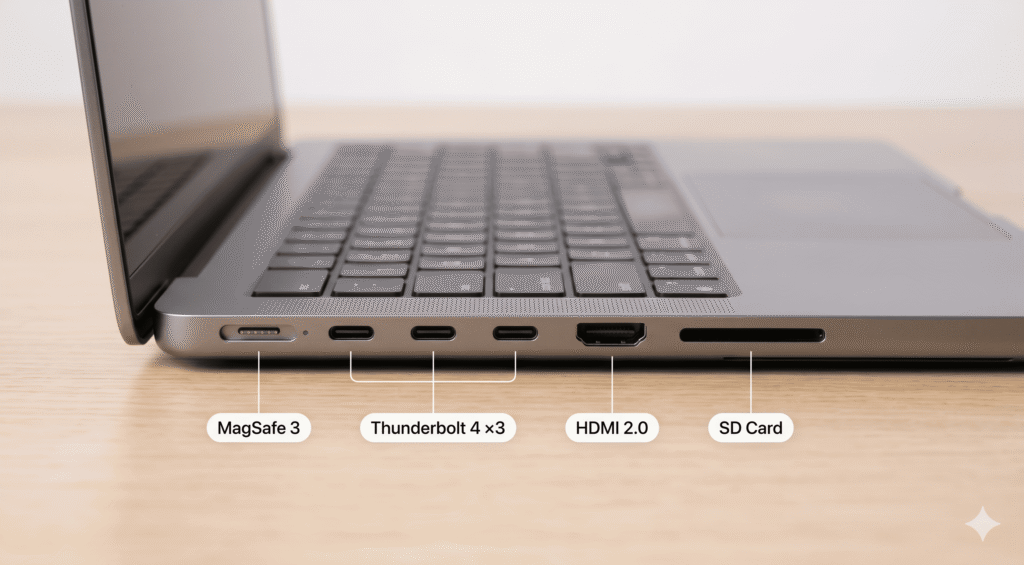
This is where the MacBook Pro lineup separates from the Air. The 14-inch M1 Pro marked Apple’s return to the notched design with a proper port layout — including MagSafe 3, HDMI, an SD card slot, and three Thunderbolt 4 ports.
Display support:
- 2 external displays via Thunderbolt (up to 6K at 60Hz each)
- Built-in HDMI 2.0 supports a third display up to 4K at 60Hz (for a total of 3 screens including the built-in)
- Total with built-in screen: 3 screens simultaneously
Built-in HDMI: Yes — HDMI 2.0 (up to 4K at 60Hz) Thunderbolt version: Thunderbolt 4 (40Gbps) MagSafe: Yes
The real-world verdict: The M1 Pro 14-inch is genuinely excellent for multi-monitor use. Two high-resolution displays plus the built-in screen gives most people more than enough screen space.
MacBook Pro 14-inch M1 Max (Late 2021)
External displays supported: 4 (lid open or closed)
The M1 Max is where things get serious. Four external monitors — three via Thunderbolt at up to 6K each, and a fourth via the built-in HDMI at up to 4K at 60Hz.
Display support:
- 3 external displays via Thunderbolt at 6K at 60Hz each
- 1 external display via HDMI 2.0 at up to 4K at 60Hz
- Total with built-in screen: 5 screens simultaneously
Built-in HDMI: Yes — HDMI 2.0 Thunderbolt version: Thunderbolt 4 (40Gbps) MagSafe: Yes
MacBook Pro 14-inch M2 Pro (2023)
External displays supported: 2 (plus HDMI)
The HDMI port upgraded to 2.1 on M2 Pro models — significant, because HDMI 2.1 now supports 8K at 60Hz or 4K at 240Hz from that single built-in port.
Display support:
- 2 external displays via Thunderbolt at up to 6K at 60Hz each
- 1 external display via HDMI 2.1 at up to 8K at 60Hz or 4K at 240Hz
- Total with built-in screen: 4 screens simultaneously
Built-in HDMI: Yes — HDMI 2.1 (major upgrade from M1 Pro’s HDMI 2.0) Thunderbolt version: Thunderbolt 4 (40Gbps) MagSafe: Yes
MacBook Pro 14-inch M2 Max (2023)
External displays supported: 4 (plus HDMI 2.1)
Same layout as M1 Max but with the upgraded HDMI 2.1 port that can now push 8K or 4K at 240Hz.
Display support:
- 3 external displays via Thunderbolt at 6K at 60Hz each
- 1 external display via HDMI 2.1 at up to 8K at 60Hz or 4K at 240Hz
- Total with built-in screen: 5 screens simultaneously
Built-in HDMI: Yes — HDMI 2.1 Thunderbolt version: Thunderbolt 4 (40Gbps) MagSafe: Yes
MacBook Pro 14-inch M3 base (Late 2023)
External displays supported: 1 (lid open) / 2 (lid closed)
This one confuses a lot of buyers. There’s a base M3 version of the 14-inch MacBook Pro — not just M3 Pro and M3 Max. And the base M3, like the M3 Air, supports only one external display with the lid open, and two with the lid closed.
The kicker: it only has two Thunderbolt ports (not three like the M3 Pro/Max models). This is an important distinction when choosing a dock.
With lid open:
- 1 external display: Up to 6K at 60Hz via Thunderbolt, or up to 8K at 60Hz via HDMI 2.1
With lid closed:
- 2 external displays
Built-in HDMI: Yes — HDMI 2.1 Thunderbolt ports: 2 (not 3 — unlike M3 Pro/Max) Thunderbolt version: Thunderbolt 3 / USB 4 MagSafe: Yes
Watch out: This model is easy to confuse with the M3 Pro version in the same physical chassis. Always check your exact chip when choosing a dock.
MacBook Pro 14-inch M3 Pro (Late 2023)
External displays supported: 2 (plus HDMI 2.1)
Back to three Thunderbolt ports and proper multi-monitor support. The Space Black color option debuted on this model.
Display support:
- 2 external displays via Thunderbolt at up to 6K at 60Hz
- 1 external display via HDMI 2.1 at up to 8K at 60Hz or 4K at 240Hz
- Total with built-in screen: 4 screens simultaneously
Built-in HDMI: Yes — HDMI 2.1 Thunderbolt ports: 3 Thunderbolt version: Thunderbolt 4 (40Gbps) MagSafe: Yes
MacBook Pro 14-inch M3 Max (Late 2023)
External displays supported: 4 (plus HDMI 2.1)
Display support:
- 3 external displays via Thunderbolt at 6K at 60Hz each
- 1 external display via HDMI 2.1 at up to 8K at 60Hz or 4K at 240Hz
- Total with built-in screen: 5 screens simultaneously
Built-in HDMI: Yes — HDMI 2.1 Thunderbolt version: Thunderbolt 4 (40Gbps) MagSafe: Yes
MacBook Pro 14-inch M4 base (Late 2024)
External displays supported: 2 (lid open or closed)
A notable upgrade over the base M3 14-inch: the M4 base gets three Thunderbolt ports (up from two), and supports two external monitors with the lid open — no clamshell required. The base M4 14-inch no longer feels like a compromise.
Display support:
- 2 external displays via Thunderbolt at up to 6K at 60Hz
- 1 external display via HDMI 2.1 at up to 8K at 60Hz or 4K at 240Hz
- Total with built-in screen: 4 screens simultaneously
Built-in HDMI: Yes — HDMI 2.1 Thunderbolt ports: 3 (increased from 2 on base M3) Thunderbolt version: Thunderbolt 4 (40Gbps) MagSafe: Yes
MacBook Pro 14-inch M4 Pro (Late 2024)
External displays supported: 2 (plus HDMI 2.1) — Thunderbolt 5
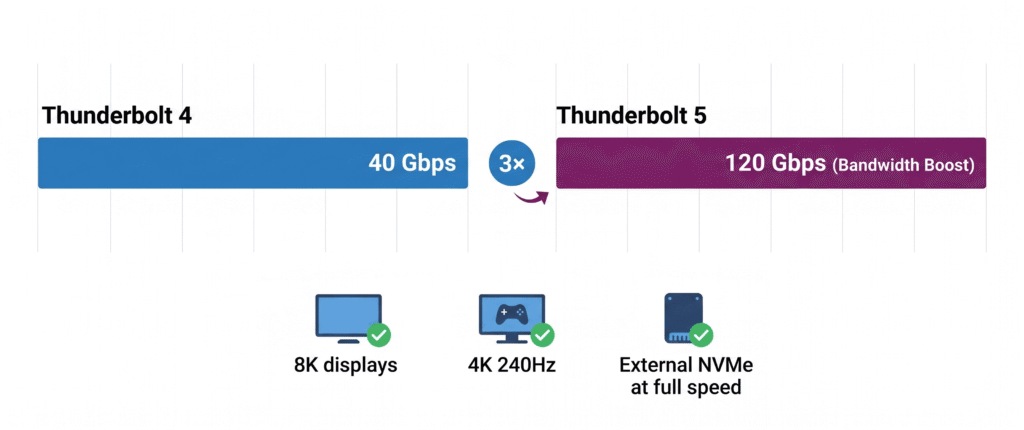
This is the first MacBook Pro to ship with Thunderbolt 5 (120Gbps), which triples the bandwidth of TB4. If you’re running 8K displays or multiple high-refresh 4K monitors, TB5 is the connection you want.
Display support:
- 2 external displays via Thunderbolt 5 at up to 6K at 60Hz or 4K at 144Hz
- 1 external display via HDMI 2.1 at up to 8K at 60Hz or 4K at 240Hz
- Total with built-in screen: 4 screens simultaneously
Built-in HDMI: Yes — HDMI 2.1 Thunderbolt ports: 3 — all Thunderbolt 5 (120Gbps) MagSafe: Yes
MacBook Pro 14-inch M4 Max (Late 2024)
External displays supported: 4 (Thunderbolt 5)
The M4 Max 14-inch can drive up to five screens total (4 external + the built-in display). With Thunderbolt 5, you can now run an 8K display or multiple 4K 144Hz monitors simultaneously without any bandwidth constraints.
Display support:
- 3 external displays via Thunderbolt 5 at up to 6K at 60Hz
- 1 external display via HDMI 2.1 at up to 4K at 144Hz (or 8K at 60Hz from a single TB5 port)
- Total with built-in screen: 5 screens simultaneously
Built-in HDMI: Yes — HDMI 2.1 Thunderbolt ports: 3 — all Thunderbolt 5 MagSafe: Yes
MacBook Pro 14-inch M5 base (2025)
External displays supported: 2 (lid open or closed)
The M5 base 14-inch keeps the same display architecture as M4 base — two external monitors natively, three Thunderbolt 4 ports, Thunderbolt 4 (not TB5). The improvements in M5 are CPU/GPU performance and wireless (Wi-Fi 7 with the N1 chip).
Display support:
- 2 external displays at up to 6K at 60Hz
- 1 external display via HDMI 2.1 at up to 8K at 60Hz or 4K at 240Hz
Built-in HDMI: Yes — HDMI 2.1 Thunderbolt version: Thunderbolt 4 (40Gbps) MagSafe: Yes
MacBook Pro 14-inch M5 Pro (2026)
External displays supported: 3 — a new milestone for Pro chips
M5 Pro is the first Pro-tier chip to support three external displays simultaneously. This is a genuine upgrade from M4 Pro’s two. Combined with Thunderbolt 5, this machine can run three 6K monitors or a combination of high-resolution, high-refresh-rate screens that would have required a Max chip in the previous generation.
Display support:
- Up to 3 external displays via Thunderbolt 5 at up to 6K at 60Hz
- Alternative configurations: 8K at 60Hz + 5K at 120Hz, or 4K at 240Hz combinations
- Total with built-in screen: 4 screens simultaneously
Built-in HDMI: Yes — HDMI 2.1 Thunderbolt ports: 3 — all Thunderbolt 5 (120Gbps) MagSafe: Yes
MacBook Pro 14-inch M5 Max (2026)
External displays supported: 4 (Thunderbolt 5)
Four external displays, Thunderbolt 5 throughout. The M5 Max continues to be the top option for users running a truly dense multi-screen workstation.
Display support:
- Up to 4 external displays simultaneously
- Multiple 8K displays now feasible with TB5 bandwidth
- Total with built-in screen: 5 screens simultaneously
Built-in HDMI: Yes — HDMI 2.1 Thunderbolt ports: 3 — all Thunderbolt 5 MagSafe: Yes
MacBook Pro 16-inch — Complete Breakdown
The 16-inch MacBook Pro models follow the same display support as their 14-inch equivalents with the same chip. The main practical differences are the 140W power requirements (vs 96W for 14-inch), the larger screen, and longer battery life. Everything below mirrors the 14-inch specs for each chip.
MacBook Pro 16-inch M1 Pro (Late 2021)
External displays: 2 + HDMI 2.0 (4K at 60Hz)
- 140W charging required for full-speed charging under load
- HDMI 2.0 (not 2.1 — this improved with M2)
MacBook Pro 16-inch M1 Max (Late 2021)
External displays: 4 (3 via TB4 + 1 via HDMI 2.0)
MacBook Pro 16-inch M2 Pro (2023)
External displays: 2 + HDMI 2.1 (8K at 60Hz or 4K at 240Hz)
MacBook Pro 16-inch M2 Max (2023)
External displays: 4 (3 via TB4 + 1 via HDMI 2.1)
MacBook Pro 16-inch M3 Pro (Late 2023)
External displays: 2 + HDMI 2.1
MacBook Pro 16-inch M3 Max (Late 2023)
External displays: 4 (3 via TB4 + 1 via HDMI 2.1)
MacBook Pro 16-inch M4 Pro (2024)
External displays: 2 + HDMI 2.1 — Thunderbolt 5
MacBook Pro 16-inch M4 Max (2024)
External displays: 4 — Thunderbolt 5 throughout, 140W via TB5 or MagSafe
MacBook Pro 16-inch M5 Pro (2026)
External displays: 3 — first 16-inch Pro to hit three screens natively
MacBook Pro 16-inch M5 Max (2026)
External displays: 4 — Thunderbolt 5, up to 5 total with built-in
What If You Need More Monitors Than Your Mac Natively Supports?
The native limits above are what Apple builds into the chip. But they’re not a hard wall if you need more screens — they’re just the starting point.
Option 1: DisplayLink Docks
DisplayLink is a technology from Synaptics that uses your Mac’s CPU and GPU to compress video and send it to a display over USB. Because it bypasses the chip’s dedicated display engines, it works regardless of which chip you have.
What it unlocks:
- M1 and M2 Air users can run 2 or even 3 external monitors
- M3 Air users can run 2 external monitors with the lid open (no clamshell needed)
- Max chip users can extend beyond 4 external displays if needed
What you need to know:
- DisplayLink requires installing the free DisplayLink Manager app from Synaptics
- DRM-protected content (Netflix, Disney+, Apple TV+) may show a black screen on DisplayLink displays — this is a known limitation caused by HDCP copy protection
- There can be a slight increase in CPU usage compared to native display output
- Refresh rate is typically capped at 60Hz on most DisplayLink implementations
The Plugable UD-6950PDH and TobenONE DisplayLink Triple Monitor Dock are the two best-supported options for Mac specifically.
Option 2: Use Both the Dock’s Ports AND Your Mac’s Built-in Ports Simultaneously
This is the most overlooked trick for Pro and Max chip users. If your MacBook Pro has a built-in HDMI 2.1 port, that’s an additional display output that doesn’t count against what the dock is doing.
For example, an M3 Pro 14-inch connected to a dock running 2 monitors through Thunderbolt, plus a third monitor connected directly to its HDMI 2.1 port, gives you three external displays simultaneously — without DisplayLink and without a DisplayPort MST hub.
Option 3: Daisy Chaining (Thunderbolt Monitors)
If you have a Thunderbolt-compatible monitor, you can daisy chain a second monitor off the first. This uses one Thunderbolt port from your Mac to drive two monitors in a chain. It does not increase your total display limit, but it does simplify cable routing.
Not all monitors support daisy chaining. Check whether yours has a Thunderbolt output port before counting on this.
The Most Common Mistakes — And How to Avoid Them
1. Buying a dock thinking it adds display outputs it can’t add
A dock passes through what your Mac’s chip supports. A Thunderbolt 4 dock with 4 HDMI ports won’t drive 4 displays on an M2 Air — it’ll still drive one. The dock doesn’t create new display outputs.
2. Confusing “M3” with “M3 Pro”
Apple’s chip naming is confusing. Someone who says “I have an M3 MacBook Pro” might have the base M3 (1 external display, lid open), the M3 Pro (2 external displays), or the M3 Max (4 external displays). These are three completely different display capabilities in the same chassis. Always check your exact chip in System Information (Apple menu → About This Mac → More Info).
3. Expecting a USB-C hub to behave like a Thunderbolt dock
A USB-C hub using DisplayPort Alt Mode is not the same as a Thunderbolt dock. USB-C hubs carry one video stream and split it. Thunderbolt docks carry the full 40–120Gbps bandwidth and can handle multiple simultaneous high-resolution streams. Paying $30 for a hub and expecting it to run two 4K monitors at 60Hz is a recipe for disappointment.
4. Not checking the required macOS version
M3 Air dual-display clamshell mode required macOS Sonoma 14.6. If you were on an older version, it didn’t work. Always make sure you’re running the latest macOS version before assuming a feature is broken.
Which Mac Should You Buy If Monitors Matter?
If a multi-monitor setup is a priority, here’s what we’d recommend based on how many screens you need:
1 external monitor: Any MacBook Air or MacBook Pro works. Even the oldest M1 Air handles a single 4K or 6K display without issue.
2 external monitors (you want to keep the lid open): Start with MacBook Air M4 or M5. If you want more power, MacBook Pro M4 base or M4 Pro. Both handle this natively without workarounds.
2 external monitors (clamshell mode is fine): MacBook Air M3 is a solid, cost-effective option. Works natively without DisplayLink, just requires closing the lid.
3 external monitors: MacBook Pro M5 Pro (2026 — first Pro chip to hit three). Or any M4/M5 Max with the built-in HDMI counted in.
4 external monitors: You want an M-Max chip. M1 Max, M2 Max, M3 Max, M4 Max, or M5 Max all support four external displays. For the latest models, M4 Max and M5 Max add Thunderbolt 5 to the equation.
Frequently Asked Questions
Does a better dock give me more external monitors?
No. A dock passes through what your Mac’s chip natively supports. No dock can exceed the chip’s display limit through Thunderbolt alone. DisplayLink technology is the only way to go beyond the native limit.
My M1 MacBook Air only drives one monitor. Is something wrong?
Nothing is wrong — that’s the correct behavior for M1. One external display is the hardware limit. To add a second, you need a DisplayLink dock and the free DisplayLink Manager driver.
Does closing the lid really matter for M3 Air?
Yes, specifically for M3. When the lid is closed, the display engine that was powering the built-in screen gets reassigned to a second external monitor. This requires macOS Sonoma 14.6 or later, and the Mac needs to be plugged in with an external keyboard and mouse connected.
Can I use my MacBook Pro’s HDMI port AND a dock at the same time?
Yes, absolutely — and this is underused. Your MacBook Pro’s built-in HDMI port is a separate display output that works independently of whatever dock you have connected. An M3 Pro with two monitors through a dock plus one via the built-in HDMI gives you three screens simultaneously.
What’s the maximum resolution I can run on an external monitor?
For most current MacBooks, up to 6K at 60Hz via Thunderbolt. Macs with Thunderbolt 5 (M4 Pro/Max, M5 Pro/Max) can drive 8K at 60Hz or 5K at 120Hz from a single Thunderbolt port. The built-in HDMI 2.1 on newer models also supports 8K at 60Hz or 4K at 240Hz.
Does Thunderbolt 5 mean more external monitors?
Not necessarily more monitors — the same count, but at higher bandwidth per monitor. Thunderbolt 5 enables 8K displays, multiple 4K 240Hz monitors, and faster external NVMe drives simultaneously without bandwidth bottlenecks. It’s about quality and headroom, not just display count.
Will a USB-C hub let me run two monitors on M1 Air?
A standard USB-C hub won’t. But a USB-C hub with DisplayLink built in will. That’s the key difference. DisplayLink-based hubs use your CPU to process the additional video output, bypassing the chip’s native display limit.
Our Verdict
Display support is one of the most important specs to check before buying a Mac or a dock — and one of the most confusing. The chip inside your Mac is what determines how many monitors you can run, not the dock, not the number of ports, and not the cable.
The biggest practical takeaway: if you’re buying new and planning a two-monitor desk, don’t settle for anything below M4. The M4 Air and M4 MacBook Pro base are the first chips that handle dual monitors cleanly, without clamshell mode, without DisplayLink, and without extra software.
If you already have an M1 or M2 Mac and want dual monitors, a DisplayLink dock solves the problem — just go in knowing it requires driver installation and has the DRM streaming caveat.
And if you’re on M3, clamshell dual-monitor is a genuinely good setup for anyone who mostly works from a desk anyway.
All display specifications in this article are sourced from Apple’s official technical documentation and Apple Support pages. Verified May 2026.