Last Updated: May 2026 | By Erdem Ugurluol | This article contains affiliate links. If you buy through them, I may earn a small commission at no extra cost to you.

Here’s something that trips up almost everyone buying a Mac dock or cable for the first time.
You look at the back of your MacBook. You see a row of identical USB-C shaped ports. One might be labeled Thunderbolt. Another might just say USB-C. Or you’re looking at a dock spec sheet and you see “Thunderbolt 4,” “USB4,” and “USB-C 10Gbps” listed as separate things, all using the same physical connector.
It looks like marketing confusion. But it’s not. These standards have genuinely different capabilities, and buying the wrong dock or cable based on a misunderstanding of this costs real money.
This guide explains exactly what each standard is, what it can and can’t do, and which one your Mac actually has — so you can choose the right dock and cable the first time.
The Most Important Thing to Understand First
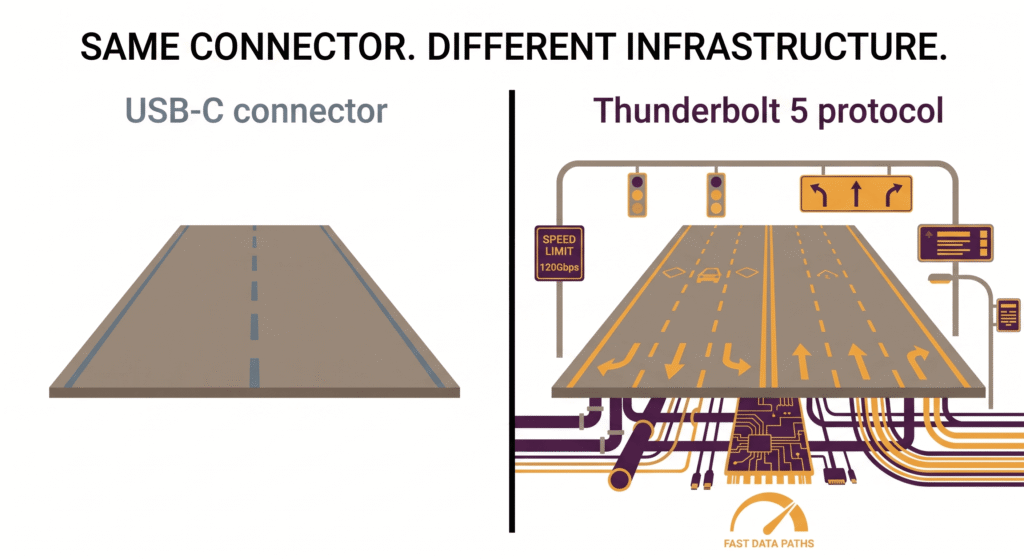
USB-C is a connector shape. That’s it.
Thunderbolt is a protocol — a set of rules governing how fast data, video, and power move through that connector.
Every Thunderbolt port uses a USB-C connector. But not every USB-C port runs Thunderbolt. This is the source of nearly all the confusion. The ports look identical. The cables look identical. The difference is entirely in the electronics inside the port and the certification on the cable.
A useful analogy: think of USB-C as a road and Thunderbolt as a set of traffic rules. The road looks the same whether you’re doing 30mph or 120mph. But the infrastructure behind it — the lanes, the signals, the engineering — is completely different.
The Standards, Explained
There are currently five relevant standards for Mac users, all using the USB-C connector. Here they are from slowest to fastest.
USB-C (Basic)
When people say “USB-C” without any version number, they usually mean a basic USB-C port running USB 3.2 Gen 1 or Gen 2 underneath.
What it can do:
- Data transfer: 5Gbps (Gen 1) or 10Gbps (Gen 2)
- Video: Sometimes — via DisplayPort Alternate Mode, but not always and not always at high resolutions
- Power delivery: Varies widely, from 18W on budget cables to 100W on certified cables
- External displays: Usually one, at up to 4K if DisplayPort Alt Mode is supported
The catch: A basic USB-C port on a cheap hub or budget cable might be USB 2.0 underneath — that’s 480Mbps, which is slower than a wired Ethernet connection from fifteen years ago. USB-C says nothing about the speed inside.
Who has this on Mac: Apple doesn’t put basic USB-C ports on MacBooks anymore, but many third-party docks and hubs use USB-C chips internally while advertising “USB-C compatibility.” When you see a cheap 7-in-1 hub for $25, that’s almost certainly running basic USB-C internally, not Thunderbolt.
USB 4 (USB4)
USB4 is the current “premium” USB standard, released in 2019. It runs over USB-C connectors and supports speeds up to 40Gbps — the same headline number as Thunderbolt 4. This is where a lot of the confusion between USB4 and Thunderbolt 4 starts.
What it can do:
- Data transfer: Up to 40Gbps (but 20Gbps implementations exist — check the product spec)
- Video: DisplayPort 1.4 — supports up to 4K at 144Hz
- Power delivery: Up to 240W via USB PD 3.1
- External displays: Typically one, because USB4 does not mandate multi-display support
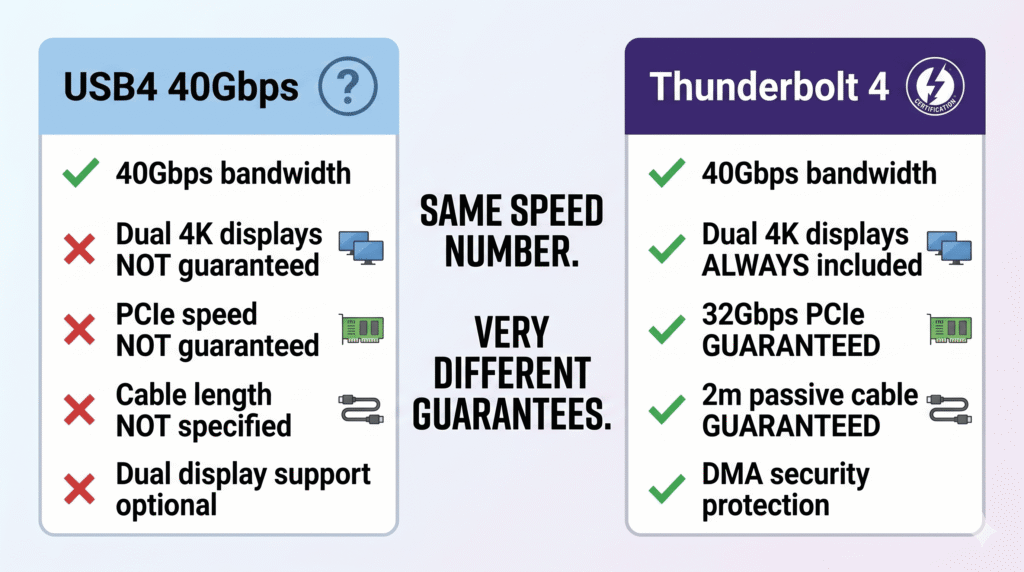
The important distinction: USB4 is a flexible standard. The specification allows manufacturers to ship a “USB4” port that only runs at 20Gbps, not 40Gbps. And even a 40Gbps USB4 port doesn’t guarantee dual-display support — that’s optional in the spec. This means USB4 products vary wildly.
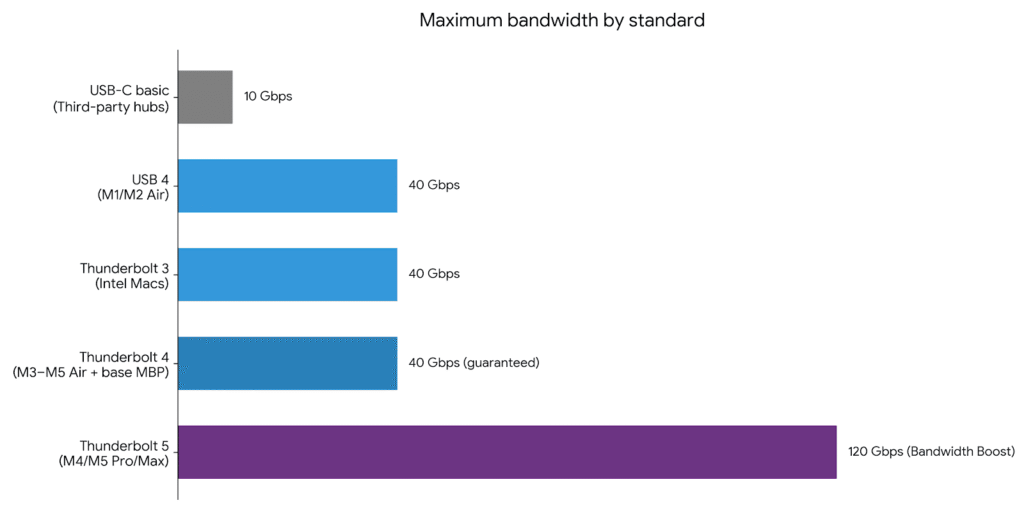
On Apple Silicon Macs: Apple calls the ports on M1 and M2 MacBook Air models “Thunderbolt / USB 4.” This is technically accurate — those ports are USB4 compliant but are running at Thunderbolt 3 level capability, not Thunderbolt 4. The distinction matters for display support, as we’ll cover below.
Thunderbolt 3
Thunderbolt 3 was the standard that changed everything when it launched in 2015. It was the first Thunderbolt to use the USB-C connector, and it brought 40Gbps bandwidth to a compact reversible plug.
What it can do:
- Data transfer: 40Gbps
- Video: DisplayPort 1.4 — up to 5K at 60Hz on a single display
- Power delivery: Up to 100W
- External displays: Up to 2 displays (but Apple’s implementation on M1 and M2 base chips only drives 1 external display — a chip hardware limit, not a Thunderbolt 3 limitation)
- Daisy chaining: Up to 6 Thunderbolt devices in a chain
- PCIe: 16Gbps for external storage and eGPUs
On Mac: Intel MacBook Pros used Thunderbolt 3. The M1 and M2 MacBook Air and 13-inch MacBook Pro use ports that Apple calls “Thunderbolt / USB 4” — they are Thunderbolt 3 equivalent in capability for most purposes, especially for display output. The 40Gbps bandwidth is present, but dual-display support depends on the chip, not just the port standard.
The cable note: Thunderbolt 3 passive cables (no active electronics) deliver full 40Gbps bandwidth up to 0.8 meters. Beyond that, you need an active cable, which costs more. This became less of a practical problem with Thunderbolt 4.
Thunderbolt 4
Thunderbolt 4 launched in 2020 and is, on paper, the same 40Gbps speed as Thunderbolt 3. So what changed? The minimum requirements.
Intel made Thunderbolt 4 certification stricter than Thunderbolt 3. Every certified Thunderbolt 4 port and device must meet a mandatory baseline that Thunderbolt 3 only required optionally.
What Thunderbolt 4 guarantees that Thunderbolt 3 did not:
- Full 40Gbps on every certified device — no slower implementations allowed
- Support for at least two 4K displays or one 8K display
- Minimum 32Gbps PCIe for external storage
- Passive cables work at full 40Gbps speed up to 2 meters (versus 0.8m for TB3)
- DMA protection (security against direct memory access attacks over the port)
- USB4 compatibility — every TB4 port is also a USB4 port
On Mac: MacBook Air M3, M4, and M5 all use Thunderbolt 4. The 14-inch MacBook Pro M3 Pro/Max, M4 base, and M5 base also use Thunderbolt 4. This is currently the most common standard on Mac laptops.
The comparison with USB4 at 40Gbps: If you have a USB4 40Gbps port and a Thunderbolt 4 port, the raw bandwidth is the same. But Thunderbolt 4 guarantees dual-display support and PCIe performance that USB4 40Gbps doesn’t have to provide. For docking station use, this matters. A Thunderbolt 4 dock connected to a Thunderbolt 4 Mac will always support dual 4K displays. A “USB4 dock” connected to a USB4 port might or might not, depending on both the dock and the port implementation.
Thunderbolt 5
Thunderbolt 5 is the current top-tier standard, first appearing on Macs with the M4 Pro and M4 Max chips in late 2024, and continuing on M5 Pro and M5 Max in 2026.
This is a genuine generational leap — not an incremental upgrade.
What Thunderbolt 5 delivers:
- Data transfer: 80Gbps bidirectional (double TB4)
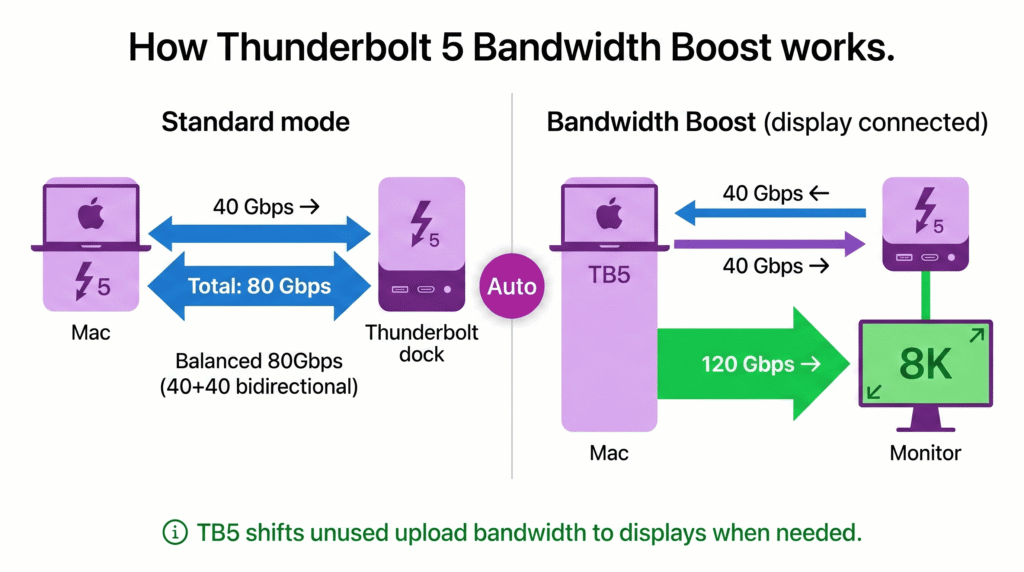
- Bandwidth Boost mode: Up to 120Gbps when the connected display requires it — the bandwidth dynamically reallocates from the upload direction to push more to the display
- Video: DisplayPort 2.1, supporting up to 10K resolution on a single display (compared to TB4’s DisplayPort 1.4 which maxes at 8K)
- Power delivery: Up to 240W via USB PD 3.1 — the 16-inch MacBook Pro with M4/M5 can now receive a full 140W charge through its Thunderbolt 5 ports, not just via MagSafe
- PCIe: Gen 4 (64Gbps) — doubled from TB4’s Gen 3 (32Gbps), enabling external NVMe drives to approach internal SSD speeds
- Passive cable length: 1.2 meters at full bandwidth (versus TB4’s 2 meters — a trade-off for the higher signal requirements)
Bandwidth Boost explained: When you connect a high-resolution display that needs more than 80Gbps of outbound bandwidth — say, an 8K display or two 4K 240Hz monitors — Thunderbolt 5 automatically shifts bandwidth from the bidirectional pool to support it. So instead of 80Gbps split evenly (40 up, 40 down), it temporarily allocates up to 120Gbps outbound for display data, while keeping 40Gbps available for data transfers. This happens automatically with no configuration required.
On Mac: Thunderbolt 5 is currently on MacBook Pro M4 Pro, M4 Max, M5 Pro, and M5 Max only. The MacBook Air (all models through M5), the base MacBook Pro, and the 14-inch MacBook Pro M4 base all use Thunderbolt 4. If your Mac has M4 or M5 but doesn’t have the Pro or Max chip, it does not have Thunderbolt 5.
Side-by-Side Comparison
| Standard | Max Speed | Cable Length (Passive) | Displays | Power Delivery | PCIe | On Which Macs |
|---|---|---|---|---|---|---|
| USB-C (Basic) | 5–10Gbps | Varies | 0–1 (inconsistent) | Up to 100W | No | Third-party accessories |
| USB 4 | 20–40Gbps | Varies | 1 (optional 2) | Up to 240W | Optional | M1/M2 Air (40Gbps) |
| Thunderbolt 3 | 40Gbps | 0.8m passive | 1–2 (depends on chip) | Up to 100W | 16Gbps | Intel Macs |
| Thunderbolt 4 | 40Gbps | 2m passive | 2 (4K) or 1 (8K) — guaranteed | Up to 100W | 32Gbps | M3/M4/M5 Air, base MBP |
| Thunderbolt 5 | 80Gbps (120Gbps boost) | 1.2m passive | Up to 4 (chip-dependent) | Up to 240W | 64Gbps | M4/M5 Pro/Max MBP |
What Your Mac Actually Has
One of the most common support questions in Mac communities is “what’s on the ports of my Mac?” Here’s the breakdown, model by model.
MacBook Air
| Model | Port Standard | Effective Capability |
|---|---|---|
| MacBook Air M1 (2020) | Thunderbolt / USB 4 | TB3-level: 40Gbps, 1 external display |
| MacBook Air M2 13-inch (2022) | Thunderbolt / USB 4 | TB3-level: 40Gbps, 1 external display |
| MacBook Air M2 15-inch (2023) | Thunderbolt / USB 4 | TB3-level: 40Gbps, 1 external display |
| MacBook Air M3 (2024) | Thunderbolt 4 | TB4: 40Gbps, 2 displays (lid closed) |
| MacBook Air M4 (2025) | Thunderbolt 4 | TB4: 40Gbps, 2 displays (lid open or closed) |
| MacBook Air M5 (2026) | Thunderbolt 4 | TB4: 40Gbps, 2 displays (lid open or closed) |
MacBook Pro 13-inch
| Model | Port Standard | Effective Capability |
|---|---|---|
| MacBook Pro 13-inch M1 (2020) | Thunderbolt / USB 4 | TB3-level: 40Gbps, 1 external display |
| MacBook Pro 13-inch M2 (2022) | Thunderbolt / USB 4 | TB3-level: 40Gbps, 1 external display |
MacBook Pro 14-inch and 16-inch
| Model | Port Standard | Effective Capability |
|---|---|---|
| MBP 14/16″ M1 Pro (2021) | Thunderbolt 4 | TB4: 40Gbps, 2 external displays |
| MBP 14/16″ M1 Max (2021) | Thunderbolt 4 | TB4: 40Gbps, 4 external displays |
| MBP 14/16″ M2 Pro (2023) | Thunderbolt 4 | TB4: 40Gbps, 2 external displays |
| MBP 14/16″ M2 Max (2023) | Thunderbolt 4 | TB4: 40Gbps, 4 external displays |
| MBP 14-inch M3 base (2023) | Thunderbolt / USB 4 | TB3-level: 40Gbps, 1 display (lid open) / 2 (lid closed) |
| MBP 14/16″ M3 Pro (2023) | Thunderbolt 4 | TB4: 40Gbps, 2 external displays |
| MBP 14/16″ M3 Max (2023) | Thunderbolt 4 | TB4: 40Gbps, 4 external displays |
| MBP 14-inch M4 base (2024) | Thunderbolt 4 | TB4: 40Gbps, 2 external displays |
| MBP 14/16″ M4 Pro (2024) | Thunderbolt 5 | TB5: 80Gbps / 120Gbps boost, 2+ external displays |
| MBP 14/16″ M4 Max (2024) | Thunderbolt 5 | TB5: 80Gbps / 120Gbps boost, 4 external displays |
| MBP 14-inch M5 base (2025) | Thunderbolt 4 | TB4: 40Gbps, 2 external displays |
| MBP 14/16″ M5 Pro (2026) | Thunderbolt 5 | TB5: 80Gbps / 120Gbps boost, 3 external displays |
| MBP 14/16″ M5 Max (2026) | Thunderbolt 5 | TB5: 80Gbps / 120Gbps boost, 4 external displays |
What This Means When Choosing a Dock
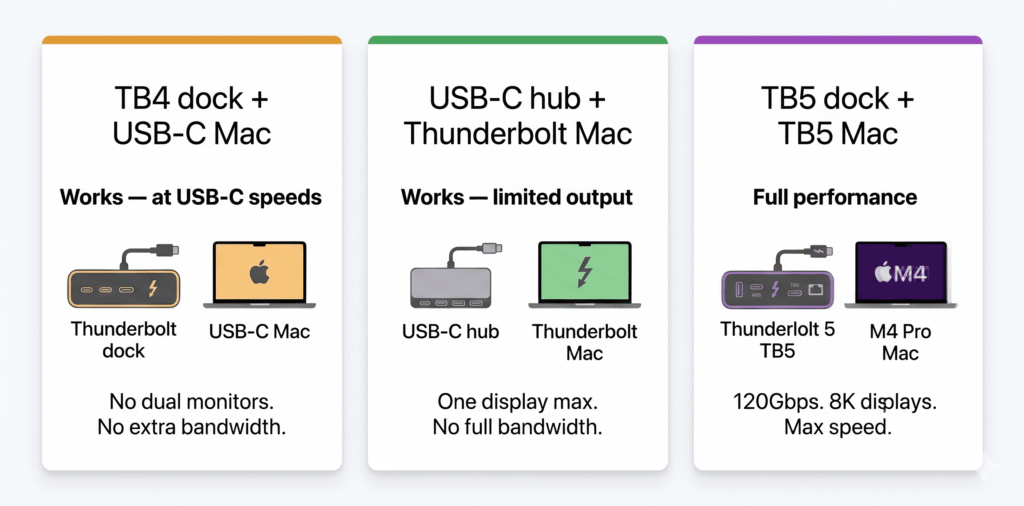
Understanding the standards matters most when you’re choosing a docking station. Here’s how to apply it practically.
A Thunderbolt dock on a USB-C Mac
If your Mac has a basic USB-C port (not Thunderbolt), a Thunderbolt 4 dock will still work — it falls back to USB-C speeds. You’ll get the ports, but not the full bandwidth. You won’t be driving dual 4K monitors through the Thunderbolt dock on a non-Thunderbolt Mac.
This is a common mistake: buying a $200 Thunderbolt 4 dock for a MacBook Air M1 thinking it’ll unlock dual monitors. It won’t. The M1 chip’s display limit is the constraint, not the dock or cable.
A USB-C hub on a Thunderbolt Mac
A basic USB-C hub works on any Mac — it just runs at USB-C speeds, not Thunderbolt speeds. For simple tasks like connecting a keyboard, mouse, USB drive, and charging, that’s fine. Where it falls short: video output. Most cheap USB-C hubs support one display at moderate resolution, not two 4K displays. And even that one display might drop to lower resolution or refresh rate because the hub’s internal chip can’t handle the full video bandwidth.
If you’re using a hub for display output on a Thunderbolt Mac, you’re leaving capability on the table. Use a Thunderbolt-certified dock to get what your Mac is actually capable of.
A Thunderbolt 4 dock on a Thunderbolt 5 Mac
This works perfectly at Thunderbolt 4 speeds. A TB4 dock connected to an M4 Pro or M5 Pro MacBook Pro runs at 40Gbps — full TB4 bandwidth, dual 4K display support, and all other TB4 features. You don’t get the 80Gbps Thunderbolt 5 bandwidth, but for most workflows, TB4 speeds are entirely adequate.
The only scenario where you’re actually held back by using a TB4 dock on a TB5 Mac: if you need three simultaneous 4K 144Hz monitors, are transferring data to an external NVMe at sustained speeds above 3GB/s, or are running an 8K display at full refresh. For everyone else, a TB4 dock on a TB5 Mac is not a limitation worth paying a large premium to solve.
A Thunderbolt 5 dock on a Thunderbolt 4 Mac
The dock works — at Thunderbolt 4 speeds. Bandwidth Boost doesn’t activate. You get TB4 performance (40Gbps, dual 4K). The dock is essentially acting as a future investment: when you upgrade to a TB5 Mac, you already have the dock.
This is a legitimate strategy if you’re planning a Mac upgrade in the next year or two and want the dock to outlast your current hardware.
The Cable Is Part of the Equation
One thing most buyers overlook: the cable between your Mac and dock is just as important as the dock itself. Using the wrong cable limits your connection to that cable’s rated speed, regardless of what your dock and Mac can do.
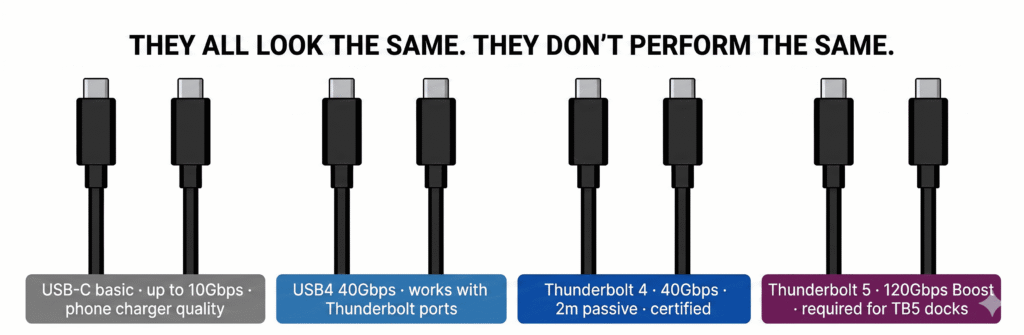
Thunderbolt 5 cable — Required for 80Gbps / 120Gbps Bandwidth Boost. Uses the same USB-C connector but is specifically engineered for Thunderbolt 5. Apple’s Thunderbolt 5 Pro Cable is 1 meter long and costs $69. You need this cable to unlock full TB5 performance from a TB5 dock on a TB5 Mac.
Thunderbolt 4 cable — Works at full TB4 speed (40Gbps) up to 2 meters passively. When used with a TB5 Mac and TB5 dock, it caps the connection at 40Gbps. These are widely available and cost $25–$50 for quality options.
Thunderbolt 3 cable — Works at 40Gbps up to 0.8 meters passively. Still compatible with TB4 and TB5 devices at up to 40Gbps (if within 0.8m). Older cables marked as TB3 often work fine; check the length.
USB4 cable (40Gbps) — Compatible with Thunderbolt ports and works at up to 40Gbps. Does not activate Thunderbolt 5 Bandwidth Boost. A reasonable, often cheaper alternative to a TB4 cable if you don’t need TB5 performance.
Standard USB-C cable — This is the big one to avoid for dock connections. A standard USB-C cable — the kind that comes with a phone charger — may run at USB 2.0 (480Mbps) internally. Plugging it in between your Mac and a Thunderbolt dock will silently limit your connection to USB 2.0 speeds even though the dock and Mac are both capable of 40Gbps. Always use a cable rated for the speed you need.
The rule: Your connection runs at the speed of the slowest component in the chain. Mac (TB5) → TB5 dock → TB4 cable = TB4 speeds. Mac (TB4) → TB4 dock → USB-C 10Gbps cable = USB-C 10Gbps speeds. Match your cable to your dock and Mac.
How to Tell Which Standard Your Port Actually Uses
The physical port looks identical across all these standards. Here’s how to identify what you actually have.
Check System Information on your Mac:
- Hold Option and click the Apple menu
- Select “System Information”
- Click “Thunderbolt/USB4” in the left sidebar
- Each port shows its name and supported speeds
Check Apple’s tech specs page: Go to apple.com/[your Mac model]/specs and look for the connectivity section. Apple lists the exact Thunderbolt version, USB4 version, and port count for every model.
Look at the port itself: Thunderbolt ports have a small lightning bolt icon next to them. If there’s no lightning bolt, it’s a basic USB-C port.
On docks and accessories: Look for the Intel Thunderbolt certification logo — a lightning bolt with the version number. “TB4” means certified Thunderbolt 4. “TB3” means Thunderbolt 3. No logo often means USB-C or USB4 without Thunderbolt certification.
Why Does Any of This Matter for Dock Buyers?
Let’s put it in concrete terms for the three most common Mac dock buying scenarios.
Scenario 1: MacBook Air M2, want to run two monitors
Your Mac has “Thunderbolt / USB 4” ports — that’s TB3-level. Its display limit is one external monitor natively, regardless of what dock you connect. A Thunderbolt 4 dock does not change this. To run two external monitors, you need a DisplayLink dock — one that uses software-based video compression to bypass the chip’s hardware display limit. Thunderbolt bandwidth is irrelevant here; what matters is DisplayLink certification.
Scenario 2: MacBook Air M4, want single-cable desk with dual monitors, Ethernet, and charging
Your Mac has Thunderbolt 4 ports and natively supports two external displays. Any certified Thunderbolt 4 dock handles this perfectly. You don’t need Thunderbolt 5. A UGREEN Revodok Max 213 or CalDigit TS4 at Thunderbolt 4 gives you everything you need at a price that makes sense for the capability your Mac actually uses.
Scenario 3: MacBook Pro M4 Max, running two 6K monitors plus external NVMe
Your Mac has Thunderbolt 5. Here is where the Thunderbolt 5 dock upgrade is genuinely justified. Pushing two 6K displays plus saturating an external NVMe drive simultaneously approaches the bandwidth ceiling of Thunderbolt 4. Thunderbolt 5’s 80Gbps baseline and 120Gbps Bandwidth Boost mean you’re no longer rationing bandwidth between displays and storage. The CalDigit TS5 Plus or OWC Thunderbolt 5 Dock are built for this exact use case.
Common Myths Debunked
“All USB-C cables are the same”
They are not. A USB-C cable can carry anything from 480Mbps (USB 2.0) to 120Gbps (Thunderbolt 5), depending on the electronics inside. The connector looks identical. The cable may even look identical. The only way to know is to check the cable’s rated specification — look for the Thunderbolt logo or the USB 40Gbps / USB4 marking on the cable itself. When in doubt, use the cable that came with your dock.
“A Thunderbolt 4 dock makes my Mac faster”
A dock provides connections. It doesn’t increase your Mac’s processing speed, GPU performance, or bandwidth ceiling. A TB4 dock on a TB4 Mac runs at TB4 speeds — the dock doesn’t add extra bandwidth beyond what the Mac’s port already supports. What a good dock does is ensure you’re using all of the bandwidth your Mac has available, without bottlenecks from cheap USB-C chips.
“Thunderbolt 4 and USB4 40Gbps are the same thing”
The bandwidth headline is the same: 40Gbps. But Thunderbolt 4 mandates specific capabilities — dual display support, PCIe performance, cable length — that USB4 40Gbps makes optional. In practice, a certified TB4 dock will reliably drive two 4K displays on a TB4 Mac. A “USB4 40Gbps dock” might or might not, depending on the manufacturer’s implementation.
“If my Mac is Thunderbolt 5, I need a Thunderbolt 5 dock”
You don’t need one — a TB4 dock works at full TB4 speeds. Whether a TB5 dock is worth it depends on your specific workflow. For most users, even on TB5 Macs, TB4 bandwidth is sufficient. The upgrade makes sense for heavy multi-display plus high-speed storage use cases, or as a future-proofing investment.
“A Thunderbolt dock works with any USB-C port”
Yes, it’ll connect — but it’ll run at USB-C speeds, not Thunderbolt speeds. Thunderbolt certification is on the Mac’s port, not just the dock. A TB4 dock connected to a basic USB-C port on a Windows laptop or an older Mac gives you USB-C performance: probably 5–10Gbps, no guaranteed dual-display support, and limited power delivery.
Thunderbolt vs USB-C: Which Do You Actually Need?
Here’s the honest answer by use case.
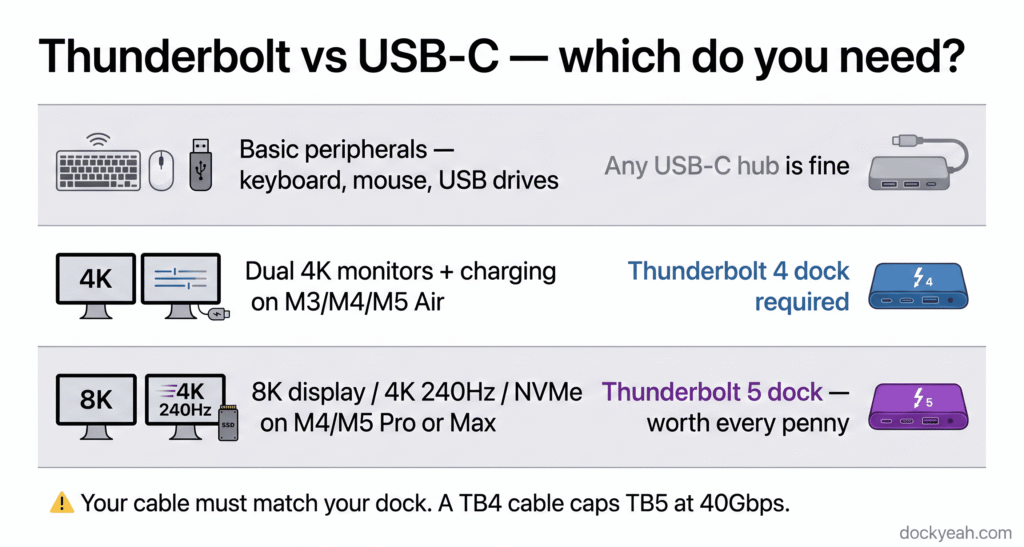
A basic USB-C hub is enough if:
- You need a few extra USB-A ports and maybe an SD card slot
- You’re connecting one monitor at 1080p or 1440p
- You don’t need Ethernet
- Budget is the priority and your Mac is M1 or M2 base chip
Thunderbolt 4 is what most Mac users need if:
- You want dual 4K displays natively on M3, M4, or M5 Air
- You need reliable 40Gbps bandwidth for external NVMe storage
- You want wired Ethernet at 1Gbps or 2.5Gbps alongside everything else
- You’re setting up a permanent home office or studio desk
Thunderbolt 5 makes sense if:
- Your Mac has M4 Pro, M4 Max, M5 Pro, or M5 Max
- You’re working with 8K video or multiple high-refresh 4K monitors simultaneously
- You’re using external NVMe drives at sustained speeds above 3GB/s
- You’re buying a dock now that you want to use with a TB5 Mac upgrade in the next 1–2 years
The vast majority of Mac laptop users — including many professionals — are well-served by Thunderbolt 4. It’s not a compromise. It’s a robust, fast, well-supported standard that handles everything from dual 4K displays to 40Gbps external storage without issue. Thunderbolt 5 is the right call for a specific set of heavy workflows and for buyers who are already on TB5-capable hardware.
Quick Reference: Picking the Right Cable
| What you need | Cable to buy |
|---|---|
| Charging only | Any USB-C cable with sufficient wattage |
| USB-A peripherals through a hub | Any USB-C cable |
| Single display + charging through TB4 dock | Thunderbolt 4 cable or USB4 40Gbps cable |
| Dual displays through TB4 dock | Thunderbolt 4 cable |
| Full TB5 performance (80Gbps) | Thunderbolt 5 cable |
| TB5 Bandwidth Boost (120Gbps displays) | Thunderbolt 5 cable — not a TB4 cable |
| Long cable run (>1m) for TB5 | Active Thunderbolt 5 cable |
Frequently Asked Questions
Is Thunderbolt backward compatible with USB-C?
Yes — any Thunderbolt port accepts USB-C devices and cables. Thunderbolt 4 ports accept USB-C cables, USB4 devices, TB3 devices, and TB4 devices. The connection negotiates to the highest speed both ends support. Plugging a USB-C keyboard into a Thunderbolt port works fine. Plugging a Thunderbolt 4 external drive into a basic USB-C port also works — at USB-C speeds.
Can I use a Thunderbolt 4 dock on a MacBook with “Thunderbolt / USB 4” ports?
Yes. The dock connects and works. You get 40Gbps bandwidth and the dock’s ports all function. The main limitation is display count — a MacBook Air M1 or M2 still only drives one external display natively, even with a TB4 dock. The dock doesn’t change the chip’s hardware display limit.
My dock has a Thunderbolt logo but my Mac only has USB-C. Will it work?
It will connect, but at USB-C speeds. If the dock has Thunderbolt downstream ports, they run at their rated Thunderbolt speed for Thunderbolt devices plugged into them. The host connection to your Mac is the bottleneck — not Thunderbolt speeds.
What happens if I use a USB-C cable with a Thunderbolt dock?
If it’s a USB4 40Gbps cable, you get 40Gbps — functionally equivalent to a Thunderbolt 4 cable for most purposes. If it’s a basic USB-C cable, you may get 5Gbps, 10Gbps, or even 480Mbps depending on the cable’s rating. Always use a cable rated for the speed you need, and when possible, use the cable that shipped with your dock.
Does it matter if the dock is Thunderbolt certified vs just USB4?
For Mac users specifically: yes, it matters for dual-display support. A Thunderbolt 4 certified dock guarantees it supports two 4K displays. A USB4 dock might or might not — it’s manufacturer-dependent. For everything else — data speeds, charging — a quality USB4 40Gbps dock is largely equivalent to Thunderbolt 4. The certification difference shows up most at the edge cases: multi-display setups and long cable runs.
Will Thunderbolt 5 come to future MacBook Air models?
Apple hasn’t announced this. Historically, the Pro and Max chips get new connectivity standards first, and base chips follow one or two generations later. Thunderbolt 3 went from Pro to Air with one generation of lag. TB4 took two generations to reach the Air. If the pattern holds, TB5 might reach MacBook Air M6 or M7 — but that’s speculative. For now, all MacBook Air models through M5 use Thunderbolt 4.
The Bottom Line
The short version of everything above is this:
USB-C is the connector. Thunderbolt is what runs inside it. The two look the same but behave very differently — and the difference directly affects how many monitors you can run, how fast your external drives perform, and how reliably your dock handles a full desk setup.
For almost every current MacBook Air user, Thunderbolt 4 is the right dock target. For MacBook Pro M4 Pro/Max and M5 Pro/Max users with demanding workflows, Thunderbolt 5 is worth the investment. For M1 and M2 Air users who want dual monitors, the Thunderbolt version doesn’t matter — DisplayLink is the solution.
Match your dock and cable to what your Mac’s chip actually supports. That’s the only equation that matters.
All specifications in this article are based on Intel’s official Thunderbolt documentation, the USB-IF specification sheets, and Apple’s published technical specifications. Verified May 2026.