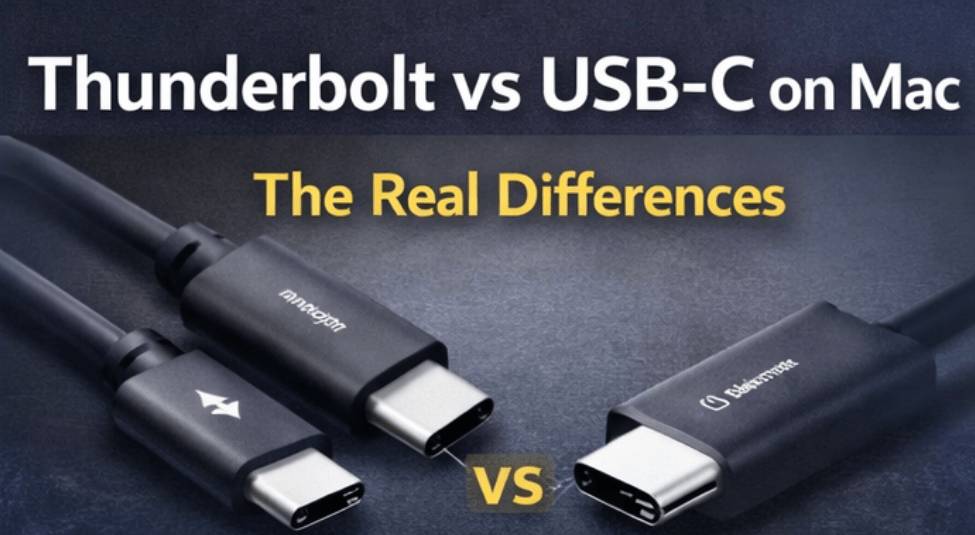
If you’ve ever looked at the side of your MacBook and thought, “It’s USB-C, so any USB-C dock should work the same,” you’re not alone.
The connector looks identical. The cables look similar. Many docks advertise both terms in the same sentence.
But on a Mac, Thunderbolt and USB-C are not interchangeable concepts. The shape of the port is the same. The capabilities behind it are not.
This guide explains what actually changes between USB-C and Thunderbolt on Macs, when Thunderbolt truly matters, and when a good USB-C solution is perfectly sufficient.
No marketing language. Just practical differences.
First: USB-C Is a Connector. Thunderbolt Is a Technology.
This is the root confusion.
- USB-C describes the physical connector shape.
- Thunderbolt describes a high-bandwidth data and display protocol that can run over a USB-C connector.
So when you see a USB-C port on a Mac, it could be:
- USB-C only
- Thunderbolt 3 / 4 / 5 (depending on model)
- USB4 (which overlaps heavily with Thunderbolt in newer Macs)
Visually identical. Technically very different.
The Core Differences That Matter on Mac
For docking and multi-monitor setups, the differences show up in five main areas:
- Bandwidth
- Display capability
- PCIe device support
- Daisy chaining
- Stability under load
Let’s go through them realistically.
1) Bandwidth: The Ceiling of What’s Possible
Typical USB-C (non-Thunderbolt) on many docks:
- 5Gbps or 10Gbps data bandwidth
Thunderbolt:
- Up to 40Gbps (and higher with newer revisions)
That bandwidth matters because your dock is not just carrying:
- One monitor
- One USB drive
It’s often carrying:
- Two displays
- Ethernet
- SSDs
- Webcam
- Audio
- Charging
With USB-C, everything shares a smaller data pipe.
With Thunderbolt, the pipe is significantly wider.
Real-world impact:
- Two 4K 60Hz monitors are much more reliable over Thunderbolt.
- External NVMe SSDs hit higher speeds over Thunderbolt.
- High refresh rates are easier to maintain.
If you only need:
- One 1080p monitor
- A keyboard and mouse
- Basic Ethernet
USB-C is often enough.
2) Display Support on Mac
This is where people make expensive mistakes.
USB-C docks typically rely on:
- DisplayPort Alternate Mode (DP Alt Mode)
That means your Mac’s GPU sends a display signal through the USB-C port directly.
But:
- Bandwidth is limited.
- Multi-display behavior depends heavily on macOS support.
- MST behavior differs from Windows.
Thunderbolt docks:
- Carry full PCIe and DisplayPort tunneling.
- Allow more flexible multi-display routing.
- Are more predictable for dual high-resolution setups.
On Macs that support two external displays natively, Thunderbolt makes dual 4K far more stable and straightforward.
3) External Storage Performance
If you’re using external SSDs:
- USB-C docks often cap speeds based on internal hub controllers.
- Thunderbolt docks allow PCIe-level access.
In real terms:
A fast NVMe SSD might:
- Perform at ~900–1000MB/s over USB-C
- Perform at 2500MB/s+ over Thunderbolt
If your workflow includes:
- Video editing
- Large file transfers
- Backup workflows
Thunderbolt matters.
If you’re just:
- Moving documents
- Using Time Machine
- Occasional file copy
USB-C is usually sufficient.
4) Daisy Chaining and Complex Setups
Thunderbolt supports daisy chaining devices.
For example:
Mac → Thunderbolt dock → monitor → storage device
USB-C typically does not support this in the same structured way.
If you plan a more modular or expandable desk setup, Thunderbolt provides more flexibility.
5) Stability Under Heavy Load
This is something people discover months later.
When you run:
- Dual monitors
- External SSD
- Ethernet
- Webcam
- Charging
All through a USB-C hub…
You’re asking a lot from limited bandwidth.
Symptoms of pushing USB-C too far:
- 4K drops to 30Hz
- File transfers slow down when monitors are active
- Ethernet performance fluctuates
- Devices randomly disconnect
Thunderbolt setups are less likely to show these stress behaviors.
Not because USB-C is “bad,” but because it’s narrower.
The Mac-Specific Reality
Modern Apple Silicon Macs generally include Thunderbolt ports on higher-tier models.
But not every Mac port is equal across the lineup.
You need to confirm:
- Is your port Thunderbolt-capable?
- How many external displays does your Mac support natively?
- Are you exceeding bandwidth expectations?
The connector shape alone tells you nothing.
When USB-C Is Absolutely Fine
You do NOT need Thunderbolt if:
- You use one external monitor (1080p or 1440p)
- You don’t need ultra-fast external storage
- You don’t need dual 4K 60Hz
- Your setup is lightweight and portable
Many people overspend on Thunderbolt when a quality USB-C hub would have done the job.
When Thunderbolt Is the Safer Choice
Thunderbolt is strongly recommended if:
- You want dual 4K 60Hz
- You use a Pro/Max Mac and want native multi-display
- You run external NVMe drives at high speeds
- You want future-proofing
- You dislike troubleshooting bandwidth bottlenecks
It simplifies life in heavier desk setups.
Real User Patterns
Pattern 1: “USB-C was fine… until I added the second monitor.”
Single monitor → no issues.
Add second 4K display → 30Hz cap appears.
Move to Thunderbolt → problem disappears.
Pattern 2: “My SSD slowed down when monitors were connected.”
Because the USB-C dock shares bandwidth.
Thunderbolt isolates high-bandwidth workloads better.
Pattern 3: “Everything works, but randomly disconnects.”
Often:
- Cheap USB-C hub
- Power delivery strain
- Cable limitations
Thunderbolt docks tend to be more robust in desk setups.
The Cable Confusion
Important point:
A USB-C cable is not automatically Thunderbolt.
Thunderbolt cables:
- Have specific certification
- Support higher bandwidth
- Are often thicker/active
Using a basic USB-C cable with a Thunderbolt dock can bottleneck the entire system.
Always confirm cable capability.
Cost Consideration
Thunderbolt docks are more expensive.
That’s not branding. It’s engineering.
They include:
- More complex controllers
- PCIe support
- Higher power delivery
- Higher display bandwidth
If your use case doesn’t require those features, USB-C can save money.
Quick Decision Framework
Ask yourself:
- How many monitors?
- What resolution and refresh rate?
- Do I use fast external storage?
- Is this a permanent desk setup?
- Do I want minimal troubleshooting?
If you answered:
- “One monitor, light usage” → USB-C is fine.
- “Dual 4K, SSD, full desk setup” → Thunderbolt is the safer investment.
The Honest Bottom Line
USB-C is not inferior.
Thunderbolt is not automatically necessary.
But they are not equal.
USB-C is ideal for portability and light expansion.
Thunderbolt is ideal for bandwidth-heavy, multi-display, workstation setups.
The mistake isn’t choosing USB-C.
The mistake is expecting USB-C to behave like Thunderbolt when your setup demands more.