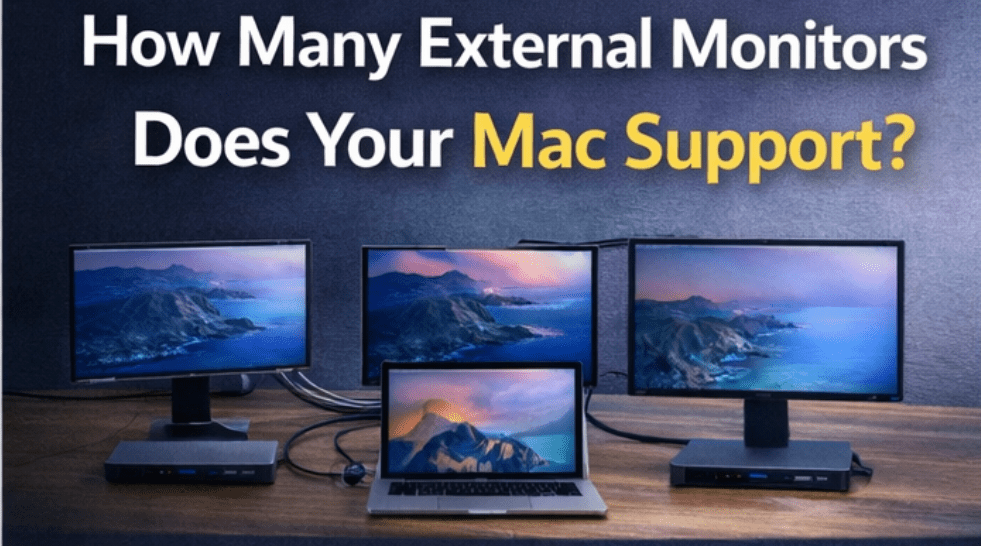
(Full Guide — Mac Models Explained)
Most Mac users assume “more ports = more monitors” — but on Macs, that’s rarely the case.
Display support depends on chip architecture, model lineup, and native vs software workarounds. Especially with Apple Silicon, models differ significantly.
This guide tells you, model by model, how many external monitors you can realistically connect — what works natively, what requires DisplayLink, and what doesn’t work.
We cover:
- All major Mac notebooks and desktops
- Base vs Pro/Max/Ultra differences
- Practical scenarios (dual 4K, triple monitor)
- When you must use DisplayLink
The Core Principle (What Determines External Displays)
1️⃣ GPU Display Pipelines
Macs have a set number of display channels they can drive natively.
Base chips tend to have fewer.
2️⃣ Port Type
- USB-C alone doesn’t mean multi-display
- Thunderbolt ports matter for bandwidth and native multi-display
3️⃣ Software Workarounds (DisplayLink)
If the chip can only drive one native display, DisplayLink is often the practical second display.
MACBOOK MODELS — EXTERNAL DISPLAY SUPPORT
Apple Silicon Categorization
Apple Silicon chips generally come in tiers:
- Base: M1, M2, M3, M4 (standard versions)
- Pro: M1 Pro, M2 Pro, M3 Pro, M4 Pro
- Max: M1 Max, M2 Max, M3 Max, M4 Max
- Ultra: M-series Ultra (Mac Studio)
These tiers determine display support limits.
MacBook Air
MacBook Air (M1)
- Native external displays: 1
- Dual monitor support: Native x1 + DisplayLink x1
- Best practical solution for 2 screens: DisplayLink
MacBook Air (M2)
- Native external displays: 1
- Same logic as M1
MacBook Air (M3)
- Apple changed behavior here.
- Some M3 Air configurations support 2 external displays natively without DisplayLink.
- But check your specific SKU — Apple’s documentation varies.
- If dual monitor doesn’t work natively → DisplayLink still applicable.
MacBook Air (M4)
- Like M3: generally 2 external displays native
- But:
- Dual extended monitors may require Thunderbolt-aware docks
- Mirroring is always possible; extension depends on hardware
Bottom line—Air:
- M1 & M2 → 1 native + DisplayLink for second extended
- M3 & M4 → 2 native (often), DisplayLink optional
MacBook Pro — 13″ (Base Chip)
MacBook Pro 13″ (M1)
- Native external: 1
- Classic “single display” limitation
- DisplayLink is the typical workaround for dual monitors
MacBook Pro 13″ (M2)
- Same behavior: 1 native
- DisplayLink = practical second display
Base 13″ Pros are not Pro-chip variants; they behave like Airs.
MacBook Pro — 14″ & 16″ (Pro/Max)
Pro/Max Behavior
These models actually break the “single-monitor” stereotype.
They typically support multiple external displays natively because:
- Pro/Max chips have multiple display pipelines
- Thunderbolt bandwidth is full
Here’s the rough support pattern by generation:
M1 Pro / M1 Max
- M1 Pro → 2 externals (native)
- M1 Max → 3 externals (often + one 4K TV via HDMI)
M2 Pro / M2 Max
- M2 Pro → 2–3 externals
- M2 Max → 4+ externals
M3 Pro / M3 Max
- Similar to above — generally 2–4 (model-dependent)
M4 Pro / M4 Max
- Latest generation, similar pattern
- Expect 2+ external monitors as native
Important: Even if the system can support 3–4 monitors, the connector and dock you choose still matter.
Use a Thunderbolt dock with full display support if possible.
Mac Mini
Mac mini (M1)
- Native external displays: 2
- Apple says 1 via Thunderbolt + 1 via HDMI
- Very common stable dual monitor setup
Mac mini (M2)
- Same behavior: 2 native externals
Mac mini (M3 / M4)
- Similar — supports multiple external displays
- With Thunderbolt dock, you can drive at least two large externals easily
Mac Studio (Max / Ultra)
Mac Studio variants with:
- Max
- Ultra
support multiple external monitors natively — often 3–5 displays depending on resolution.
Typical real-world setups:
- 3 × 4K 60Hz
- 2 × 6K Apple Display + 1 × 4K
- High refresh configurations
- Multi-display creative desks
Bandwidth is abundant; you want a Thunderbolt dock that can fan out multiple DP/HDMI without artificial caps.
🖥 iMac (Intel & M1)
Since Apple reintroduced iMac with M-series:
- Some models support 2 externals
- Others behave closer to the mini pattern
Check specific spec sheet.
DISPLAYLINK: When You Still Need It on Macs
Apple’s native support is growing, but there are still situations where DisplayLink makes sense:
When to consider DisplayLink
✔ Your Mac historically supports only one native external monitor
✔ You want extended desktop across two screens
✔ You use productivity apps (not high-fps gaming)
✔ You want expanded multi-display without investing in a Pro/Max
When to skip DisplayLink
✘ You have a Mac that supports >1 external natively
✘ You want native GPU display output
✘ You want minimal latency / driver-free setup
Real World Examples
Here are practical setups that have worked for real users — not theoretical specs.
Example 1 — Base M2 Air, two Dells (1080p)
- Native support: 1
- Dual workspaces via DisplayLink
- Setup stays stable for web, docs, spreadsheets
Example 2 — M3 Pro with two 4K 60Hz
- Native support: yes
- Thunderbolt dock + good cables
- Stable extended mode, no drivers
Example 3 — Mac mini M2, one ultrawide + one 4K
- Native support: 2
- Dock optional; monitor connections direct via HDMI + DP
Example 4 — MacStudio Ultra with 3 × 6K
- Native support: many
- Thunderbolt dock that can fan out DisplayPort is best
How to Confirm Your Specific Model’s Support
Before you buy hardware (dock/cable/adapter), do this:
1) Check System Info
→ About This Mac → System Report → Graphics/Displays
See how many displays are listed when connected.
2) Look at Apple’s official specs
Visit Apple’s support/spec page for your exact model.
3) Check your port labels
Thunderbolt ports are usually marked with a lightning bolt.
USB-C ports may not support Thunderbolt.
4) Test with a known working display
One good quality cable + one monitor to confirm basic support.
Fast Decision Table
| Mac Model | Native External Displays | DisplayLink Needed? | Ideal Dock Type |
|---|---|---|---|
| Air M1 | 1 | Yes (for second) | DisplayLink dock |
| Air M2 | 1 | Yes | DisplayLink dock |
| Air M3 | 1–2 | Optional | Thunderbolt or DisplayLink |
| Air M4 | 2 | No | Thunderbolt dock |
| Pro 13″ M1/M2 | 1 | Yes | DisplayLink (if 2 needed) |
| Pro/Max M1/M2/M3/M4 (14″/16″) | 2–4+ | No | Thunderbolt dock |
| Mac mini M1/M2/M3/M4 | 2+ | No | Thunderbolt/DP |
| Mac Studio | 3–5+ | No | Thunderbolt multi-display |
Practical Purchasing Tips
Don’t buy based on port count
Two HDMI outputs ≠ two independent displays on Mac.
Don’t buy a cheap hub for dual 4K
Unless it’s a reviewed DisplayLink solution for the model.
Always confirm cable specs
Cheap USB-C cables can limit 4K or 60Hz even if the dock and GPU support it.
If you need three or more monitors
Even on Pro/Max, use a high-tier Thunderbolt dock with multiple DP outputs.
Troubleshooting Common Scenarios
Only one monitor shows up
- Your Mac may not natively support two displays
- The hub may not be splitting real video streams
Displays mirror instead of extend
- macOS may default to mirror when it can’t create independent streams
Low refresh rates (30Hz)
- Bandwidth bottleneck in hub/cable
- Your dock may not support HDMI 2.0/DP1.2+
Sleep/wake loss of monitors
- Often a firmware/cable interaction — try direct connections
Summary
Here’s the truth in plain language:
- Base Macs (M1/M2): one native external — DisplayLink is the main way to get two.
- Air M3/M4: often two native — easier.
- Pro/Max/Ultra Macs: multiple native externals — Thunderbolt is the real enablement.
- Desktop Macs: generally more ports + more displays.
The real challenge isn’t counting cables.
It’s matching your Mac’s native capability with the right hardware path — whether that’s DisplayLink or Thunderbolt — so your desk setup actually works.