Last Updated: May 2026 | By dockyeah.com
Affiliate Disclosure: dockyeah.com participates in the Amazon Services LLC Associates Program. We may earn a commission if you buy through our links, at no extra cost to you.
Quick Answer
| 🎮 Can you game on a DisplayLink monitor? | Yes — it works. But it introduces latency and motion quality issues that range from barely noticeable to genuinely frustrating depending on the game |
| ⚡ Is it as good as native GPU output? | No. DisplayLink always adds processing delay. On slower-paced games the gap is small. On fast competitive games, it matters |
| 🖥️ Best gaming approach with a dock | Use native GPU output for your gaming monitor whenever possible. Use DisplayLink only for secondary screens |
| 🏆 Best dock for gaming on Mac | Plugable TBT-UDT3 (TB5, native output, 4K@240Hz on M4/M5 Pro/Max) |
| 💡 If you’re on M1/M2 Air or MacBook Neo | DisplayLink is your only external display option — and it’s workable for most games |
Mac gaming has changed dramatically over the last few years. Apple Silicon chips are genuinely powerful enough to run real games at real frame rates. The Mac App Store has grown a proper games library. And a lot of Mac users who bought their laptop for work have discovered they also want to use it for gaming — often through the same dock setup they use all day.
That’s where it gets complicated. Many Mac users rely on DisplayLink docks because their chip limits them to one external display natively. DisplayLink solves the display count problem. But it also introduces a processing layer between your GPU and your monitor that has real implications for gaming — some visible, some invisible, depending entirely on what you play.
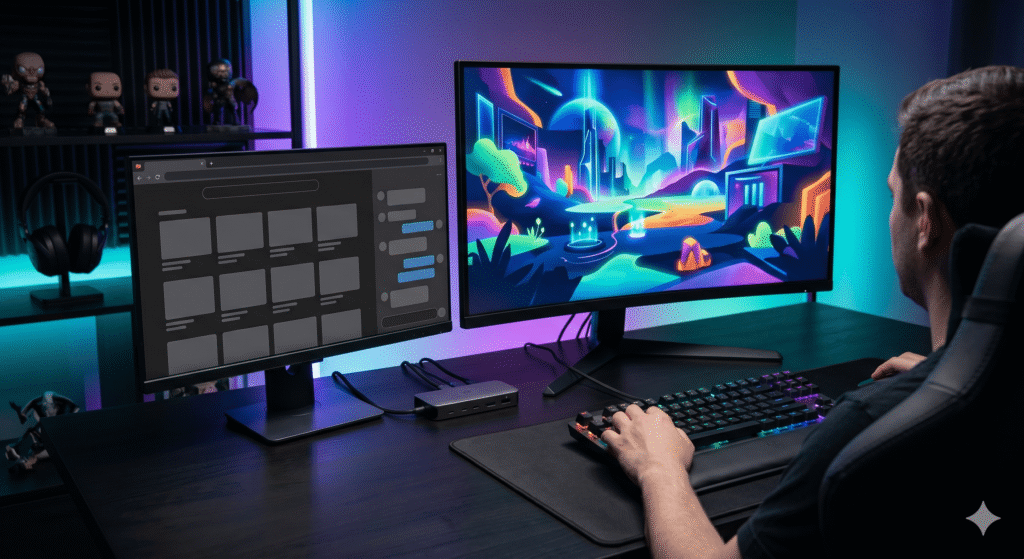
This article covers everything you need to know: how DisplayLink affects gaming performance, which types of games work well, which types suffer, what to expect from each Mac model, and how to set up your dock to get the best gaming experience possible.
How DisplayLink Affects Gaming Performance
To understand the impact on gaming, you need to understand the extra step DisplayLink adds to the display pipeline.
With native GPU output, the game renders a frame, the GPU sends it to the Thunderbolt controller, and it appears on your monitor. The path is hardware all the way through. The delay from frame completion to pixel illumination is measured in fractions of a millisecond.
With DisplayLink, the path is longer. The game renders a frame. The DisplayLink driver running on your Mac captures that frame, compresses it into a video stream, sends it over USB to the dock, the dock’s chip decompresses it, and outputs it to the monitor. Every step in that compression-and-decompression chain takes time. The result is measurable latency added on top of whatever your monitor’s native response time is.
In practice, this added latency falls somewhere in the range of 8 to 40 milliseconds depending on the DisplayLink driver version, the dock hardware, the resolution, the refresh rate, and how loaded your Mac’s CPU is at the time. On a good day with a current dock, it’s at the lower end. During heavy CPU load — which gaming often creates — it pushes higher.
For context: competitive FPS players consider anything above 16ms (60Hz equivalent) to be a noticeable disadvantage. Casual gamers often don’t notice latency differences under 50ms. Where DisplayLink gaming lands for you depends heavily on which category you fall into.
The Three Factors That Determine Your Experience
1. Game Genre
This is the biggest variable. Not all games care about display latency in the same way.
Turn-based games: Completely unaffected. Civilisation, chess, card games, strategy games that pause waiting for your input — DisplayLink adds nothing here that matters. You make a decision; the game processes it. The 20ms delay between your action and the display update is invisible.
Slow-paced adventure and RPG games: Largely unaffected. Story-driven games, open world exploration, point-and-click adventures — these aren’t frame-timing-sensitive. The slight motion blur on fast pans might be faintly visible, but it doesn’t impact gameplay.
Casual and indie games: Generally fine. Puzzle games, platformers at moderate speed, simulation games — most of these fall below the threshold where DisplayLink’s latency becomes a problem in practice.
Action-RPGs and moderate-paced action games: Noticeable but manageable. Fast combat in games like Diablo, action in Hades, fighting games — you will feel something is slightly off compared to native display if you’ve played both. For many players it remains acceptable.
Fast-paced shooters and competitive games: This is where DisplayLink genuinely hurts. In games where you’re tracking targets, snap-aiming, or reacting to fast-moving visual information, the added latency is a real competitive disadvantage. The mouse input feels slightly disconnected from what you see on screen.
Racing and rhythm games: Timing-critical. These genres have very tight feedback loops between input and visual response. DisplayLink’s delay disrupts the feel of rhythm games and makes precise cornering in racing games harder to read.
2. Refresh Rate
DisplayLink at 60Hz is more forgiving than DisplayLink at higher refresh rates, counterintuitively. At 60Hz, each frame lasts about 16.7ms — there’s already a baseline frame delay that makes the additional DisplayLink compression less perceptible in the overall experience.
At 120Hz or 144Hz, where each frame lasts 8.3ms or 6.9ms, DisplayLink’s added latency is a larger fraction of the frame time. The monitor is trying to refresh faster, but the DisplayLink pipeline can’t always keep up consistently, which creates inconsistent frame pacing rather than clean high-refresh smoothness.
For DisplayLink gaming, 60Hz is the sweet spot. Running a DisplayLink monitor at 120Hz+ doesn’t deliver the experience you’d expect from a high-refresh display.
3. CPU Load
DisplayLink compresses your display signal on your Mac’s CPU. Gaming also loads the CPU significantly. Both running at the same time means your CPU is doing two demanding jobs simultaneously.
On M3, M4, and M5 chips — which have large core counts and substantial thermal headroom — this dual load is usually manageable. The DisplayLink overhead stays in the 5–10% CPU range during gaming, and the chip has enough spare capacity to handle it without noticeably degrading either task.
On M1 and M2 base chips (4 performance cores), the combination is tighter. You may see the DisplayLink monitor become slightly choppier during intense CPU-heavy game moments, or notice the frame rate of the game dip slightly more than it would without DisplayLink running.
Best Gaming Scenarios with DisplayLink
Scenario 1: DisplayLink as a Secondary Screen While Gaming on a Native Display
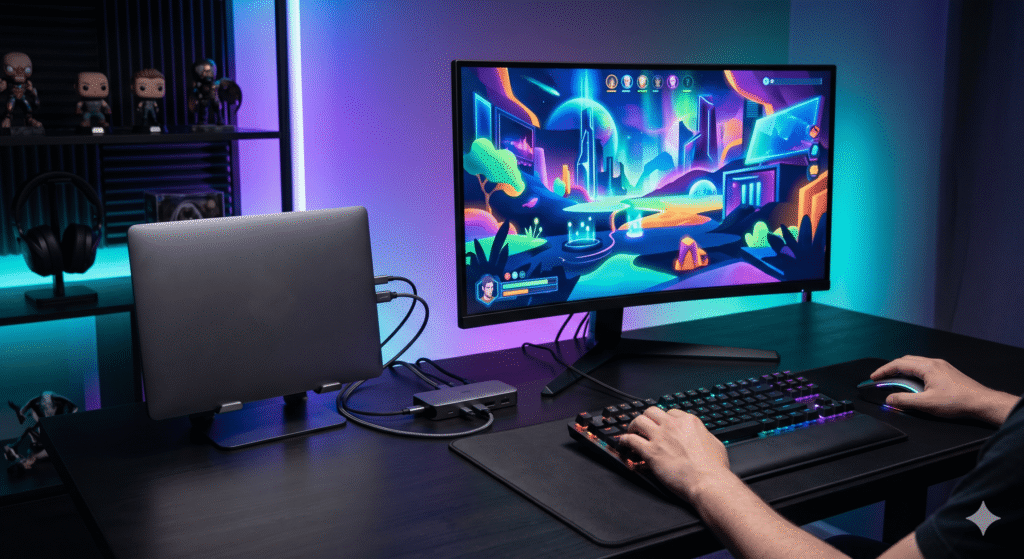
This is the best possible use of DisplayLink in a gaming context, and it’s how most Mac desk setups should be arranged.
If your Mac has any native display output capability — Thunderbolt, the built-in display — you run your game on the native display. The DisplayLink monitor sits beside it showing your Discord chat, a stream, a map, system stats, or whatever reference content you want alongside the game.
The secondary DisplayLink display handles entirely static or low-motion content, so the compression overhead is minimal. The game itself runs at full native quality with zero DisplayLink lag. This setup gives you the multi-screen gaming experience without compromising the experience of the game itself.
Who this works for: Any Mac with Thunderbolt, MacBook Pro users, M3/M4/M5 Air users with a native dock.
What you need: One dock port with native output (HDMI 2.0+ or Thunderbolt) for your gaming monitor, and DisplayLink for the secondary screen.
Scenario 2: DisplayLink as the Only Display (M1/M2 Air or MacBook Neo)
If you have an M1 or M2 MacBook Air, or a MacBook Neo, you may have no choice. These machines are limited to one external display natively — and for Neo, even that one display is capped at 4K@60Hz from the left USB-C port with no Thunderbolt available. If you want to game on an external monitor through a dock, DisplayLink is the technology delivering that image.
The good news: for the genres that make up most casual Mac gaming — RPGs, strategy, adventure, simulations, indie titles — DisplayLink at 4K@60Hz is a perfectly acceptable gaming display path. You’re not going to win Valorant tournaments on it, but you’ll have a fine time in Hades, Stardew Valley, Baldur’s Gate 3, or Civilization VII.
The less good news: if you try to run high-refresh competitive games on a DisplayLink monitor as your only output, you’ll feel the latency in a way that affects enjoyment.
What to set: 1440p@60Hz on the DisplayLink monitor gives you the best combination of image quality and compression efficiency. Native 4K@60Hz through DisplayLink is possible but slightly less consistent in frame pacing.
Scenario 3: Using the Mac Built-In Display for Gaming, DisplayLink for Everything Else
For MacBook Air users at a desk who game occasionally, a simple approach works well: use the built-in MacBook display as your gaming screen (it’s a native GPU output, no latency overhead), and let the DisplayLink monitors handle productivity work.
The built-in display on M-series MacBook Air and Pro models is excellent — bright, colour-accurate, high resolution, low response time. For gaming sessions, closing the extra windows and using the built-in screen as your primary gives you a fully native experience.
This means your dock’s DisplayLink monitors are off or showing reference content during gaming, and you’re treating the dock as a productivity tool rather than a gaming peripheral.
Scenario 4: Turn-Based and Strategy Gaming on Any Display
If your game catalogue skews toward strategy, simulation, card games, or turn-based titles, this whole conversation becomes much simpler. DisplayLink is completely fine. Frame timing, input latency, and motion handling barely apply to these genres. You can run Civilisation VII or XCOM at 4K on a DisplayLink monitor at 60Hz and have an excellent experience.
This is worth stating plainly because a lot of Mac gaming actually falls into this category. The Mac gaming renaissance has brought strong support for games like Civilisation VII, Total War, Stardew Valley, Baldur’s Gate 3, World of Warcraft, and various indie titles — many of which are entirely comfortable on DisplayLink displays.
What Doesn’t Work Well
Competitive and Fast-Paced FPS Games
Games where precise aiming, tracking, and reaction time are central — Valorant, CS2, Overwatch 2, Apex Legends — are where DisplayLink creates the most friction. The added latency disrupts the connection between mouse movement and on-screen cursor response. At the competitive level, that disruption is meaningful. At a casual level, you’ll notice it and may or may not find it acceptable.
If you play these games seriously, DisplayLink as your primary gaming display is a meaningful handicap. The fix is using native GPU output for these games — which means either using your MacBook’s built-in display, or having a dock with a native (non-DisplayLink) video output.
High-Refresh Competitive Gaming
Running a 144Hz or 240Hz monitor through DisplayLink doesn’t give you the high-refresh experience. The DisplayLink pipeline can’t deliver consistent sub-7ms frame timing at 144Hz. You’ll get a monitor running at high refresh technically, but the frame pacing consistency that makes high refresh rates feel smooth won’t be there.
If high-refresh gaming is important to you, that display needs native GPU output — Thunderbolt or USB-C Alt Mode — not DisplayLink.

Rhythm Games
Games with strict audio-visual synchronisation — beat matching, note-hitting, timing-based mechanics — are particularly sensitive to display latency. The offset between the audio cue (which comes through your headphones or speakers with very low latency) and the visual cue (which arrives on screen after the DisplayLink pipeline) can throw off timing in a way that doesn’t calibrate out. If rhythm games are your thing, native display output is strongly preferable.
VRR / Adaptive Sync
Variable refresh rate technologies — FreeSync, G-Sync, Adaptive Sync — do not work through DisplayLink. These technologies work at the hardware signal level between the GPU and the monitor, and DisplayLink’s compression layer sits in between, breaking the direct connection required for VRR to function. Even if your monitor supports VRR and your game supports it, you won’t get it through a DisplayLink output.
For smooth gaming without frame rate fluctuation, native GPU output is required.
Mac Model by Model — Gaming Through DisplayLink
MacBook Air M1 (2020) — DisplayLink Is the Only Option for External Gaming
The M1 Air drives one external display. If you game on an external monitor through a dock, that monitor is almost certainly DisplayLink. For the M1’s GPU performance level — competent at 1080p/1440p in less demanding titles — DisplayLink at 1440p@60Hz is the practical configuration.
M1 is not a powerhouse for gaming, but it handles the genres that work on it well. World of Warcraft runs nicely. Baldur’s Gate 3 works. Indie games are smooth. The combination of M1 GPU limitations and DisplayLink latency means fast competitive gaming isn’t the use case here, but that’s the GPU talking as much as DisplayLink.
Recommendation: Anker A83B3 or Kensington SD4781P for DisplayLink. Game at 1440p@60Hz on the external display.
MacBook Air M2 (2022/2023) — Similar Story, Better GPU
The M2 Air is a meaningful GPU improvement over M1, handling more games at higher settings. The external display situation is identical — one display, DisplayLink required. The same advice applies: 1440p@60Hz on a DisplayLink dock is the practical sweet spot.
The M2’s better GPU headroom means you’ll get higher frame rates in the same titles, but the DisplayLink latency overhead is the same regardless of GPU speed.
Recommendation: Same docks as M1 Air. If you primarily play slower-paced games, DisplayLink works fine here. Anker A83B3 or Kensington SD4781P.
MacBook Air M3 (2024) — Better Options Available
The M3 Air supports dual external displays natively in clamshell mode. This means one of your monitors can use native GPU output — which is where you should run your gaming display.
Close the lid, run one monitor natively for gaming, let the DisplayLink monitor handle everything else. You get a real gaming display without DisplayLink latency on the screen that matters.
If you need lid-open operation, both external displays go through DisplayLink, and you’re back to the previous scenario.
Best setup: Clamshell mode, native display for games, DisplayLink for secondary content. Use a dock that includes both native Alt Mode video output and DisplayLink capability.
Recommendation: Plugable UD-ULTC4K for this hybrid approach or iVanky FusionDock 1+ for pure native dual display.
MacBook Air M4 and M5 (2025/2026) — Dual Native, Use It
The M4 and M5 Air natively support two external displays in any configuration. Both can be native GPU outputs — no DisplayLink required for a dual monitor gaming setup. This is a significant improvement for gaming specifically.
For M4 and M5 Air gaming, buy a native USB-C or Thunderbolt dock and stop thinking about DisplayLink. One monitor for your game, one for everything else, both at full native quality.
Recommendation: iVanky FusionDock 1+ or Anker A8392 for native dual display — no DisplayLink overhead on either screen.
MacBook Neo (2026) — DisplayLink Confirmed, Left Port Critical
The Neo has no Thunderbolt and one useful USB-C port (the left one). DisplayLink is confirmed working on A18 Pro / macOS Tahoe. For gaming through an external display, you’re working through DisplayLink.
The A18 Pro is a capable mobile chip — based on iPhone 16 Pro architecture — but it’s not the M4 Pro you’d find in a MacBook Pro. For casual and moderate gaming, it handles things well. For competitive fast-paced gaming, the combination of A18 Pro GPU limitations and DisplayLink latency both point away from that use case.
Always remember: Left USB-C port only. The right port is USB 2 (480Mbps) and will give you essentially no gaming capability. Plugging a dock into the right port is one of the most common Neo mistakes.
Recommendation: WAVLINK B0F7XDLZZK or Kensington SD4781P — both confirmed Neo-compatible. Game at 1440p@60Hz for best DisplayLink performance.
MacBook Pro M1/M2/M3 Pro and Max — Go Native, Save DisplayLink for Extra Screens
MacBook Pro users with Pro and Max chips have the best gaming setup on paper. Thunderbolt 4, strong GPU, native multi-display support, and enough raw performance to run demanding games at high settings.
For gaming, route your primary display through a Thunderbolt output using native GPU. Native TB4 output can deliver up to 240Hz at 4K on supported monitors with M4 Pro/Max. That’s a completely different experience from DisplayLink.
Use DisplayLink only if you want a third or fourth display beyond the native limit — and put that DisplayLink display on secondary content, not the game itself.
Recommendation for TB4 gaming: Kensington SD5780T or Plugable TBT4-UDZ
MacBook Pro M4/M5 Pro and Max — Thunderbolt 5, Maximum Gaming Performance
M4 and M5 Pro/Max Macs with TB5 unlock 4K@240Hz through TB5 downstream ports. This is the best native display output available on Mac today. For gaming, this is where Mac gaming peaks — a 4K@240Hz display through a TB5 dock is genuinely competitive gaming territory.
DisplayLink has no role in the primary gaming display for these machines. Get a TB5 dock, use native output for your gaming monitor, and you’re done.
Recommendation: Plugable TBT-UDT3 — TB5, 140W PD, 4K@240Hz native through TB5 downstream, PC World Best Dock 2026. Or Anker A83B5 for similar TB5 capability with built-in HDMI/DP ports.
Optimising DisplayLink for the Best Gaming Experience
If you’re gaming on a DisplayLink display — either by choice or necessity — these settings make a meaningful difference.
Use 1440p@60Hz, Not 4K@60Hz
1440p@60Hz requires significantly less compression bandwidth than 4K@60Hz through the DisplayLink pipeline. The result is more consistent frame delivery, lower compression artefact frequency, and a more stable gaming experience. If your monitor can do both, set it to 1440p@60Hz when gaming on a DisplayLink output. You can switch back to 4K for productivity work.
Keep the DisplayLink Driver Updated
Synaptics releases frequent DisplayLink Manager updates that improve compression efficiency, reduce latency, and fix game-specific issues. Always run the latest version from synaptics.com. Dock manufacturer websites often host outdated versions — go directly to Synaptics.
Route High-Motion Content Away from DisplayLink Screens
In a multi-monitor setup, keep your game on the native display and put static content — chat, maps, stats, browser tabs — on the DisplayLink monitor. The compression algorithm works much harder on fast-moving game content than on static text or images. Less motion on the DisplayLink screen means lower CPU overhead and more resources available for the game.
Manage CPU Load
DisplayLink compresses in software on your Mac’s CPU. Gaming loads the CPU. During intense gaming moments, if you notice the DisplayLink monitor stuttering or lagging, this is CPU saturation.
Close unnecessary background apps before gaming sessions. Check Activity Monitor to see if the DisplayLink Manager process is spiking. On M1 and M2 base chips especially, trimming background processes before a gaming session makes a noticeable difference.
Use the Correct Cable and Port
For MacBook Neo: left USB-C port only, USB 3.2 Gen 2 cable (10Gbps rated). For all other Macs: the USB-C cable that came with your dock, or a certified 10Gbps cable. A USB 3.0 Gen 1 (5Gbps) cable will create bandwidth bottlenecks that manifest as display stuttering during gaming — exactly where you least want it.
Disable DisplayLink During Competitive Sessions
If you’re playing a competitive game where every millisecond matters, the cleanest solution is to quit DisplayLink Manager before your session. Your DisplayLink monitors go dark, but your native display runs at full quality with no driver overhead. Re-enable DisplayLink when you’re done. The DockWorks app on Kensington docks makes this profile switching slightly easier.
Docks Recommended for Gaming on Mac
Best Overall Gaming Dock — Plugable TBT-UDT3 (Thunderbolt 5)
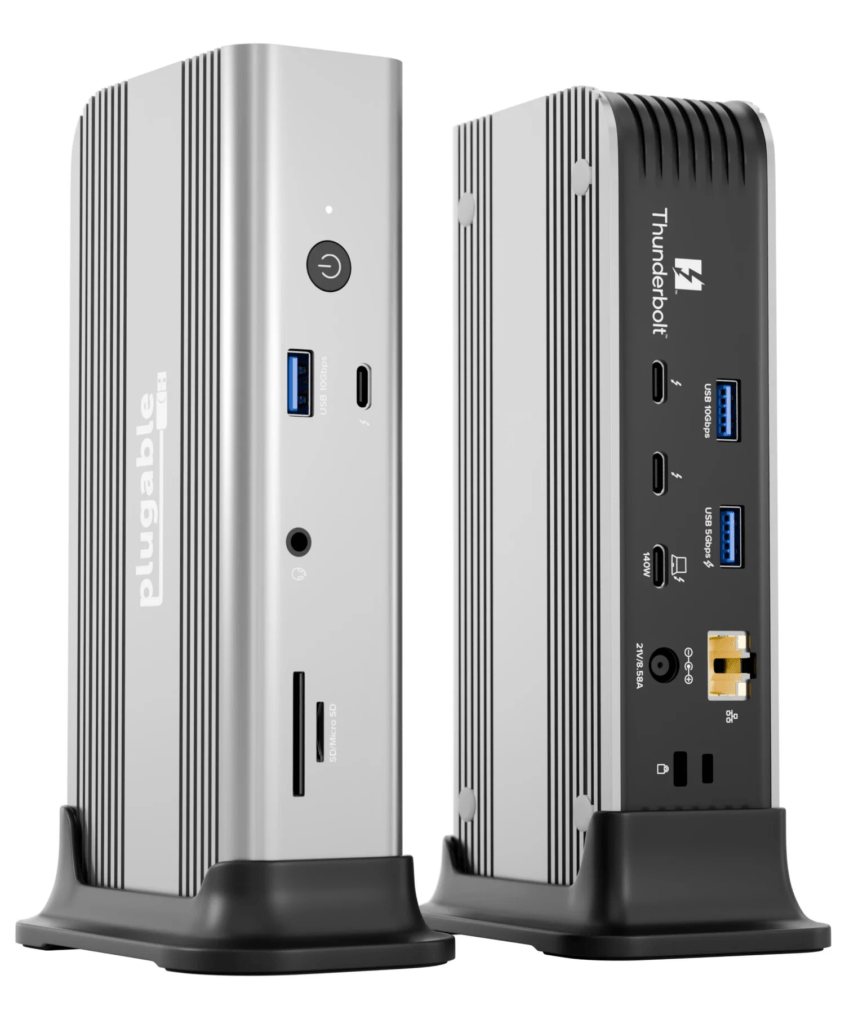
For MacBook Pro M4/M5 Pro/Max users, this is the best gaming dock in the database. TB5 bandwidth delivers 4K@240Hz through its downstream ports natively — no DisplayLink, no compression, maximum frame rate. 140W PD, 2.5GbE, dual SD card readers, 11 ports. PC World Best Dock 2026.
No DisplayLink. No latency. Pure gaming performance.
Best for: MBP M4/M5 Pro/Max gaming at 4K@240Hz

Best Gaming Dock for MacBook Air M4/M5 — iVanky FusionDock 1+
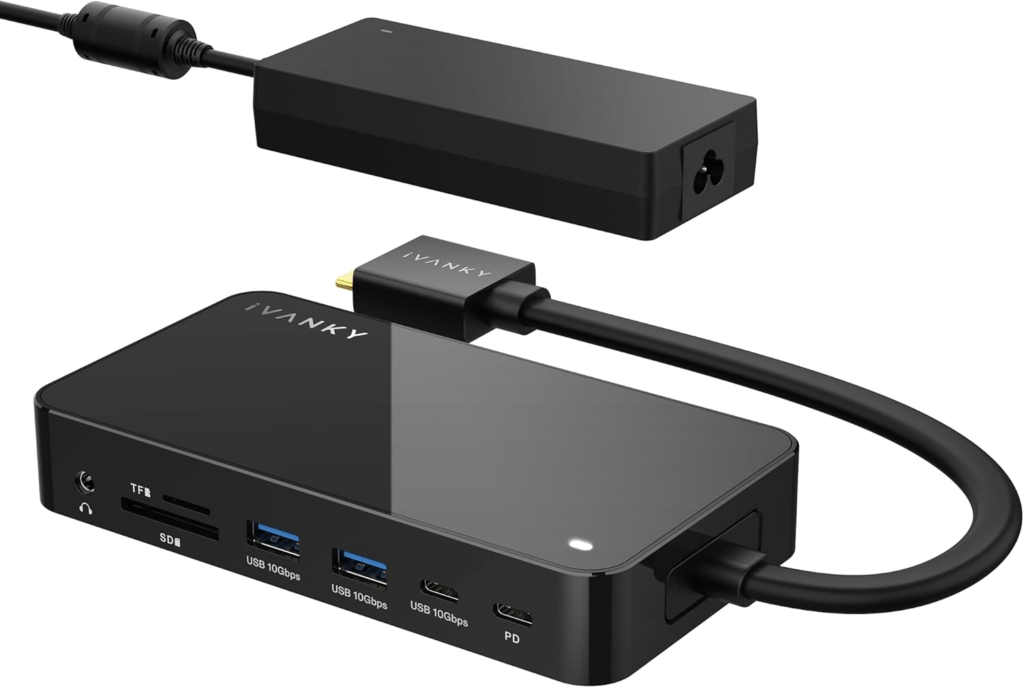
Native dual 4K@60Hz, no DisplayLink, 96W PD. The M4/M5 Air’s native dual display capability means both monitors get full GPU output. Route your game to one; use the other for reference content.
Best for: MBA M4/M5 casual and moderate gaming with dual native displays
Best Gaming Dock for M1/M2 Air — Kensington SD4781P (DisplayLink)
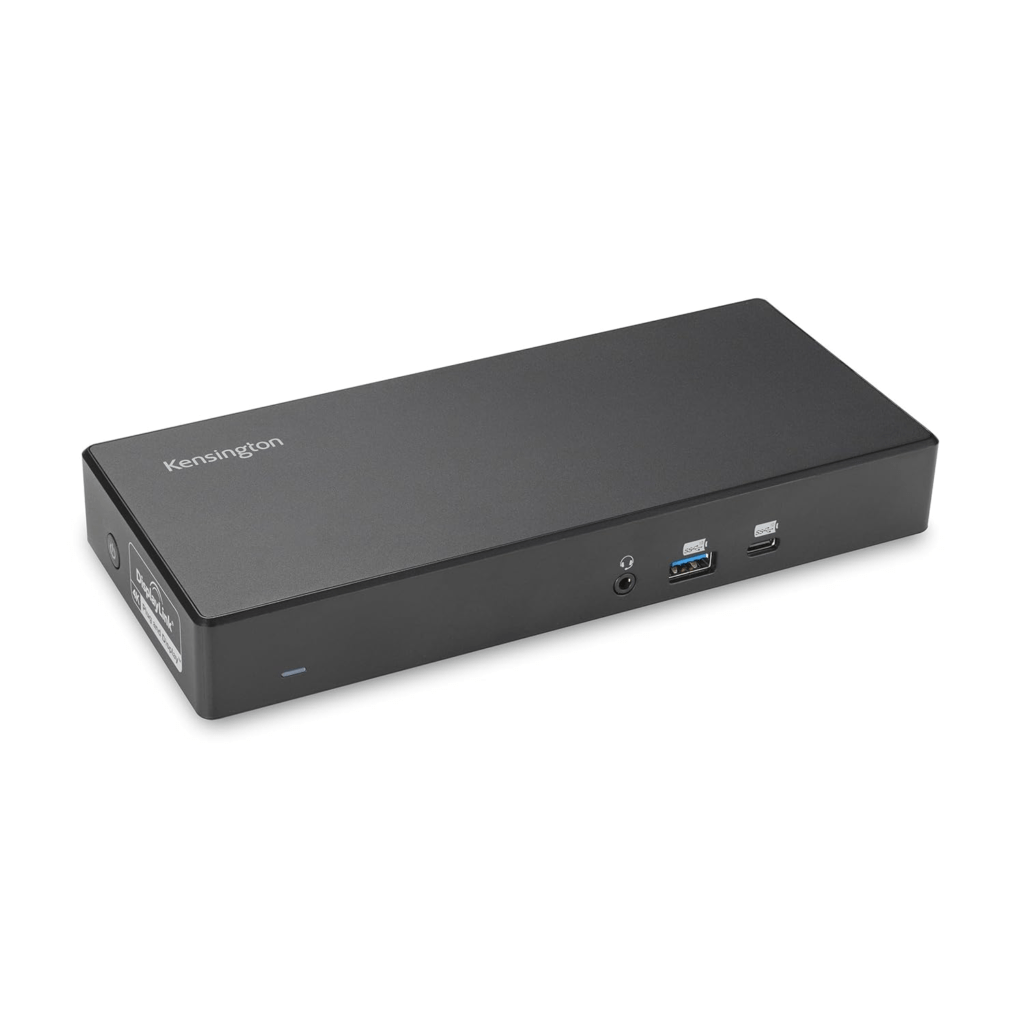
For M1/M2 Air users who need an external gaming display, the SD4781P is the most reliable DisplayLink dock for this use case. 100W PD, dual 4K@60Hz via DisplayLink, 3-year warranty, confirmed macOS compatibility. Set your gaming monitor to 1440p@60Hz for best results.
Best for: MBA M1/M2 gaming on a single external monitor via DisplayLink
Best Gaming Dock for MacBook Neo — WAVLINK B0F7XDLZZK (DisplayLink)
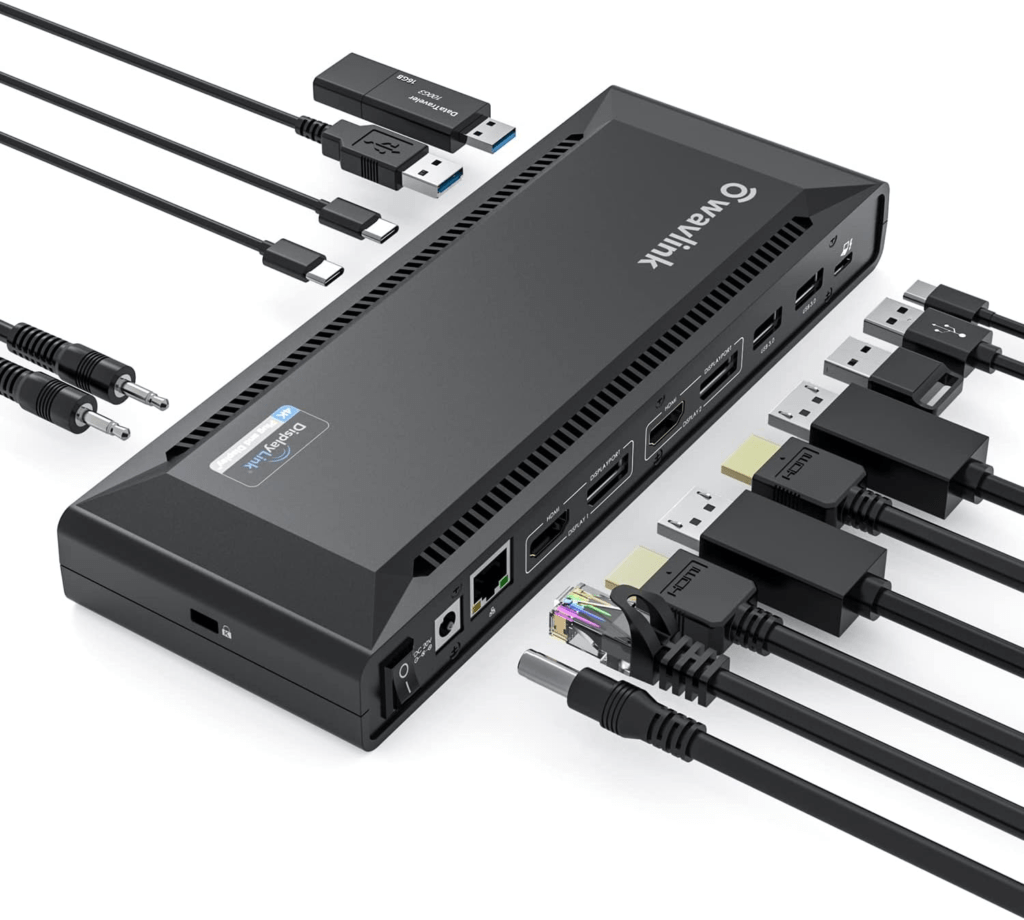
Confirmed MacBook Neo compatible. 100W PD, dual 4K@60Hz via DisplayLink, reliable connection from Neo’s left USB-C port. For single-display gaming on Neo, also consider the Plugable UD-CA1A for its simpler plug-and-play setup with no driver overhead.
Best for: MacBook Neo single or dual display gaming via DisplayLink
Best Budget Gaming Dock — Plugable UD-CA1A
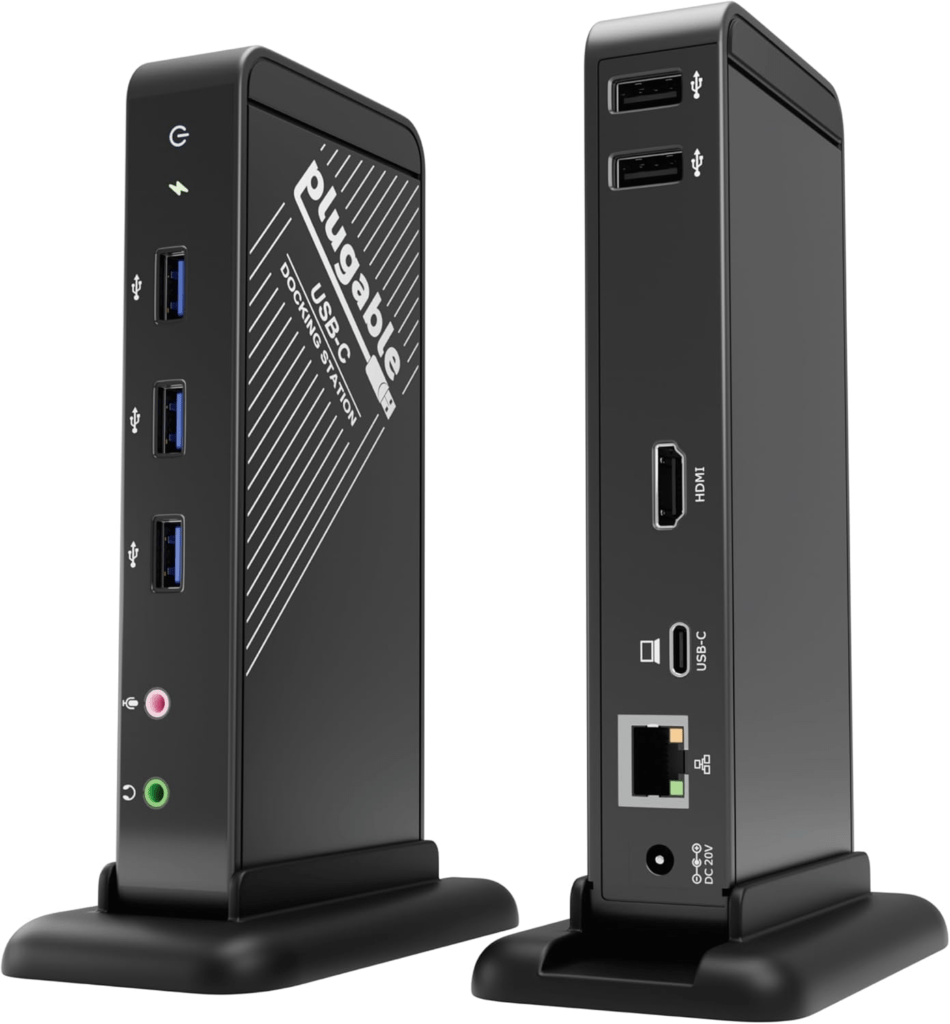
For M1/M2/Neo users who only need one external display and want absolutely zero driver overhead or latency from DisplayLink, the UD-CA1A delivers native plug-and-play output through its HDMI 1.4 port. Caps at 1440p@60Hz in practice — which is the right resolution for gaming on this dock anyway. No streaming restrictions, no CPU overhead.
The catch: single display only, no 4K@60Hz. For casual gaming on a 1080p or 1440p monitor, it’s clean and simple.
Best for: Budget single-display gaming, plug-and-play, no DisplayLink complexity
Best for Hybrid Native + DisplayLink Gaming — Plugable UD-ULTC4K
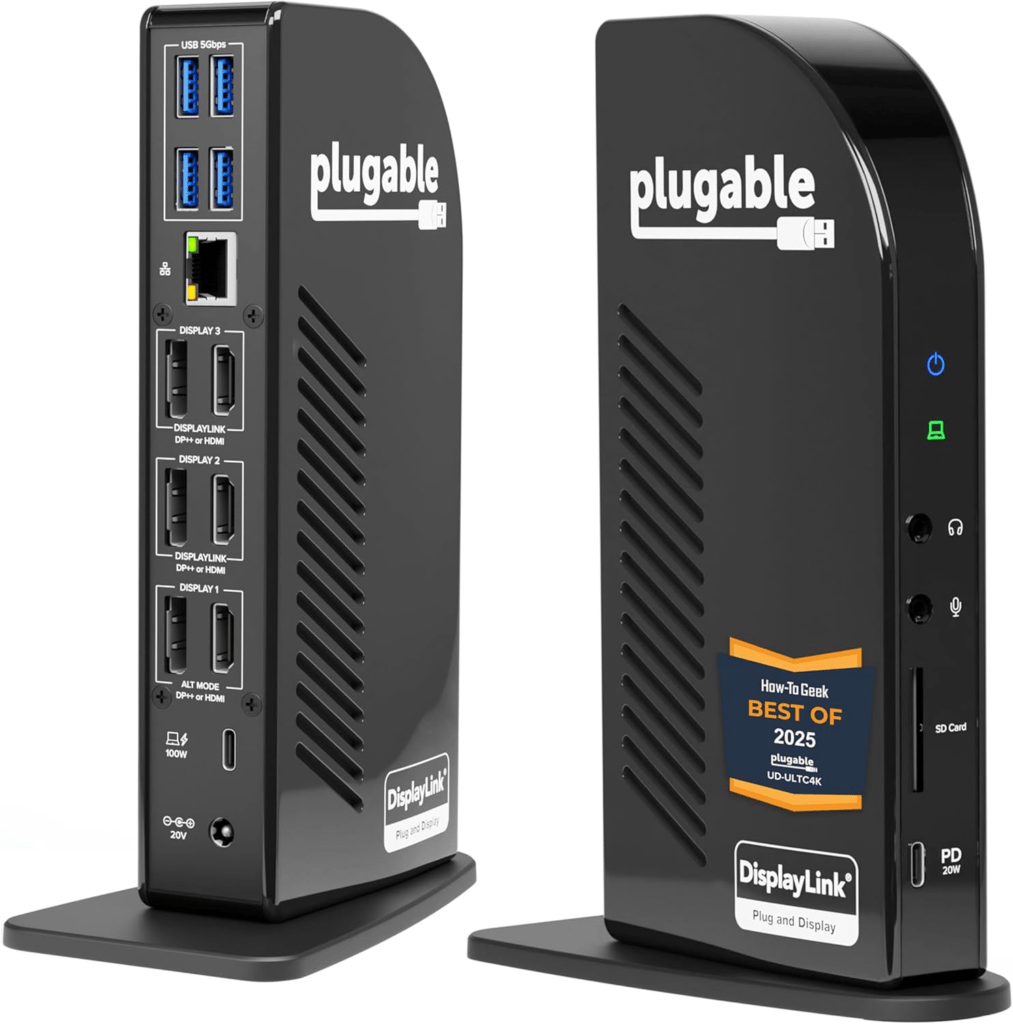
One native Alt Mode video output plus two DisplayLink outputs. Run your game on the native display, secondary content on the DisplayLink screens. Triple 4K@60Hz total, 96W PD, SD card reader. The best compromise dock for users who want multi-monitor capability without sacrificing the quality of their primary gaming display.
Best for: MBA M3/M4/M5 users who want a gaming display on native output + reference screens on DisplayLink
Comparison Table
| Dock | Type | Gaming Display Output | Max Refresh (Mac) | PD | DisplayLink |
|---|---|---|---|---|---|
| Plugable TBT-UDT3 | TB5 | Native TB5 | 4K@240Hz | 140W | ❌ None |
| iVanky FusionDock 1+ | USB-C | Native | 4K@60Hz | 96W | ❌ None |
| Kensington SD5780T | TB4 | Native TB4 | 4K@60Hz | 96W | ❌ None |
| Kensington SD4781P | USB-C | DisplayLink | 4K@60Hz | 100W | ✅ Required |
| Plugable UD-ULTC4K | Hybrid | 1x Native + 2x DL | 4K@60Hz | 96W | Hybrid |
| WAVLINK B0F7XDLZZK | USB-C | DisplayLink | 4K@60Hz | 100W | ✅ Required |
| Plugable UD-CA1A | USB-C | Native | 1440p@60Hz | 60W | ❌ None |
Frequently Asked Questions
Can I game at 120Hz or 144Hz through DisplayLink?
Technically the monitor will run at those refresh rates, but the DisplayLink pipeline can’t deliver consistent frame timing at high refresh in the way a native GPU connection does. You’ll get uneven frame pacing rather than smooth high-refresh performance. For any gaming where high refresh matters, use native GPU output.
Does DisplayLink add input lag to my mouse and keyboard?
No. Your mouse and keyboard connect directly to your Mac — either wirelessly or through USB ports on the dock. Input lag for peripherals is hardware-level and isn’t affected by DisplayLink. Only the display output has the added latency. You input at full speed; the image on a DisplayLink monitor responds slightly after.
Will gaming cause more DisplayLink stuttering than regular use?
Yes, potentially. Gaming creates higher CPU load than productivity work. Since DisplayLink compresses in software on the CPU, higher CPU load during games can produce slightly less consistent DisplayLink compression. On M3/M4/M5 chips with plenty of CPU headroom, this is minimal. On M1/M2 base chips under heavy game load, it’s more noticeable.
Is there a DisplayLink setting that reduces latency specifically for gaming?
Not in the DisplayLink Manager directly. The most effective settings for gaming are: lower resolution on the DisplayLink display (1440p over 4K), keep motion content off the DisplayLink screen, and ensure you’re running the latest driver version. There’s no dedicated gaming mode.
Should I buy a DisplayLink dock if I mainly use my Mac for gaming?
Only if native GPU output options don’t cover your display count needs. If you have an M4/M5 Air or a MacBook Pro with Thunderbolt and your native display support covers what you need, buy a native dock and skip DisplayLink entirely. DisplayLink is the right choice when you need more displays than your chip supports natively — not as a gaming performance technology.
My DisplayLink monitor stutters during intense game moments. How do I fix it?
First, close background apps to free up CPU. Second, lower the DisplayLink monitor resolution to 1440p. Third, update DisplayLink Manager to the latest version from synaptics.com. Fourth, check your upstream USB-C cable — a 5Gbps cable will bottleneck at high load; use a 10Gbps cable. If the Mac is getting warm, the thermal management may also be throttling — ensure adequate ventilation.
What games run well through DisplayLink on Mac in 2026?
Consistently good: Civilisation VII, Total War series, World of Warcraft, Baldur’s Gate 3, Stardew Valley, Hades 1 and 2, Disco Elysium, any Slay the Spire-type roguelike, XCOM, indie puzzle and adventure titles. These genres don’t expose DisplayLink’s latency weaknesses and run well at 1440p@60Hz.
Avoid for DisplayLink gaming: anything that requires fast aiming and reaction (FPS games), timing-critical rhythm games, racing games with tight cornering feedback, high-refresh competitive titles.
Our Verdict
DisplayLink and gaming can coexist — but they work best when you understand where the technology fits and where it doesn’t. Casual gaming, strategy, RPGs, and slower-paced games work fine on DisplayLink displays. Competitive, reaction-heavy, and timing-critical games benefit strongly from native GPU output.
The best Mac gaming desk setup routes your primary gaming display through native GPU output whenever your Mac supports it, and reserves DisplayLink for secondary screens showing non-game content. For M1, M2, and MacBook Neo users where DisplayLink is the only path to an external display, choosing the right game genres and setting the display to 1440p@60Hz gets you a workable gaming experience.
If gaming is important to you and you’re choosing between Mac models, it’s worth knowing: M4 and M5 Air chips with native dual display capability, and MacBook Pro models with Thunderbolt 4 or 5, give you far more gaming-friendly dock setups than the DisplayLink-only path that M1, M2, and Neo users are limited to.
Last updated: May 2026. DisplayLink performance observations based on current driver behaviour on macOS Tahoe. Game compatibility and genre guidance reflects Mac gaming library as of May 2026.