Last Updated: May 2026 | By dockyeah.com
Affiliate Disclosure: dockyeah.com participates in the Amazon Services LLC Associates Program. We may earn a commission if you buy through our links, at no extra cost to you.
Quick Answer
Native GPU output is always faster, smoother, and more compatible. DisplayLink is a software workaround that unlocks extra displays your Mac’s chip can’t drive natively — and it comes with real trade-offs. For most productivity work at 4K@60Hz, those trade-offs are invisible in daily use. For video editing, heavy streaming, or fast gaming, they’re not.
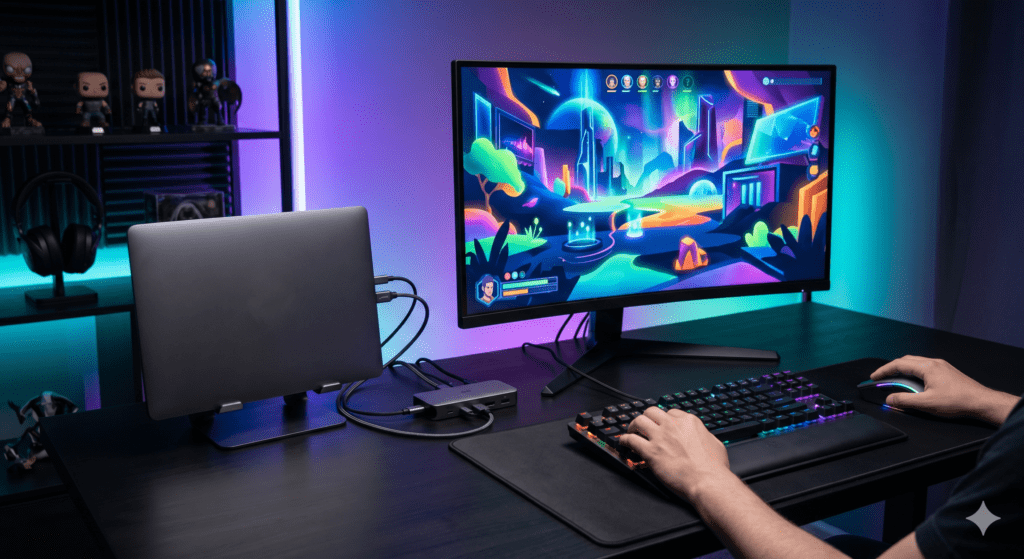
The short version of when to use what:
| Situation | Use Native GPU | Use DisplayLink |
|---|---|---|
| M3/M4/M5 Air, want 2 monitors | ✅ Lid-closed clamshell | ✅ Lid-open dual display |
| M1/M2 Air, want 2 monitors | ❌ Not possible natively | ✅ Only option |
| Watch Netflix/Disney+ at desk | ✅ Always prefer native | ⚠️ Streaming goes black |
| Video editing / colour work | ✅ Strongly prefer native | ⚠️ Works, with caveats |
| Need a third monitor on any Mac | — | ✅ Only practical path |
| MacBook Neo, want 2 monitors | ❌ Not possible natively | ✅ Confirmed, only option |
If you’ve been shopping for a docking station long enough, you’ve run into the word DisplayLink. Some dock listings advertise it like a feature. Others bury it in fine print. Some reviewers swear by it; others warn you away from it entirely.
The truth is more specific than either camp suggests. DisplayLink solves a real problem for Mac users — and introduces real limitations that matter in certain workflows. Understanding the difference between DisplayLink and native GPU output isn’t just a technical footnote. It changes which dock you should buy, how you set it up, and whether you’ll be happy with it six months later.
How Native GPU Output Works
When you plug a monitor into a Thunderbolt port on your MacBook Pro, the image on that screen is rendered entirely by the Apple Silicon GPU inside your Mac. The signal travels from the chip, through the Thunderbolt controller, out the port, and directly to your monitor. There’s no conversion, no compression, no software layer in between.
This is native or plug-and-play output. macOS treats the external display as a direct extension of the GPU. Every pixel is rendered at full fidelity. Motion handling, colour accuracy, HDR, refresh rates up to 240Hz — all of it works exactly as you’d expect.
The limitation is chip-level. Apple’s M1 and M2 base chips can drive exactly one external display. The M3 base chip drives two, but only with the lid closed. M4 and M5 base chips drive two in any configuration. Pro and Max chips drive more. These aren’t artificial restrictions — they reflect how many display pipelines Apple built into each chip. A better dock, a more expensive cable, a firmware update — none of these change the ceiling. The ceiling is the silicon.
How DisplayLink Works
DisplayLink is a technology by Synaptics that creates an additional virtual display by sending compressed video data over USB. Instead of the GPU driving the display directly, a software driver on your Mac captures what should appear on the DisplayLink screen, compresses it, sends it over USB to a chip inside the dock, and that chip decompresses and outputs it to the monitor.
From your Mac’s perspective, a DisplayLink monitor is a USB device, not a GPU output. This is the key insight. It means:
- DisplayLink displays don’t consume a GPU display pipeline — they bypass the chip-level limit entirely
- They require a background driver (DisplayLink Manager) running at all times
- They use CPU cycles for compression instead of dedicated GPU hardware
- They carry a small processing delay between what the GPU renders and what appears on screen
- They disable HDCP system-wide on macOS while active
The driver is made by Synaptics and is free at synaptics.com. The chip inside your dock handles the decompression side. The two work together as a system.
Two competing technologies work the same way: Silicon Motion (used in some Belkin and TobenONE docks) and InstantView (used in some TobenONE docks) also use USB compression. The implementation differs, but the fundamental behaviour — and the limitations — are nearly identical to DisplayLink.
The Performance Gap — How Real Is It?
This is where most comparisons go wrong in one direction or the other. The answer depends entirely on what you’re doing on screen.

For Productivity Work: Practically Zero Difference
At 4K@60Hz on a modern Mac with a current DisplayLink dock, the difference from native GPU output is invisible for productivity work. Spreadsheets, code editors, documents, web browsing, Slack, Figma, Xcode — none of these push DisplayLink anywhere near its limits. The compression happens fast enough that at 60Hz you can’t perceive the delay in normal use. The CPU overhead is typically 3–8% on an M-series chip, which has plenty of headroom.
If your setup is email, browser, spreadsheet, terminal, and video calls — and you need a second monitor because your M1 Air physically can’t do it any other way — DisplayLink is a genuine, reliable solution.
For Video and Motion: Visible Under the Right Conditions
Fast scrolling on a DisplayLink monitor has a subtle but measurable response lag compared to a native display. Dragging windows quickly shows slight ghosting. High frame rate content looks less fluid. For most users this is a non-issue. For designers who care about micro-interactions or developers who use motion as a debugging cue, it’s worth knowing.
For Video Editing and Colour Work: Use Native Where Possible
DisplayLink’s compression pipeline introduces subtle artefacts under certain conditions. When you’re colour grading or evaluating footage, the display compression can be misleading — you may approve a grade that looks subtly different when played back on a native display. DisplayLink displays work fine as secondary reference monitors for editors, but your primary colour-accurate display should be on a native GPU output where possible.
Final Cut, DaVinci Resolve, and Premiere all run with DisplayLink displays. The issue isn’t compatibility — it’s colour confidence.
For Gaming: Avoid DisplayLink
The input latency from the compression pipeline is measurable — typically 1–4 additional frame-times depending on workload — and motion handling at high frame rates is noticeably inferior to native. Games run; the experience is just worse than it should be.
The HDCP Issue — Streaming Goes Black
This is DisplayLink’s most consequential limitation on Mac, and it applies to every dock using DisplayLink, Silicon Motion, or InstantView drivers.
When any of these drivers are active, macOS detects that the display pipeline is no longer hardware-secured and disables HDCP system-wide. HDCP is the copy-protection layer that streaming services depend on. When it’s disabled, Netflix, Disney+, Amazon Prime Video, Apple TV+, HBO Max, YouTube TV, and iTunes all detect an unsecured environment and refuse to play video — you see a black screen with audio, or an error message.
This happens on every display connected to your Mac, including the built-in screen. Not just the DisplayLink monitors. If the driver is active, HDCP is off everywhere.
The Fix: Chrome or Edge with Hardware Acceleration Off
The only reliable workaround is to use streaming services in Chrome or Edge with hardware acceleration disabled.
In Chrome: Settings → System → “Use hardware acceleration when available” → toggle off → relaunch.
In Microsoft Edge: Settings → System and Performance → “Use hardware acceleration when available” → toggle off → relaunch.
With hardware acceleration off, the browser bypasses the HDCP check and streaming works. Video quality is virtually identical in daily use.
What doesn’t work: Safari and Firefox have no equivalent setting. Streaming will show a black screen in those browsers while any display driver is active, regardless of any settings change. If you use Safari for streaming, you’ll need to switch to Chrome or Edge for that content while your DisplayLink dock is connected.
The CPU Overhead Issue
DisplayLink compresses your screen in software before sending it over USB. This typically uses 3–10% of CPU depending on screen motion, resolution, and which chip you’re running.
On M3, M4, and M5 chips the headroom is large enough that this is never felt in practice. On M1 and M2 base chips with sustained CPU-heavy tasks alongside a busy DisplayLink screen, there can be more noticeable resource competition. Video export plus a motion-heavy DisplayLink monitor is the classic scenario. It won’t ruin the experience, but you’ll get better export times routing heavy work to native displays.
Reducing DisplayLink CPU Overhead
- Lower the DisplayLink monitor resolution. 1440p uses significantly less compression work than 4K. If you don’t need 4K on that screen, drop it.
- Reduce refresh rate. 30Hz halves the compression load compared to 60Hz — reasonable for a reference monitor.
- Keep static content on the DisplayLink screen. A static document uses almost no CPU. A video uses a lot. Route motion-heavy content to native displays.
- Keep the driver updated. Synaptics releases frequent updates that improve compression efficiency. The latest from synaptics.com is always better than what shipped with your dock.
Known Issues — Complete Fix Guide
Monitors Don’t Appear After Connecting the Dock
DisplayLink requires the driver running before monitors appear. It’s not plug-and-play.
Fix: Download DisplayLink Manager from synaptics.com. Install and open it. When macOS prompts for Screen Recording permission: System Settings → Privacy & Security → Screen Recording → enable DisplayLink Manager. Disconnect and reconnect the dock cable. Screen Recording permission is required because DisplayLink captures screen content to compress it — standard macOS privacy behaviour, not a security risk.
Monitors Appear But Show Black Screen or Wrong Resolution
Usually a resolution mismatch, insufficient cable, or a monitor that hasn’t been detected cleanly.
Fix: In System Settings → Displays, verify the monitor is set to a supported resolution. For 4K@60Hz, confirm the HDMI cable is HDMI 2.0 (not 1.4, which caps at 4K@30Hz). For DisplayPort output, use a DP 1.4 cable. Try disconnecting and reconnecting the dock cable. On MacBook Neo, confirm you’re using the left USB-C port — the right port is USB 2 (480Mbps) and produces no display output.
Monitors Disconnect When Mac Wakes from Sleep
macOS occasionally doesn’t fully reinitialise the DisplayLink driver after longer sleep sessions.
Fix: Disconnect and reconnect the upstream USB-C cable — resolves it immediately in most cases. Keep DisplayLink Manager updated; Synaptics patches sleep/wake reliability frequently. In System Settings → Battery, setting “Prevent automatic sleeping” while docked reduces sleep cycling.
Streaming Services Show Black Screen
DisplayLink disables HDCP system-wide while active.
Fix: Use Chrome or Edge for streaming. Disable hardware acceleration in the browser settings (instructions above). Safari and Firefox have no fix — switch browsers for streaming content.
DisplayLink Monitor Flickers or Shows Compression Artefacts
Usually bandwidth saturation on the upstream USB connection or an underpowered cable.
Fix: Use the USB-C cable included with the dock, or a certified USB 3.2 Gen 2 (10Gbps) cable. Avoid USB 3.0 Gen 1 (5Gbps) cables — inadequate for DisplayLink at 4K. On MacBook Neo: left USB-C port only. Update DisplayLink Manager. Drop the DisplayLink monitor to 1440p temporarily to confirm whether bandwidth is the issue.
High CPU Usage from DisplayLink Manager
Compression workload scales with resolution, refresh rate, and screen motion.
Fix: Lower resolution and refresh rate on the DisplayLink screen. Route high-motion content to native displays. Update to the latest driver.
Monitor Layout Doesn’t Save After Disconnect
macOS treats each dock connection session as potentially a new display configuration, and DisplayLink virtual display identifiers can shift.
Fix: Kensington DockWorks (free, Kensington docks only) saves and restores display profiles automatically. On other brands, apps like BetterDisplay handle this. Otherwise, rearranging in System Settings → Displays takes about 15 seconds after each connection and becomes muscle memory quickly.
Screen Recording Permission Keeps Disappearing
macOS occasionally resets privacy permissions after system updates.
Fix: System Settings → Privacy & Security → Screen Recording → verify DisplayLink Manager is listed and enabled. If listed but greyed out, quit DisplayLink Manager first, toggle it, then relaunch. After a major macOS update, always re-verify this permission.
Silicon Motion and InstantView Docks — Different Driver, Same Issues
Belkin INC014, INC015, and several TobenONE models use Silicon Motion or InstantView rather than Synaptics DisplayLink. The behaviour — HDCP limitation, Screen Recording permission, sleep/wake behaviour — is nearly identical, but the drivers are completely separate software products.
- Silicon Motion InstantView: siliconmotion.com/downloads
- Silicon Motion SM770: siliconmotion.com/downloads/SM770-drivers.html
- Synaptics DisplayLink: synaptics.com/products/displaylink-graphics
Don’t install the wrong driver for your dock. They are not interchangeable. Check your dock’s manual to confirm which driver it uses.
macOS Update Breaks DisplayLink
Major macOS updates sometimes change underlying display APIs and break existing DisplayLink drivers.
Fix: Before a major update, check synaptics.com for a compatible driver release. If you’ve already updated and DisplayLink is broken: uninstall the current driver completely, download the latest from synaptics.com, reinstall fresh, re-grant Screen Recording permission. Always use the latest driver version — never reinstall an older one.
Mac Model Guide — What Works Best for You
MacBook Air M1 and M2 — DisplayLink Is the Only Path to Dual Monitors
There is no native path to a second external monitor on M1 or M2 base chips. DisplayLink is the only practical solution, and it works reliably on these Macs. If you want two monitors on an M1 or M2 Air, accept the HDCP limitation, use Chrome for streaming, and buy a DisplayLink dock.
Recommended DisplayLink docks:
- Kensington SD4781P — dual 4K@60Hz, 100W PD, 3-year warranty
- Plugable UD-ULTC4K — triple 4K@60Hz, 96W PD, SD card reader
MacBook Air M3 — DisplayLink Removes the Clamshell Requirement
The M3 Air natively supports dual external displays only in clamshell mode. DisplayLink bypasses this — two external displays with the lid open, plus the built-in screen as a third. If you’re happy closing the lid, a native dock avoids all DisplayLink complexity.
Recommended native dock for M3 Air (lid-closed dual display):
- iVanky FusionDock 1+ — dual 4K@60Hz, 96W PD, no DisplayLink
Recommended DisplayLink dock for M3 Air (lid-open):
- Kensington SD4781P — dual 4K@60Hz, 100W PD
MacBook Air M4 and M5 — Native Dual Display, DisplayLink for Third Only
M4 and M5 Air chips natively support two external displays in any configuration. A standard USB-C dock is the right tool for most users. DisplayLink is only worth considering if you want a third external display, which isn’t possible natively on Air chips.
Recommended native docks:
MacBook Neo (2026) — DisplayLink Confirmed for Second Monitor
The Neo has no Thunderbolt and natively supports one external display from its left USB-C port. DisplayLink is confirmed working on A18 Pro with macOS Tahoe. Always connect the dock to the left USB-C port only — the right port is USB 2 and cannot drive a display.
Recommended DisplayLink docks for Neo:
- Kensington SD4781P — dual 4K@60Hz, 100W PD
- WAVLINK DisplayLink Docking Station — triple display, 100W PD, confirmed Neo
MacBook Pro — Prefer Native Thunderbolt, DisplayLink for Extra Displays
MacBook Pro models with Pro and Max chips have Thunderbolt and strong native display support. A TB4 or TB5 dock handles two or more displays natively with no driver overhead. DisplayLink is relevant only when you need more displays beyond the native limit — a third or fourth screen.
Recommended TB4 docks for MBP:
- Kensington SD5780T — TB4, dual 4K, 2.5GbE, 96W PD
- Plugable TBT4-UDZ — TB4, dual 4K, 98W PD
Recommended TB5 docks for MBP M4/M5 Pro/Max:
- Plugable TBT-UDT3 — TB5, 140W PD, 2.5GbE, SD reader
Side-by-Side Comparison
| Native GPU | DisplayLink | Silicon Motion / InstantView | |
|---|---|---|---|
| Driver required | ❌ No | ✅ synaptics.com | ✅ siliconmotion.com |
| HDCP / Streaming | ✅ Full support | ❌ Disabled while active | ❌ Disabled while active |
| Motion quality | ✅ Best | ⚠️ Good, slight lag | ⚠️ Good, slight lag |
| Colour accuracy | ✅ Full fidelity | ⚠️ Minor compression | ⚠️ Minor compression |
| CPU overhead | ✅ None | ⚠️ 3–10% | ⚠️ Similar |
| Bypasses chip display limit | ❌ No | ✅ Yes | ✅ Yes |
| Sleep/wake reliability | ✅ Excellent | ⚠️ Occasional disconnect | ⚠️ Occasional disconnect |
| macOS update risk | ✅ Low | ⚠️ Updates can break driver | ⚠️ Updates can break driver |
| Best use case | Primary display, colour work | Extra displays, M1/M2/Neo | Extra displays (specific models) |
Frequently Asked Questions
Is DisplayLink safe to install on my Mac?
Yes. DisplayLink Manager from synaptics.com is legitimate software used by millions of Mac users. The Screen Recording permission it requires is standard macOS privacy behaviour — DisplayLink needs to capture screen content to compress it, and macOS requires explicit permission for that. It doesn’t record or transmit anything. Always download from synaptics.com, not from manufacturer product pages or third-party links, which may host outdated versions.
Will DisplayLink slow down my Mac?
Not noticeably for most users. The 3–10% CPU overhead is negligible on any M-series chip for productivity tasks. On M1 and M2 base chips under sustained CPU-heavy workloads alongside a busy DisplayLink screen, there’s more competition for resources. On M3, M4, and M5 in any configuration, you’re unlikely to feel it.
Does DisplayLink work with macOS Tahoe?
Yes, confirmed as of May 2026. Install the latest version from synaptics.com for full Tahoe compatibility.
My DisplayLink monitors stopped working after a macOS update. What do I do?
Uninstall DisplayLink Manager completely. Download the latest version from synaptics.com. Reinstall fresh. Re-grant Screen Recording permission in System Settings → Privacy & Security. This resolves the majority of post-update failures.
Can I use one native display and one DisplayLink display from the same dock?
Yes, and this is a common and sensible setup. Several docks — including the Plugable UD-ULTC4K and Kensington SD4790-MAC — combine a native Alt Mode display output with DisplayLink outputs. Your primary monitor runs natively at full quality; additional monitors run through DisplayLink. It’s the best compromise for users who need three or more displays.
If I quit DisplayLink Manager, does streaming work again?
Yes. Quitting the driver re-enables HDCP and streaming services work normally on all displays. The DisplayLink monitors go dark. The Chrome/Edge hardware-acceleration workaround is better in practice because it lets you stream while keeping all monitors active.
Our Take
DisplayLink is impressive engineering that solves a real problem — particularly for M1, M2, and MacBook Neo owners who have no native path to a second external display. In daily productivity use, the performance gap from native output is invisible to most people. The HDCP streaming limitation is the one thing that genuinely affects daily experience, and it has a workable fix for Chrome and Edge users.
The rest of the known issues — sleep/wake disconnects, macOS update breaks, CPU overhead — are manageable with current drivers and basic settings attention. They’re maintenance considerations, not dealbreakers.
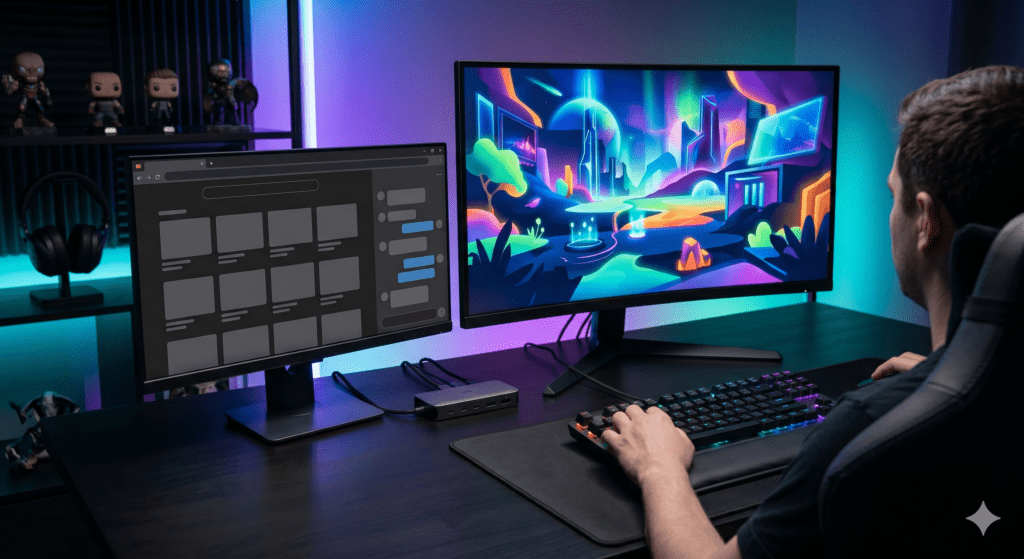
The framework is simple: use native GPU output when your Mac’s chip supports what you need. Use DisplayLink when it doesn’t. Don’t buy a DisplayLink dock for a machine that doesn’t need it, and don’t let the limitations talk you out of it when it’s the only option that gets the job done.
Last updated: May 2026. DisplayLink driver behaviour verified on macOS Tahoe. Silicon Motion and InstantView behaviour verified against manufacturer documentation.