Last Updated: May 2026 | Verified for macOS Tahoe | By dockyeah.com
Affiliate Disclosure: dockyeah.com participates in the Amazon Services LLC Associates Program. We may earn a commission if you buy through our links, at no extra cost to you. We only recommend products we’ve tested or verified work correctly with the MacBook Air M4.
Quick Answer
| 🏆 Best Overall | CalDigit TS4 — TB4, dual 6K@60Hz native, 98W PD, 18 ports, gold standard build quality |
| 💰 Best Value | iVanky FusionDock 1+ — dual 4K@60Hz native, 96W PD, no DisplayLink, 12 ports |
| 🖥️ Best for Dual Monitors | Plugable TBT4-UDZ — TB4, dual 4K@60Hz, 98W PD, 2.5GbE, Laptop Mag 2025 Dock of the Year |
| 🎨 Best Design Pick | Plugable TBT-UDM — Space Gray aluminum, TB4, dual 4K@60Hz, 96W PD, made for Mac |
| 🖥️🖥️🖥️ Best for Triple Monitors | Kensington SD4790-MAC — USB-C, 2 native + 1 DisplayLink, 100W PD, Mac-branded |
| 🎒 Best for Travel | Kensington MD120U4 — USB4, dual 4K@60Hz portable, 100W pass-through |
| 🖥️ Best Budget | Anker A8392 (575) — USB-C, dual display native, 85W PD, SD card, 13 ports |
Every morning, you sit down at your desk, pull out the MacBook Air M4, and plug in five cables. Monitor. Ethernet. Keyboard. USB drive. Charger. Five cables, five seconds, and MagSafe is still not in yet. You know this can be one cable, but you haven’t pulled the trigger on a dock yet.
This is the article that gets you there.
The M4 Air is the best MacBook Apple has made for dock users in the Air lineup’s history. For the first time, you get native dual external display support without closing the lid, without installing a driver, without any workaround. Two monitors. Lid open. One Thunderbolt cable to a dock. It’s genuinely clean, and it changes how you should think about which dock to buy compared to the M3, M2, or M1 Air.
This guide covers every dock worth considering — from the budget tier to the premium shelf — with complete specs, scenario guides, known issues, and honest assessments of what each dock does and doesn’t deliver on the M4 Air specifically.
What the MacBook Air M4 Can Actually Do With a Dock
Before picking a dock, you need to understand exactly what the M4 Air brings to the table. Some of these are genuine upgrades over previous generations that change the dock equation.
Ports Built Into the Mac
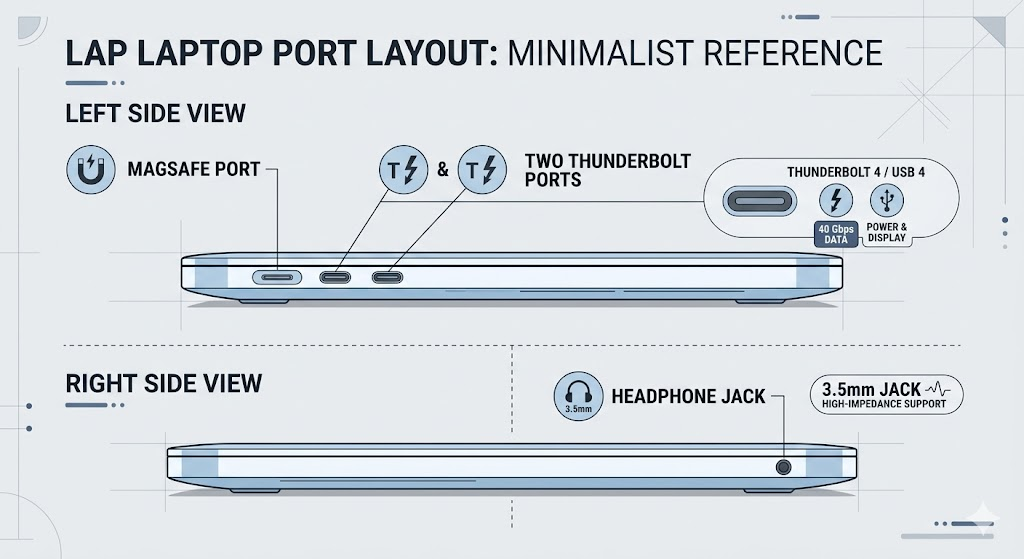
The M4 Air has two Thunderbolt 4 / USB 4 ports (both USB-C), MagSafe 3, and a 3.5mm headphone jack. That’s it. No HDMI, no USB-A, no SD card slot, no Ethernet. One dock handles everything missing — and for M4 Air owners, a dock is genuinely essential, not optional.
Both Thunderbolt ports run at 40Gbps. For dock use, plug your dock into either one. MagSafe handles charging separately, which means your Thunderbolt port is freed up for data and displays rather than split between charging and everything else.
External Display Support — The Big M4 Upgrade
The M4 Air natively supports two external displays in any configuration. Lid open, lid closed, doesn’t matter. This is a direct, important upgrade from the M3 Air, which needed the lid closed to run two external monitors.
What the M4 Air can drive per display:
- Single display: up to 8K@60Hz, 5K@120Hz, or 4K@240Hz
- Dual display: up to 6K@60Hz or 4K@144Hz per screen
In practice, most M4 Air users will run two 4K monitors. That’s well within native capability. No DisplayLink driver required. No clamshell mode required. One Thunderbolt cable to a dock, two monitors connected to that dock, done.
Fast Charging — A New M4 Feature
The M4 Air is the first MacBook Air to support fast charging. With a 35W USB-C adapter or higher, the battery reaches 50% in around 30 minutes. The M4 Air accepts up to 70W over USB-C. Any dock delivering 70W+ takes full advantage of this. Docks delivering less still charge, just more slowly.
The Two-Port Reality
Having two TB4 ports sounds like flexibility, but there’s a practical consideration: if you connect your dock to one Thunderbolt port, the second is available for accessories — a second monitor directly, a TB SSD, or a TB hub. Most M4 Air users will run everything through one dock and leave the second port free as needed.
What to Look for in a Dock for the M4 Air
Thunderbolt 4 vs USB-C — Which Do You Need?
The M4 Air has TB4 ports, which means it’s fully compatible with Thunderbolt 4 docks at 40Gbps. It also works with USB-C docks at lower speeds (typically 10Gbps). The question is: does the bandwidth difference matter for your use case?
For most M4 Air users running two 4K monitors, a USB-C dock at 10Gbps handles displays, Ethernet, and USB peripherals without issues. TB4’s 40Gbps becomes meaningful when you’re running high-resolution displays at high refresh rates, connecting TB storage, or attaching multiple high-bandwidth peripherals simultaneously.
Buy a TB4 dock if: You want the best long-term investment, you plan to use a single 6K display, or you connect TB accessories (TB SSDs, TB hubs, Pro Display XDR).
A USB-C dock is fine if: You run two 4K monitors at 60Hz, your peripherals are USB-A and Ethernet, and the dock’s USB-C 10Gbps upstream has enough headroom for your workflow.
Power Delivery — 70W for Best M4 Fast Charging
The M4 Air uses MagSafe for primary charging at most desks. When using a dock’s Thunderbolt or USB-C port for charging, aim for 70W or higher to support fast charging. Docks delivering 45–60W still charge the M4 Air — just at a slower rate, particularly under load.
Our recommendation: 70W minimum. The best docks in this guide deliver 96–98W, which is more than enough and future-proofs the setup if you upgrade to an MBP later.
One nuance to understand: a dock rated at “100W PD” doesn’t necessarily deliver 100W to your laptop. The dock powers its own ports first, then allocates the remainder to the host. A dock with a well-specced power supply — like the CalDigit TS4 with its 230W PSU — can sustain high PD while running all ports simultaneously. Cheaper docks with undersized power supplies sometimes deliver less PD than advertised when fully loaded.
Display Outputs — HDMI 2.0 or Higher for 4K@60Hz
For dual 4K@60Hz on the M4 Air, you need a dock with HDMI 2.0 or DisplayPort 1.4 outputs. HDMI 1.4 caps at 4K@30Hz — technically 4K but visibly sluggish for scrolling and motion. Always check the HDMI version, not just whether the port exists.
For 6K displays (like the Apple Pro Display XDR), you’ll want a Thunderbolt dock that can route 6K signal through a downstream TB port — no USB-C or HDMI dock handles 6K.
Do You Need DisplayLink on the M4 Air?
No. The M4 Air drives two external displays natively from a Thunderbolt dock without any driver. DisplayLink is useful only if you want a third external monitor, which requires going beyond the M4 chip’s native two-display limit.
For most M4 Air users, DisplayLink is unnecessary complexity. Don’t pay for it unless you specifically need three screens.
Port Count — What a Full M4 Air Desk Setup Needs
The M4 Air has no USB-A, no Ethernet, no HDMI, no SD card. A proper desk dock should add at minimum:
- 1x Gigabit Ethernet (wired reliability matters)
- 2–3x USB-A for keyboard, mouse, USB accessories
- 1x USB-C for drives or secondary charging
- 2x video outputs (HDMI or DP) for dual monitors
- 70W+ PD to the Mac
- 1x SD card if you shoot photos or video
That’s essentially any mid-range dock. Premium docks add 2.5GbE, SD 4.0, more USB-A ports at 10Gbps, Kensington locks, and TB downstream ports.
Best Docking Stations for MacBook Air M4 — Our Top Picks
1. CalDigit TS4 — Best Overall
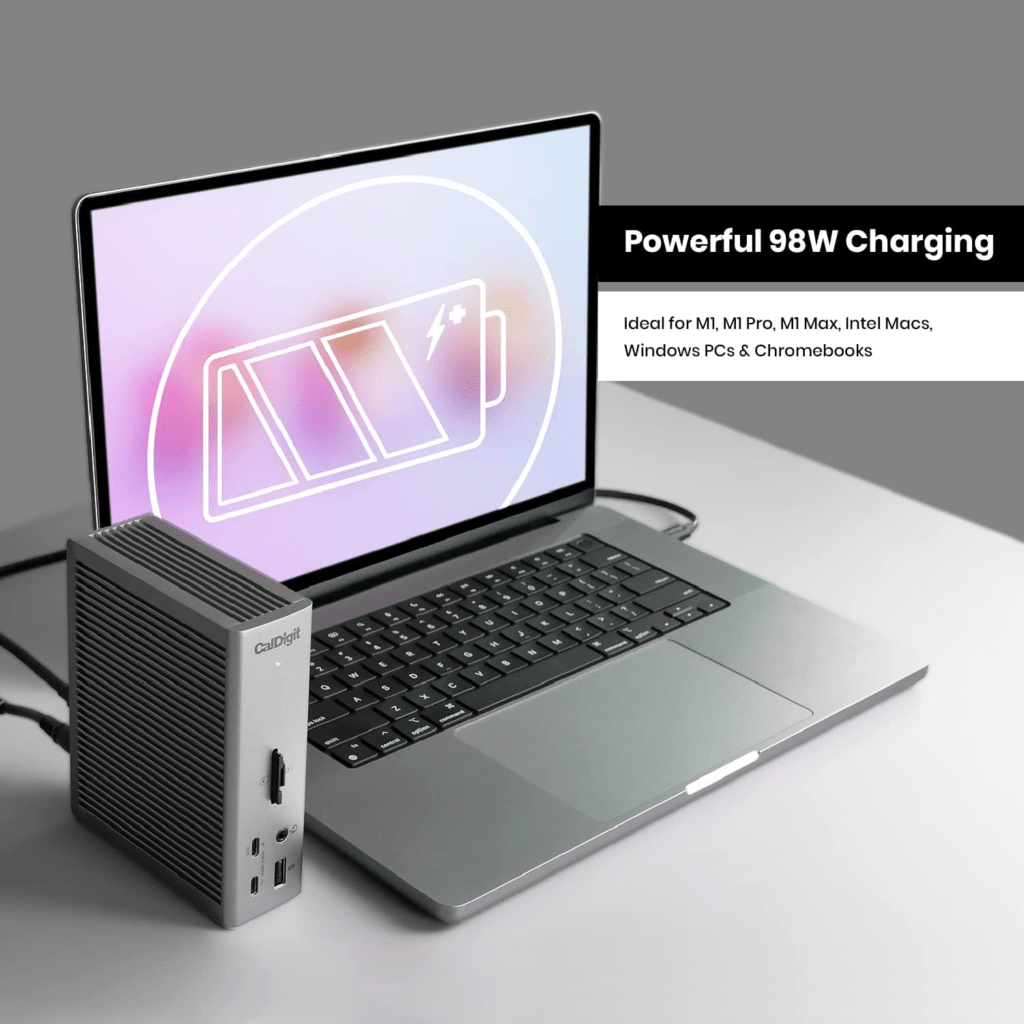
Connection: Thunderbolt 4 | PD: 98W | Displays: 2 native (dual 6K@60Hz) | Ports: 18 | DisplayLink: None | Driver: None

The CalDigit TS4 has been the gold standard Thunderbolt 4 dock since its release, and it remains the best overall pick for M4 Air users who want the cleanest, most reliable dock setup available without compromise.
Plug in one Thunderbolt cable and you get 98W charging (fast charging capable for M4 Air), dual 6K@60Hz native display support, 2.5GbE Ethernet, SD 4.0 and microSD 4.0 card readers, five USB-A ports all running at 10Gbps, a downstream TB4 port for daisy-chaining accessories, and a DisplayPort 1.4 output. That’s 18 ports total — more than almost any dock at any price.
What makes the TS4 stand apart from similarly-specced competitors is the 230W power supply. A lot of docks claim 90–100W PD but include a 90W or 100W power supply — meaning the dock barely has enough headroom to deliver full charging when its own ports are loaded. CalDigit’s 230W PSU means the TS4 consistently delivers its full 98W to the Mac even when you have drives, monitors, and peripherals all running simultaneously. That’s not marketing; it’s engineering discipline.
What’s excellent: 2.5GbE and SD 4.0 in the same dock is rare. Five 10Gbps USB-A ports is genuinely more than most users will ever fill. The build quality is outstanding.
What to watch for: The TS4 has no built-in HDMI port. Video output is through the DisplayPort 1.4 port or the downstream TB4 port. For HDMI monitors, you’ll need a DP-to-HDMI adapter or a USB-C to HDMI cable through the TB downstream. It works perfectly with adapters — just know you need one.
Best for: M4 Air users who want a permanent desk dock that will last through multiple Mac upgrades and never become the bottleneck in any workflow.
| Spec | Detail |
|---|---|
| Connection | Thunderbolt 4 |
| Host PD | 98W (guaranteed by 230W PSU) |
| Video outputs | 1x DP 1.4 + 1x TB4 downstream (6K@60Hz) |
| USB-A | 5x USB-A 10Gbps |
| USB-C | 1x 20W + 2x 7.5W |
| Ethernet | 2.5GbE |
| Card readers | SD 4.0 + microSD 4.0 |
| Audio | 3x (headphone + mic + combo) |
| Security | Kensington lock slot |
| macOS minimum | 11.4 (broadest compatibility in TB4 category) |
| Warranty | 2 years |
2. Plugable TBT4-UDZ — Best for Dual Monitors
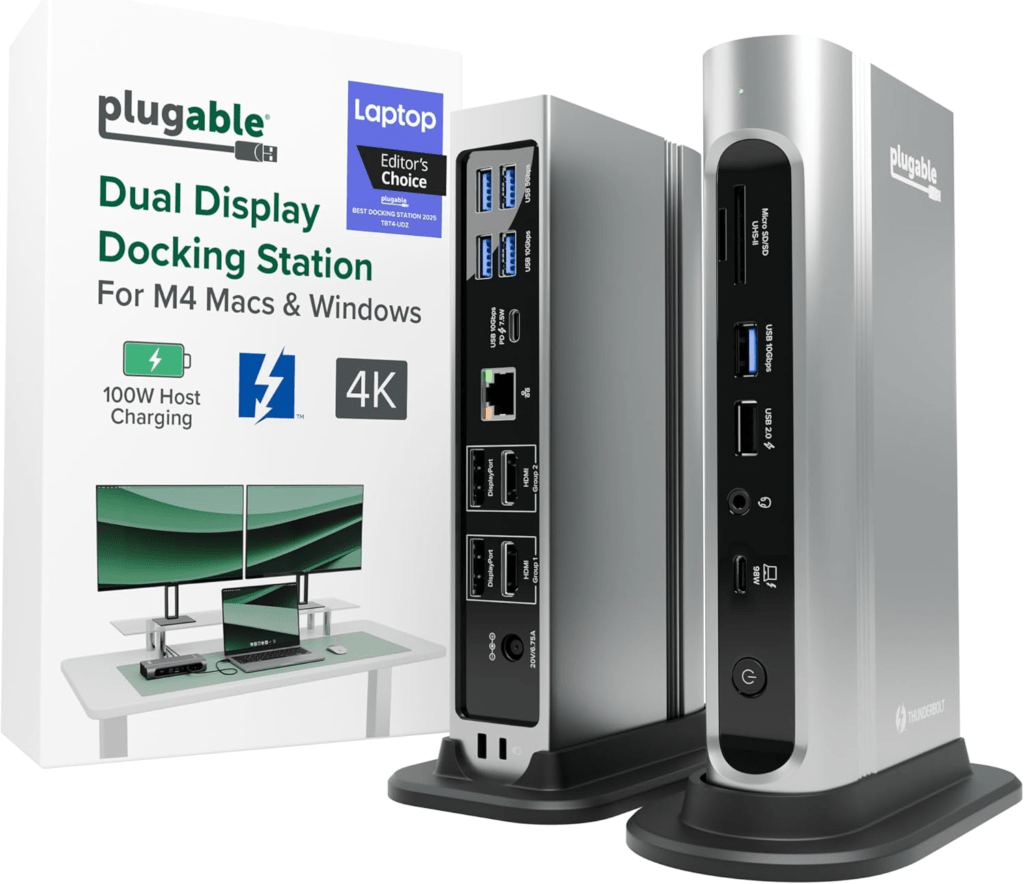
Connection: Thunderbolt 4 | PD: 98W | Displays: 2 native (dual 4K@60Hz) | Ports: 16 | DisplayLink: None | Driver: None
Laptop Mag’s 2025 Dock of the Year, and the pick if dual 4K@60Hz is your primary reason for buying a dock. The TBT4-UDZ has two HDMI 2.0 ports and two DisplayPort 1.2 ports — choose the right pair for your monitors without needing adapters.
Where it pulls ahead for dual-monitor focus: the display port grouping. The four video outputs are split into two groups (Group 1: one HDMI + one DP, Group 2: one HDMI + one DP). For dual monitors, use one port from each group. This pairing structure ensures both monitors get full bandwidth for 4K@60Hz simultaneously without sharing.
The 2.5GbE Ethernet is a meaningful upgrade over the standard 1GbE on most competing docks. If you’re on a fast home or office network, wired 2.5GbE is noticeably faster for large file operations. The dual UHS-II card readers (SD and microSD) handle fast cards from Sony, Lexar, and ProGrade at their full speed.
What’s excellent: Dual HDMI + dual DP out of the box means you’re never buying an adapter for a monitor. 2.5GbE. Two fast card readers.
What to watch for: The USB-A front port runs at USB 2.0 (480Mbps) — fine for charging but don’t plug a drive into it. The rear USB-A ports are a mix of 10Gbps and 5Gbps; check which is which before connecting fast drives.
Best for: M4 Air users making dual monitors the centrepiece of their setup, who want HDMI outputs without any adapter fuss.
| Spec | Detail |
|---|---|
| Connection | Thunderbolt 4 |
| Host PD | 98W |
| Video outputs | 2x HDMI 2.0 + 2x DP 1.2 (use 1 from each group) |
| Max dual resolution | 4K@60Hz per display |
| USB-A | 4x 10Gbps + 2x 5Gbps (rear) + 1x 480Mbps (front) |
| USB-C | 1x 10Gbps, 7.5W |
| Ethernet | 2.5GbE |
| Card readers | SD UHS-II + microSD UHS-II |
| Audio | 1x 3.5mm combo |
| Warranty | 2 years |
3. iVanky FusionDock 1+ — Best Value
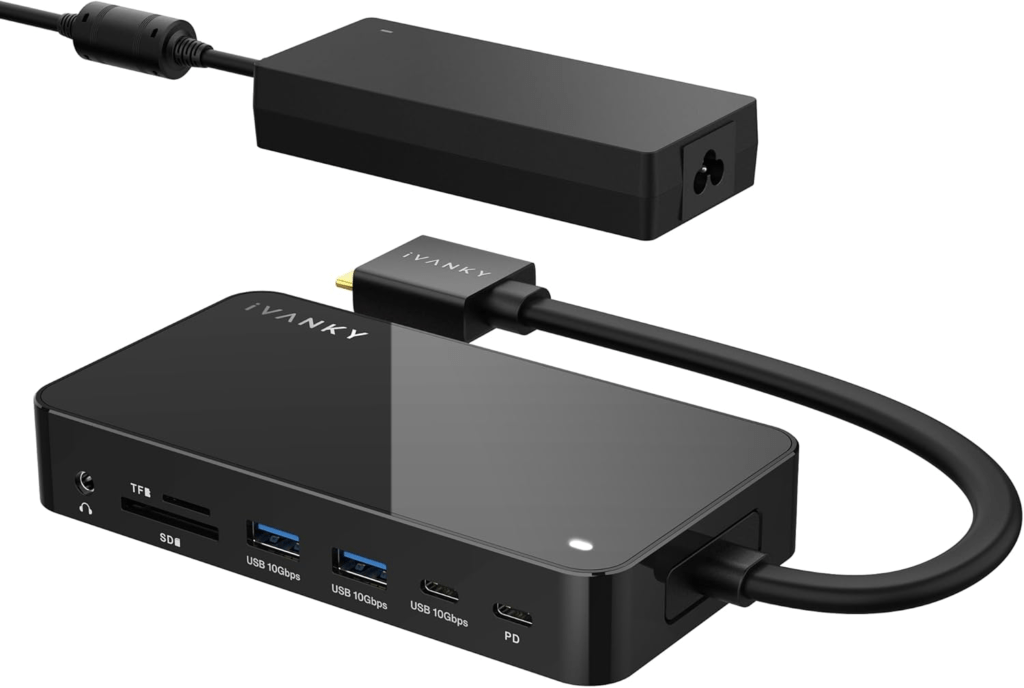
Connection: USB-C 10Gbps | PD: 96W | Displays: 2 native (dual 4K@60Hz) | Ports: 12 | DisplayLink: None | Driver: None
If you don’t need Thunderbolt bandwidth — and many M4 Air users genuinely don’t — the FusionDock 1+ delivers dual 4K@60Hz, 96W PD, and 12 ports at a price well below the TB4 competition, with no compromises that affect the daily experience.
This is a USB-C 10Gbps dock, not Thunderbolt. For the M4 Air driving two 4K monitors at 60Hz through HDMI 2.0, Ethernet, USB-A keyboards and drives, and charging at 96W — 10Gbps is entirely sufficient. You’d only feel the USB-C bandwidth ceiling if you were simultaneously running a 6K display, a TB SSD, and several high-bandwidth devices at once. That’s not most M4 Air desk setups.
The 24-month warranty is longer than Plugable and Anker offer. The 96W PD is 70W+ capable — fast charging the M4 Air works here. The HDMI 2.0 outputs deliver clean 4K@60Hz on both monitors. Four USB-A ports cover the standard keyboard/mouse/drive combination with a spare.
What’s excellent: Native dual 4K@60Hz without DisplayLink, without a driver, without a premium Thunderbolt price tag. The value-to-performance ratio in this category is hard to beat.
What to watch for: Ethernet is 1GbE, not 2.5GbE. If you’re on a gigabit or faster network, you won’t saturate 1GbE, but you won’t future-proof for multi-gigabit either. Not a Thunderbolt dock — TB accessories connect at USB-C speeds.
Best for: Budget-conscious M4 Air users who want dual 4K@60Hz and reliable performance without overpaying for Thunderbolt bandwidth they don’t need.
| Spec | Detail |
|---|---|
| Connection | USB-C 10Gbps |
| Host PD | 96W |
| Video outputs | 2x HDMI 2.0 (dual 4K@60Hz) |
| USB-A | 2x 10Gbps + 2x 5Gbps |
| USB-C | 2x 10Gbps |
| Ethernet | 1GbE |
| Card readers | SD + microSD |
| Audio | 1x 3.5mm |
| Warranty | 24 months |
4. Plugable TBT-UDM — Best Design Pick
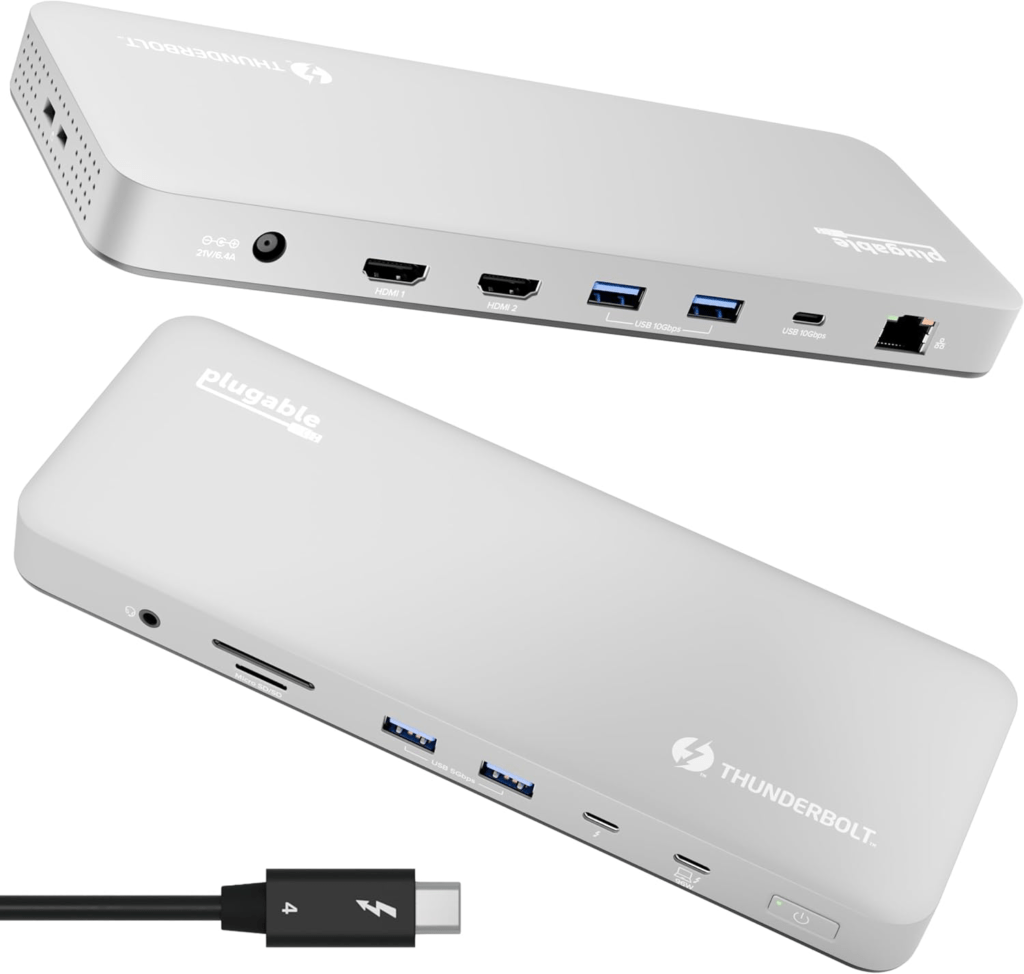
Connection: Thunderbolt 4 | PD: 96W | Displays: 2 native (dual 4K@60Hz or 1x 6K) | Ports: 13 | DisplayLink: None | Driver: None
Plugable designed the TBT-UDM specifically for Mac users — Space Gray aluminum that matches the MacBook Air’s finish, a status LED that turns blue when a Mac is connected, and a 13-port layout built around how Mac users actually work. It’s the first dock in Plugable’s lineup that feels designed for a Mac desk rather than adapted to one.
The spec sheet is strong: 96W PD for fast M4 Air charging, two HDMI 2.0 ports for dual 4K@60Hz, a front-accessible TB4 downstream port for a TB monitor or drive, dual UHS-II card readers on the rear (SD and microSD at 312MB/s each), four USB-A ports across front and rear, and a front 3.5mm combo audio jack.
The TB4 downstream port unlocks a useful option: connect a Thunderbolt monitor (like the Apple Pro Display XDR) directly at up to 6K@60Hz, while using the HDMI ports for a second 4K monitor. That’s dual high-resolution displays with no adapters needed from a dock that fits natively into a Mac aesthetic.
What’s excellent: The design genuinely matches the M4 Air. The TB4 downstream + dual HDMI combination covers every monitor type without adapters. Front-accessible card readers and audio jack for daily use.
What to watch for: Ethernet is 1GbE. The rear USB-A 3.0 ports run at 5Gbps — fine for peripherals, not ideal for fast SSDs.
Best for: M4 Air users who care about desk aesthetics and want a dock that looks like it was designed to live beside a MacBook.
| Spec | Detail |
|---|---|
| Connection | Thunderbolt 4 |
| Host PD | 96W |
| Video outputs | 2x HDMI 2.0 + 1x TB4 downstream (6K capable) |
| USB-A | 2x 5.5W (front) + 2x 10Gbps (rear) |
| USB-C | 1x 10Gbps, 7.5W (rear) |
| Ethernet | 1GbE |
| Card readers | SD UHS-II + microSD UHS-II (rear) |
| Audio | 1x 3.5mm combo (front) |
| Finish | Space Gray aluminum |
| Warranty | 2 years |
5. Kensington SD4790-MAC — Best for Triple Monitors
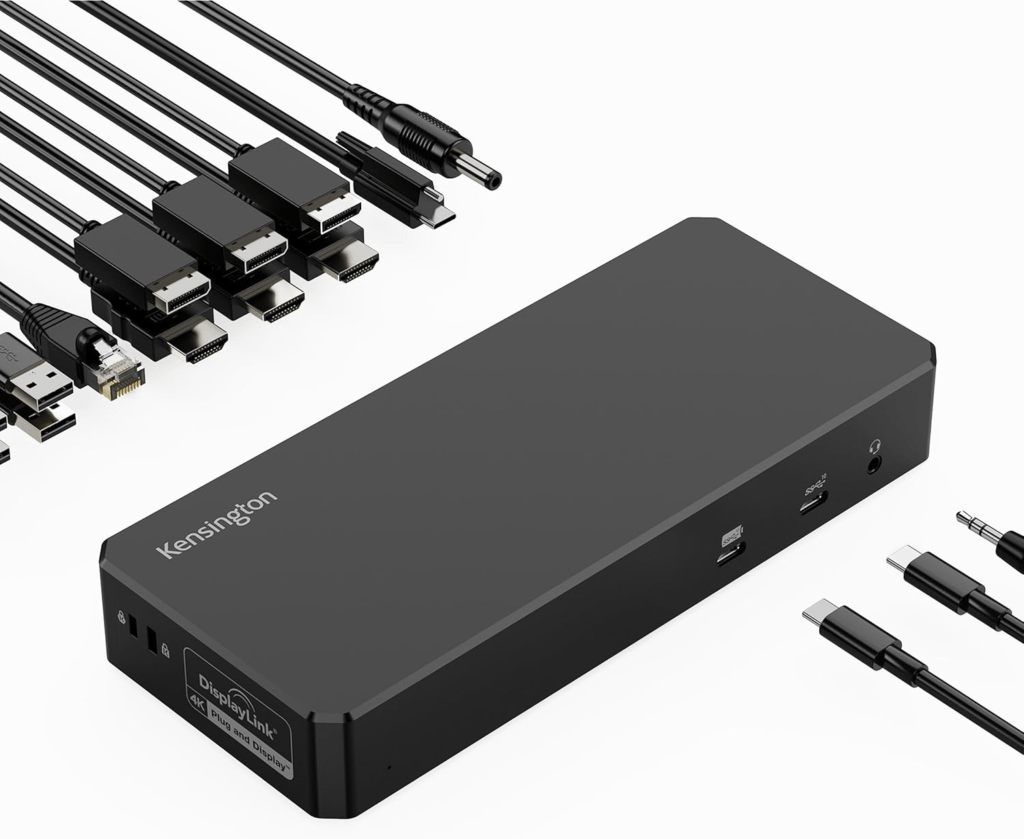
Connection: USB-C 10Gbps | PD: 100W | Displays: 3 total (2 native + 1 DisplayLink) | Ports: 14 | DisplayLink: Partial | Driver: DisplayLink for 3rd display only
The SD4790-MAC is the only dock in this guide specifically branded and optimised for MacBook. It’s designed by Kensington to work with M-series Macs, and it’s the right pick when you need a third external display from your M4 Air.
The architecture is a hybrid: one HDMI and one DisplayPort output run natively (no driver, full quality) for your two primary monitors. A second HDMI and DisplayPort pair run through DisplayLink for the third monitor. The M4 Air handles the first two with native GPU output at 4K@60Hz; the DisplayLink driver handles the third.
This means you get the best of both worlds: your main two monitors are full-quality native output with no streaming restrictions, and the third monitor extends your workspace via DisplayLink. If you use the third monitor for reference content — Slack, browser, docs, a calendar — the DisplayLink compression is completely invisible.
The DisplayLink streaming caveat applies to all screens once the driver is running (Netflix goes black). The Chrome/Edge workaround resolves it.
What’s excellent: Three monitors from a USB-C dock without paying TB4 prices. Native output for your primary monitors. Kensington’s 3-year warranty is one of the longest available. DockWorks software saves your monitor layout.
What to watch for: DisplayLink driver required for the third monitor. Streaming HDCP limitation applies. USB-A ports on rear are Gen 1 (5Gbps).
Best for: M4 Air users who want a triple monitor desk setup and don’t need (or want to pay for) a Thunderbolt dock to do it.
| Spec | Detail |
|---|---|
| Connection | USB-C 10Gbps |
| Host PD | 100W |
| Video (native) | 1x HDMI 2.0 + 1x DP 1.4 — plug-and-play |
| Video (DisplayLink) | 1x HDMI 2.0 + 1x DP — driver required |
| Max displays | 3 (2 native + 1 DisplayLink) |
| USB-A | 4x Gen 1, 5Gbps |
| USB-C (front) | 2x 10Gbps |
| Ethernet | 1GbE |
| Audio | 1x 3.5mm combo |
| Security | Kensington lock slot |
| Warranty | 3 years |
6. Kensington MD120U4 — Best for Travel
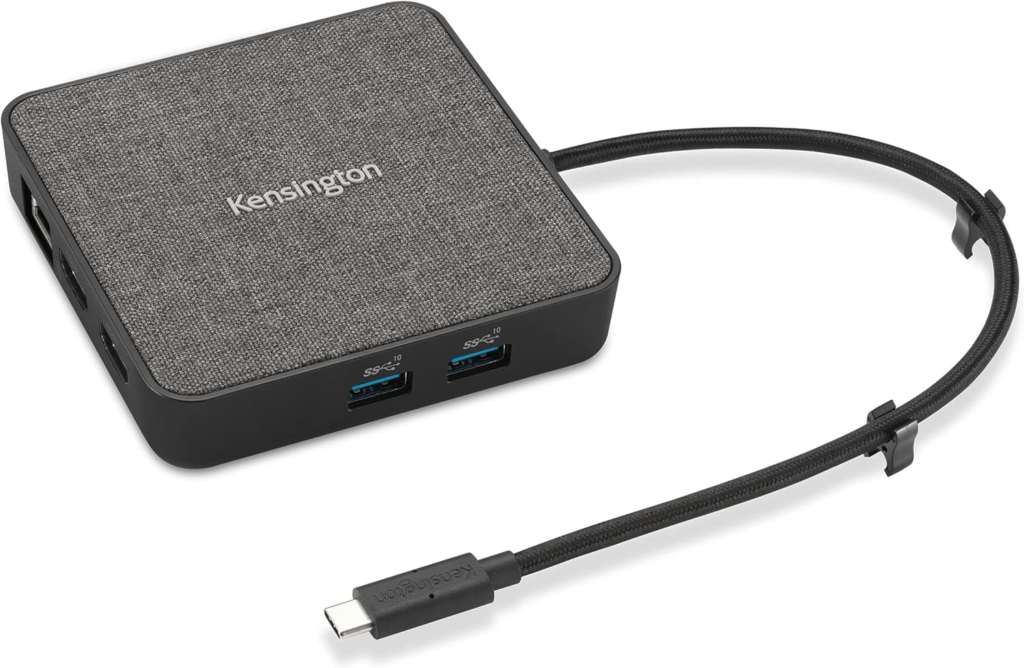
Connection: USB4 40Gbps | PD: 100W pass-through | Displays: 2 native (dual 4K@60Hz) | Ports: 7 | DisplayLink: None | Driver: None
The MD120U4 is the only compact dock in this guide that delivers dual 4K@60Hz for the M4 Air at true travel weight. It’s a USB4 dock — meaning it uses the same 40Gbps bandwidth as Thunderbolt but in a smaller, lighter package that doesn’t need its own power brick.
The power setup is important to understand: the MD120U4 uses pass-through charging, not built-in PD. You plug your existing MagSafe or USB-C charger into the dock, and the dock passes up to 100W through to the Mac. This means one less power brick to carry — just the one charger you already bring, plugged into the dock rather than directly into the Mac.
For M4 Air travel use, the port count (7 total) covers the essentials: dual HDMI for hotel desk or conference room monitors at 4K@60Hz, two USB-A 10Gbps, USB-C 10Gbps, and Gigabit Ethernet. It connects to both the M4 Air’s TB4 port via USB4, delivering full dual 4K native output.
What’s excellent: Compact enough to fit in a laptop bag side pocket. No separate power adapter needed. Genuine dual 4K@60Hz in travel form factor. DockWorks software included.
What to watch for: Pass-through charging means you always need to bring a USB-C charger alongside it — you can’t charge through the dock on its own. Ethernet is 1GbE. No card reader.
Best for: M4 Air users who travel regularly and need a proper dock for hotel rooms, coworking spaces, and client offices — without adding significant weight.
| Spec | Detail |
|---|---|
| Connection | USB4 40Gbps |
| Host PD | 100W pass-through (requires laptop charger plugged in) |
| Video outputs | 2x HDMI 2.0 (dual 4K@60Hz on USB4 hosts) |
| USB-A | 2x 10Gbps |
| USB-C | 1x 10Gbps |
| Ethernet | 1GbE |
| Form factor | Compact/portable |
| Warranty | 3 years |
7. Anker A8392 (575) — Best Budget
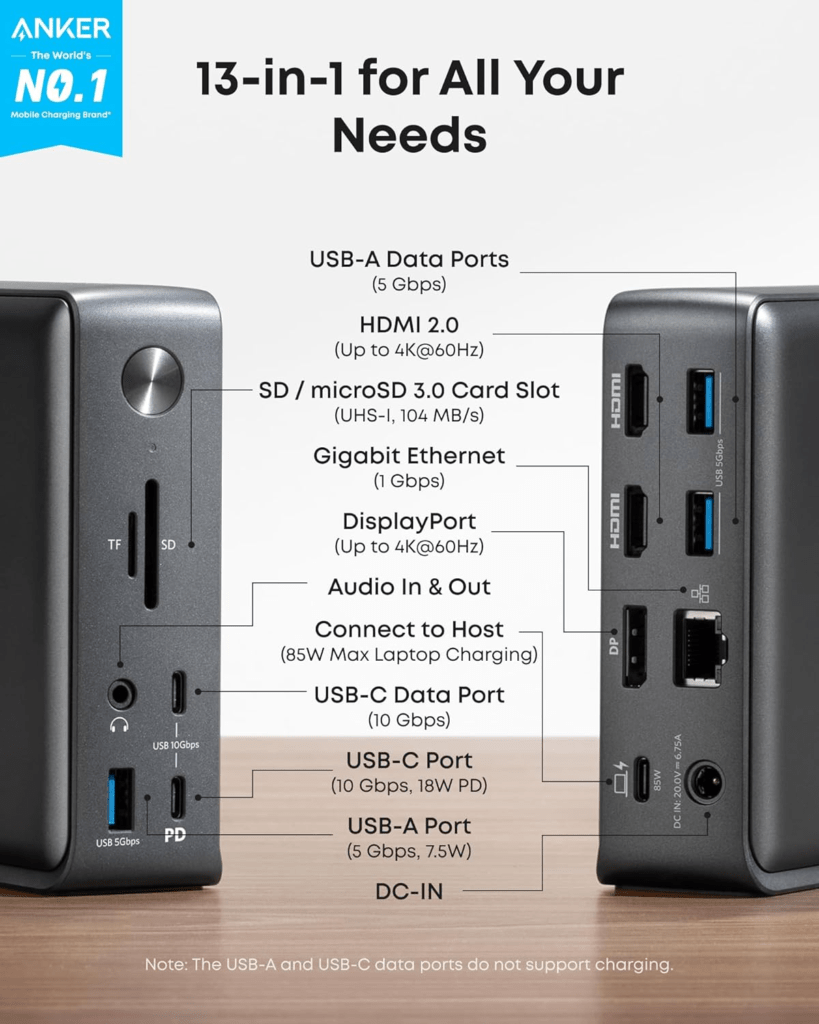
Connection: USB-C 10Gbps | PD: 85W | Displays: 2 native (M4 Air lid open or closed) | Ports: 13 | DisplayLink: None | Driver: None
The Anker 575 is a capable USB-C dock that covers the full port checklist for an M4 Air desk setup — dual display, SD card reader, Ethernet, USB-A — at the lowest price of any dock in this guide. For buyers where budget is the primary constraint, it’s a practical starting point.
The catch worth flagging: dual display on the A8392 tops out at 4K@30Hz when using both HDMI ports simultaneously. If you want both monitors at 4K@60Hz, you need a HDMI+DP combination (one monitor on HDMI, one on the DP port) — the DP port can run 4K@60Hz. For buyers using two monitors full-time, this port-pairing matters. For buyers running one primary monitor and a secondary for reference content, 4K@30Hz on the second display is often acceptable.
The 85W PD is adequate for M4 Air fast charging during normal use, though you’ll want MagSafe alongside it during sustained heavy CPU tasks to keep the battery topped.
What’s excellent: 13 ports including SD and microSD card readers at a price well below any TB4 dock. No driver required. Broadest macOS compatibility (10.12+).
What to watch for: 4K@30Hz when both HDMI ports are used simultaneously — use HDMI + DP combination for dual 4K@60Hz. 85W PD (not the highest). Dual HDMI maxes at 4K@30Hz.
Best for: Budget-first M4 Air buyers who want a full-featured dock at minimum cost and are happy to pair monitors on HDMI + DP for 4K@60Hz on both.
| Spec | Detail |
|---|---|
| Connection | USB-C 10Gbps |
| Host PD | 85W |
| Video outputs | 2x HDMI 2.0 + 1x DP |
| Dual display | 4K@30Hz (both HDMI) or 4K@60Hz (HDMI + DP) |
| USB-A | 3x 5Gbps |
| USB-C | 2x 10Gbps |
| Ethernet | 1GbE |
| Card readers | SD UHS-I + microSD UHS-I |
| Audio | 1x 3.5mm combo |
| macOS minimum | 10.12 |
Full Comparison Table
| Dock | Type | PD | Max Displays | 4K@60Hz Both | Ethernet | Card Reader | Warranty |
|---|---|---|---|---|---|---|---|
| CalDigit TS4 | TB4 | 98W | 2 native | ✅ | 2.5GbE | SD 4.0 + microSD 4.0 | 2 yr |
| Plugable TBT4-UDZ | TB4 | 98W | 2 native | ✅ | 2.5GbE | SD UHS-II + microSD | 2 yr |
| iVanky FusionDock 1+ | USB-C | 96W | 2 native | ✅ | 1GbE | SD + microSD | 24 mo |
| Plugable TBT-UDM | TB4 | 96W | 2 native | ✅ | 1GbE | SD UHS-II + microSD | 2 yr |
| Kensington SD4790-MAC | USB-C | 100W | 3 (2+DL) | ✅ native | 1GbE | ❌ | 3 yr |
| Kensington MD120U4 | USB4 | 100W PT | 2 native | ✅ | 1GbE | ❌ | 3 yr |
| Anker A8392 | USB-C | 85W | 2 native | ⚠️ HDMI+DP | 1GbE | SD + microSD | 18 mo |
Setup Scenarios — Which Dock for Your Situation
The Home Office User
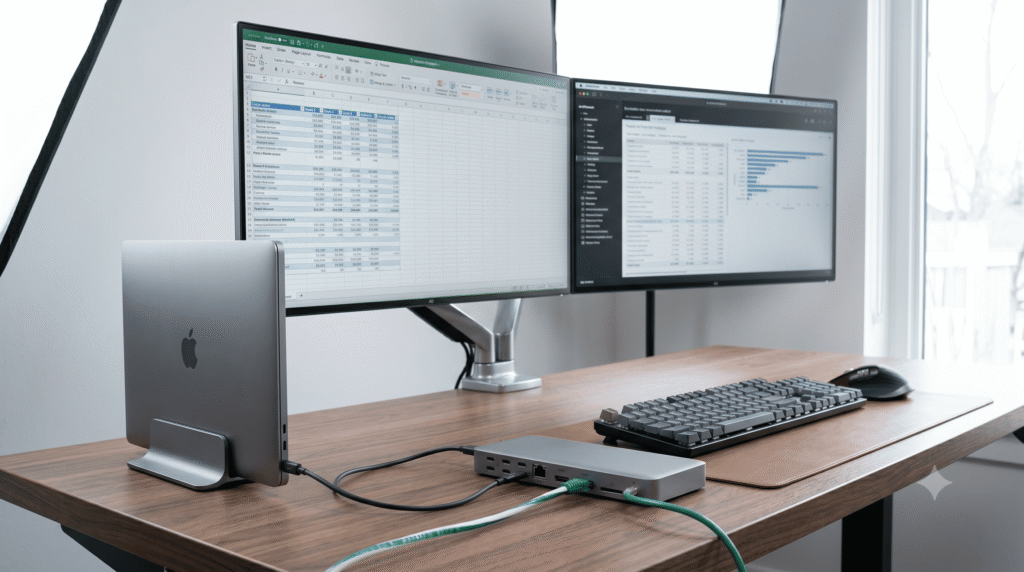
You work from home every day. You want two monitors, wired Ethernet, a keyboard and mouse, and fast charging. Everything should connect with one cable in the morning and disconnect cleanly at the end of the day.
The CalDigit TS4 is the home office pick. Eighteen ports, 2.5GbE, fast card readers, and a power supply sized to sustain full performance under load. It’s expensive, but it’s the dock you buy once and never think about again through multiple Mac upgrades.
If CalDigit’s price is a stretch, the Plugable TBT4-UDZ delivers 2.5GbE and dual HDMI/DP outputs at a lower price and still gives you everything a home office needs.
The Student or First-Time Dock Buyer
You need a monitor for studying, Ethernet for reliable video calls, and somewhere to plug in your USB-A keyboard and mouse. You’ll never need three monitors and don’t need the fastest card reader.
The iVanky FusionDock 1+ does this at a fair price. Dual 4K@60Hz, 96W PD, 12 ports, no driver required. There’s no feature you’re paying for and not using.
If budget is even tighter, the Anker A8392 covers every basic need and adds SD card readers. Just pair your monitors on HDMI + DP for dual 4K@60Hz.
The Photographer or Video Creator
You pull cards constantly — SD, microSD, maybe CFexpress. You need fast card reader speeds so you’re not waiting for transfers. You also want wired Ethernet for large file uploads.
The CalDigit TS4‘s SD 4.0 and microSD 4.0 readers run at up to 312MB/s — fast enough that even UHS-II cards aren’t a bottleneck. The Plugable TBT4-UDZ matches this with dual UHS-II readers.
If you also need a compact setup, the CalDigit SOHO Dock is a bus-powered puck with SD UHS-II and microSD UHS-II — no power brick, single display, but extremely portable.
The Frequent Traveller
You carry your M4 Air to a new desk two or three times a week. You need a dock that fits in a bag, sets up fast at any desk, and handles hotel room or conference room monitors.
The Kensington MD120U4 is the pick. Compact enough to forget it’s in your bag, USB4 dual 4K@60Hz so you’re never limited at a presentation screen, and pass-through charging means one less power brick.
For minimal-bag travel, the Plugable UD-CUBE is even smaller — a single-display bus-powered cube that sets up instantly. No charging from the dock, but if you keep MagSafe plugged in at hotel desks, it works.
The M4 Air as Desktop Replacement
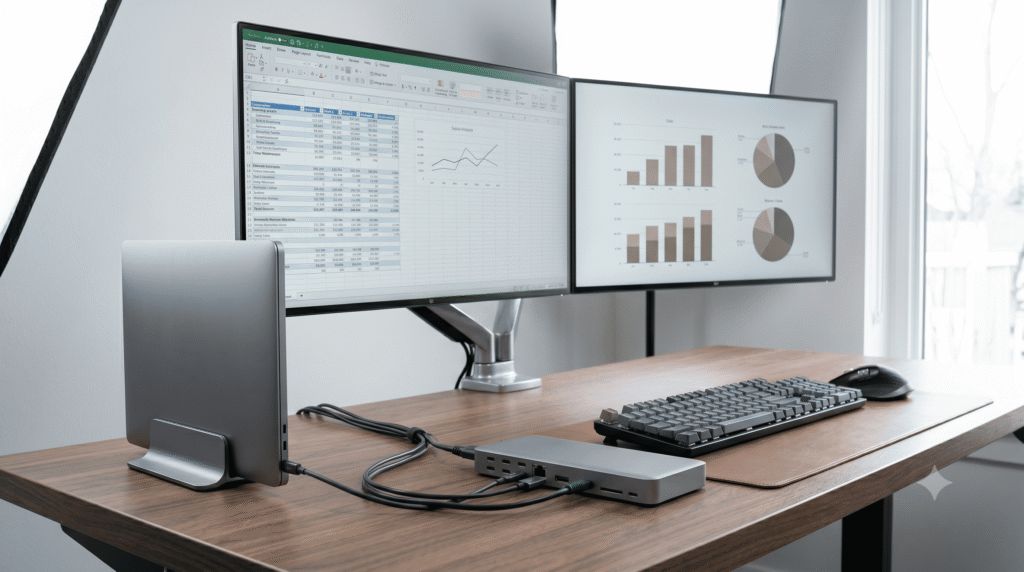
You want to close the lid of your M4 Air and use it as a pure desktop machine — two external monitors as your only screens, keyboard and mouse on the desk, the laptop charging and out of the way.
Any dock in this guide supports this setup. Clamshell mode on the M4 Air works identically to lid-open mode — same dual external display capability, same charging, same everything. Close the lid, both monitors stay on.
One practical note: closing the lid generates slightly more heat on the M4 Air because the passively-cooled chassis can’t ventilate as easily with the display fold down. In normal office workloads this is fine. In sustained heavy workloads (export, compilation), leave the lid cracked open or elevate the laptop slightly for better airflow.
The Triple-Monitor Setup
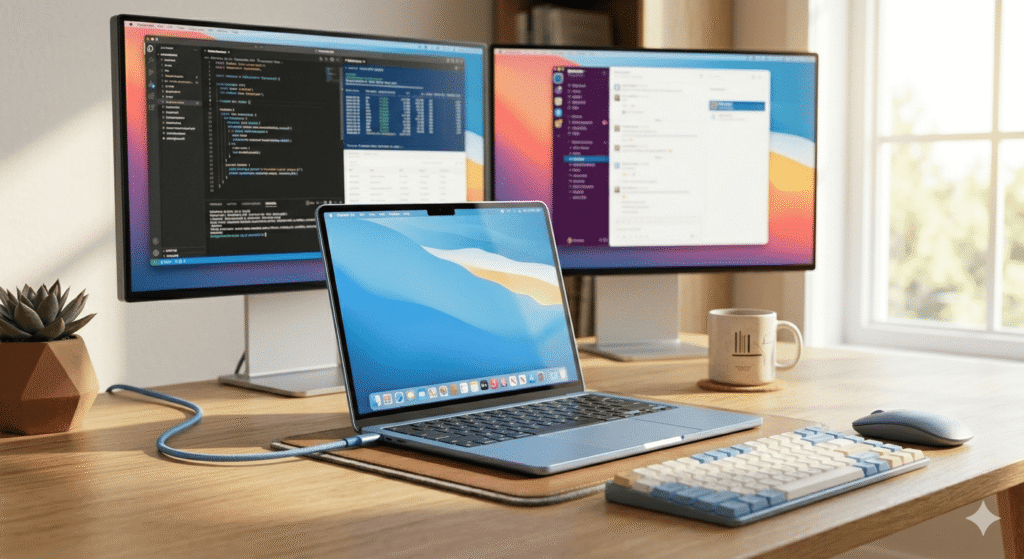
You work with a code editor, a browser, and a reference panel simultaneously and need all three on separate screens. The M4 Air chip supports two native displays — the third requires DisplayLink.
The Kensington SD4790-MAC is built for exactly this. Two native displays get full GPU quality, and the third runs DisplayLink. Put your code editor and browser on the native outputs; put Slack or a documentation browser on the DisplayLink screen. The DisplayLink display handles static content without any perceptible quality difference, and the streaming HDCP caveat doesn’t apply to most development or productivity workflows.
Known Issues and How to Fix Them
Issue: Second Monitor Doesn’t Appear After Connecting the Dock
Why it happens: The M4 Air can occasionally take a few seconds to initialise both display outputs, especially after waking from sleep or first connection.
Fix: Wait 5–10 seconds after plugging in the dock cable before assuming there’s a problem. If the second monitor still doesn’t appear, go to System Settings → Displays and check whether it’s listed as a connected but inactive display. Clicking “Detect Displays” (hold Option in the Displays menu) forces a rescan. If that doesn’t help, disconnect and reconnect the dock cable. A full system restart is the nuclear option and works 100% of the time.
Issue: Monitors Go Dark When Mac Wakes from Sleep
Why it happens: macOS sometimes doesn’t fully reinitialise the Thunderbolt display path after longer sleep sessions, particularly with third-party docks.
Fix: Disconnect and reconnect the upstream Thunderbolt cable. It takes three seconds and resolves the issue immediately in most cases. If this happens consistently, check for a firmware update for your dock — CalDigit, Plugable, and Kensington all push dock firmware updates that address sleep/wake reliability.
Issue: Dock Randomly Disconnects During Use
Why it happens: Usually a power delivery issue — either the dock’s power adapter is undersized for the total port load, or the Thunderbolt cable is connecting intermittently.
Fix: Check the power adapter is properly seated. Try a different Thunderbolt cable — the cable included with your dock is always the safest choice. If using a third-party cable, verify it’s certified for 40Gbps. On the M4 Air, make sure the dock is connected to a Thunderbolt port, not a non-TB USB-C hub daisy-chained from somewhere else.
Issue: Ethernet Connection Drops or Runs at Reduced Speed
Why it happens: Some docks’ Ethernet chips occasionally need a driver nudge after macOS updates. 2.5GbE connections sometimes fall back to 1GbE if the network equipment doesn’t negotiate correctly.
Fix: In System Settings → Network, check the Ethernet connection status. If it shows as connected but at 1Gbps on a 2.5GbE dock, your switch or router may not support 2.5GbE — verify the network equipment supports multi-gigabit. For random drops, check for dock firmware updates. Unplugging and re-plugging the Ethernet cable resets the handshake and fixes most intermittent issues.
Issue: DisplayLink Monitor Shows Wrong Resolution or No Signal
Why it happens: DisplayLink requires its driver running before monitors appear. If the driver isn’t set to launch at login, monitors won’t initialise after a restart.
Fix: Open DisplayLink Manager → Preferences → check “Launch at Login.” Without this, you’ll need to manually open DisplayLink Manager after every restart before the third monitor appears. Also verify Screen Recording permission is still active in System Settings → Privacy & Security — macOS occasionally resets this after system updates.
Issue: Dock Doesn’t Deliver Full 96–98W Under Load
Why it happens: Some docks with undersized power supplies can’t sustain their rated PD while all ports are running simultaneously. The M4 Air may charge slightly slower or battery drain slightly during heavy workloads.
Fix: Check whether your MagSafe port is available and connect MagSafe alongside the dock for heavy workloads. The M4 Air charges from both simultaneously, and MagSafe bypasses any dock PD limitations. For docks rated with adequate PSU (CalDigit TS4’s 230W, Plugable’s 135W), this shouldn’t occur — it’s typically a problem with lower-end docks claiming high PD without adequate power supply.
Issue: USB-C SSD Shows Lower-Than-Expected Transfer Speeds
Why it happens: USB-C SSDs connected to a USB-C dock run over the dock’s upstream bandwidth, which is shared with all other connected devices. A 10Gbps dock with multiple devices running simultaneously has less headroom for SSD transfers.
Fix: Connect your fastest storage devices to the dock’s USB-C port rather than USB-A ports, as USB-C 10Gbps is typically faster than USB-A 5Gbps. On TB4 docks, SSDs connected to the downstream TB port get their own dedicated bandwidth path, independent of the other USB ports. If you regularly move large files, a TB4 dock with a downstream TB port is worth the investment.
Issue: Mac Gets Warm in Clamshell Mode
Why it happens: The M4 Air’s passively cooled chassis dissipates heat partly through the display and top case. Closing the lid reduces airflow slightly.
Fix: Use a vertical laptop stand that holds the Mac upright rather than flat — this exposes more surface area for passive cooling. Under normal office workloads, heat in clamshell mode is negligible. If you’re running sustained exports or heavy compilation, either leave the lid slightly open (even a crack improves airflow) or step down to a lighter workload during clamshell sessions.
What You Should Never Buy for the M4 Air
Docks That Mirror Instead of Extend
A significant number of cheaper USB-C docks on Amazon — particularly dual-display hubs under $50 — use DisplayPort MST (Multi-Stream Transport) for their second output. MST is not supported by macOS for extended displays. The second monitor mirrors the first instead of extending the desktop. This is useless for productivity.
Searching Amazon for “USB-C dual display dock Mac” will surface several of these. The red flag is specs that mention “MST” without also mentioning DisplayLink. If you see MST without DisplayLink and without Thunderbolt, don’t buy it for Mac.
Examples of excluded products: Baseus Spacemate WIN, Anker A83B6, several UGREEN and AUKEY dual-display hubs. Always verify the dock is confirmed Mac-compatible before buying.
Docks Capped at 4K@30Hz on Both Outputs
Some budget docks advertise “4K dual display” but deliver 4K@30Hz on both outputs. This looks fine in screenshots but is noticeably sluggish for daily use — scrolling, window movement, and cursor tracking all look slightly choppy compared to 60Hz.
How to spot them: Any dock with only HDMI 1.4 ports (look for this in the fine print), or USB-C docks without a DisplayPort or second-generation HDMI output. The Anker A8392 at budget level is the exception — it delivers 4K@60Hz when you use HDMI + DP together.
Thunderbolt 5 Docks — Not Necessary for M4 Air
TB5 docks exist and work with the M4 Air — they fall back to TB4 speeds. But TB5 bandwidth (120Gbps) is only unlocked by M4 Pro/Max and M5 Pro/Max chips. On an M4 Air’s TB4 ports, a TB5 dock provides no additional benefit over a TB4 dock. You’d be paying a TB5 premium for TB4 performance.
The M4 Air vs M3 Air — What Changes for Dock Buyers
If you’re upgrading from an M3 Air, the dock situation is significantly simpler.
The M3 Air required the lid closed to run two external monitors natively. Many M3 Air users ended up either buying a DisplayLink dock (to avoid clamshell mode) or accepting that desk work meant a closed laptop. Neither is ideal.
The M4 Air has no such restriction. Two external monitors, lid open, no driver, no workaround. Any Thunderbolt 4 dock from this guide works out of the box.
If you already own a dock from your M3 Air days — Thunderbolt or USB-C with native video — it works on the M4 Air. Nothing about the dock needs to change. What changes is that your previous clamshell workaround becomes optional.
If you used a DisplayLink dock with your M3 Air for lid-open dual monitors, you can keep using it on the M4 Air. But you could also replace it with a simpler native dock and eliminate the driver overhead entirely.
Frequently Asked Questions
Can the MacBook Air M4 run two external monitors without DisplayLink?
Yes. The M4 Air natively supports two external displays in any configuration — lid open or closed — without any driver or workaround. This is a significant upgrade from the M3 Air, which required clamshell mode for dual display. Any Thunderbolt 4 dock with two video outputs (HDMI, DisplayPort, or a combination) enables dual external monitors on the M4 Air natively.
Do I need to close the lid to use two monitors?
No. The M4 Air runs two external monitors with the lid open. You can use the Mac’s built-in display simultaneously as a third screen alongside two external monitors for a three-display setup. Clamshell mode (lid closed) is supported, but it’s entirely optional.
How much power delivery does the M4 Air need from a dock?
The M4 Air accepts up to 70W via USB-C and supports fast charging. A dock delivering 70W+ enables fast charging. Docks in the 45–60W range charge more slowly but don’t harm the Mac. Every dock in this guide delivers 85–100W — more than sufficient. MagSafe 3 provides additional charging when both are connected.
Do I need a Thunderbolt 5 dock for the M4 Air?
No. The M4 Air has Thunderbolt 4 ports, not TB5. A TB5 dock connected to the M4 Air runs at TB4 speeds (40Gbps) — the TB5 bandwidth advantage doesn’t exist on this Mac. Save the TB5 premium for the MacBook Pro M4 Pro/Max, which has actual TB5 ports.
What’s the best way to run three monitors on the M4 Air?
The M4 chip natively supports two external displays. For a third, you need DisplayLink. The Kensington SD4790-MAC handles this with two native outputs and one DisplayLink output. Install the DisplayLink driver from synaptics.com, and set DisplayLink Manager to launch at login. The native monitors have zero streaming or quality restrictions; the DisplayLink monitor comes with the standard HDCP streaming caveat.
Will a Thunderbolt 3 dock work with the M4 Air?
Yes. TB4 ports are backward compatible with TB3 docks at TB3 speeds. TB3 docks work correctly for displays, charging, and data. The bandwidth ceiling is lower (40Gbps max on TB3, same as TB4 actually), but TB3 docks sometimes don’t support as many simultaneous features. Modern TB4 docks are a better investment for the M4 Air.
Can I use a USB-C hub instead of a docking station?
Yes, for basic use. A USB-C hub adds HDMI, USB-A, and Ethernet from a single cable. Hubs typically don’t include power supplies — they either don’t charge your Mac or use pass-through charging from your existing adapter. Docks include their own power supplies and deliver proper PD to your Mac. For a permanent desk setup, a docking station with its own power adapter is the better long-term choice.
Does the M4 Air work correctly in clamshell mode?
Yes. With the lid closed, the M4 Air operates identically to lid-open mode — same display count (two external), same performance, same charging. Some users notice slightly higher chassis temperature in clamshell mode due to reduced passive cooling — using a vertical laptop stand improves airflow in this configuration.
Our Verdict
The MacBook Air M4 is the easiest Mac to buy a dock for in the entire Air lineup’s history. Native dual display, lid open, no drivers, no workarounds. One Thunderbolt cable, two monitors, done.
For most M4 Air users, the right dock is one of three things: the CalDigit TS4 if you want a premium investment that covers every port you could need for years; the Plugable TBT4-UDZ if dual monitors with 2.5GbE is the core requirement at a slightly lower price; or the iVanky FusionDock 1+ if you want native dual 4K@60Hz without spending Thunderbolt money.
If aesthetics matter, the Plugable TBT-UDM in Space Gray is the best-looking dock in this category. If you need a third monitor, the Kensington SD4790-MAC handles that cleanly. If you travel, the Kensington MD120U4 packs down small and delivers genuine dual 4K on the road.
What to avoid: MST-based “dual display” docks that mirror on Mac, any dock with HDMI 1.4 ports if you care about 60Hz, and TB5 docks — they’re expensive and provide no benefit on the M4 Air’s TB4 ports.
The M4 Air finally earns the “desktop replacement” label for real. The right dock makes it one.
Last updated: May 2026. Specs verified against Apple MacBook Air M4 tech specs page and manufacturer product pages. All dock recommendations verified against dockyeah product database (May 2026).