If you’ve used a dock with a Mac long enough, you’ve probably hit at least one strange issue.
A monitor that won’t wake.
A second screen that mirrors instead of extending.
4K running at 30Hz when you expected 60Hz.
A MacBook that slowly loses battery while “charging.”
In my experience, most Mac docking problems fall into a handful of predictable categories. They feel random when they happen, but they’re usually the result of bandwidth limits, display pipeline constraints, cable bottlenecks, or macOS behavior.
This guide walks through the most common issues and how to fix them logically—without guessing.
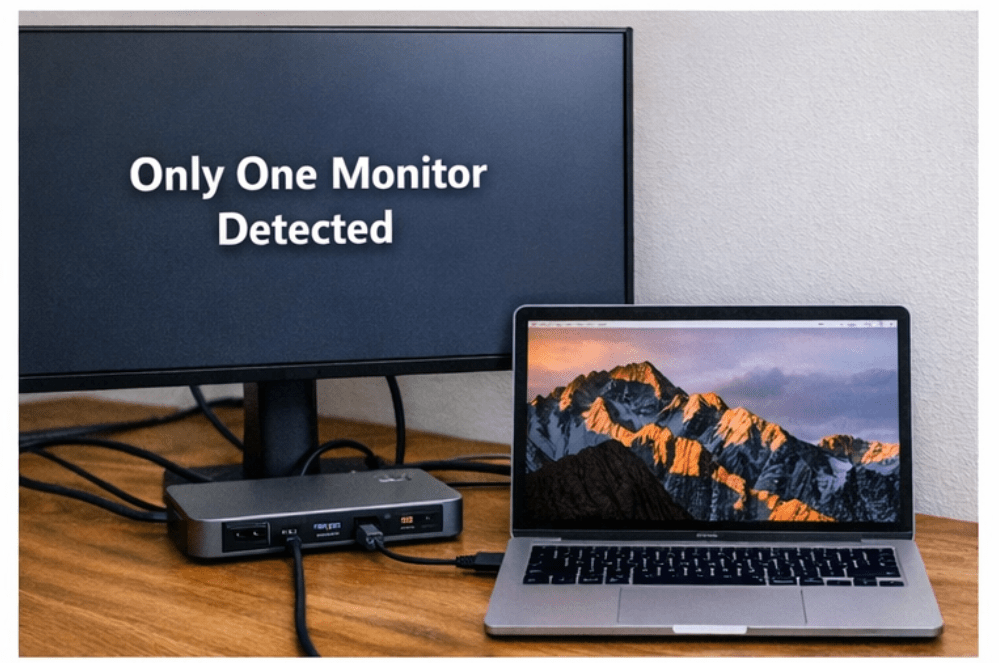
1. Only One External Monitor Is Detected
This is the most common complaint I see, especially from MacBook Air users.
You plug in a dual-HDMI hub, connect two monitors, and macOS only detects one. Or it detects two but mirrors them.
Why it happens
There are three usual reasons:
- Your Mac model supports only one external display natively.
- The dock relies on MST splitting that macOS doesn’t use for extended displays.
- The dock’s two HDMI ports are not truly independent display streams.
When I reviewed several compact dual-HDMI hubs, I noticed many of them technically had two outputs—but internally they were sharing one display stream.
How to fix it
- Confirm your Mac’s native external display support.
- If it supports only one external display, use a DisplayLink dock for the second extended monitor.
- If your Mac supports two natively, switch to a proper Thunderbolt dock rather than a basic USB-C hub.
The key is understanding whether this is a hardware limitation or a dock limitation.
2. 4K Monitor Is Stuck at 30Hz
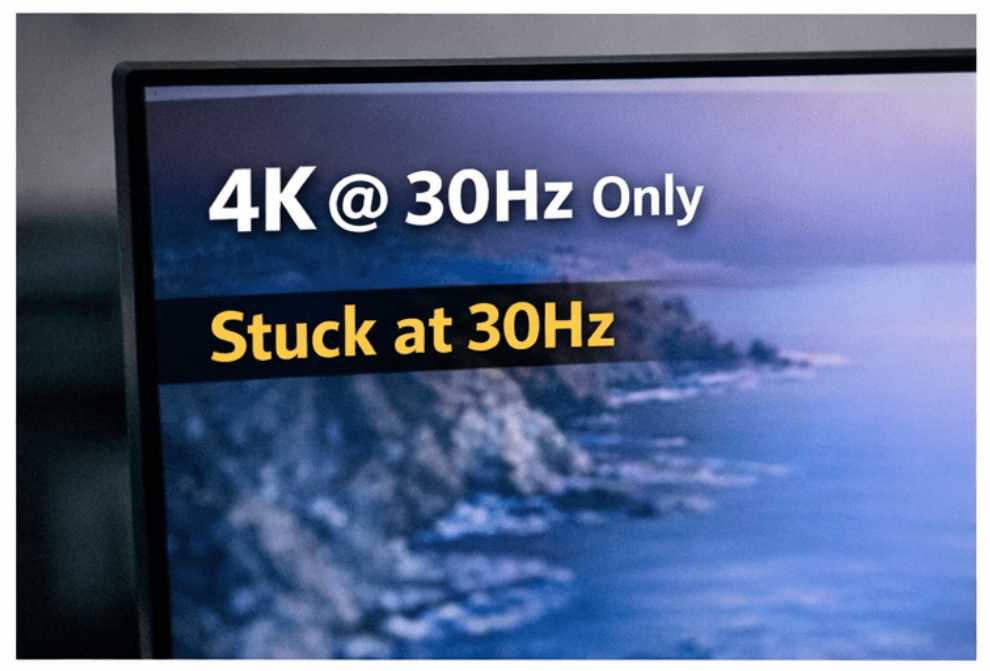
This one feels subtle at first. The display works—but scrolling feels sluggish.
In my experience, 30Hz almost always means bandwidth or cable limitations.
Why it happens
Common causes:
- HDMI 1.4 instead of HDMI 2.0/2.1
- A dock that caps output at 4K 30Hz
- A USB-C hub sharing bandwidth between multiple devices
- A cable not rated for the required data rate
How to fix it
- Use DisplayPort instead of HDMI when possible.
- Use a certified Thunderbolt cable with Thunderbolt docks.
- Verify the dock explicitly supports 4K at 60Hz.
- Check macOS Display Settings and confirm refresh rate manually.
When I switched a user from HDMI on a budget hub to DisplayPort on a Thunderbolt dock, 4K 60Hz became instantly stable.
3. Monitors Flicker or Randomly Go Black
Intermittent flickering is usually not a macOS “bug.” It’s usually signal instability.
Why it happens
- Cheap or long cables
- Marginal bandwidth (especially dual 4K over USB-C)
- Power instability in bus-powered hubs
- Monitor auto-input switching
How to fix it
- Replace cables first (shorter, higher-quality).
- Move from USB-C hub to Thunderbolt dock if running high resolution.
- Disable monitor auto input switching.
- Update dock firmware if available.
In my experience, cables fix more flicker issues than any other single change.
4. Dock Not Charging the MacBook Properly
You’re plugged in. The charging icon shows. But the battery percentage slowly drops.
Why it happens
- The dock only supplies 60W, but your MacBook needs 85W–140W under load.
- Bus-powered hub can’t supply enough wattage.
- Using the wrong power adapter with the dock.
How to fix it
- Check your Mac’s recommended wattage.
- Use a dock with sufficient Power Delivery.
- Ensure the dock’s included power adapter is connected.
- Avoid chaining multiple adapters between wall and dock.
When I reviewed lower-cost hubs, most of them maxed at 60W. For larger MacBook Pro models, that simply isn’t enough during heavy workloads.
5. External Displays Don’t Wake from Sleep
This is one of the most annoying problems.
You wake your Mac. The keyboard lights up. But one monitor stays black.
Why it happens
- Dock firmware quirks
- macOS display handshake behavior
- Cable timing issues
- DisplayLink driver needing reset
How to fix it
- Update macOS and dock firmware.
- Test direct connection (bypass dock temporarily).
- Try a different cable.
- For DisplayLink setups, reinstall or update the driver.
- Turn off “automatic graphics switching” if applicable.
In my experience, this issue often disappears with a higher-quality dock and stable firmware.
6. Ethernet Not Working Through Dock
Everything else works—but wired internet doesn’t.
Why it happens
- macOS doesn’t auto-prioritize Ethernet
- Driver issues on some dock chipsets
- USB bandwidth congestion
How to fix it
- Go to System Settings → Network and confirm Ethernet is recognized.
- Move Ethernet to top priority in network settings.
- Try a different Ethernet cable.
- If using a cheap hub, consider a Thunderbolt dock with a better controller.
7. USB Devices Disconnect Randomly
Mouse freezes. Keyboard stops responding. SSD disconnects mid-transfer.
Why it happens
- USB bandwidth saturation
- Low-quality hub controllers
- Power instability
- Too many devices on a bus-powered hub
How to fix it
- Use a dock with its own power supply.
- Reduce the number of high-bandwidth devices.
- Move storage to a Thunderbolt port instead of shared USB.
- Avoid stacking adapters.
In my experience, once users move from bus-powered hubs to externally powered docks, these random disconnects largely disappear.
8. DisplayLink Feels Laggy
If you’re using DisplayLink and motion feels “off,” you’re noticing compression and USB transport overhead.
Why it happens
DisplayLink:
- Encodes video data
- Sends it over USB
- Decodes at the dock
It’s excellent for productivity—but not ideal for gaming or high-frame-rate video work.
How to fix it
- Keep your primary display native.
- Use DisplayLink for secondary productivity monitors.
- Update drivers regularly.
- Avoid using DisplayLink for latency-sensitive tasks.
When I tested DisplayLink on a coding and writing setup, it felt normal. When I tried it for fast-motion content, the difference became noticeable.
9. Dual HDMI Ports, But Displays Mirror
This is common with non-Thunderbolt USB-C hubs.
Why it happens
The dock:
- May not produce two independent streams
- May rely on MST that macOS doesn’t use for extended displays
How to fix it
- Switch to a Thunderbolt dock for native multi-display Macs.
- Use a DisplayLink dock if your Mac only supports one native external.
Port count alone doesn’t determine display independence.
10. Dock Overheats
Warm is normal. Extremely hot is not.
Why it happens
- Passive cooling in compact hubs
- High power draw from multiple devices
- Running dual 4K on a small enclosure
How to fix it
- Ensure airflow around the dock.
- Avoid stacking it under laptops.
- Move to a larger, externally powered dock if running demanding setups.
Compact travel hubs are not designed for permanent dual 4K desk environments.
How to Troubleshoot Docking Problems Systematically
When I’m diagnosing a docking issue, I follow this order:
- Test each monitor directly to the Mac.
- Replace cables before replacing hardware.
- Test dock on another machine if possible.
- Reduce setup to one monitor and rebuild gradually.
- Confirm Mac model’s native display limits.
- Update macOS and dock firmware.
- If using DisplayLink, reinstall drivers cleanly.
Most problems are solved before step 7.
The Bigger Pattern
In my experience, Mac docking problems fall into three buckets:
- Display pipeline limitations
- Bandwidth bottlenecks
- Power delivery constraints
Once you identify which category your issue belongs to, the fix becomes straightforward.
The mistake most people make is replacing random parts without diagnosing the root cause.
Mac docking can be extremely stable—but only when the dock type matches the Mac model and the display workload.