Last Updated: May 2026 | By dockyeah.com
Affiliate Disclosure: dockyeah.com is a participant in the Amazon Services LLC Associates Program. If you buy through our links, we may earn a commission at no extra cost to you. We only recommend products we’ve verified work correctly with the MacBook Neo.
Quick Answer
| Scenario | Docking Solution | Check Price |
|---|---|---|
| 🏆 Best Overall | Kensington SD4781P — 100W PD, dual 4K DisplayLink, confirmed Neo support | Check Price on Amazon.com |
| 💰 Best Budget | Plugable UD-CA1A — simple, reliable, single 4K display, no driver needed | Check Price on Amazon.com |
| 🖥️ Best for Dual Monitors | WAVLINK B0F7XDLZZK — 100W PD, dual 4K via DisplayLink, confirmed Neo | Check Price on Amazon.com |
| 🎒 Best for Travel | Kensington SD1650P — ultraportable, 100W pass-through, 4K output | Check Price on Amazon.com |
| 🖥️🖥️🖥️ Best for Triple Monitors | WAVLINK B0BNNCXR6J — confirmed triple display on Neo via DisplayLink | Check Price on Amazon.com |
You just got a MacBook Neo and realized it has exactly two USB-C ports — and one of them isn’t even good enough for a dock.
The Neo is Apple’s most port-stripped laptop since the original MacBook. No MagSafe, no Thunderbolt, no HDMI, no SD card, no USB-A. That one left-side USB-C port is doing a lot of heavy lifting. A dock isn’t optional here — it’s essential.
The good news is that the right dock transforms the Neo into a proper desk setup. The tricky part is that most docks on the market are designed around Thunderbolt, and the Neo doesn’t have it. Buy the wrong one and you’ll either get nothing, or a dock running at a fraction of its intended speed. We’ve sorted through what works and what doesn’t so you don’t have to.
What Ports Does the MacBook Neo Have?
The Neo has two USB-C ports, and they are not equal. This is the most important thing to understand before choosing a dock.
Left USB-C port: USB 3, 10Gbps, DisplayPort 1.4. This is the only port that supports external displays, data at proper speeds, and dock connectivity. Always plug your dock here.
Right USB-C port: USB 2, 480Mbps. This is for charging a phone or plugging in a mouse. That’s it. If you plug a dock into the right port, you’ll get a frustratingly slow connection — barely faster than old USB — and no display output at all.
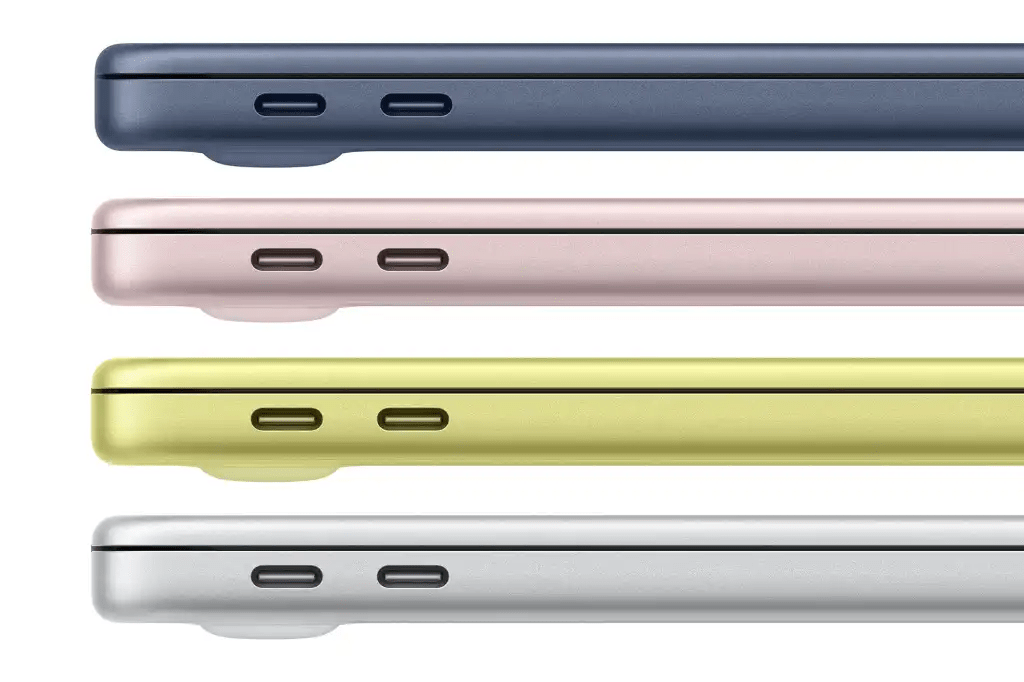
No Thunderbolt on either port. Apple’s own documentation confirms it: “Devices that use only Thunderbolt aren’t compatible with MacBook Neo.” That rules out a whole category of high-end docks unless they fall back to USB-C, which the better ones do.
Beyond that: no MagSafe (so your dock handles all charging), no built-in HDMI (so your dock handles every display), no SD card slot, no USB-A. The Neo relies on its dock more completely than any other Mac in the lineup.
How Many External Displays Can the MacBook Neo Support?
The Neo natively supports one external display at up to 4K@60Hz via DisplayPort 1.4. That’s it. There’s no clamshell trick, no lid-open/lid-closed difference — one display is the ceiling without additional software.
For a second monitor, you need DisplayLink — a software driver that encodes display signals over USB. DisplayLink is confirmed working on the Neo’s A18 Pro chip with macOS Tahoe. It unlocks a second 4K@60Hz display when you use a dock that includes DisplayLink hardware.
Display limits at a glance:
| Setup | Max Displays | What’s needed |
|---|---|---|
| No driver | 1 external, 4K@60Hz | USB-C dock, left port |
| With DisplayLink | 2 external, 4K@60Hz each | DisplayLink dock + driver |
| Triple+ | ❌ Not supported | A18 Pro chip cannot drive 3 external displays |
A few things the Neo can’t do regardless of dock: no 5K or 6K monitors (A18 Pro caps at 4K), and no Apple Studio Display (requires Thunderbolt). Stick to 4K and below.
One important DisplayLink note: when DisplayLink is running, HDCP — the copy-protection system — is disabled system-wide on your Mac. That means Netflix, Disney+, Amazon Prime, and similar streaming services will show a black screen on ALL your monitors, not just the DisplayLink one. The workaround is to disable hardware acceleration in Chrome or Edge. Safari and Firefox don’t have a workaround. If you watch a lot of streaming, factor this into your dock choice.
What to Look for in a Dock for MacBook Neo
Connection Type — Skip the Thunderbolt Premium
The Neo doesn’t have Thunderbolt, so you don’t need a Thunderbolt dock. TB4 and TB5 docks range from $150 to $400+ — and on the Neo, they’ll connect at USB-C speeds, completely wasting the TB hardware you’re paying for.
What you actually need is a USB-C dock with a 10Gbps upstream connection. This is the sweet spot for Neo: fast enough to handle displays, data, and charging simultaneously without bottlenecking, and priced fairly because you’re not paying for TB silicon you can’t use.
If a TB dock explicitly falls back to USB-C (many do), it will technically work — but there’s no reason to buy one specifically for the Neo. Save the money.
Power Delivery — 45W Minimum, 100W Preferred
The Neo ships with a 20W USB-C adapter, which is genuinely fine for light use. But at your desk with a monitor, keyboard, external drives, and Ethernet all running, 45W from your dock is the practical minimum to keep the battery from slowly draining. We’d recommend 100W if you plan to charge fast or run the laptop under heavier loads.
Most of the docks we recommend deliver 85–100W. That covers the Neo comfortably.
Display Output — HDMI or DisplayPort Required
Because the Neo has no Thunderbolt, it can’t use TB-only video outputs. Your dock must have a physical HDMI or DisplayPort output to drive an external monitor. Docks that only output video over Thunderbolt downstream won’t work.
For a second display, your dock also needs DisplayLink hardware built in — not just extra video ports. Look for DisplayLink clearly listed in the specs.

Port Count — What You Actually Need
The Neo has no built-in USB-A, no SD card, no HDMI, and only one useful USB-C port. Here’s a realistic minimum port checklist for a full desk setup:
- 1x Ethernet (for reliable wired internet)
- 2x USB-A (keyboard, mouse, or USB drive)
- 1x USB-C data port (for a second storage device or accessory)
- 1–2x HDMI or DisplayPort video outputs
- 100W power delivery to the laptop
Most 8–10 port docks cover all of this. You don’t need 15 ports for the Neo.
Budget vs Premium — Honest Advice
The sweet spot for Neo docks is between the value tier and mid-range. Because the Neo can’t use Thunderbolt bandwidth, you’re leaving performance on the table with a $200+ TB dock. A well-specced USB-C dock with DisplayLink in the $60–$120 range will give you everything the Neo can actually use.
The one exception: if you’re buying a dock for dual monitors, spend enough to get a dock with full 100W PD and a proper DisplayLink chip. Cheap DisplayLink docks sometimes cut corners on the chip version, which affects stability.
Best Docking Stations for MacBook Neo — Our Top Picks
1. Kensington SD4781P — Best Overall
The short version: 100W PD, dual 4K@60Hz via DisplayLink, confirmed Neo support, 3-year warranty.
Connection: USB-C 10Gbps | Power Delivery: 100W | Max Displays: 2 (DisplayLink) | Ports: ~10 | Driver: DisplayLink required
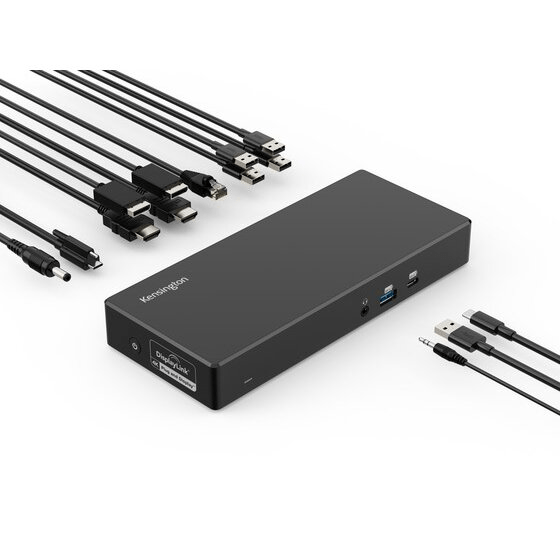
The SD4781P hits everything the Neo needs in one package. Plug it into the left USB-C port, install the DisplayLink driver, and you’ve got a proper dual-monitor desk setup with 100W charging keeping the battery topped off. Kensington’s DockWorks software adds some quality-of-life extras like network management, and the 3-year warranty is one of the longest in this category.
The port selection covers a full desk setup: two HDMI and two DisplayPort outputs (pick two of the four for your displays), Gigabit Ethernet, front-facing USB-C charging port, and multiple USB-A ports around the back.
What to watch for: Like all DisplayLink docks, streaming services go black when the driver is running. Use Chrome or Edge with hardware acceleration off as a workaround.
Best for: Neo users who want a complete desk dock with dual monitor support and don’t want to think about it again for years.

2. Plugable UD-CA1A — Best Budget
The short version: No driver needed, single 4K display, 60W PD, honest and reliable.
Connection: USB-C | Power Delivery: 60W | Max Displays: 1 | Ports: ~7 | Driver: None
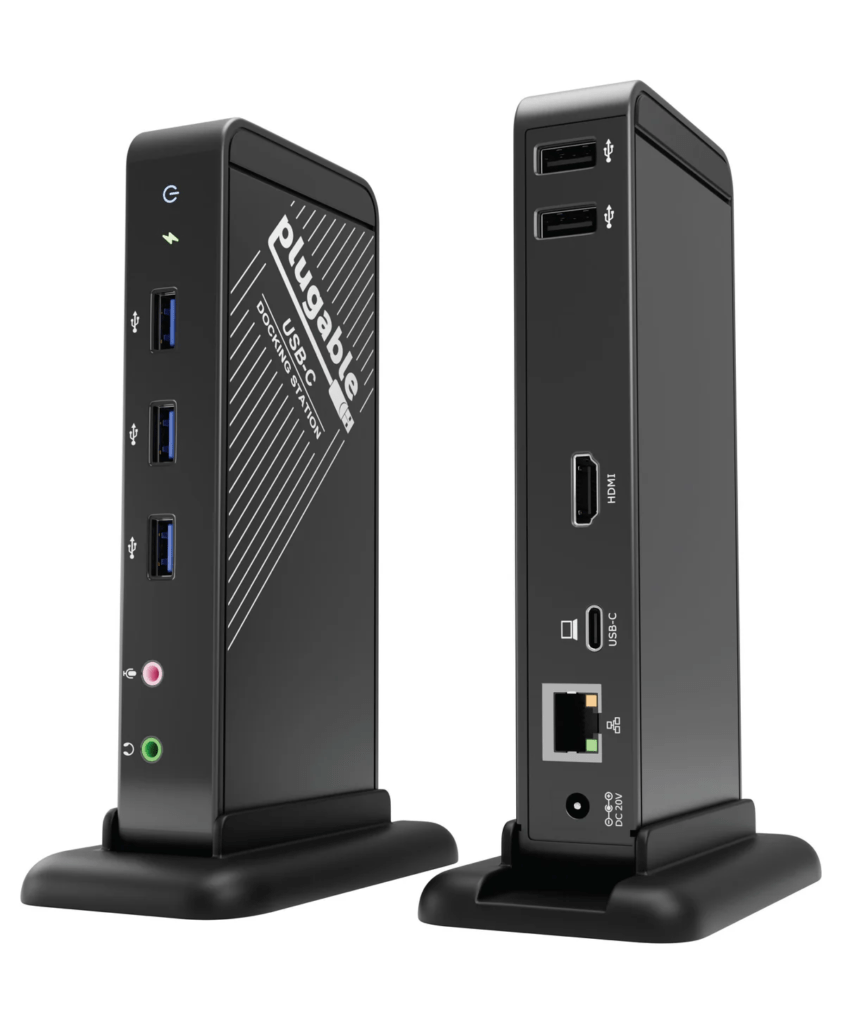
The UD-CA1A is the dock for Neo users who want one external monitor and a clean desk without installing drivers or worrying about streaming restrictions. Plug it in, it works. The 60W power delivery is on the lighter side — enough for the Neo under normal use, but you might see the battery tick down slowly during sustained heavy workloads. For everyday tasks it’s perfectly fine.
One thing to note: the HDMI port is 2.0, which means 4K@30Hz rather than 60Hz. For daily productivity work at a desk, 1440p@60Hz is actually a more comfortable choice with this dock.
What to watch for: 60W PD is modest. If you’re doing anything CPU-intensive for extended periods, consider a dock with 85W+ instead.
Best for: Students, casual users, and anyone who wants single-monitor Neo setup without spending much or installing drivers.
3. WAVLINK B0F7XDLZZK — Best for Dual Monitors
The short version: 100W PD, dual 4K@60Hz via DisplayLink, confirmed MacBook Neo compatible.
Connection: USB-C 10Gbps | Power Delivery: 100W | Max Displays: 2 (DisplayLink) | Ports: ~9 | Driver: DisplayLink
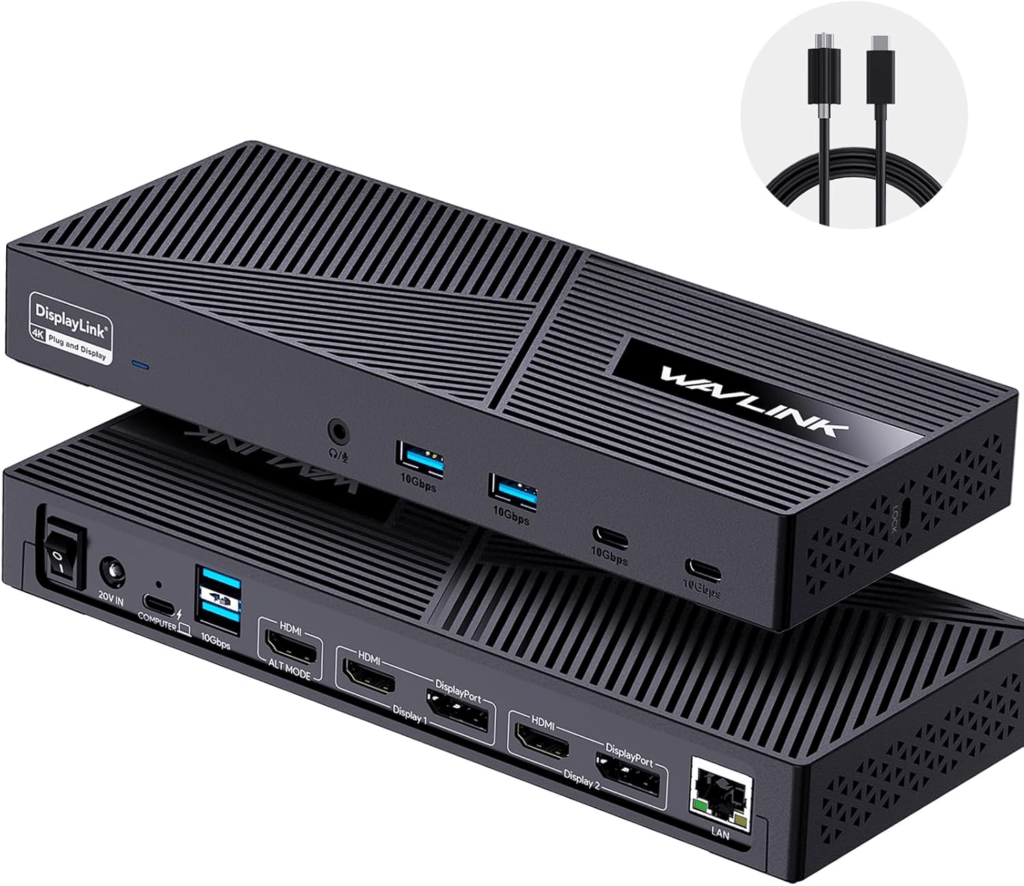
This is the go-to for Neo users who specifically want two monitors without spending Kensington money. WAVLINK explicitly lists Neo compatibility, the DisplayLink chip handles dual 4K@60Hz well, and the 100W PD means your Neo charges properly at the same time.
Port layout covers the essentials: two HDMI, two DisplayPort, USB-C and USB-A data ports, and Gigabit Ethernet. Nothing exotic, nothing missing.
What to watch for: WAVLINK’s warranty is 1 year (extendable to 18 months with registration) — shorter than Kensington’s 3 years. Download the DisplayLink driver from synaptics.com directly rather than from WAVLINK’s product page. Always install the driver before connecting your monitors.
Best for: Neo users who want a dual-monitor desk setup at a mid-range price.
4. Kensington SD1650P — Best for Travel
The short version: Fits in a laptop bag pocket, 100W pass-through, single 4K output, no drivers.
Connection: USB-C | Power Delivery: 100W pass-through | Max Displays: 1 | Ports: 6 | Driver: None
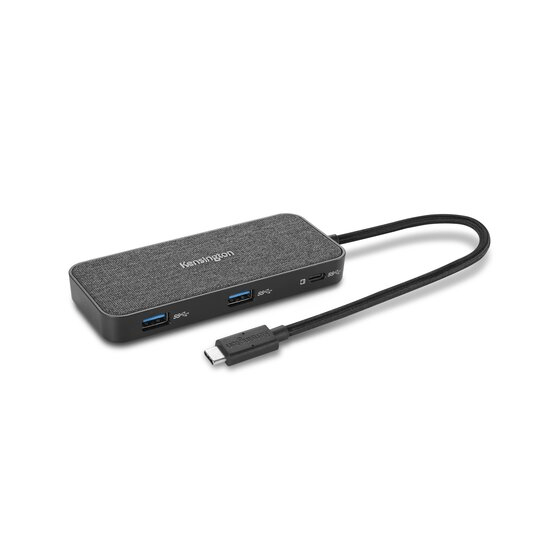
The SD1650P is as small as a useful dock gets. It has a built-in cable with storage clips, an HDMI output, two USB-A ports, USB-C data, and Gigabit Ethernet. The 100W pass-through means you plug your existing Neo charger into the dock rather than carrying an extra power brick.
The HDMI tops out at 4K@30Hz — same caveat as the UD-CA1A. For travel and conference room setups, that’s more than acceptable.
What to watch for: Single display only. 4K@30Hz rather than 60Hz on HDMI. VGA port is included but rarely useful in 2026.
Best for: Neo users who take their setup on the road and need a dock that fits in a jacket pocket.
5. WAVLINK B0BNNCXR6J — Best for Triple Monitors
The short version: One of the very few docks confirmed to drive three external 4K monitors from a MacBook Neo.
Connection: USB-C | Power Delivery: 100W | Max Displays: 3 (DisplayLink) | Ports: ~11 | Driver: DisplayLink
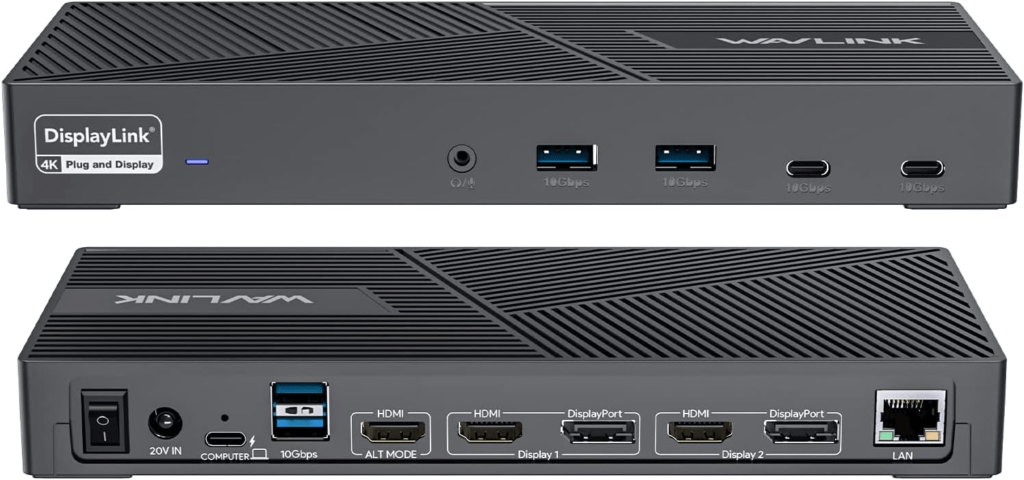
Most docks top out at dual display on the Neo. This one goes further — WAVLINK explicitly confirms triple extended display support on MacBook Neo. Three 4K@60Hz monitors from a laptop that doesn’t even have Thunderbolt. That’s a serious setup.
The 100W power delivery and 6 USB ports mean you can run a full desk without reaching for additional hubs. Gigabit Ethernet and audio round out the basics.
What to watch for: Three DisplayLink monitors means three times the streaming restriction situation. This dock is for productivity-focused setups, not media consumption setups. As always, download the DisplayLink driver from synaptics.com. WAVLINK’s 1-year warranty is shorter than average.
Best for: Power users, developers, and anyone running a multi-monitor desk who bought a Neo and assumed they were limited to one screen.
Comparison Table
| Dock | Type | Power Delivery | Max Displays | DisplayLink | Ports | Neo Confirmed |
|---|---|---|---|---|---|---|
| Kensington SD4781P | USB-C | 100W | 2 | ✅ Required | ~10 | ✅ Yes |
| Plugable UD-CA1A | USB-C | 60W | 1 | ❌ None | ~7 | ✅ Yes |
| WAVLINK B0F7XDLZZK | USB-C | 100W | 2 | ✅ Required | ~9 | ✅ Yes |
| Kensington SD1650P | USB-C | 100W PT | 1 | ❌ None | 6 | ✅ Yes |
| WAVLINK B0BNNCXR6J | USB-C | 100W | 3 | ✅ Required | ~11 | ✅ Yes |
What About Different Use Cases?
Home Office Users
You’re replacing a full desktop setup with your Neo — one or two monitors, wired Ethernet, keyboard, mouse, maybe an external drive. The Kensington SD4781P is the right answer here. It’s reliable, the 3-year warranty means you’re not replacing it next year, and the 100W PD keeps the Neo charged even during long work sessions. If you want two monitors and don’t want to compromise on charging, this is it.
Students and Occasional Desk Users
You mostly work on the go, but at your desk you want a bigger screen and a wired connection. The Plugable UD-CA1A gives you exactly that without any software overhead or streaming restrictions. Plug it in, close your browser tabs you’d rather not project, and get on with it. 60W PD is fine for a Neo during normal studying and writing.

Creative and Developer Users
You need multiple screens, fast USB connections for drives or audio interfaces, and reliable Ethernet. The WAVLINK B0BNNCXR6J gets you three external monitors, which most people assume is impossible on the Neo. Combined with the Neo’s A18 Pro chip — which is genuinely fast for creative and coding work — this turns a $599 laptop into a seriously capable workstation.
Frequent Travelers
You need a dock that doesn’t add meaningful weight to your bag. The Kensington SD1650P weighs almost nothing, clips to itself for storage, and gives you HDMI, Ethernet, and USB-A at every hotel desk or conference room. Pair it with your Neo charger plugged into the pass-through port and you’ve got everything.
Frequently Asked Questions
Can I use a Thunderbolt 4 or Thunderbolt 5 dock with the MacBook Neo?
Technically, if the dock falls back to USB-C mode, yes — it’ll work as a USB-C dock. But you’ll be paying for TB hardware you can’t use, and some TB-only features (like TB daisy-chaining or TB-only video outputs) won’t work at all. Apple explicitly warns that devices requiring Thunderbolt aren’t compatible with the Neo. Save the money and buy a USB-C dock instead.
Do I really need DisplayLink for a second monitor?
Yes, there’s no other option. The Neo’s A18 Pro chip natively supports one external display, and DisplayLink is the only confirmed path to a second one. It requires a free driver download and does disable HDCP-protected streaming while active. If you’re primarily a single-monitor user, skip DisplayLink entirely — it adds setup complexity you don’t need.
Which USB-C port on the MacBook Neo should I use for a dock?
The left port only. The left port is USB 3 at 10Gbps with DisplayPort 1.4 — that’s what handles your displays and data. The right port is USB 2 at 480Mbps. Plugging a dock into the right port gives you a slow connection with no display output. This is the most common Neo docking mistake.

Will my dock work if the Neo is running macOS Tahoe?
Yes. All the docks in this list are confirmed compatible with macOS Tahoe. If you’re using a DisplayLink dock, make sure you download the latest driver version from synaptics.com — some older versions have known issues with Tahoe that were fixed in updates.
Can I use the Apple Studio Display with the MacBook Neo?
No. The Studio Display requires a Thunderbolt connection. Since the Neo has no Thunderbolt on either port, it’s not compatible. This applies regardless of which dock you use — no dock can add Thunderbolt capability to the Neo.
Our Verdict
The MacBook Neo is genuinely different from every other Mac when it comes to docking. No Thunderbolt, one useful port, and a chip that tops out at 4K. Once you understand those constraints, the dock choice gets straightforward.
For most Neo owners, the Kensington SD4781P is the best all-in-one answer — dual 4K monitors, 100W charging, solid warranty, and confirmed Neo compatibility. If you only need one monitor and want to keep things simple, the Plugable UD-CA1A is reliable and costs significantly less. And if you need three monitors — which is more possible than most people expect on the Neo — the WAVLINK B0BNNCXR6J is one of the only docks confirmed to pull that off.
The Neo doesn’t have many ports, but the right dock makes sure that doesn’t matter.
Last updated: May 2026 | Specs verified against Apple MacBook Neo tech specs page and manufacturer product pages.