Affiliate Disclosure: dockyeah.com earns a commission on purchases made through our links, at no extra cost to you. We only recommend products we have verified work with the specific Mac models listed.
Last Updated: May 2026
TL;DR — The Short Version
- MacBook Air M1/M2: You need DisplayLink to run 2 monitors natively. A reliable dock costs $60–$120.
- MacBook Air M3: Two monitors work natively — but only with the lid closed. A quality USB4 dock handles it.
- MacBook Air M4/M5: Two monitors, lid in any position, no DisplayLink needed. Best dock upgrade in years.
- MacBook Pro (M1–M3 Pro/Max): Thunderbolt 4 docks. Budget $120–$250 depending on port needs. No DisplayLink required.
- MacBook Pro M4 Pro/Max or M5 Pro/Max: Get a Thunderbolt 5 dock to unlock the full bandwidth. CalDigit TS5 Plus is the benchmark.
You shouldn’t need a degree in cable standards to plug in your MacBook. But here we are — DisplayLink, Thunderbolt 5, USB4, Power Delivery wattage — the dock market throws terminology at you like it wants you to give up and buy the wrong thing.
The truth is simple: the right dock depends almost entirely on which Mac you have. Chip generation, not brand loyalty, determines what works. Get that one thing right, and the rest falls into place.
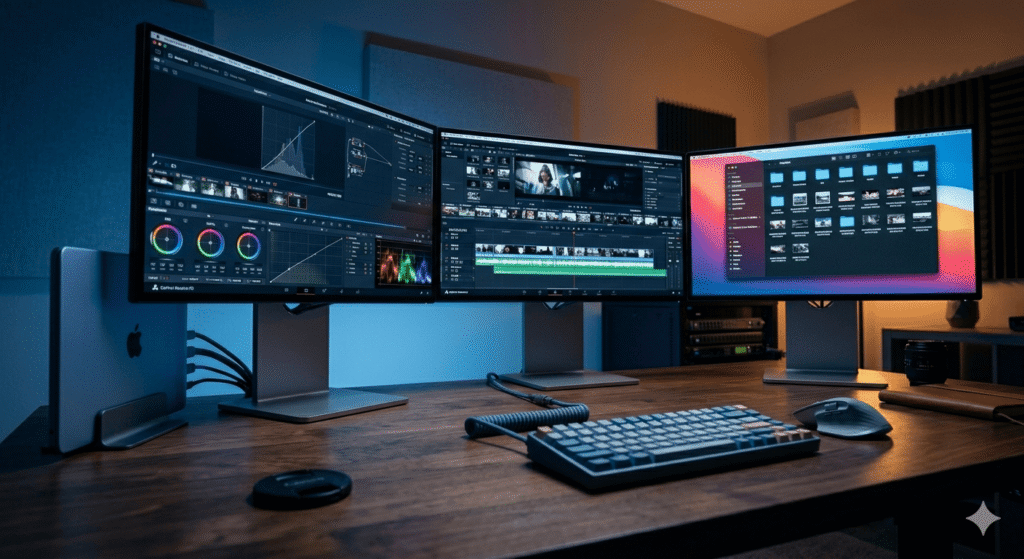
This guide covers every MacBook Air and MacBook Pro from M1 through M5. We’ll tell you exactly what your specific machine can and can’t do with a dock, what to look for, and which docks are worth your money. No guesswork. No filler.
Why Mac Docking Stations Are Different
Generic dock guides don’t work for Mac users. Here’s why.
Apple Silicon chips have hard limits on external display output that vary between generations. A dock that works perfectly for a MacBook Pro M4 Max is complete overkill for a MacBook Air M2 — and might not even solve the dual-monitor problem that Air user actually has.
Three Mac-specific realities you need to understand before buying anything:
- Display limits are set in silicon, not software. Apple’s M1 and M2 chips can only drive one external display natively. No dock changes this — only DisplayLink technology can work around it.
- Thunderbolt versions matter. TB5 docks on a TB4 machine work fine, but you’re paying for bandwidth you can’t use. TB4 docks on a TB5 machine cap your speed at 40Gbps.
- Power delivery is often misrepresented. A dock rated at 100W PD may only deliver 60–70W to your laptop after powering its own ports. We flag actual delivered wattage, not just rated wattage.
What Ports Does Your Mac Have? (By Generation)
Use the table below to identify your Mac’s Thunderbolt version, port count, native display limit, and minimum recommended dock PD wattage.
| Mac Model | TB Ver. | TB Ports | Native Displays | MagSafe | Built-in HDMI | Min Dock PD |
|---|---|---|---|---|---|---|
| MBA M1 13″ (2020) | TB3/USB4 | 2 | 1 only | No | No | 45W+ |
| MBA M2 13″ (2022) | TB3/USB4 | 2 | 1 only | Yes | No | 67W+ |
| MBA M2 15″ (2023) | TB3/USB4 | 2 | 1 only | Yes | No | 67W+ |
| MBA M3 13″ (2024) | TB3/USB4 | 2 | 2 (lid closed) | Yes | No | 70W+ |
| MBA M3 15″ (2024) | TB3/USB4 | 2 | 2 (lid closed) | Yes | No | 70W+ |
| MBA M4 13″ (2025) | TB4 | 2 | 2 (any position) | Yes | No | 70W+ |
| MBA M4 15″ (2025) | TB4 | 2 | 2 (any position) | Yes | No | 70W+ |
| MBA M5 13/15″ (2026) | TB4 | 2 | 2 (any position) | Yes | No | 70W+ |
| MBP 13″ M1 (2020) | TB3/USB4 | 2 | 1 only | No | No | 61W+ |
| MBP 13″ M2 (2022) | TB3/USB4 | 2 | 1 only | No | No | 67W+ |
| MBP 14″ M1 Pro (2021) | TB4 | 3 | 2+HDMI=3 | Yes | HDMI 2.0 | 96W+ |
| MBP 14″ M1 Max (2021) | TB4 | 3 | 3+HDMI=4 | Yes | HDMI 2.0 | 96W+ |
| MBP 14″ M2 Pro (2023) | TB4 | 3 | 2+HDMI=3 | Yes | HDMI 2.1 | 96W+ |
| MBP 14″ M2 Max (2023) | TB4 | 3 | 3+HDMI=4 | Yes | HDMI 2.1 | 96W+ |
| MBP 14″ M3 base (2023) | TB3/USB4 | 2 | 1+HDMI=2 | Yes | HDMI 2.1 | 70W+ |
| MBP 14″ M3 Pro (2023) | TB4 | 3 | 2+HDMI=3 | Yes | HDMI 2.1 | 96W+ |
| MBP 14″ M3 Max (2023) | TB4 | 3 | 3+HDMI=4 | Yes | HDMI 2.1 | 96W+ |
| MBP 14″ M4 base (2024) | TB4 | 3 | 2+HDMI=3 | Yes | HDMI 2.1 | 96W+ |
| MBP 14″ M4 Pro (2024) | TB5 | 3 | 3+HDMI=4 | Yes | HDMI 2.1 | 96W+ |
| MBP 14″ M4 Max (2024) | TB5 | 3 | 4+HDMI=5 | Yes | HDMI 2.1 | 96W+ |
| MBP 14″ M5 base (2025) | TB4 | 3 | 2+HDMI=3 | Yes | HDMI 2.1 | 96W+ |
| MBP 14″ M5 Pro (2026) | TB5 | 3 | 3+HDMI=4 | Yes | HDMI 2.1 | 96W+ |
| MBP 14″ M5 Max (2026) | TB5 | 3 | 4+HDMI=5 | Yes | HDMI 2.1 | 96W+ |
| MBP 16″ M1 Pro (2021) | TB4 | 3 | 2+HDMI=3 | Yes | HDMI 2.0 | 100W TB / 140W Mag |
| MBP 16″ M1 Max (2021) | TB4 | 3 | 3+HDMI=4 | Yes | HDMI 2.0 | 100W TB / 140W Mag |
| MBP 16″ M2 Pro (2023) | TB4 | 3 | 2+HDMI=3 | Yes | HDMI 2.1 | 100W TB / 140W Mag |
| MBP 16″ M2 Max (2023) | TB4 | 3 | 3+HDMI=4 | Yes | HDMI 2.1 | 100W TB / 140W Mag |
| MBP 16″ M3 Pro (2023) | TB4 | 3 | 2+HDMI=3 | Yes | HDMI 2.1 | 100W TB / 140W Mag |
| MBP 16″ M3 Max (2023) | TB4 | 3 | 3+HDMI=4 | Yes | HDMI 2.1 | 100W TB / 140W Mag |
| MBP 16″ M4 Pro (2024) | TB5 | 3 | 3+HDMI=4 | Yes | HDMI 2.1 | 140W TB5 / Mag |
| MBP 16″ M4 Max (2024) | TB5 | 3 | 4+HDMI=5 | Yes | HDMI 2.1 | 140W TB5 / Mag |
| MBP 16″ M5 Pro (2026) | TB5 | 3 | 3+HDMI=4 | Yes | HDMI 2.1 | 96–140W |
| MBP 16″ M5 Max (2026) | TB5 | 3 | 4+HDMI=5 | Yes | HDMI 2.1 | 140W |
Source: Apple official tech specs pages.
How Many External Displays Can Your Mac Support?
This is the question that causes the most dock returns. Get it wrong and you’re sending a dock back. We’ll make it simple.
MacBook Air M1 and M2 — One Display, Full Stop
The M1 and M2 chips — in both Air and the 13-inch Pro — can only drive one external display natively. That’s a hard silicon limit. No dock, no cable, no firmware update changes this.
If you want two external monitors on M1 or M2 Air, you need a DisplayLink dock. These use a software driver and USB bandwidth to trick macOS into running a second screen. They cost $20–$40 more than standard docks and require a free driver install. They work well once set up — but you need to know going in.
MacBook Air M3 — Two Displays, But Lid Closed Only
Apple gave M3 Air users dual display support in macOS Sonoma 14.6 — but only when the lid is closed (clamshell mode). Open the lid and you’re back to one external display.
This is a genuine workflow for many people: laptop closed, external keyboard and mouse, two monitors. If that’s you, any quality USB4/TB3 dock does the job without DisplayLink. If you want the laptop screen plus two externals simultaneously, you still need DisplayLink.
MacBook Air M4 and M5 — Two Displays, No Caveats
M4 Air is the first MacBook Air that drives two external displays without restrictions — lid open or closed, no DisplayLink needed. This is the biggest dock story for Air buyers in 2025.
M5 Air keeps the same display capability. If you’re upgrading from M1 or M2, this is a significant quality-of-life improvement.
MacBook Pro 14-inch and 16-inch — It Depends on Your Chip
MacBook Pro models with Pro or Max chips have never had the display limit problem. M1 Pro supports 3 displays total; M1 Max supports 4. Every Pro/Max generation since has been the same or better.
The exception: the base M3 14-inch MacBook Pro (not Pro, not Max — the base model). It ships with only 2 Thunderbolt ports and supports 2 displays total. It’s often confused with the M3 Pro. Check your exact chip before buying.
M4 Pro and M4 Max, and M5 Pro and M5 Max, use Thunderbolt 5 — which changes dock recommendations significantly. See the TB5 section below.
What to Look for in a Mac Dock
1. Thunderbolt Version Compatibility
Match the dock to your Mac’s Thunderbolt version, or go one step up.
- TB3/USB4 Macs (M1, M2, M3 Air and 13″ Pro): Any TB3, TB4, or USB4 dock works. Don’t spend extra for TB5 — your chip can’t use the bandwidth.
- TB4 Macs (M1 Pro/Max, M2 Pro/Max, M3 Pro/Max, base M4 MBP, M4/M5 Air): TB4 dock is ideal. A TB5 dock works too, but only at TB4 speeds.
- TB5 Macs (M4 Pro/Max, M5 Pro/Max): Get a TB5 dock to unlock 80–120Gbps. TB4 docks still function, but cap out at 40Gbps — you’re leaving bandwidth on the table.
Backward Compatibility Note: A TB5 dock on a TB4 Mac works perfectly at TB4 speeds (40Gbps). A TB4 dock on a TB5 Mac also works — but only at 40Gbps. There’s no compatibility breakage, just a speed ceiling.
2. Power Delivery — The Most Misunderstood Spec
A dock rated at “100W PD” does not deliver 100W to your MacBook. After powering its own ports — USB-A, HDMI circuitry, Ethernet — it typically delivers 60–70W to the laptop. At sustained load, this causes slow battery drain.
- MacBook Air (any model): 45W minimum, 70W strongly recommended.
- MacBook Pro 14-inch: 67–96W from dock depending on config. Check your specific model’s charger wattage.
- MacBook Pro 16-inch (M1–M3): 100W minimum via USB-C dock. Use MagSafe as primary charger — it’s the only way to guarantee 140W.
- MacBook Pro 16-inch (M4 Pro/Max, M5 Pro/Max): TB5 docks can deliver a true 140W via cable. For the first time, MagSafe is optional if you have a quality TB5 dock.
3. Display Output Support
What resolution and refresh rate your dock passes to your monitors depends on both the dock’s output spec and your Mac’s chip.
- For 4K at 60Hz: any TB3 or TB4 dock handles this easily.
- For 4K at 144Hz: you need DisplayPort 1.4 with DSC support or better.
- For 4K at 240Hz or 8K: you need a TB5 dock with DisplayPort 2.1. Only relevant for M4 Pro/Max or M5 Pro/Max Macs.
- For multiple 4K displays: each display draws bandwidth. TB4 (40Gbps) handles two 4K@60Hz without issue. TB5 (120Gbps) handles multiple 4K@144Hz simultaneously.
4. Port Count — What You Actually Need
Most Mac docks are more capable than most Mac users need. Be honest with your own setup before buying.
| User Type | Typically Needs | Minimum Port Target |
|---|---|---|
| Student / light user | USB-A, 1 monitor, charging | 2x USB-A, 1x display, 70W+ PD |
| Home office worker | 2 monitors, Ethernet, USB-A, charging | 2x USB-A, 2x display, Ethernet, 70–96W PD |
| Developer | 2 monitors, Ethernet, USB-A, reliable wake-from-sleep | 3x USB-A, 2x display, Ethernet, 96W+ PD |
| Video editor | External NVMe (TB4/TB5), 2x 4K monitors, Ethernet | TB4/TB5 port, 2x display, Ethernet, 96W+ PD |
| Power user / triple display | 3+ monitors, all peripherals, max charging | TB5 dock, 3+ display outputs, 140W PD |
5. Budget vs Premium — Honest Advice
- Under $60: USB-C hub chip (not TB), one 4K display max, slower transfer speeds. Fine for MacBook Air + single monitor + a few USB-A ports.
- $60–$120: Real TB3/TB4 docks start here. Two displays, reliable PD, stable Ethernet. Best value range for most Mac users.
- $120–$250: TB4 docks with higher port counts, better thermals, more reliable drivers. Ideal for MacBook Pro M1–M3 users.
- $250–$450: TB5 territory. CalDigit TS5 Plus, OWC TB5 Dock, Plugable TB5. Only worth it if your Mac has TB5 ports (M4 Pro/Max, M5 Pro/Max).
- Over $450: Enterprise docks. Not necessary for any consumer Mac setup.
Best Docks by Mac Model — Find Your Pick
The table below gives our top dock recommendation for each Mac model family.
| Mac Model | Best Overall Pick | Best Budget |
|---|---|---|
| MBA M1 13″ (2020) | Plugable UD-6950PDH | Anker 568 |
| MBA M2 13″ (2022) | Plugable UD-6950PDH | Anker 568 |
| MBA M2 15″ (2023) | Plugable UD-6950PDH | Satechi Slim Dock |
| MBA M3 13″ (2024) | CalDigit Element Hub | Anker 555 |
| MBA M3 15″ (2024) | CalDigit Element Hub | Anker 555 |
| MBA M4 13″ (2025) | OWC USB-C Travel Dock E | UGREEN Revodok 109 |
| MBA M4 15″ (2025) | OWC USB-C Travel Dock E | UGREEN Revodok 109 |
| MBA M5 (2026) | OWC USB-C Travel Dock E | UGREEN Revodok 109 |
| MBP 13″ M1/M2 | CalDigit TS3 Plus | Anker 777 |
| MBP 14″ M1 Pro/Max | CalDigit TS4 | Plugable TB4-HUB3P |
| MBP 14″ M2 Pro/Max | CalDigit TS4 | Plugable TB4-HUB3P |
| MBP 14″ M3 base | Anker 777 | UGREEN Revodok Pro 209 |
| MBP 14″ M3 Pro/Max | CalDigit TS4 | OWC Thunderbolt 4 Hub |
| MBP 14/16″ M4 base | CalDigit TS4 | Anker 777 |
| MBP 14/16″ M4 Pro/Max | CalDigit TS5 Plus | OWC TB5 Dock |
| MBP 14/16″ M5 Pro/Max | CalDigit TS5 Plus | OWC TB5 Dock |
| MBP 16″ M1/M2/M3 Pro/Max | CalDigit TS4 | OWC Thunderbolt 4 Hub |
Best Docks by Use Case
Not sure which model guide to read? Pick your workflow instead.
Video Editors and Motion Graphics Artists
You need maximum Thunderbolt bandwidth above everything else. Your external NVMe SSD, running at 3,000+ MB/s, needs a dedicated TB4 or TB5 port. Your two or three monitors need the remaining bandwidth.
If you’re on M4 Max or M5 Max, the CalDigit TS5 Plus is the only dock that gives you full TB5 throughput plus the port mix to run a proper studio setup.
- Best dock: CalDigit TS5 Plus (TB5 users) / CalDigit TS4 (TB4 users)
- Key specs to verify: Dedicated TB5/TB4 downstream port, 140W PD, multiple 4K display outputs
- Full guide: Best Mac Docking Stations for Video Editors
Remote Workers and Home Office Setups
Your top priorities: reliable Ethernet (no dropped calls mid-meeting), a single-cable connection, and two monitors. Wireless is fine for browsing — not for Zoom at 8am.
The Anker 777 hits the sweet spot for most home office MacBook Pro users: eight ports, 85W PD, solid Ethernet. For MacBook Air users, the CalDigit Element Hub delivers without the TB5 premium.
- Best dock: Anker 777 (MBP) / CalDigit Element Hub (Air)
- Key specs to verify: 2.5GbE Ethernet, 85W+ PD, dual monitor support confirmed for your chip
- Full guide: Best Mac Docking Stations for Remote Workers
Students and Desktop Replacement Users
You need USB-A for your external drives and peripherals (most accessories still use USB-A). You probably don’t need Thunderbolt 5. You do need enough PD to actually charge your MacBook while working.
The UGREEN Revodok 109 or Anker 555 handles this for under $70. Don’t buy a $200 TB4 dock for a MacBook Air M4 and a single 1440p monitor — it’s money you won’t get back in performance.
- Best dock: UGREEN Revodok 109 / Anker 555
- What to avoid: Cheap $30 USB-C hubs with no PD passthrough — your MacBook will run on battery while plugged in
- Full guide: Best Mac Docking Stations for Students
Developers and Engineers
You need rock-solid Ethernet for SSH and database connections, plus a dock that reliably wakes your Mac from sleep — a surprisingly common failure point on cheap docks. Multiple monitors help, but the reliability story matters more.
The OWC Thunderbolt 4 Hub and CalDigit TS4 both have strong track records for wake reliability on Apple Silicon. If you’re running Postgres, Docker, and Xcode simultaneously on an M4 Max, you’re also drawing serious power — don’t cheap out on PD wattage.
- Best dock: CalDigit TS4 / OWC Thunderbolt 4 Hub
- Full guide: Best Mac Docking Stations for Developers
DisplayLink Explained — Do You Need It?
DisplayLink is a technology that lets your Mac drive an extra display over USB bandwidth — bypassing the chip’s native display limit.
Here’s the plain-English version: your M1 or M2 Mac can only push pixels to one external monitor natively. DisplayLink installs a small driver on your Mac and lets the dock handle the second display over a regular USB connection, converting the data on a chip inside the dock. The result is a second screen that works — with a small caveat.
DisplayLink: When to Get It / When to Skip It
- Get it if you have: M1 Air, M2 Air, M1 13″ Pro, M2 13″ Pro — and you want two external monitors.
- Consider it if you have: M3 Air — and you want two monitors with the lid open (not just clamshell).
- Skip it if you have: M4 Air, M5 Air, or any MacBook Pro with Pro or Max chip — you already have native multi-display support.
- The catch: DisplayLink docks cost $20–$40 more. The driver requires a free install. On very rare occasions, video playback on the DisplayLink screen can show slight compression artifacts. For office work, it’s invisible.
DisplayLink docks worth considering: Plugable UD-6950PDH (best all-round for M1/M2 Air), Anker 568 (budget option). Both are verified to work with Apple Silicon.
Full guide: DisplayLink Explained — A Plain-English Guide for Mac Users
Thunderbolt 5 — Do You Need It?
Short answer: only if you have an M4 Pro, M4 Max, M5 Pro, or M5 Max MacBook Pro. For every other Mac, a TB4 dock delivers full performance.
Thunderbolt 5 delivers 80Gbps standard bandwidth and 120Gbps in display boost mode — triple the speed of TB4’s 40Gbps. At these speeds you can run an 8K display, multiple 4K 144Hz monitors, and a fast external NVMe simultaneously through a single cable.
If your Mac doesn’t have TB5 ports, a TB5 dock will still work — but only at TB4 speeds. You’re paying a $150–$200 premium for nothing. The CalDigit TS5 Plus makes no sense for an M3 MacBook Pro. It makes complete sense for an M4 Max.
| TB4 Dock | TB5 Dock | |
|---|---|---|
| Max bandwidth | 40Gbps | 80–120Gbps |
| 4K@60Hz displays | Yes | Yes |
| 4K@144Hz (multiple) | Limited | Yes |
| 8K display support | No | Yes |
| PD via cable | Up to 100W | Up to 140W |
| Works on TB4 Macs | Yes (full speed) | Yes (TB4 speed only) |
| Works on TB5 Macs | Yes (40Gbps cap) | Yes (full speed) |
| Price range | $120–$250 | $280–$450 |
| Worth it for | M1–M4 base Mac users | M4 Pro/Max, M5 Pro/Max only |
Full guide: Thunderbolt 4 vs Thunderbolt 5 for Mac Users
Common Mistakes Mac Dock Buyers Make
Mistake 1: Buying a TB5 Dock for a TB4 Mac
You’ll spend $150–$200 more than you need to. The CalDigit TS5 Plus is an excellent dock — but only if you have an M4 Pro, M4 Max, M5 Pro, or M5 Max. For everyone else, a TB4 dock delivers identical real-world performance at a fraction of the cost.
Mistake 2: Ignoring the Display Limit on M1/M2 Macs
If you have a MacBook Air M1 or M2 and you buy a standard TB4 dock hoping to run two monitors — it won’t work. You need a DisplayLink dock specifically. The dock box rarely makes this clear. Always check the dock’s DisplayLink support before buying for M1/M2 Air.
Mistake 3: Trusting Rated PD Wattage at Face Value
A dock that says “100W PD” on the box delivers 60–70W to your laptop under real-world conditions. For 16-inch MacBook Pro users doing sustained heavy workloads, this causes slow battery drain. Either use MagSafe as your primary charger, or choose a TB5 dock with USB PD 3.1 that genuinely delivers 140W.
Mistake 4: Using a USB-C Hub Instead of a Thunderbolt Dock
Not all USB-C accessories are docks. A $30 USB-C hub is not a docking station. USB-C hubs use the USB controller, not the Thunderbolt controller. They’re bandwidth-limited (typically 10Gbps), cannot pass video reliably at 4K, and often don’t support proper PD passthrough. If you need dual 4K monitors or a reliable NVMe connection, you need a real Thunderbolt dock.
Mistake 5: Not Checking macOS Version Requirements
M3 Air’s dual-display support via clamshell requires macOS Sonoma 14.6 or later. Some DisplayLink docks require specific driver versions. Always check the dock manufacturer’s compatibility page for your specific macOS version — especially if you’re still on Ventura.
Frequently Asked Questions
Do I need a Thunderbolt dock, or will any USB-C dock work?
It depends on what you’re trying to do. For charging + USB-A peripherals + a single 4K monitor, a quality USB4 dock works fine. For dual 4K monitors, fast external NVMe, or reliable multi-display on MacBook Pro, you need a real Thunderbolt 3 or TB4 dock. Never use a sub-$40 hub for a serious desk setup — the bandwidth isn’t there.
Can I use two external monitors with MacBook Air?
Yes, but it depends on your chip. M1 and M2 Air: you need a DisplayLink dock. M3 Air: two monitors work natively if the lid is closed (clamshell mode); DisplayLink for lid-open dual monitor. M4 and M5 Air: two monitors work natively in any lid position — no DisplayLink needed.
Will a Thunderbolt 4 dock work with a MacBook Pro M4 Pro?
Yes. A TB4 dock is fully backward compatible with TB5 Macs. It will work at TB4 speeds (40Gbps). You won’t get the 8K display capability or 120Gbps bandwidth, but all ports, charging, and display support work normally. Upgrade to a TB5 dock only if you specifically need the extra bandwidth.
How do I know if my dock supports full charging speed on my MacBook Pro 16-inch?
For M1, M2, M3 16-inch: your laptop needs 140W for full-speed charging. USB-C/TB docks max out at 100W via cable — this causes gradual battery drain under heavy load. Use MagSafe as your primary charger and the dock for data. For M4 Pro/Max and M5 Pro/Max 16-inch: TB5 docks supporting USB PD 3.1 can deliver a genuine 140W via the cable — MagSafe is optional with the right dock.
Does the dock brand matter, or should I just buy the cheapest option?
Brand matters at the extremes. CalDigit and OWC have the best track records for Thunderbolt reliability, thermal management, and macOS compatibility across years of firmware updates. Budget brands can be fine for light use — but cheap dock chips are more likely to have wake-from-sleep issues, dropouts under load, and poor customer support if something breaks.
What’s the difference between a hub and a docking station?
A USB-C hub uses USB bandwidth (typically 10Gbps), doesn’t have its own Thunderbolt controller, and is limited in what it can do with displays and high-speed storage. A docking station (Thunderbolt dock) has a dedicated TB controller, supports 40–120Gbps bandwidth, handles multiple 4K monitors natively, and delivers proper PD charging. You pay more for a dock — and for heavy use, it’s worth every penny.
Our Verdict
The right Mac dock is the one that matches your chip generation — not the most expensive one on the shelf. Ninety percent of Mac users are well served by a quality TB4 dock in the $120–$200 range. The remaining ten percent — M4 Pro/Max and M5 Pro/Max users who run 8K displays or need 3,000+ MB/s NVMe speeds — should invest in Thunderbolt 5.
If you’re on M1 or M2 Air and want two monitors, buy a DisplayLink dock and be done with it — it’s the only real solution. If you’re on M4 Air or M5 Air, congratulations: you can run two 4K monitors off almost any quality TB4 dock without any workarounds.
For MacBook Pro 16-inch users: use MagSafe for charging and your TB dock for everything else. Don’t rely on a USB-C dock’s PD for a 16-inch MacBook Pro under sustained workloads — you will see battery drain, and it will frustrate you.
When in doubt: buy from CalDigit, OWC, or Plugable. These three brands have the best long-term compatibility records with Apple Silicon across macOS updates. Cheap docks work until a macOS update breaks them.
dockyeah.com — The Complete Mac Docking Station Resource | Last reviewed May 2026 | Specs verified against Apple official tech specs pages