Last Updated: May 2026
Affiliate Disclosure: dockyeah.com participates in the Amazon Services LLC Associates Program. We may earn a commission if you buy through our links, at no extra cost to you. We only recommend products we’ve verified work with Mac.
Quick Verdict
| ⭐ Our Rating | 8.5 / 10 |
| ✅ Best For | MacBook Air M1/M2/M3 users who need dual monitors; MacBook Neo owners; mixed Mac/PC office desks |
| ❌ Not Ideal For | MacBook Pro 16-inch users (100W PD is marginal under load); users who watch a lot of Netflix at their desk; anyone who needs a third display |
| 🏆 Standout Feature | Dual 4K@60Hz via DisplayLink on every Mac — including M1 and M2 Air, which can’t do it natively |
| ⚠️ Big Caveat | DisplayLink required for all video output — streaming services go black while the driver runs |

The SD4781P isn’t Kensington’s most powerful dock, and it doesn’t try to be. It’s a no-Thunderbolt, DisplayLink-only dock aimed squarely at Mac users who need dual monitors without paying for TB hardware they may not need. For the right person on the right Mac, it’s one of the cleanest dock solutions in this price range.
For the wrong person, though, it has a flaw that matters a lot: every display output runs through DisplayLink. There’s no native video path at all. That’s a deliberate design choice with real consequences — and this review covers both sides honestly.
What’s in the Box
The SD4781P ships with the dock, a USB-C upstream cable, a power adapter, and documentation for Kensington’s free DockWorks software. No HDMI or DisplayPort cables are included — you’ll need your own for each monitor.
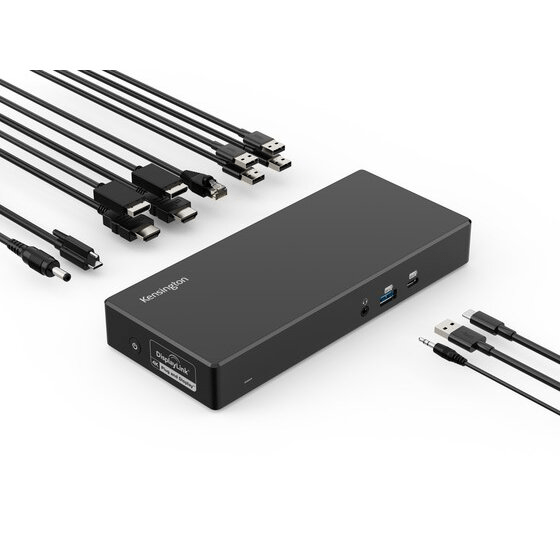
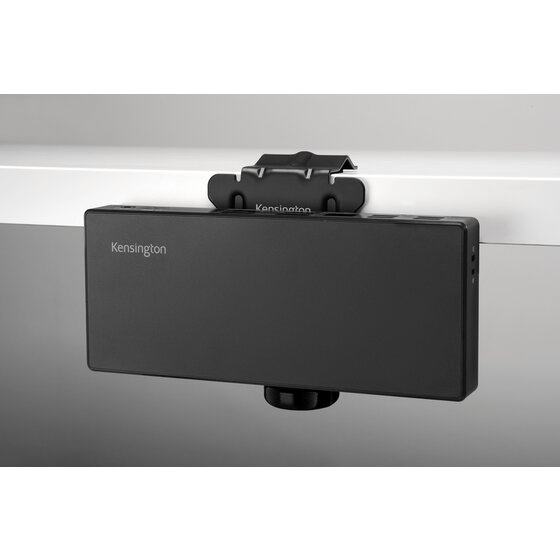
The build uses 73% post-consumer recycled (PCR) plastic. It feels solid for the material, not premium-premium, but this is clearly a desk dock rather than a premium showpiece. Two Kensington security lock slots (standard nano) are built in — useful in office environments.
Full Specs at a Glance
| Spec | Detail |
|---|---|
| Model | SD4781P (Part: K33603NA) |
| Connection | USB-C 3.2 Gen 2, 10Gbps upstream |
| USB-A host support | Yes — with optional power splitter K38310WW (sold separately) |
| Host PD | 100W |
| Display technology | DisplayLink — required for all video output |
| Max displays | 2 extended (dual 4K@60Hz) |
| Video ports | 2x HDMI 2.0 + 2x DP++ 1.2 (choose any 2 of the 4) |
| USB-C front | 1x USB-C, 9V/2A (18W charging) |
| USB-A front | 1x USB-A, 5V/1.5A (7.5W charging) |
| USB-A rear | 4x USB-A (Gen 1, 5Gbps) |
| Ethernet | 1x Gigabit Ethernet (1GbE) |
| Audio | 1x 3.5mm combo jack |
| Security | 2x lock slots (standard + nano) |
| Software | Free DockWorks™ |
| macOS minimum | macOS 10.14 (Mojave) or later |
| Warranty | 3 years |
Design and Build
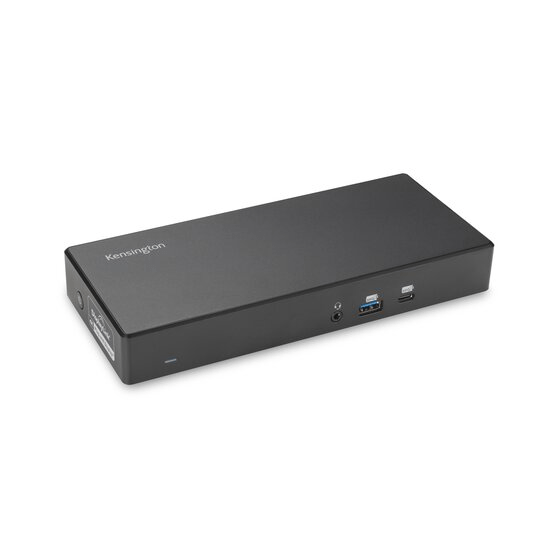
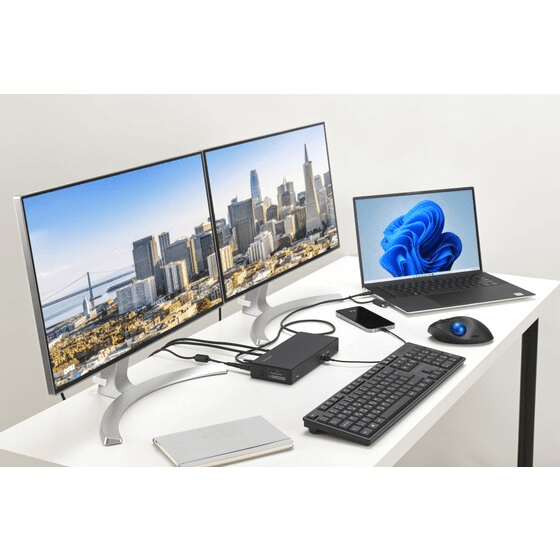
The SD4781P is a horizontal rectangular dock — wider than it is deep, which actually works well on a desk behind a keyboard. The matte finish doesn’t collect fingerprints badly. At a glance it looks like a serious office product rather than a consumer gadget, which suits the Kensington brand.
Port placement is thoughtful. The front edge has your quick-access ports: one USB-C for charging a phone or accessory, one USB-A, and the upstream USB-C that connects to your Mac. Everything more permanent — the video outputs, Ethernet, USB-A bank, audio — sits on the rear. That means once you’ve set it up, you’re not reaching around the back for daily use.
The two security lock slots are a genuine differentiator over cheaper docks. If this lives on a shared or office desk, that matters.
Setting It Up: What to Expect
This is where the SD4781P is different from most docks, and you need to know it upfront.
Every display output on this dock is driven by DisplayLink. There’s no native USB-C Alt Mode video path, no plug-and-play monitor support. You must install the DisplayLink driver from synaptics.com before anything appears on a screen. The dock won’t even show up as a display device until the driver is running.
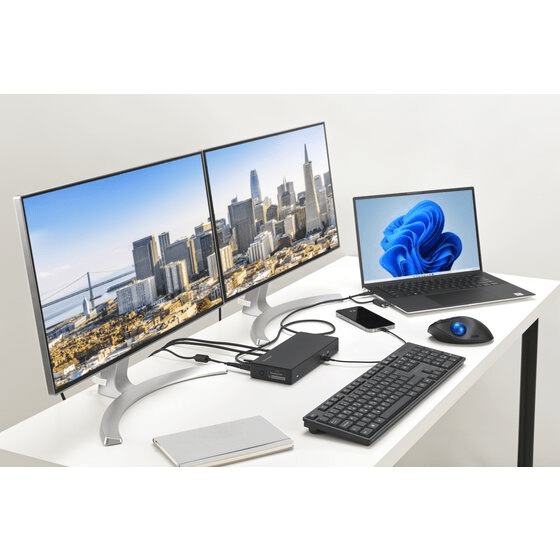
The install process takes about 3 minutes. You download the driver, run the installer, grant macOS Screen Recording permission when prompted (DisplayLink needs this to composite the display signal), and then your monitors appear. After that, it’s automatic on every startup.
DockWorks software from Kensington adds display layout management and network diagnostics on top of the DisplayLink driver. It’s optional but takes another 2 minutes to set up and is worth having.
What the setup process looks like step by step:
- Plug the dock into power, connect your monitors to any 2 of the 4 video ports
- Connect the upstream USB-C cable to your Mac’s USB-C port
- Go to synaptics.com and download the latest DisplayLink Manager for Mac
- Install, open, grant Screen Recording permission in System Settings → Privacy
- Install Kensington DockWorks from kensington.com (optional but recommended)
- Your monitors appear — arrange them in System Settings → Displays
On subsequent restarts, the DisplayLink driver runs automatically in the background and your monitors appear within a few seconds of plugging in.
Mac Compatibility — Model by Model
MacBook Air M1 (2020) and M2 13″/15″ (2022/2023)
This is where the SD4781P earns its strongest recommendation. The M1 and M2 chip can only drive one external display natively — it’s a silicon limitation. You can’t get around it with a better cable or a more expensive dock. The only way to get a second external monitor on these Macs is DisplayLink.
Since the SD4781P is DisplayLink-only anyway, there’s no tradeoff here. You get dual 4K@60Hz on machines that would otherwise be stuck at one screen. That’s legitimately useful, and this dock does it reliably.
Verdict for M1/M2 Air: ✅ Excellent match. Dual monitors unlocked. 100W PD covers these chips comfortably.
MacBook Air M3 13″/15″ (2024)
The M3 Air natively supports two external displays — but with a catch. The lid has to be closed (clamshell mode) to use both. Open the lid and you’re back to one external display plus the built-in screen.
With the SD4781P, the lid-open limitation disappears. DisplayLink doesn’t care about Apple’s clamshell rules — it handles the signal independently. You get dual external monitors with the lid open, and the laptop screen as a third if you want it.
Verdict for M3 Air: ✅ Strong match. Fixes the clamshell limitation. Lets you run two external monitors + laptop screen simultaneously.
MacBook Air M4 and M5 (2025/2026)
The M4 and M5 Air natively support dual external displays in any configuration — lid open or closed, no workarounds needed. So for these users, the SD4781P’s DisplayLink approach isn’t solving a problem, it’s just a delivery method.
It works perfectly fine, but you’re also fine with a non-DisplayLink dock that costs less. The SD4781P’s 100W PD, 3-year warranty, and build quality are still valid reasons to choose it. Just don’t buy it specifically for the DisplayLink feature if you have M4 or M5 — you don’t need it.
Verdict for M4/M5 Air: ✅ Works well, but a TB4 or native USB-C dock gives you the same dual display without driver overhead. Choose based on whether the port selection and warranty matter more than avoiding DisplayLink.
MacBook Neo (2026)
The Neo has no Thunderbolt, no MagSafe, no HDMI, and only one useful USB-C port (the left one). It natively supports one external display. DisplayLink is the only confirmed path to a second monitor.
The SD4781P checks every box the Neo needs: 10Gbps USB-C upstream (connects to the Neo’s left port), 100W PD (better than the Neo’s included 20W adapter), DisplayLink for dual 4K, and a solid port selection to replace all the built-in ports the Neo doesn’t have.
Verdict for MacBook Neo: ✅ One of the top two dock choices for Neo. Plug into the left USB-C port only. Dual monitors confirmed working via DisplayLink on A18 Pro / macOS Tahoe.
MacBook Pro 14-inch (any chip)
The 14-inch MBP already has built-in HDMI and an SD card slot. It also has Thunderbolt (TB4 on M3/M4 base; TB5 on M4 Pro/Max and M5 Pro/Max), which means a TB dock can deliver native multi-display support without DisplayLink.
The SD4781P will work — 100W PD is adequate for MBP 14″, and DisplayLink gives you dual display. But you’re likely better served by a Thunderbolt dock that uses the MBP’s native display capabilities and avoids the streaming restriction. The SD4781P isn’t a bad choice here, but it’s not the optimal one.
Verdict for MBP 14″: ⚠️ Works, but a TB4 dock is more appropriate. Consider the SD4781P only if Thunderbolt docks are out of budget or you specifically need the USB-A hosting capability.
MacBook Pro 16-inch (any chip)
The MBP 16″ pulls up to 140W for full-speed charging under heavy load. The SD4781P delivers 100W. Under light to moderate use — browsing, writing, video calls — 100W is fine and the battery will hold steady or gain slowly. Under sustained heavy workloads — video export, compilation, sustained gaming — 100W may cause very slow battery drain.
It’s not a dealbreaker for everyone, but it’s worth knowing. If you run your MBP 16″ hard at the desk, you’ll want to keep MagSafe plugged in alongside the dock, or look at a dock with 140W+ PD.
Verdict for MBP 16″: ⚠️ Works at moderate load. Insufficient for sustained heavy work. Use MagSafe alongside if you push the machine.
Display Output — What You Can Actually Do
The SD4781P has four video ports: 2x HDMI 2.0 and 2x DisplayPort++ 1.2. You choose any two for your monitors — HDMI to HDMI, DisplayPort to DisplayPort, or one of each. All four are DisplayLink-driven.
Maximum output: dual 4K@60Hz. Both displays can run at full 4K resolution at 60Hz simultaneously. This is genuine 4K, not the 4K@30Hz you get from some cheaper docks.

The DP++ ports support DisplayPort++ passthrough, which means they’ll also accept the HDMI signal from monitors with DisplayPort-to-HDMI adapters. Flexible for mixed monitor setups.
What you can’t do: three monitors (this dock only drives two), anything above 4K (no 5K or 6K support via DisplayLink at this price), or any video output without the DisplayLink driver running.
The DisplayLink Situation — Read This Before Buying
If you’ve read this far, you know DisplayLink is involved. Here’s the complete picture so there are no surprises.
What DisplayLink is: It’s a chip and driver combination that compresses your display signal and sends it over USB instead of a native video connection. Synaptics makes the chip; the driver runs in the background on your Mac.
What works perfectly: Desktop use, productivity apps, Xcode, Final Cut (the timeline, not output preview), web browsing, video conferencing, spreadsheets. For desk work, DisplayLink at 4K@60Hz is indistinguishable from a native connection in daily use.
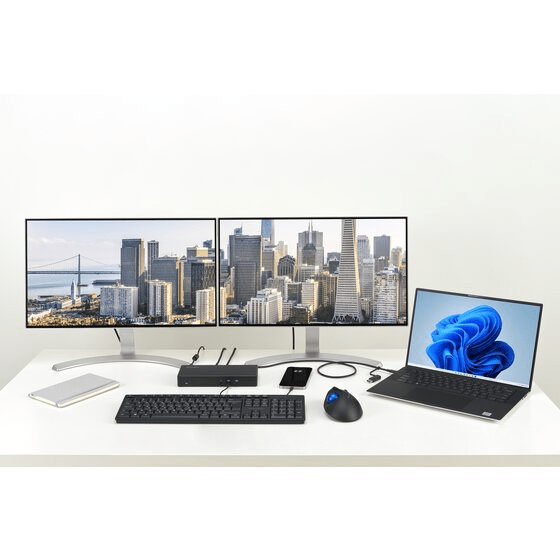
What doesn’t work: DRM-protected streaming services. When DisplayLink is active on Mac, HDCP — the copy-protection layer that streaming services depend on — is disabled system-wide. That means Netflix, Disney+, Amazon Prime Video, HBO Max, YouTube TV, Apple TV+, and iTunes movies go black on all your screens, not just the DisplayLink ones. This is a macOS-level behaviour, not a Kensington defect.
The workaround: Open streaming services in Chrome or Edge, go to settings, and disable hardware acceleration. That bypasses the HDCP check and lets video play. This works for Chrome and Edge only — Safari and Firefox have no workaround.
Who this affects most: If your desk setup is 80% work and 20% evening Netflix, the Chrome workaround is a minor inconvenience. If you stream constantly throughout the day, or if you use Safari as your primary browser, the SD4781P’s all-DisplayLink approach is a real daily friction point.
Pros
3-year warranty. Most docks at this level offer 1–2 years. Kensington’s 3-year warranty is one of the longest in the category and signals confidence in the hardware.
Dual 4K@60Hz on every Mac, including M1 and M2. The only way to get two external monitors on an M1 or M2 MacBook Air is DisplayLink. The SD4781P delivers it cleanly.
100W power delivery. Charges MacBook Air models with room to spare. Adequate for MBP 14″ under moderate load. One cable in, everything connected.
Four video output options. Two HDMI and two DisplayPort means you can match whatever monitors you have. Mixed HDMI/DP setups, dual HDMI, dual DP — all covered.
USB-A legacy support. If you or a colleague also use a Windows laptop with USB-A, the optional power splitter (K38310WW) makes this dock work for that setup too. Genuinely useful in shared desk environments.
DockWorks software. Not essential, but useful. Display profile management means your monitor arrangement saves and restores when you connect and disconnect. Kensington has been building Mac dock software longer than most brands.
Front-access ports. USB-C and USB-A on the front for daily-use devices. The upstream cable also connects from the front, which keeps your desk cable run clean.
Two security lock slots. Standard Kensington lock and nano lock. Not relevant for home use, but a real feature for shared office environments.
macOS 10.14+ compatible. The longest backward compatibility window in this comparison set. Older Macs with older macOS versions are covered.
Cons
DisplayLink required for all video. There’s no native video path. If you’re on a Mac that doesn’t need DisplayLink (M4 Air, MBP with TB), you’re paying for driver overhead you could avoid with a different dock.
Streaming services go black while DisplayLink runs. Netflix, Disney+, Prime, Apple TV+ and others need HDCP, which DisplayLink disables system-wide. Chrome/Edge workaround works but adds friction.
1GbE Ethernet only. Gigabit Ethernet is fine for most home internet connections, but if you’re on a multi-gigabit network or do regular large file transfers over LAN, you’ll feel the ceiling. Competing docks at a similar price point offer 2.5GbE.
USB-A ports are Gen 1 (5Gbps). The four USB-A ports on the rear max out at 5Gbps. For a keyboard, mouse, or USB audio interface that’s irrelevant. For an external SSD, you’ll be capped. If you regularly transfer large files to USB drives, note this.
No SD card reader. If you shoot photos or video and pull cards at your desk, you’ll need a separate reader. The Plugable UD-ULTC4K, which is a direct competitor, includes one.
Front USB-C is charging only (18W). The front USB-C port charges devices at 9V/2A — fine for a phone, not sufficient for fast-charging a tablet or secondary laptop. It’s an accessory charging port, not a data port.
100W PD isn’t enough for MBP 16″ under heavy load. Worth repeating: sustained heavy work on a 16-inch MBP will slowly drain the battery through a 100W dock. Keep MagSafe available.
Who Should Buy the Kensington SD4781P
MacBook Air M1 or M2 owners who want two monitors. This is the SD4781P’s strongest use case. These chips are limited to one external display natively. DisplayLink is the only solution, and this dock delivers it well with solid build quality and a 3-year warranty.
MacBook Neo owners. The Neo needs DisplayLink for a second display, and the SD4781P is confirmed compatible. 100W PD, dual 4K, all the ports the Neo lacks built-in.
MacBook Air M3 users who want lid-open dual monitors. The M3 Air’s clamshell requirement disappears with DisplayLink. If closing the lid isn’t your preference, this dock solves that cleanly.
Office environments with mixed Mac and PC hardware. The USB-A host option (with the optional splitter) means this dock can serve both a USB-C Mac and a USB-A Windows laptop. IT teams deploying dock standards across a mixed fleet appreciate that flexibility.
Anyone who prioritises warranty length. Three years beats most of the competition. For an office purchase or an investment you want to last, that matters.
Who Should Look Elsewhere
MacBook Pro users with Thunderbolt. A TB4 dock gives your MBP native multi-display support without drivers or streaming restrictions. The Kensington SD5780T or SD5760T are better fits for MBP users in the same brand.
Heavy streaming users. If you watch Netflix, Prime, or Disney+ throughout your workday and use Safari, DisplayLink’s HDCP restriction is a persistent problem. Look at a native Thunderbolt dock instead.
MacBook Pro 16-inch users under sustained load. 100W PD isn’t enough for a 16″ MBP running hot. The Kensington SD4781P isn’t designed for this machine.
Anyone who needs a third monitor. The SD4781P maxes out at two displays. Look at the Kensington SD4790-MAC or SD4790P for triple display via DisplayLink.
Users who transfer files to USB drives frequently. The 5Gbps USB-A ports will bottleneck external SSDs. The Plugable UD-ULTC4K offers a similar DisplayLink setup with a card reader and slightly faster USB.
How It Compares to the Competition
SD4781P vs Kensington SD4790-MAC
The SD4790-MAC is the SD4781P’s bigger sibling from the same brand. It adds a third display (triple 4K via DisplayLink), more USB ports, and a slightly higher price. If you’re fairly sure you’ll want a third monitor at some point, go straight to the SD4790-MAC. If two monitors is your ceiling, the SD4781P saves money and keeps the setup simpler.
SD4781P vs Plugable UD-ULTC4K
These are the two most direct competitors in the USB-C DisplayLink category for Mac. The UD-ULTC4K adds an SD card reader and can drive three displays — the SD4781P doesn’t do either. Kensington counters with a 3-year warranty (vs Plugable’s 2-year) and DockWorks software. If you shoot photos and need a card reader, go Plugable. If warranty longevity matters more, go Kensington. Both handle dual 4K DisplayLink equally well.
SD4781P vs WAVLINK B0F7XDLZZK
The WAVLINK is a strong value option with confirmed MacBook Neo support and 100W PD. It’s a solid dual-DisplayLink dock at a lower price point. The trade-off is a 1-year warranty (vs Kensington’s 3 years) and a less established Mac support track record. For a home setup where you want to save money, WAVLINK works. For an office purchase you need to last and be supportable, Kensington’s warranty is worth the premium.
Comparison Table
| Dock | Display Tech | Max Displays | PD | Ethernet | SD Card | Warranty | USB-A Host |
|---|---|---|---|---|---|---|---|
| Kensington SD4781P | DisplayLink | 2 × 4K@60Hz | 100W | 1GbE | ❌ | 3 years | ✅ (with splitter) |
| Kensington SD4790-MAC | DisplayLink | 3 × 4K@60Hz | 100W | 1GbE | ❌ | 3 years | ❌ |
| Plugable UD-ULTC4K | DisplayLink | 3 × 4K@60Hz | 96W | 1GbE | ✅ | 2 years | ❌ |
| WAVLINK B0F7XDLZZK | DisplayLink | 2 × 4K@60Hz | 100W | 1GbE | ❌ | 1 year | ❌ |
| Kensington SD5780T | Thunderbolt 4 | 2 (native) | 96W | 2.5GbE | ✅ | 3 years | ❌ |
Frequently Asked Questions
Does the Kensington SD4781P work with MacBook Air M1?
Yes — and it’s one of the best dock choices for M1 Air specifically. The M1 chip is limited to one external display natively, and DisplayLink is the only way to add a second. The SD4781P does exactly that, delivering dual 4K@60Hz from a Mac that would otherwise be stuck at one monitor. Install the DisplayLink driver from synaptics.com before connecting your monitors.
Will this dock work with the MacBook Neo?
Yes, confirmed. The Neo uses the left USB-C port for the dock connection (USB 3, 10Gbps). The SD4781P connects via USB-C and delivers 100W PD and dual 4K@60Hz via DisplayLink. This is one of the top dock recommendations for MacBook Neo users who want two external displays.
Do I need to install a driver?
Yes. DisplayLink requires the Synaptics DisplayLink Manager driver. Download it from synaptics.com — not from any third-party site. macOS will prompt for Screen Recording permission during install, which DisplayLink needs to composite the display signal. After the first install, it runs automatically on startup.
Why does Netflix go black when I plug this in?
When DisplayLink is running on Mac, it disables HDCP system-wide — this is macOS behaviour, not a Kensington issue. HDCP is the copy-protection layer streaming services like Netflix, Disney+, and Amazon Prime require. The fix: open your streaming service in Chrome or Edge, go to Settings and disable hardware acceleration. That bypasses the check. Safari and Firefox don’t have this workaround.
Can I run three monitors with the SD4781P?
No. The SD4781P supports a maximum of two external displays. If you need a third, look at the Kensington SD4790-MAC or SD4790P, which support triple DisplayLink output.
Is 100W enough to charge my MacBook Pro?
It depends on the model and workload. For MacBook Air (any), 100W is more than sufficient. For MacBook Pro 14-inch, 100W handles most tasks comfortably. For MacBook Pro 16-inch under sustained heavy load (video export, compilation), 100W may cause slow battery drain. Use MagSafe alongside the dock for full-speed 140W charging on the 16-inch.
Can I use this dock with a Windows laptop that has USB-A?
Yes, with the optional Kensington power splitter (K38310WW, sold separately). The splitter adds both power delivery and data connection for USB-A host laptops. It’s a slightly clunky setup but functional — useful for shared desk environments with mixed Mac/PC hardware.
Our Verdict
The Kensington SD4781P earns its recommendation for the specific Mac users it’s designed for. If you have an M1 or M2 MacBook Air and want two monitors — there’s no better way to do it, full stop. If you have a MacBook Neo, this is one of two docks we’d put at the top of the list. If you have an M3 Air and want lid-open dual external displays, it fixes that frustration cleanly.
The DisplayLink limitation is real and it applies every time you want to watch something protected. The Chrome/Edge workaround handles it for most people. If that trade-off bothers you because you’re a heavy streamer, or if your Mac is a MacBook Pro with Thunderbolt that doesn’t need DisplayLink, this dock isn’t the right tool.
For everyone else: the 3-year warranty, solid 100W PD, flexible four-port video selection, and reliable DockWorks software make the SD4781P one of the better-thought-out docks in this category. It knows its audience and delivers exactly what that audience needs.
Last updated: May 2026. Verify current availability and pricing at amazon.com. Specs sourced from Kensington official product page and manufacturer documentation. DisplayLink driver behaviour verified on macOS Tahoe.