Last Updated: May 2026 | We may earn a commission from Amazon links on this page — at no extra cost to you.
Quick Answer
✅ Best For: MacBook Air M1/M2/M3/M4/M5 users who need a dead-simple, affordable hub for a single monitor, keyboard, mouse, and keep-me-charged setup.
⚠️ Skip It If: You’re on a MacBook Pro and need to charge at full speed under load — 90W won’t cut it for a plugged-in MBP 16-inch.
❌ Not For: Anyone hoping to run two external displays — this hub connects one monitor only on every Mac model.
We’ve looked at a lot of hubs in this price range. Most of them make you choose: decent power delivery or a 4K display or enough USB ports to actually use. This one doesn’t make you choose — and at this price, that’s worth paying attention to.
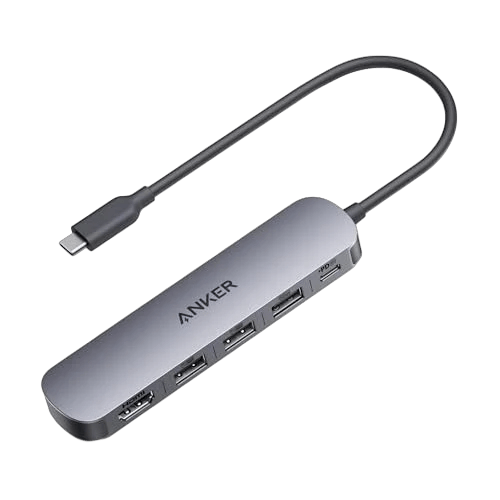
The Anker 5-in-1 USB-C Hub packs HDMI, three USB-A ports, and 90W pass-through charging into a slim aluminum body. It’s not a docking station. It’s not trying to be. But for MacBook Air users who just want one cable for a monitor, a few peripherals, and a charge — this hub does exactly what it promises.
Here’s the full breakdown, Mac model by Mac model.
What’s in the Box
- Anker 5-in-1 USB-C Hub (with attached cable)
- Welcome guide
- 18-month warranty
No wall charger included. You’ll need your own USB-C power adapter to use the 90W pass-through port.

Port Layout at a Glance
| Port | Spec | What It’s Good For |
|---|---|---|
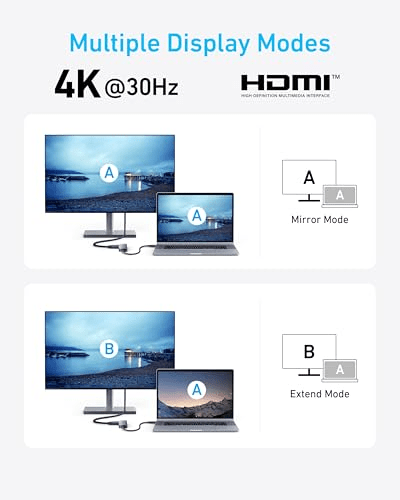
| HDMI | 4K @ 30Hz | External monitor (mirror or extend) |
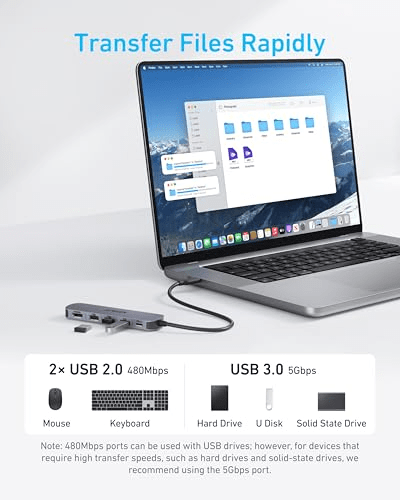
| USB-A 3.0 | 5Gbps | Fast external drives, fast USB accessories |
| USB-A 2.0 (×2) | 480Mbps | Keyboard, mouse, webcam, phone charging |
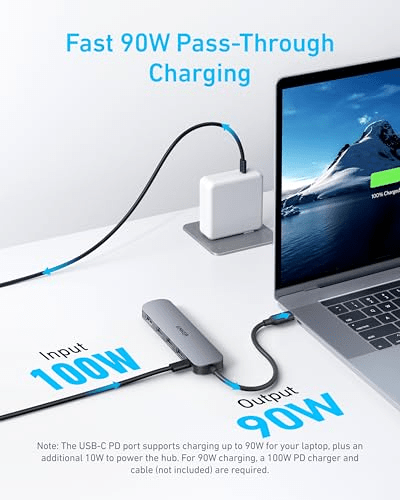
| USB-C PD-IN | 90W max input | Pass-through charging only — no data, no display |
Important: The USB-C port on this hub is power-in only. You plug your wall charger into it. It does not transfer data and does not support video output. This is by design — and it’s worth knowing before you buy.
Mac Compatibility — Model by Model
MacBook Air M1 (2020) and M2 (2022)
This hub is a natural fit for M1 and M2 Air users. These Macs support one external display natively, which is exactly what the HDMI port here delivers. Plug in your monitor, connect a keyboard and mouse via the USB-A ports, plug your charger into the PD-IN port, and you’re done.
Charging note: The M2 Air ships with a 30W adapter, and the 35W dual-port charger is the most popular add-on. Either works fine with this hub’s 90W PD-IN — you’re not bottlenecked by the hub.
Display: 4K at 30Hz is the limit here. For most productivity work — writing, browsing, email, even light photo editing — 30Hz at 4K is fine. If you’re moving windows around fast or scrolling long documents all day, you may notice the difference compared to 60Hz. Just something to be aware of.
Best for M1/M2 Air: ✅ Solid fit. Budget-conscious, simple, reliable.
MacBook Air M3 (2024) — 13-inch and 15-inch
M3 Air is where this hub is arguably the best match. These Macs already bumped up to native dual display support (with the lid closed for one monitor, or two monitors if you close the lid) — but this hub only outputs to one display via HDMI. That’s fine if you’re running a single monitor setup.
One thing we like: the M3 Air’s power requirements are still modest enough that 90W pass-through is comfortable. Even charging from 0% while using the monitor and a couple of USB peripherals, you’ll see solid charging speeds.
Display: 4K@30Hz. The M3 Air can do 4K@60Hz natively, so this hub does cap the refresh rate. If your monitor is 1080p or 1440p, you’ll never notice — the 30Hz limit only matters at 4K.
Best for M3 Air: ✅ Great fit for single-monitor setups. If you want 4K@60Hz, look for a hub with an HDMI 2.0 output.
MacBook Air M4 and M5
Same story as M3 Air — these Macs can drive two external displays natively, but this hub only gives you one HDMI port. If you’re happy with a single-monitor setup, this hub works well. If dual display is on your list, you’ll need something else.
The 90W PD pass-through is still adequate for M4 and M5 Air models. These chips are power-efficient, and unless you’re doing sustained rendering or video export for hours, 90W keeps you topped up.
Best for M4/M5 Air: ✅ Works cleanly. Move up to a hub with dual display output if you need two screens.
MacBook Pro 14-inch (M3, M4, M5 — all chip variants)
The 14-inch MBP can run two external displays natively, and its full charging speed is 96W (or up to 140W for the Pro/Max chips under heavy load). At 90W pass-through, this hub will charge your MBP 14-inch — but not at full speed under sustained load. In everyday use (browsing, writing, light coding), 90W is enough to stay topped up. If you’re doing sustained video exports or heavy compilation, you’ll slowly drain the battery even while plugged in.
The single HDMI port limits you to one external display here. If that’s all you need, it works. But most MBP 14-inch buyers are looking to drive two monitors — for that, this hub isn’t the right tool.
Best for MBP 14-inch: ⚠️ Works for single-monitor setups and moderate workloads. Not ideal for heavy sustained use or dual display.
MacBook Pro 16-inch (M3, M4, M5 — all chip variants)
We’ll be straight with you: this hub is not the right dock for a 16-inch MacBook Pro. The 16-inch MBP charges at 140W at full speed. At 90W, this hub will charge the Mac slowly when it’s idle — and actually let the battery drain under any kind of real workload.
It’ll work in a pinch. If you just need a temporary solution or a travel hub for light use on the road, fine. But as your everyday hub for a 16-inch MBP, you’ll want something with at least 100W PD — preferably 140W.
Best for MBP 16-inch: ❌ Not recommended as a primary hub. The 90W PD is the bottleneck.
MacBook Neo (2026)
The MacBook Neo is a different animal — it uses an A18 Pro chip, has no Thunderbolt, and only the left USB-C port supports external display output. This hub connects via USB-C, so as long as you plug it into the left port, it works. The Neo supports one external display at up to 4K@60Hz natively — and this hub outputs 4K@30Hz, so you’re getting a single display at 30Hz.
For Neo users, this hub’s 90W PD-IN is also more than enough — the Neo charges via USB-C with no MagSafe, and 30W-45W is typical usage. The hub’s 90W input means your wall charger passes through with headroom to spare.
Reminder: Plug into the left USB-C port only on the MacBook Neo. The right port is USB 2.0 (480Mbps) and won’t drive a display.
Best for MacBook Neo: ✅ Works well. Single 4K display (at 30Hz), three USB-A ports, 90W charging. A practical, no-fuss pick.
Pros and Cons
✅ What We Like
- 90W pass-through covers every MacBook Air model and handles light MBP 14-inch use
- Three USB-A ports — most hubs in this range give you two; three is genuinely useful
- Aluminum build matches the MacBook aesthetic and dissipates heat better than plastic
- 4K HDMI in both mirror and extend mode — works correctly on macOS out of the box
- Compact and light — barely adds bulk to a laptop bag
- 18-month warranty — Anker’s support is reliably easy to deal with
- macOS 12 and newer — works on all currently-supported macOS versions
❌ What to Watch Out For
- 4K@30Hz only — not 60Hz. For 4K monitors, you’ll see smoother scrolling with a 60Hz-capable hub
- 90W PD is the ceiling — not enough for MBP 16-inch under load; tight for MBP 14-inch Pro/Max under sustained use
- Single display only — no dual monitor support on any Mac model
- No Ethernet — if you rely on wired internet, you’ll need a separate adapter or a different hub
- No SD card slot — photographers and video editors will want something else
- No audio jack — if your monitor doesn’t have built-in speakers, you’re out of luck
- Not compatible with Linux — relevant if you dual-boot or use a Linux partition
- PD-IN is charging only — can’t use the USB-C port for data or drives
How It Compares — Quick Spec Table
| Feature | Anker 5-in-1 | Typical Step-Up Hub |
|---|---|---|
| HDMI | 4K@30Hz | 4K@60Hz |
| USB-A ports | 3 (2×2.0 + 1×3.0) | 2–4 (varies) |
| PD pass-through | 90W | 100W |
| Ethernet | ❌ | Often included |
| SD card | ❌ | Often included |
| Displays | 1 | 1–2 |
| Build | Aluminum | Plastic or aluminum |
| macOS support | 12+ | Varies |
Who Should Buy It
If you have a MacBook Air M1/M2/M3/M4/M5 and want a single-monitor hub that just works: This is the cleanest option at this price. It covers your monitor, three USB peripherals, and your charger — all from one hub, one cable.
If you have a MacBook Neo: Plug into the left port and you’re set. Single 4K display, three USB-A ports, 90W charging — this hub fits the Neo’s USB-C-only world cleanly.
If you’re on a MacBook Pro 14-inch and keep your workload moderate: It works, but know you’re at the edge of the charging headroom. If you push the chip hard, supplement with MagSafe.
If you have a MacBook Pro 16-inch: We’d honestly steer you toward a hub with 100W+ PD. This one will leave you battery-draining under real workloads.
If you need dual monitors, Ethernet, or an SD card reader: This isn’t the hub for that — look at a proper docking station or a hub with those specific ports.
Frequently Asked Questions
Does this hub work with macOS Ventura, Sonoma, and Sequoia?
Yes. Anker lists compatibility with macOS 12 and newer, which covers Ventura, Sonoma, and Sequoia. No drivers required — plug in and it works.
Can this hub charge a MacBook Pro 16-inch fast enough?
Not under load. The MBP 16-inch’s maximum charging speed is 140W. This hub passes through up to 90W, which is fine when the Mac is idle or in light use — but during sustained workloads like video export or compilation, the battery will drain slowly even while plugged in. For the 16-inch, look for a hub or dock with at least 100W PD.
Will this hub work with the MacBook Neo?
Yes — plug it into the left USB-C port only. The right port on the Neo is USB 2.0 and won’t support display output. The left port (USB 3, 10Gbps, DisplayPort 1.4) will drive the HDMI display and run the USB-A ports correctly.
Can I use this hub with an M1 or M2 MacBook Air to get two monitors?
No. The M1 and M2 MacBook Air are limited to one external display at the chip level — no hub or dock can override this without DisplayLink software (which this hub doesn’t use). You’ll get one display, which is all these Macs support natively anyway.
Is the USB-C port on this hub for data or charging?
Charging only. The USB-C PD-IN port is for connecting your wall charger to power your MacBook through the hub. It doesn’t transfer data and doesn’t support video output. If you need USB-C data ports, this hub doesn’t have them.
Does this work on macOS in extended display mode?
Yes. The HDMI port supports both mirror mode and extended mode. You can set your external monitor as an independent display in System Settings → Displays and arrange it however you like.
Our Verdict
For MacBook Air users — including the new MacBook Neo — this hub earns its place. It’s the kind of product that doesn’t overcomplicate things: one cable, one monitor, three USB ports, and your Mac stays charged. That’s genuinely useful for most people.
The 4K@30Hz HDMI cap is worth knowing about, and the 90W PD is the practical limit for MBP users. But within the MacBook Air lineup, from M1 through M5 and including the Neo, this hub delivers exactly what it promises.
If you’re a MacBook Pro user — especially the 16-inch — move up to something with more power delivery headroom. But for the Air lineup, this is a clean, affordable, reliable pick.
FTC Disclosure: dockyeah.com participates in the Amazon Associates program. If you purchase through our links, we earn a small commission at no extra cost to you. We only recommend products we’ve researched thoroughly. All specs are verified from manufacturer documentation.