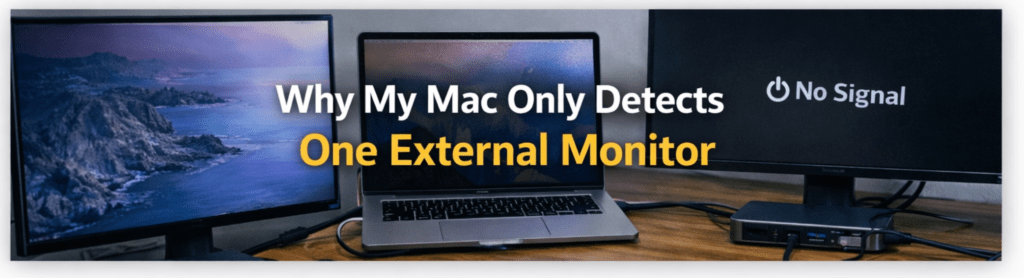
Few things are more frustrating than setting up a clean desk, plugging in a dock with two HDMI ports, connecting both monitors… and seeing only one appear in macOS.
No error message.
No clear explanation.
Just one working display and one inactive screen.
In my experience, this is the single most common docking issue Mac users encounter — especially after moving from Windows laptops, where dual displays often work automatically.
The important thing to understand is this:
Most of the time, nothing is broken.
Your Mac is behaving exactly as designed.
This guide explains why macOS detects only one external monitor, what’s actually happening behind the scenes, and how to fix it depending on your setup.
The First Reality Check: Ports Do Not Equal Displays
One of the biggest misconceptions is assuming:
Two HDMI ports = two monitors.
On Macs, display support is not determined by the number of ports on your dock or adapter.
Instead, it depends on:
- Your Mac’s chip (M1, M2, M3, etc.)
- Native display pipeline limits
- How the dock outputs video
- macOS display handling
When I reviewed several “dual HDMI” USB-C hubs, many technically worked perfectly — but only produced one independent display stream. The second port simply duplicated the first.
So macOS wasn’t failing. The hardware never provided two displays to begin with.
The Real Cause: Apple Silicon Display Limits
With Apple Silicon, Apple redesigned how displays are handled internally.
Many base models — especially earlier ones — support only one external display natively.
Examples commonly affected:
- MacBook Air (M1)
- MacBook Air (M2)
- 13″ MacBook Pro (M1 / M2)
These machines have a limited number of display pipelines built into the chip.
That means:
- The internal screen uses one pipeline.
- Only one external display pipeline remains available.
No dock can override that limitation using native video output.
Why It Worked on Your Old Windows Laptop
This is where expectations clash.
Windows laptops often use MST (Multi-Stream Transport) to split a single DisplayPort signal into multiple displays.
macOS handles MST differently.
On most Macs, MST is used for mirrored displays or specialized cases — not for creating multiple extended desktops the way Windows does.
So a dock that works perfectly on Windows may show only one extended display on macOS.
In my experience, this is the moment users think the dock is defective when it’s actually a platform difference.
The Three Most Common Scenarios
Scenario 1: One Monitor Works, Second Mirrors
You connect two monitors and they show identical content.
What’s happening:
- The dock is splitting one display signal.
- macOS sees only one real external display.
Fix:
- Use a Thunderbolt dock (if your Mac supports multiple displays natively), or
- Use DisplayLink if your Mac is limited to one native external display.
Scenario 2: Second Monitor Shows “No Signal”
The second monitor stays black.
Common causes:
- Dock doesn’t generate independent video outputs.
- Bandwidth limitation prevents activation.
- Cable or port mismatch.
Fix:
- Test each monitor individually.
- Confirm dock specifications (independent outputs vs mirrored).
- Try DisplayPort instead of HDMI when available.
Scenario 3: macOS Doesn’t Even Detect the Display
The display doesn’t appear in Settings → Displays.
Usually caused by:
- Native display limit reached
- Passive USB-C hub expecting MST behavior
- Low-spec cable
Fix:
- Confirm Mac model display support first.
- Replace cable.
- Test direct connection to the Mac.
The Role of DisplayLink (And Why It Exists)
DisplayLink is often misunderstood.
It doesn’t magically unlock hidden GPU power.
Instead, it creates an additional display using software compression sent over USB data.
In practice:
- Your Mac drives one display natively.
- DisplayLink creates another virtual display.
When I tested DisplayLink setups for productivity workflows — writing, coding, spreadsheets — they felt surprisingly normal once configured correctly.
But it comes with trade-offs:
- Requires drivers
- Slightly higher latency
- Not ideal for gaming or color-critical work
Still, for many MacBook Air users, it’s the only realistic way to run two extended monitors.
Thunderbolt vs USB-C: Why It Matters Here
Not all USB-C docks are equal.
USB-C hubs typically rely on DisplayPort Alt Mode, which carries only the display streams your Mac already supports.
Thunderbolt docks, however:
- Carry multiple display streams
- Provide higher bandwidth
- Work better with Pro/Max Macs that support multiple externals
If your Mac supports two displays natively but your USB-C hub shows only one, moving to Thunderbolt often fixes the issue instantly.
Bandwidth Problems That Look Like Display Limits
Sometimes the Mac supports two monitors — but bandwidth prevents both from running correctly.
Signs include:
- One display drops to 30Hz
- Second monitor activates only at low resolution
- Displays disconnect under load
In my experience, this usually means:
- USB-C hub bandwidth saturation
- HDMI version limitation
- Cable bottleneck
Switching to DisplayPort or Thunderbolt frequently resolves it.
A Practical Troubleshooting Order
When diagnosing this issue, I follow this exact sequence:
- Connect each monitor directly to the Mac (one at a time).
- Confirm both monitors work individually.
- Check your Mac’s native external display limit.
- Verify dock supports independent displays.
- Replace cables before replacing hardware.
- Try DisplayPort instead of HDMI.
- If limited to one native display → consider DisplayLink.
Most users find the answer before step six.
Quick Model-Based Guidance
If you use a base-chip MacBook Air or 13″ Pro
Expect one native external display.
Two extended monitors usually require DisplayLink.
If you use a Pro / Max MacBook Pro
Dual monitors should work natively with the right Thunderbolt dock.
If not, the dock is likely the bottleneck.
If you use Mac mini or Mac Studio
Multiple displays are supported natively — issues are usually cable or dock related.
The Bigger Lesson
Mac docking problems rarely come from macOS being unreliable.
They come from mismatched expectations between:
- Windows-style docking assumptions
- Apple Silicon display architecture
- Marketing descriptions of docks
Once you understand that Macs count display pipelines, not ports, the behavior makes sense.
And once your dock matches your Mac’s actual capabilities, multi-monitor setups on macOS can be extremely stable.
If you want, tell me your exact Mac model, dock type, and monitor resolutions — and I’ll tell you whether your limitation is native, bandwidth-related, or fixable with a different setup.