Last Updated: May 2026 | We may earn a commission from qualifying Amazon purchases.
Quick Answer
Best for: MacBook Air M4/M5 users who want driverless dual 4K without paying Thunderbolt 4 dock prices. Not for: M1 or M2 MacBook users who want dual displays (you’ll still need a DisplayLink dock). Also not ideal for MacBook Pro 16-inch users who need more than 100W charging under maximum load. Verdict: Solid USB4 dock that punches above its weight for the right Mac and the right user. Read on to figure out if you’re that person.
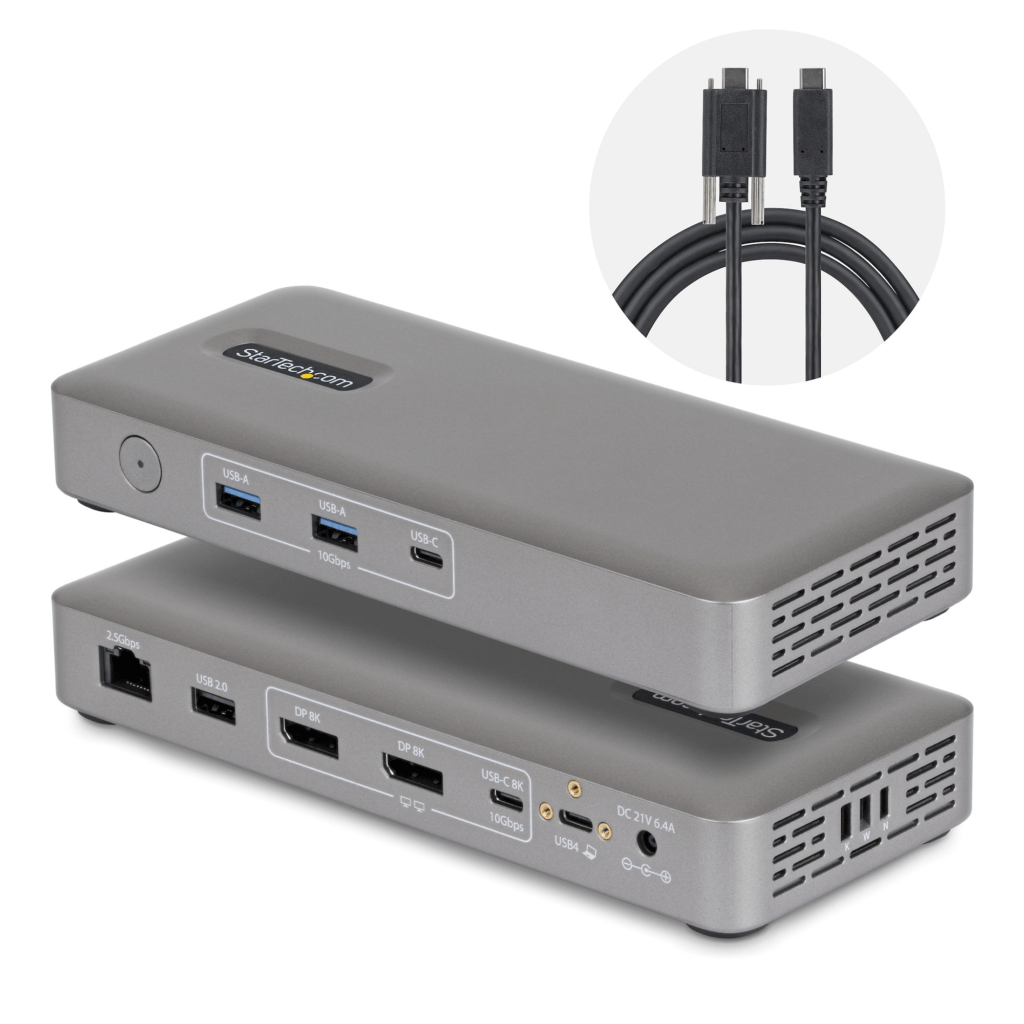
You plug in one cable and your whole desk comes alive — two monitors up, Ethernet connected, keyboard and everything else just there. No drivers. No fiddling. That’s the promise of a good docking station, and it’s the exact promise StarTech is making with the 208N-USB4-DOCK.
But “works great” means very different things depending on which MacBook you have. An M4 Air user and an M1 Air user have a completely different experience with this dock, and we’re going to break that down clearly so you don’t end up buying the wrong thing.
We pulled the full datasheet, cross-referenced it against every Mac model’s display limits, and put together a scenario-by-scenario breakdown below.

What Ports Does the StarTech USB4 Dock Have?
Let’s get the spec picture out of the way first, because this dock’s port selection is genuinely useful for Mac users — especially since no MacBook Air comes with USB-A, an SD card slot, or built-in Ethernet.
Video outputs:
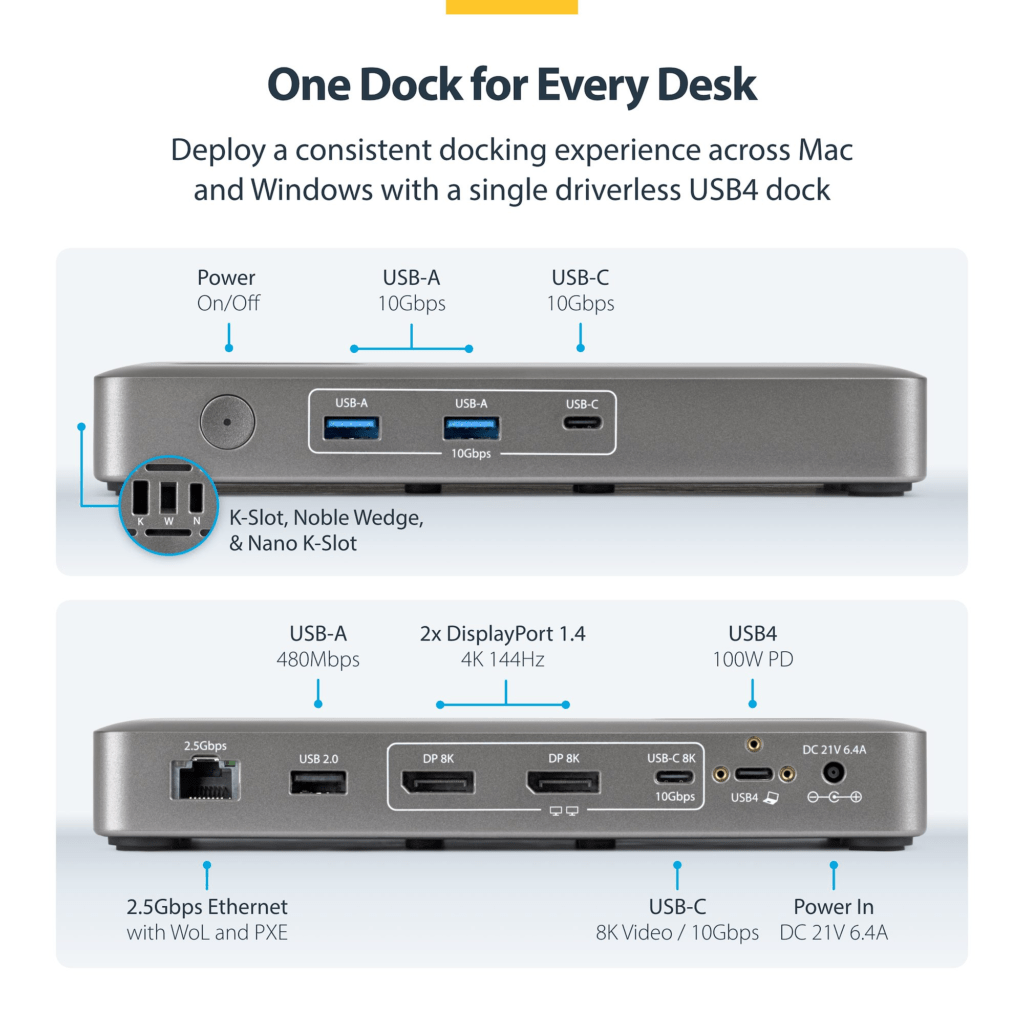
- 2x DisplayPort — your two main monitor connections
- 1x USB 3.2 Type-C (10Gbps, DP Alt-Mode) — this port can also drive a display via USB-C, though on Mac you’re still limited to two external displays total regardless
Data & peripherals:
- 4x USB 3.2 Type-A (10Gbps) — fast enough for external SSDs and other peripherals
- 1x USB 3.2 Type-C (10Gbps) — for accessories or daisy-chaining devices
- 1x USB 2.0 Type-A (480Mbps) — fine for keyboards, mice, and low-demand accessories
Networking:
- 1x RJ-45 (2.5GbE) — wired networking up to 2.5Gbps, with Wake-on-LAN and PXE Boot support
Host connection:
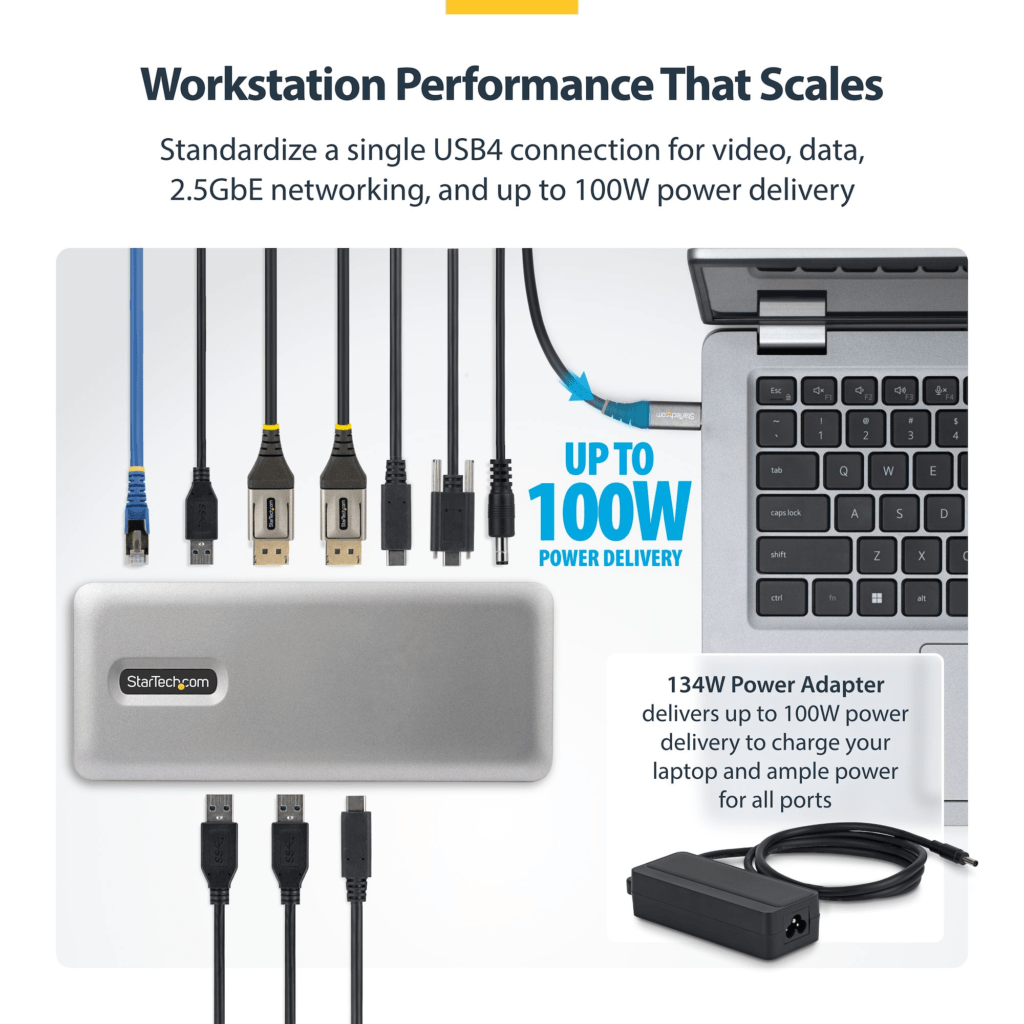
- 1x USB4 (40Gbps) — one cable to your MacBook, which also delivers 100W power delivery
Power:
- 100W to your laptop via the single USB4 cable
- AC adapter included — no hunting for a compatible brick
One thing worth noting: there’s no SD card slot on this dock. If you shoot photos or video and need one, keep that in mind — you’d need a separate card reader. There’s also no audio jack, which is unusual and a real omission if you use wired headphones at your desk.
How Many External Displays Can You Run?
This is the question that matters most for docking stations, and the answer is not the same for every MacBook.
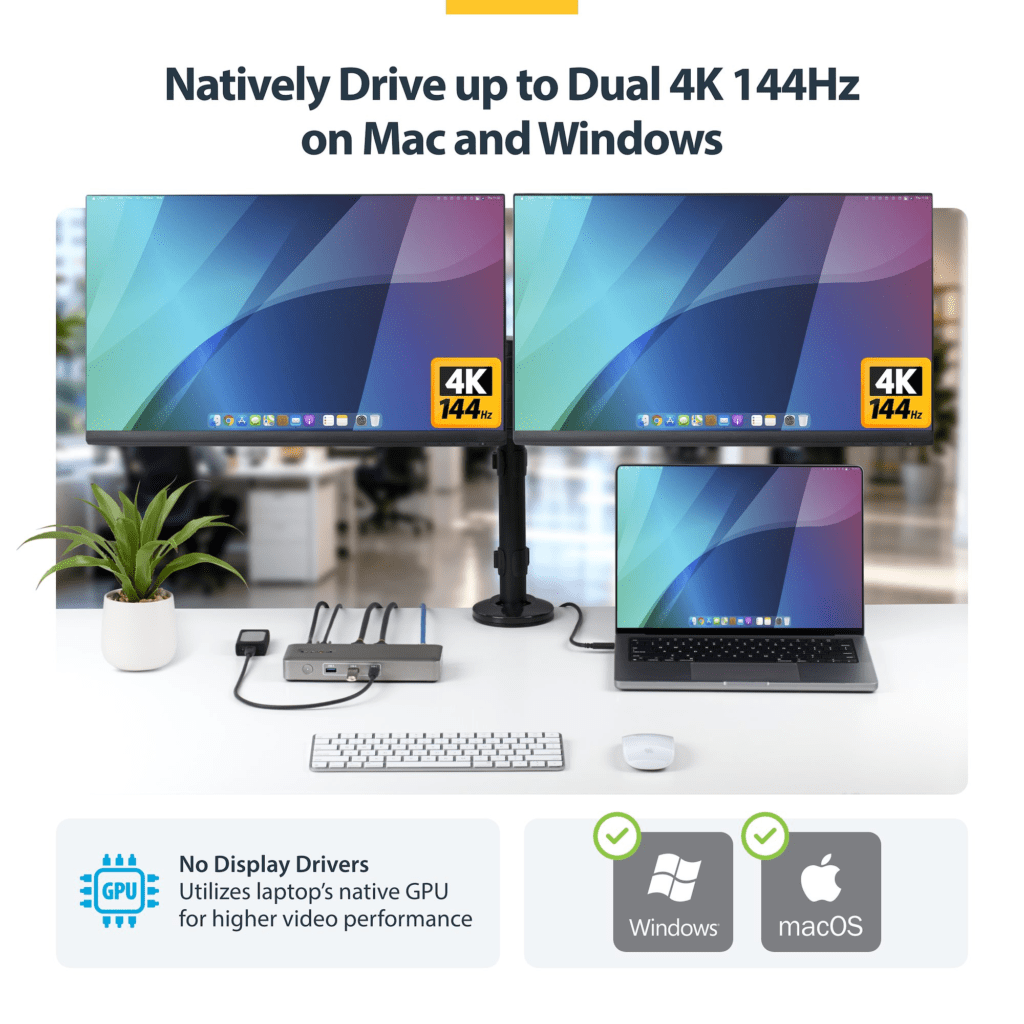
The dock supports dual 4K 144Hz or a single 8K 60Hz via DisplayPort. That’s the dock’s capability. Whether your MacBook can actually use it is a different story entirely.
Here’s the breakdown by Mac model:
| Mac Model | External Displays via This Dock | Notes |
|---|---|---|
| MacBook Air M1 | 1 display | M1 chip hard limit — dual display requires a DisplayLink dock |
| MacBook Air M2 (13″ or 15″) | 1 display | Same M2 chip limit as M1 — DisplayLink dock needed for dual |
| MacBook Air M3 (13″ or 15″) | 2 displays (lid closed only) | Clamshell mode required — lid must be closed for both screens |
| MacBook Air M4 (13″ or 15″) | 2 displays (lid open or closed) | No caveats — full dual display, any lid position |
| MacBook Air M5 (13″ or 15″) | 2 displays (lid open or closed) | Same as M4 — same docks, same behavior |
| MacBook Pro 14″ M4 (base) | 2 displays | Works natively |
| MacBook Pro 14″ M4 Pro/Max | 2 displays | Full dual display, no caveats |
| MacBook Pro 16″ M4 Pro/Max | 2 displays | Works natively — but see charging note below |
| MacBook Neo | 1 display only | No Thunderbolt on Neo; connects as USB4/USB-C — single 4K@60Hz only |
The M1 and M2 situation is important: these chips simply cannot drive two external displays natively, regardless of what dock you use. The 208N-USB4-DOCK does not use DisplayLink, so it cannot work around that hardware limitation. If you have an M1 or M2 Air and want dual monitors, this is the wrong dock — look at a DisplayLink dock instead (and be aware those come with a streaming/DRM caveat).
M3 Air users: this dock does work for dual displays, but you have to run your Air in clamshell mode — lid closed, using your external keyboards and mouse. Many people do this and love it. If you want to have the Air screen open as a third display, you’d still need a DisplayLink dock.
M4 and M5 Air users: this is where the dock really shines. No caveats, no workarounds, no drivers. Just plug in and both screens come up.

Scenario 1: MacBook Air M4 or M5 — Clean Dual-Monitor Home Office
This is the best-fit scenario for this dock. The M4 Air natively supports two external displays, and USB4 is natively supported on the chip — which is exactly what “driverless dual 4K” means in practice.
You plug the dock’s single cable into your Air’s left USB-C port, connect two DisplayPort monitors, plug in your Ethernet cable, add your keyboard and mouse to the USB-A ports, and you’re done. No drivers to install. No DisplayLink software to manage. No DRM streaming issues. Your Mac just works with two screens.
The 100W power delivery is exactly right for the M4 Air’s maximum of 70W — you’ll be charging comfortably even under load. The 2.5GbE Ethernet is also a genuine upgrade if you’ve been on Wi-Fi, especially for large file transfers or video calls.
Verdict for M4/M5 Air: Buy it. This is the kind of dock this Mac deserves — one cable, everything works.
Scenario 2: MacBook Air M3 — Clamshell Dual-Monitor Desk Setup
The M3 Air can run two external displays, but only with the lid closed. That’s not a limitation of this dock — it’s a macOS / chip limitation that applies regardless of which dock you use.
What that means practically: you close your Air, connect to the dock, wake it with an external keyboard, and both monitors fire up. Your Air is now a desktop machine. The built-in screen is off, and you’re working across two external displays.
For a lot of people, that’s completely fine — especially if you’re using the Air as a desk setup and don’t need the built-in screen. You lose the portability while docked, but many M3 Air users have been waiting to do exactly this.
A few things to be aware of: make sure your desk setup has a spot to prop the Air while the lid is closed (it still needs airflow), and pick up an external keyboard and mouse if you don’t have them yet.
Verdict for M3 Air: This dock works well, with one honest caveat — you’ll be closing the lid. If that’s acceptable for your workflow, it’s a clean, driver-free dual-display solution.
Scenario 3: MacBook Air M1 or M2 — One Display Only
We want to be direct here: if you have an M1 or M2 MacBook Air and you’re hoping to drive two external monitors with this dock, it won’t happen. The chip itself only supports one external display, and the 208N-USB4-DOCK doesn’t include DisplayLink technology to work around that.
You can still use this dock on an M1 or M2 Air — it’ll give you one display, 2.5GbE, 100W charging (more than enough for either Air), and a full set of USB ports. If a single external monitor is all you need, it’s a genuinely good dock for the M2 Air in particular (MagSafe handles charging, freeing up the USB-C port for the dock).
But if you came here looking for dual monitors with an M1 or M2, check out a DisplayLink-based dock instead. Just know that DisplayLink docks come with a trade-off: streaming services like Netflix and Prime Video go black on all screens when DisplayLink is active, unless you use Chrome or Edge with hardware acceleration turned off.
Verdict for M1/M2 Air: Works fine for a single external display. Not the right dock if dual monitors is the goal.
Scenario 4: MacBook Pro 14-inch or 16-inch (M4)
The MacBook Pro 14″ and 16″ natively support two external displays regardless of which chip variant you have (M4 base, M4 Pro, or M4 Max), so this dock’s dual-display capability is fully unlocked here.
The 14-inch user will have no issues at all. 100W is comfortably above the 67–96W the 14″ needs depending on the chip, so you’ll charge well even under load.
The 16-inch is where you need to pay attention. The 16-inch MacBook Pro needs 100W for comfortable charging under sustained workloads, and this dock delivers exactly 100W — which is fine in most situations. But under maximum sustained load (extended video exports, heavy compiles, running all ports simultaneously), 100W might not keep pace and you could see the battery slowly draining. If you push your 16-inch hard all day, we’d recommend supplementing with MagSafe charging alongside the dock.
Verdict for MBP 14″: Clean fit — 100W is right, dual display works natively, no driver complexity. Verdict for MBP 16″: Works well for most workflows. Heavy sustained users should have MagSafe as a backup.
Scenario 5: MacBook Neo — USB4, Not Thunderbolt
The MacBook Neo is a special case, and if you own one, pay close attention here.
The Neo does not have Thunderbolt. Either USB-C port. The dock connects via USB4, which the Neo’s left port supports at 10Gbps — but only 10Gbps, not the full 40Gbps this dock is capable of. The dock will work, but it’s connecting at USB4 10Gbps speeds, not 40Gbps.
More importantly, the Neo’s chip limits you to one external display at a maximum of 4K 60Hz. You won’t get dual displays from this dock (or any dock) on the Neo without DisplayLink, and DisplayLink compatibility on the Neo hasn’t been fully confirmed at the time of writing — proceed carefully.
The dock will still give you 2.5GbE, USB ports, and charging via the left USB-C port (always use the left port on the Neo for any dock). It’s a functional connection — just not the full dual-display USB4 experience.
Verdict for MacBook Neo: Usable as a single-display dock. But a USB-C dock without the USB4 markup would serve Neo users just as well and probably cost less.
What’s Good and What’s Not
What we like:
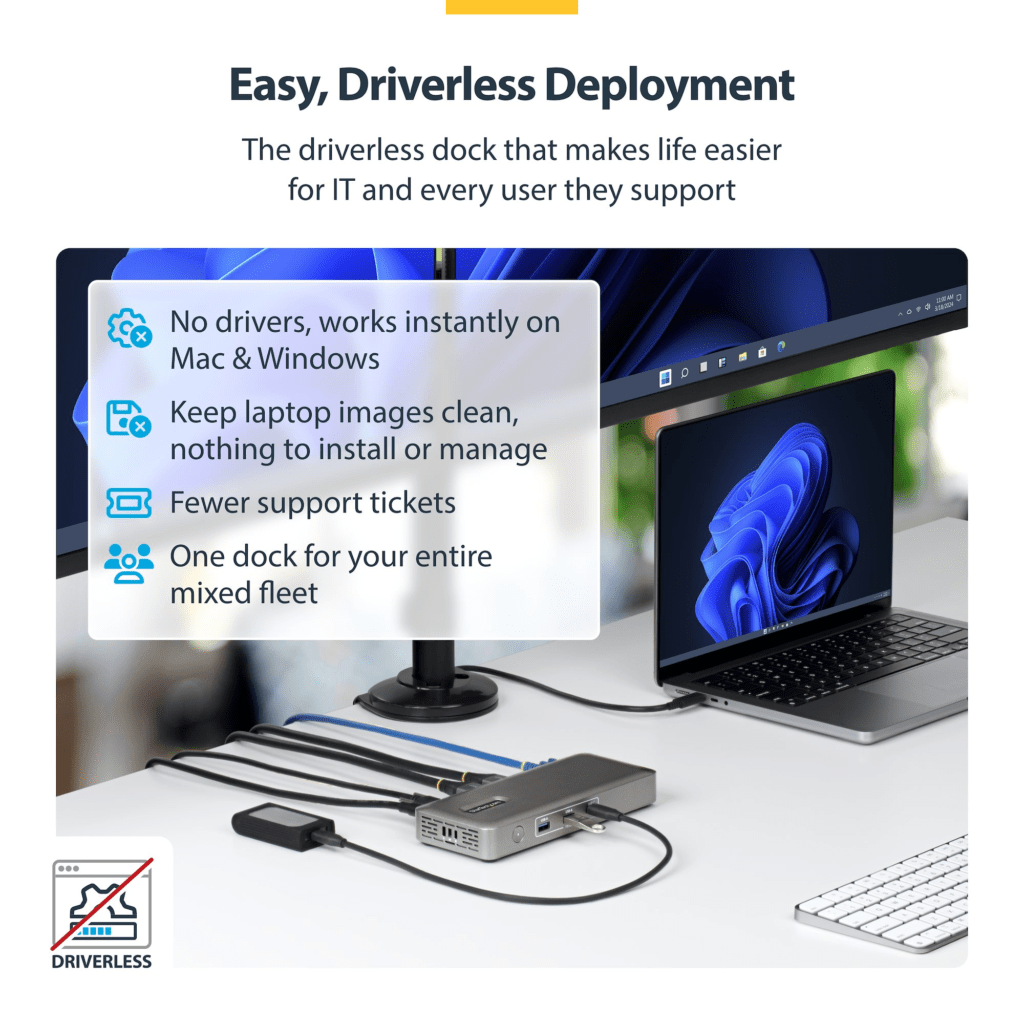
- Genuinely driverless on macOS — no software required, no maintenance, no OS update surprises
- Dual 4K 144Hz is a legitimately high-refresh-rate ceiling — future-proofed for fast monitors
- 2.5GbE is a meaningful upgrade over the 1GbE found on many docks at this level
- 100W PD is the right number for MacBook Air users
- 3-year warranty with free lifetime 24/5 tech support — this is better than most competitors offer
- Physical security lock slots (Kensington K-Slot and Noble Wedge) — useful if you’re in a shared office
- Housing made from 75% recycled plastic — a small thing but worth noting
- Compact footprint: 7.5 x 3.1 x 1.1 inches — doesn’t dominate your desk
What we don’t like:
- DisplayPort only for video output — if your monitors use HDMI, you’ll need DP-to-HDMI adapters. Most modern monitors support DisplayPort, but it’s worth double-checking your display cables before ordering
- No SD card slot — a real miss for anyone who shoots photos or video
- No audio jack — unusual omission for a desk dock at this level
- 100W may not fully sustain a MacBook Pro 16″ under maximum load
Quick Specs at a Glance
| Spec | Detail |
|---|---|
| Interface | USB4 40Gbps |
| Power Delivery | 100W to laptop |
| Displays | Dual 4K 144Hz or single 8K 60Hz |
| Video Outputs | 2x DisplayPort |
| Ethernet | 2.5GbE (PXE Boot + Wake-on-LAN) |
| USB-A ports | 4x USB 3.2 (10Gbps) + 1x USB 2.0 |
| USB-C ports | 1x USB 3.2 10Gbps (DP Alt-Mode) + 1x USB 3.2 10Gbps |
| Security | Kensington K-Slot + Kensington Nano + Noble Wedge |
| Warranty | 3 years |
| Dimensions | 7.5 x 3.1 x 1.1 in |
| Weight | 0.7 lb |
| Color | Space Gray |
| What’s in the box | Dock, 1m USB4 cable, AC adapter |
Frequently Asked Questions
Does this dock work with MacBook Air M1 or M2?
It connects and works, but you’ll only get one external display — not two. The M1 and M2 chips have a hardware limit of one external display regardless of which dock you use. This dock doesn’t use DisplayLink, so it can’t bypass that limitation. If dual monitors is the goal on an M1/M2 Mac, look at a DisplayLink-based dock.
Do I need to install any drivers or software?
No. That’s one of the genuine advantages of USB4 docking on macOS. The dock is fully plug-and-play on macOS Big Sur (11) and later — which covers every M-series Mac. No software to install, no drivers to maintain, no compatibility worries when macOS updates.
Will this work with M3 MacBook Air for dual displays?
Yes, but with the lid closed. The M3 Air supports dual external displays only in clamshell mode — lid down, using external keyboard and mouse. The dock handles this setup well. If you want the Air’s screen open as a third display, you’d need a DisplayLink dock instead.
Is 100W enough to charge a MacBook Pro 16-inch?
For most workflows, yes. The MBP 16″ recommends 100W and that’s exactly what this dock delivers. Under maximum sustained load — long video exports, running multiple intensive apps simultaneously — you might see the battery slowly drain rather than charge. In those cases, we’d recommend adding MagSafe alongside the dock to cover the gap.
Can I run 4K 144Hz on both monitors?
Yes — but only if your Mac supports it. M4/M5 Macs with the right display specs can push dual 4K 144Hz through this dock. Note that achieving refresh rates above 4K 60Hz may require DSC (Display Stream Compression) support from both your monitor and your Mac’s GPU. 4K 60Hz will work without any extra requirements.
Does this dock work with the MacBook Neo?
The Neo connects via its left USB-C port and runs at USB4 10Gbps speeds (the dock can do more, but the Neo’s port tops out at 10Gbps). You’ll only get one external display — the Neo’s chip doesn’t support two natively. It’ll work as a single-display dock, but it’s not the ideal match for this product.
Our Verdict
The 208N-USB4-DOCK is a well-built, driver-free USB4 dock that does exactly what it says for the right user.
That user is an M4 or M5 MacBook Air owner who wants a clean, no-fuss dual-monitor desk setup without paying Thunderbolt 4 dock prices. One cable, two displays, 2.5GbE, 100W charging, no software to install. That’s a compelling package.
M3 Air users can use it too — they’ll just need to close the lid, which isn’t a dealbreaker for many desk setups. MacBook Pro 14-inch users will find it a solid match. MBP 16-inch users will be fine for most work, just keep MagSafe handy for heavy sessions.
If you’re on M1 or M2 and want dual monitors, this isn’t your dock. And if you need an SD card slot or audio jack, factor in the cost of additional accessories.
But for the M4/M5 Air crowd specifically — and there are a lot of them — this is a genuinely practical pick.
Disclosure: dockyeah.com participates in the Amazon Associates program. We may earn a commission if you buy through our links, at no extra cost to you. This does not affect our recommendations.