If you’ve searched anything about dual monitors on a MacBook Air, you’ve probably run into the word DisplayLink.
Some people describe it as a lifesaver.
Others say it’s a compromise.
A few treat it like something to avoid at all costs.
The truth is less dramatic.
DisplayLink is neither magic nor dangerous. It’s a technical workaround that solves a very specific limitation in certain Mac models. When used in the right scenario, it works well. When used in the wrong one, it creates frustration.
This guide explains what DisplayLink actually does, when you truly need it, and when you’re better off staying native.
First: What DisplayLink Actually Is
DisplayLink is not just a cable type or a random dock feature.
It’s a technology platform that:
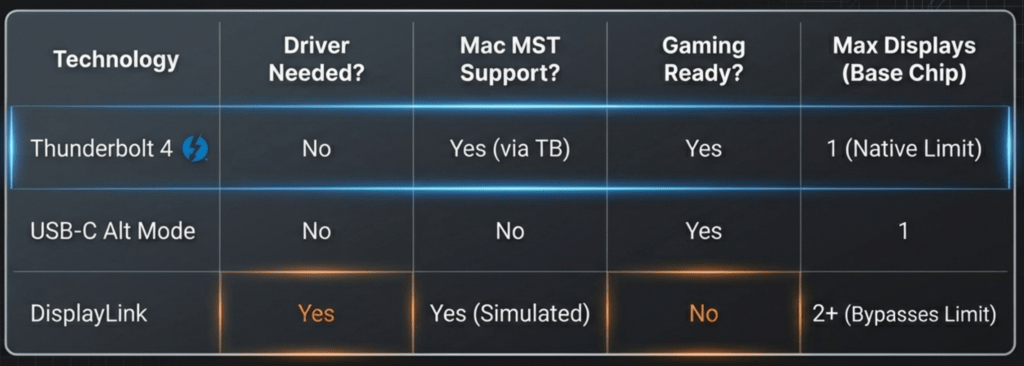
- Uses a software driver
- Encodes display output into data
- Sends that data over USB
- Reconstructs it into a video signal at the dock
In simple terms:
Instead of your Mac’s GPU directly driving the second monitor,
DisplayLink creates a “virtual” display pipeline and sends it over USB data.
This is why it can bypass certain native display limitations.
Why DisplayLink Exists (The Mac Context)
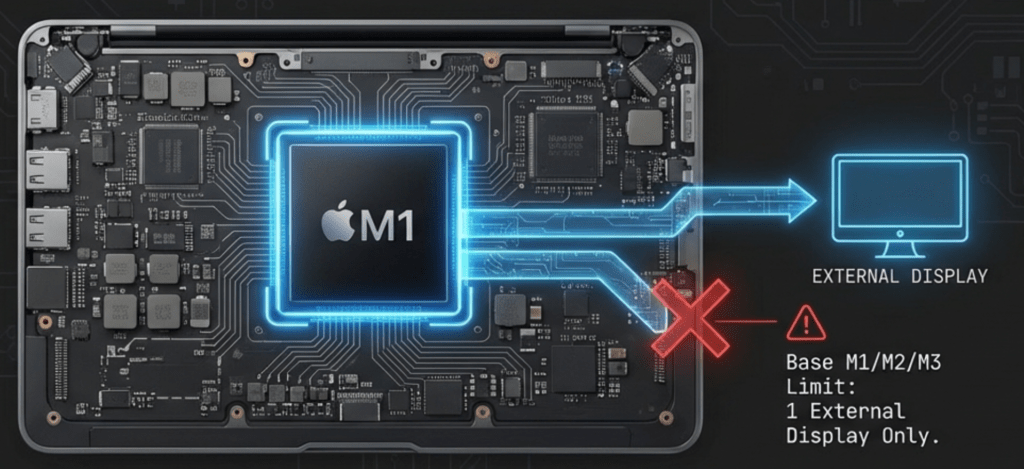
On some Apple Silicon Macs — particularly base-chip models — the system supports only one external display natively.
That means:
- No matter how many HDMI ports your hub has,
- No matter how expensive the dock is,
macOS will only create one extended external display using its built-in display pipelines.
DisplayLink was adopted heavily in the Mac ecosystem because it allows:
A second (or third) extended display
Even when the Mac does not support it natively.
That’s the core reason it exists in this space.
When You Actually Need DisplayLink
Here’s the straightforward rule:
You likely need DisplayLink if:
- Your Mac only supports one external display natively
- You want two extended external monitors
- You don’t want to replace your Mac
- Your workload is productivity-focused
Common real-world example:
MacBook Air (base chip)
Two 4K monitors
Wants both extended
Doesn’t want mirroring
In that case, native solutions alone won’t do it. DisplayLink becomes the practical path.
When You Do NOT Need DisplayLink
You do not need DisplayLink if:
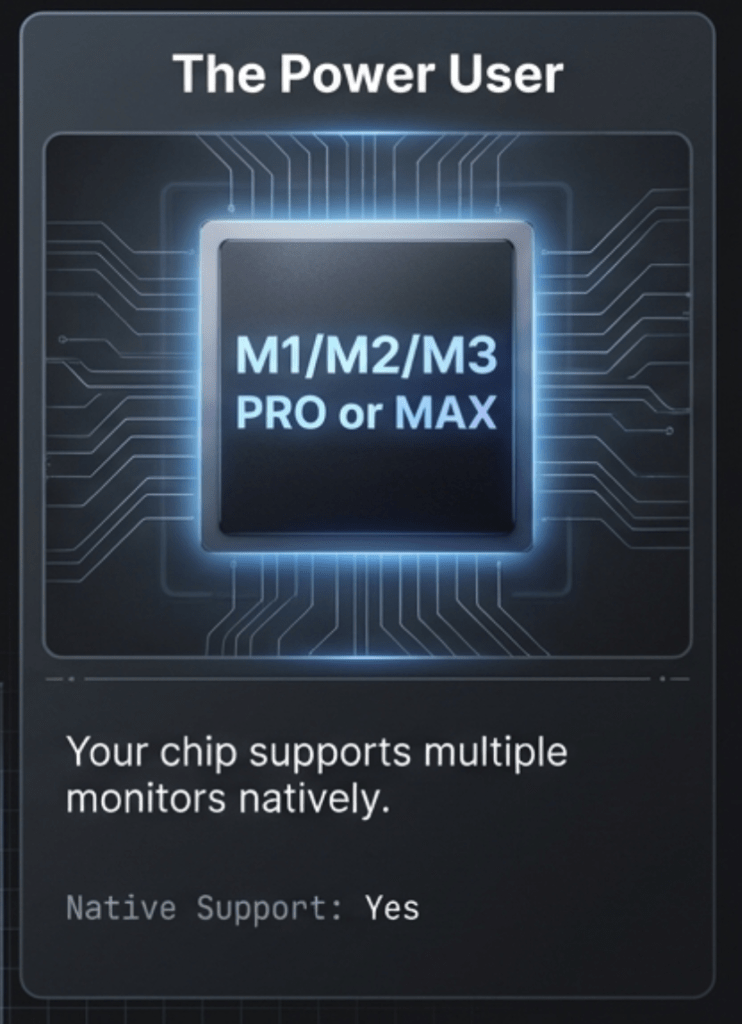
- Your Mac supports multiple external displays natively (Pro / Max / Ultra chips)
- You only need one external monitor
- You are using a Thunderbolt dock and staying within native limits
- You are building a latency-sensitive setup
In these cases, native display pipelines are cleaner and simpler.
How DisplayLink Feels in Real Use
This is where nuance matters.
For most office users:
- Documents
- Web
- IDEs
- Slack
- Design tools
DisplayLink feels normal once set up properly.
Windows drag smoothly.
Text is crisp (assuming monitor resolution is appropriate).
You forget it’s there.
But there are edge cases.
The Trade-Offs (That Most Short Reviews Don’t Explain)
1) It Requires Drivers
DisplayLink is not pure plug-and-play.
You must:
- Install DisplayLink software
- Grant required macOS permissions
- Occasionally update drivers
For some users, that’s fine.
For others who want a “pure hardware” solution, it’s a drawback.
2) It Is Not Native GPU Output
This matters for:
- High-frame-rate gaming
- Extremely latency-sensitive workflows
- Certain DRM-protected video scenarios
- Very color-critical work
Most productivity users won’t notice major issues.
But if you’re building a gaming or professional video grading setup, native output is generally preferable.
3) CPU Usage and Compression
Because DisplayLink compresses and sends display data over USB:
- There can be additional CPU usage
- There can be slight compression artifacts in edge scenarios
In normal office tasks, this is rarely noticeable.
Under heavy graphical motion, it can be.
4) macOS Updates Can Temporarily Affect It
Since DisplayLink relies on software integration with macOS:
- Major macOS updates can occasionally require driver updates
- You may need to reinstall or re-grant permissions
This is not constant, but it’s something to be aware of.
Real-World Scenario Breakdown
Let’s walk through realistic situations.
Scenario A: MacBook Air + Two 1080p Monitors (Office Work)
DisplayLink works well here.
- Stable for documents and browsing
- Acceptable performance
- Cost-effective solution
This is one of the most common successful setups.
Scenario B: MacBook Air + Two 4K Monitors (Productivity)
Still workable.
But you need:
- A DisplayLink dock capable of dual 4K
- Proper cables
- Realistic expectations about GPU-intensive tasks
For spreadsheets, coding, writing — it’s usually fine.
Scenario C: MacBook Pro (Pro/Max chip) + Dual 4K
DisplayLink is usually unnecessary.
Native Thunderbolt docking will be:
- Cleaner
- Lower latency
- More stable long term
In this case, DisplayLink adds complexity without solving a real limitation.
Scenario D: Gaming on One Screen, Productivity on Another
This is where caution is required.
If the gaming display is DisplayLink-driven:
- Latency may be noticeable
- Performance may not match native output
If gaming matters, keep that display on native GPU output.
The Biggest DisplayLink Myths
Myth 1: “DisplayLink is fake video.”
It’s real video output. It’s just transported differently.
Myth 2: “DisplayLink ruins performance.”
It depends on workload.
For productivity, it’s usually fine.
For high-frame-rate rendering, native is better.
Myth 3: “It’s unstable.”
Modern DisplayLink implementations are generally stable when:
- Drivers are current
- macOS is up to date
- Dock firmware is stable
Most instability reports trace back to:
- Old drivers
- Cheap docks
- Cable bottlenecks
- Permission issues
Native vs DisplayLink: Clean Comparison
| Factor | Native Dock | DisplayLink Dock |
|---|---|---|
| Requires Driver | No | Yes |
| Bypasses Mac display limit | No | Yes |
| Latency | Lower | Slightly higher |
| Ideal for Gaming | Yes | Not ideal |
| Office Productivity | Excellent | Excellent |
| macOS Update Sensitivity | Low | Medium |
How to Decide in 30 Seconds
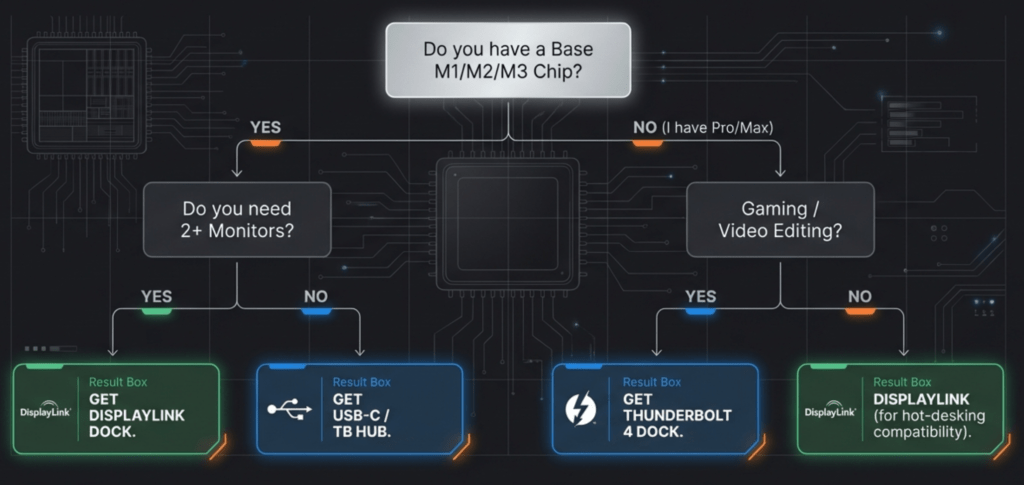
Ask yourself:
- Does my Mac support two external displays natively?
- Yes → Prefer native Thunderbolt dock.
- No → DisplayLink may be necessary.
- Is my workload productivity-focused?
- Yes → DisplayLink is acceptable.
- No → Stay native if possible.
- Am I okay installing drivers?
- If no → Avoid DisplayLink.
That’s it.
Installation and Setup Advice (That Prevents Headaches)
If you choose DisplayLink:
- Install the official DisplayLink driver before serious testing.
- Grant screen recording permissions when prompted.
- Reboot after first install.
- Use high-quality cables.
- Update dock firmware if available.
Test:
- Cold boot
- Sleep/wake cycle
- Reconnect behavior
If it passes those, it’s usually stable for daily work.
When DisplayLink Is the Right Tool
DisplayLink is the right tool when:
- You understand it’s a software-driven display path
- You accept driver dependency
- Your Mac is otherwise limited to one external display
- Your workload is primarily productivity
It is a workaround — but a practical and widely used one.
When It’s the Wrong Tool
Avoid DisplayLink if:
- Your Mac already supports dual native displays
- You are building a gaming-focused setup
- You need absolute minimal latency
- You don’t want software dependency in your display chain
In those cases, invest in a proper Thunderbolt solution.
Final Perspective
DisplayLink exists because Apple’s base-chip Macs introduced strict native display limits.
It is not a gimmick.
It is not a scam.
It is not a perfect replacement for native GPU output.
It is a solution to a specific constraint.
When used intentionally, it solves dual-monitor problems for thousands of Mac users every day.
When used blindly — without understanding what it changes — it can create confusion.
The key isn’t whether DisplayLink is “good” or “bad.”
The key is whether it matches your Mac model and your workflow.
If you want, tell me your exact Mac model and monitor setup. I’ll tell you clearly whether DisplayLink is necessary, optional, or something you should avoid.