Overview
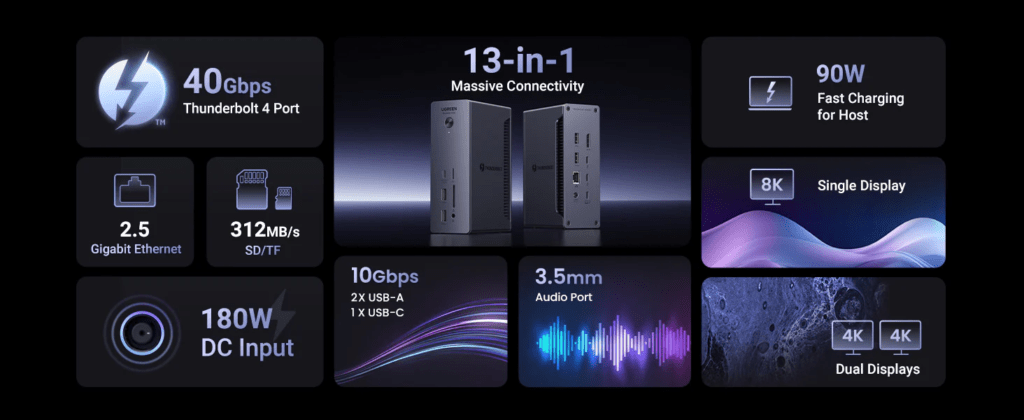
The UGREEN Revodok Max 213 is a heavy-duty, Mac-friendly Thunderbolt dock that leans into the “one cable and done” idea—without trying to be cute about it. You get a proper power brick, a solid metal chassis, and a port selection that’s clearly aimed at desk setups with multiple displays, fast storage, and wired networking.
If you’ve been bouncing between smaller USB-C hubs and you’re ready for something that feels more like a permanent part of your workstation, this one is very much in that lane.
Who this dock is for (and who should skip it)
This dock makes the most sense for:
- MacBook Air (M1/M2/M3/M4/M5) owners who want a stable desktop setup with charging, Ethernet, and lots of USB.
- People who prefer DisplayPort (or are fine using USB-C to DisplayPort cables/adapters) and don’t want to rely on HDMI.
- Anyone building a dual-display desk and also running fast external SSDs, card readers, and wired peripherals.
You should probably skip it if:
- You need HDMI built in. There’s no HDMI port here, and not everyone wants to live the adapter life.
- You want a tiny travel hub. This is a “leave it on the desk” dock, not a pocket accessory.
- You’re specifically buying to bypass Apple Silicon display limits on a base-model MacBook Air. Thunderbolt docks don’t magically change those limits without DisplayLink (more on that below).
Quick verdict
A sturdy, well-equipped Thunderbolt dock that feels built for real desks and real workloads. It’s especially appealing if you’re happy with DisplayPort and want 2.5GbE plus lots of high-speed USB. The main compromises are the lack of HDMI and the fact that Mac dual-monitor behavior still depends on your specific Mac model’s display support.
Full specifications
| Feature | Value |
|---|---|
| Brand | UGREEN |
| Product name | Revodok Max 213 USB-C Hub 13-in-1 Docking Station |
| Model number | 25054EU |
| Product category | Docking Station |
| Host connection type | Thunderbolt 4/3, USB4, USB-C |
| Host bandwidth | 40 Gbps |
| Power supply included | yes |
| Power adapter wattage | 180 W |
| Maximum laptop charging power | 90 W |
| Display technology | DisplayPort 1.4, Thunderbolt 4 |
| Maximum number of displays | 2 |
| Maximum supported resolution | 8K@30Hz |
| Maximum refresh rate | 144 Hz |
| Dual 4K support | yes |
| Triple display support | no |
| HDMI ports count | 0 |
| DisplayPort ports count | 1 |
| DisplayPort version | 1.4 |
| USB-C ports count | 3 |
| USB-C maximum data speed | 10 Gbps |
| USB-A ports count | 4 |
| USB-A maximum data speed | 10 Gbps |
| Thunderbolt downstream ports | 2 |
| Ethernet port available | yes |
| Ethernet speed | 2.5GbE |
| SD card reader | yes |
| microSD card reader | yes |
| 3.5mm audio jack | yes |
| Product weight | 1965 grams |
| Product dimensions | L148.5xW96.2xH52(mm) |
| macOS support | macOS 11.4+ |
| Windows support | Windows 10+ |
| Apple Silicon compatibility | yes |
Ports and real-world performance
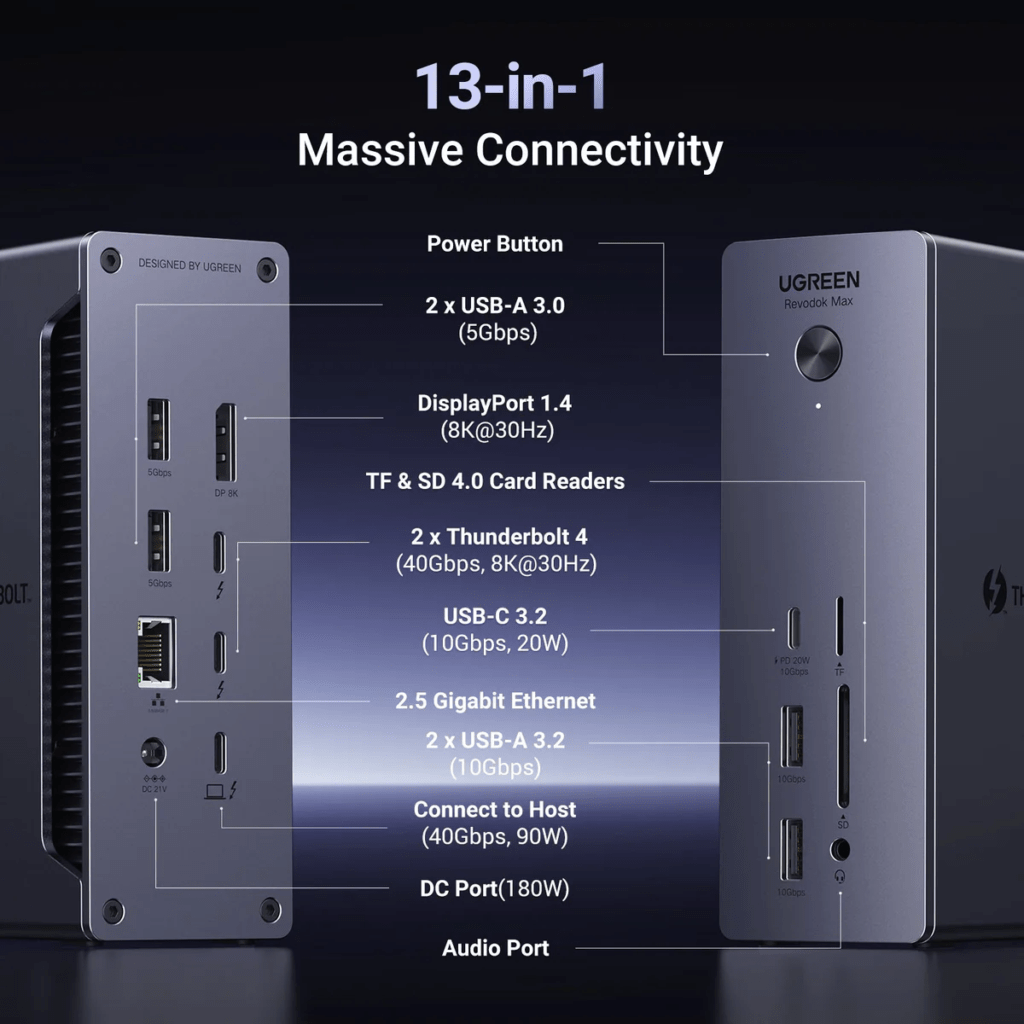
The port layout is one of the better arguments for this dock. You’ve got a mix of USB-A and USB-C at up to 10 Gbps, plus two Thunderbolt downstream ports for higher-end gear (think fast storage, a TB display, or a more flexible display setup).
A pattern that comes up in user feedback: people like that it’s easy to set up and doesn’t require drivers for normal Thunderbolt operation. The chassis gets described as premium and “stays put,” which tracks with the fact that it’s quite heavy.
Ethernet is the one area where comments are mixed. Some people report solid network performance, while others mention Ethernet issues on M1 systems. That doesn’t mean it will happen to you, but it does mean this is worth validating early in your return window—especially if you rely on wired networking for work.
One practical, hands-on-style tip: once it’s on your desk, it’s the kind of dock you’ll probably position once and then route cables neatly, because the weight and power brick make it feel more “desktop appliance” than “accessory.”
Display behavior on Macs (single / dual / triple)
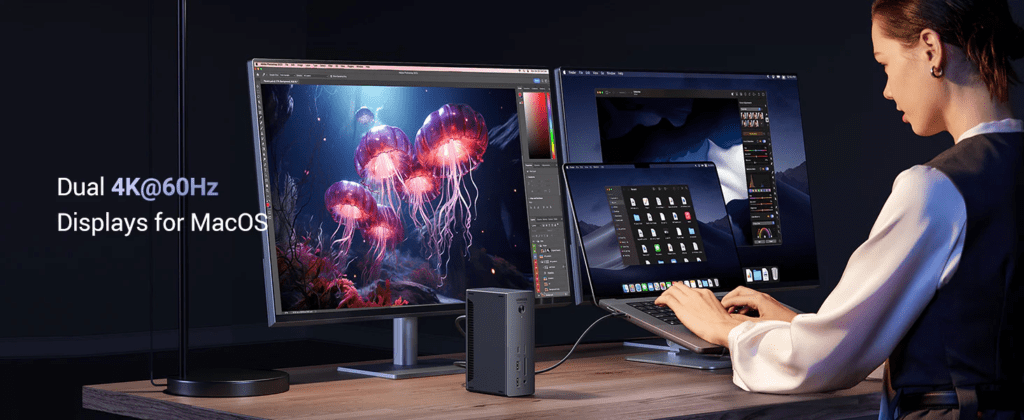
This dock supports up to two displays and can handle high resolutions/refresh rates on paper, but Mac behavior is where expectations need to be realistic.
Single display
Straightforward. Any modern MacBook Air with USB-C/Thunderbolt should be fine driving one external monitor through the dock.
Dual display
This is where your exact Mac model matters:
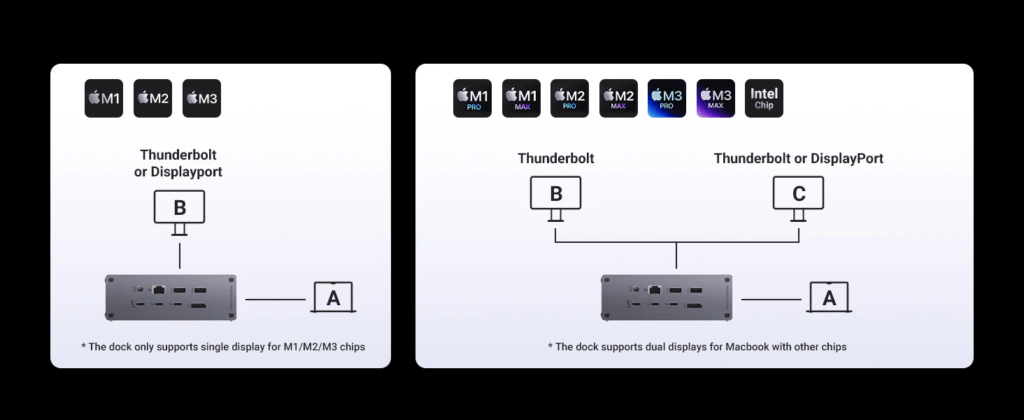
- Many base Apple Silicon MacBook Air models (like M1 and M2 Air) officially support only one external display natively. A Thunderbolt dock can’t override that limit by itself.
- Some newer or higher-tier Apple Silicon configurations support more external displays, but you should confirm your specific model’s external display support in macOS documentation or your Mac’s technical specs.
Triple display
Not supported here (and the spec table reflects that).
A quick word on DisplayLink (and why it matters)
Some USB-C-only docks use DisplayLink, which is a software-based way to add extra displays over USB data. It requires installing drivers, and the tradeoffs commonly include sleep/wake quirks, DRM-protected video limitations (streaming services can be picky), and occasional latency or compression artifacts—especially with motion-heavy content.
The Revodok Max 213 is positioned as a Thunderbolt dock, so it’s generally the “no DisplayLink needed” style of setup. Later, if you’re comparing alternatives, this distinction is a big deal.
One quick comparison sentence: a Thunderbolt dock like this is typically the most stable for high-bandwidth peripherals, a USB-C hub is cheaper and more portable but limited, and a DisplayLink-based dock can add monitors more flexibly but brings driver tradeoffs.
The good
- Strong port selection for a desk setup, including Thunderbolt downstream ports and 2.5GbE.
- Solid build quality with a metal chassis that users describe as robust and professional.
- Plug-and-play feel for typical Thunderbolt use—many users report no driver hassle.
- 90W laptop charging is enough for most MacBook Air and many MacBook Pro workflows.
- DisplayPort-first approach will be a plus if your monitor ecosystem is DP-friendly.
The not-so-good
- No HDMI port. If your monitors are HDMI-only, plan on adapters or different cabling.
- Bulky and heavy. Great for stability, not great if you want something you toss in a bag.
- Ethernet reports are mixed on M1 from some buyers, so it’s not the one feature I’d assume is flawless for every setup.
- Front audio jack placement won’t please everyone; some people prefer rear audio for cleaner cable management.
What to verify before buying
A few checks will save you frustration:
- Your MacBook Air’s external display support. If your model only supports one external display natively, this dock won’t change that without a DisplayLink-style workaround (which this dock isn’t really about).
- Your monitor inputs and cable plan. With no HDMI, confirm you have DisplayPort available or you’re comfortable using USB-C to DisplayPort.
- Ethernet expectations. If you’re on an M1 Mac and wired networking is mission-critical, test 2.5GbE stability early.
- Your “one cable” goal. If you need multiple high-speed devices plus dual displays, Thunderbolt bandwidth allocation matters—this dock has 40 Gbps host bandwidth, but your exact mix of devices can still affect real-world behavior.
Desk vs travel suitability
This is a desk dock first. The size and weight (plus a 180W power adapter) make it feel like something you anchor next to a monitor stand and forget about—in a good way.
For travel, it’s hard to justify unless you’re routinely setting up a full remote workstation. If you just need a couple USB ports and an HDMI-out in a pinch, a small hub will be less annoying to carry.
Price and availability
Check current price and availability: https://amzn.to/4rVihiT
FAQ
Q: Will this work with a MacBook Air M1/M2/M3/M4/M5?
Yes, as long as you’re on macOS 11.4 or later. Charging, USB, card readers, and Ethernet should work in general. The main “it depends” area is how many external displays your specific Air model supports natively.
Q: Can it run two external monitors from a MacBook Air?
Sometimes. Many base-model Apple Silicon MacBook Air systems natively support one external display. If your Mac supports two external displays, this dock can handle two. If your Mac supports only one, you’ll still be limited to one (unless you use a DisplayLink-based solution, which involves drivers and tradeoffs).
Q: Does it require drivers on macOS?
For typical Thunderbolt docking (USB, Ethernet, displays via DP/TB), users commonly report it’s plug-and-play with no drivers needed. If you ever see a dock advertising extra displays on Macs via USB, that’s usually where DisplayLink drivers come into play—different category, different compromises.
Q: There’s no HDMI—how do I connect an HDMI monitor?
Plan on using an adapter or cable that fits your monitor and the dock’s outputs (for example, USB-C to HDMI or DisplayPort to HDMI). What to verify: whether your monitor supports the resolution/refresh you want over that conversion, because some adapters cap refresh rates or limit 4K modes.
Q: Is the 90W charging enough for a MacBook Air?
Yes. A MacBook Air doesn’t need anywhere near 90W to charge under normal use, so you’ll have plenty of headroom. For larger MacBook Pro models under heavy load, 90W is often still fine, but if you’re trying to replace the highest-wattage Apple charger, check your model’s preferred wattage.
Q: Does the 2.5Gb Ethernet work reliably on Apple Silicon?
Many people report good results, but there are also reports of Ethernet issues specifically on M1 devices. If you depend on wired networking, test it with your router/switch and your typical workload (VPN, large transfers, sleep/wake) early on.
Q: Can I use it in clamshell mode with an external keyboard and mouse?
Generally yes. If you run into a situation where displays don’t wake after reconnecting, the practical fix some users mention is opening the lid briefly to unlock the Mac and let the displays reinitialize. Sleep/wake behavior can vary depending on monitors and macOS settings.
Q: Is this a good USB-C docking station for Mac if I want lots of ports but no fuss?
If you’re okay with DisplayPort (and the physical size), yes. It’s aimed at a stable, desk-based Thunderbolt setup rather than a minimalist travel hub, and it avoids the whole DisplayLink-driver approach that some multi-monitor USB-C docks rely on.
Final take
The Revodok Max 213 feels like UGREEN built a dock for people who actually keep a workstation: dual displays (within your Mac’s limits), fast peripherals, wired networking, and enough power delivery to stop thinking about chargers.
It’s not the right pick if you need HDMI built in or you’re hoping to outsmart Apple Silicon’s external display rules. But if your setup is DisplayPort-friendly and you want a sturdy Thunderbolt dock that behaves like a grown-up piece of desk gear, this one is an easy recommendation—just verify your Mac’s dual-display support and keep an eye on Ethernet behavior if you’re on an M1.