Best Docking Setups, Multi-Monitor Support, and What Actually Works
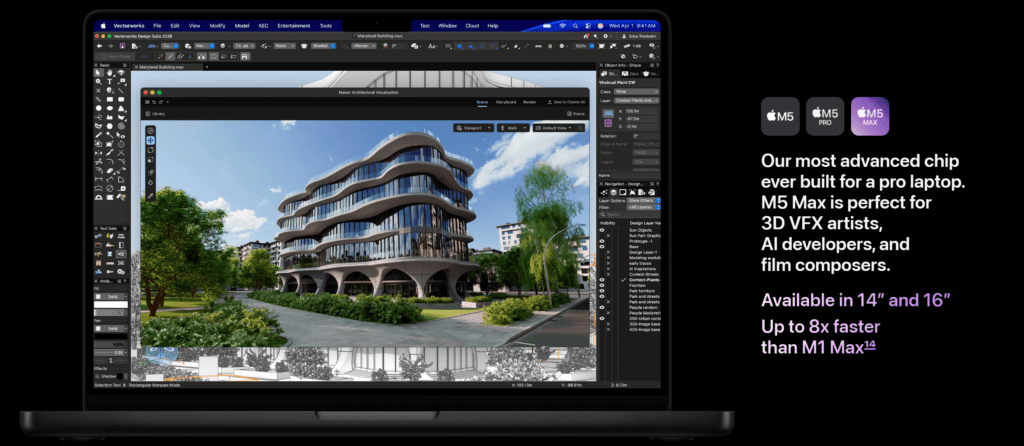
Apple has just announced the MacBook Pro lineup with M5, M5 Pro, and M5 Max chips, continuing the Apple Silicon performance roadmap. These machines are designed not only as laptops but also as full workstation replacements, especially when connected to external monitors, storage, and networking through a docking station.
For many professionals — developers, designers, video editors, analysts — the MacBook Pro becomes the center of a desk setup with multiple displays and peripherals. Choosing the right dock determines whether that setup feels seamless or constantly frustrating.
In my experience reviewing Mac docking setups across several Apple Silicon generations, MacBook Pro machines behave very differently from MacBook Air models. They have more display pipelines, higher bandwidth, and more powerful Thunderbolt connectivity, which means they can handle far more demanding workstation setups.
This guide explains everything you need to know about docking the new MacBook Pro M5, M5 Pro, and M5 Max models.
MacBook Pro M5 Ports and Connectivity
The MacBook Pro lineup offers significantly more connectivity than the MacBook Air.
Typical configuration includes:
• 3 × Thunderbolt / USB-C ports
• HDMI port
• SDXC card slot
• MagSafe charging
• 3.5 mm headphone jack
The Thunderbolt ports support:
• Thunderbolt 4 / USB4
• DisplayPort video output
• high-speed data transfer
• power delivery
• daisy-chaining devices
This allows a MacBook Pro to connect to a single powerful dock and expand into a full workstation environment.
External Display Support
One of the biggest advantages of MacBook Pro models over MacBook Air is multi-display support.
While the exact number varies by chip tier, the general pattern is:
| Chip | External Displays |
|---|---|
| M5 | up to 2 external displays |
| M5 Pro | up to 3 external displays |
| M5 Max | up to 4 external displays |
This makes MacBook Pro machines ideal for multi-monitor workstations.
For many professionals, the difference between two and four monitors can significantly improve productivity.
Why Docking Matters for MacBook Pro
Even though the MacBook Pro already has more ports than the Air, a dock still plays an important role.
A good dock allows you to connect:
• multiple monitors
• Ethernet
• external SSDs
• USB devices
• audio interfaces
• cameras and streaming gear
—all through a single cable connection.
When you sit down at your desk, you connect one cable and the entire workstation becomes active.
Types of Docks That Work Best
Not every dock performs equally well with MacBook Pro machines.
There are three main categories.
USB-C Hubs
USB-C hubs are small adapters often used for portability.
Typical features:
• HDMI
• USB-A ports
• SD card reader
• pass-through charging
Advantages:
• inexpensive
• lightweight
• good for travel
Limitations:
• limited bandwidth
• weaker display handling
• fewer high-speed ports
In my experience, USB-C hubs are best suited for temporary setups or travel, not permanent workstations.
Thunderbolt Docks (Recommended)
Thunderbolt docks are designed for professional setups.
They provide:
• up to 40Gbps bandwidth
• multiple display outputs
• high-speed networking
• fast storage connectivity
• strong power delivery
Advantages:
• stable multi-monitor support
• reliable Ethernet
• faster external drives
• better device stability
Limitations:
• more expensive
• physically larger
For most MacBook Pro workstation setups, Thunderbolt docks are the best choice.
DisplayLink Docks
DisplayLink docks use software video compression to add additional displays over USB.
They are useful when you want more monitors than your GPU natively supports.
However, with MacBook Pro models, DisplayLink is rarely necessary because these machines already support multiple displays natively.
Advantages:
• additional monitors beyond native limits
Limitations:
• requires drivers
• higher latency
• not ideal for graphics workloads
For most MacBook Pro users, native GPU output through Thunderbolt is preferable.
Typical MacBook Pro Docking Setups
Let’s look at some realistic workstation configurations.
Setup 1: Dual Monitor Productivity Setup
MacBook Pro M5
- 2 × 4K monitors
- keyboard and mouse
- Ethernet
Recommended dock:
Thunderbolt dock.
Why it works well:
• stable dual-display support
• strong bandwidth
• reliable networking
This setup is common among developers and office professionals.
Setup 2: Triple Monitor Workstation
MacBook Pro M5 Pro
- 3 monitors
- external SSD
- Ethernet
- audio interface
Recommended dock:
High-bandwidth Thunderbolt dock.
Why:
• supports multiple displays natively
• handles high-speed storage
• maintains stable device connectivity
In my experience, Thunderbolt docks handle triple-monitor setups far more reliably than USB hubs.
Setup 3: Multi-Monitor Professional Studio
MacBook Pro M5 Max
- 3–4 monitors
- RAID storage
- video capture devices
- Ethernet
Recommended dock:
Professional Thunderbolt workstation dock.
Why:
• extremely high bandwidth requirements
• stable display handling
• better device management
This setup is common among video editors and designers.
Important Dock Features to Look For
When choosing a dock for MacBook Pro, several features are critical.
Power Delivery
Look for docks offering:
85W–100W power delivery
Even though MacBook Pro models often use higher-watt chargers, most workstation docks provide enough power for normal use.
Display Outputs
Prefer docks with:
• DisplayPort
• HDMI 2.0 or newer
DisplayPort often provides more reliable high-resolution output.
Ethernet
A good workstation dock should include:
Gigabit Ethernet or faster
Thunderbolt docks usually provide the most stable network performance.
High-Speed USB Ports
Look for:
• USB-A 10Gbps
• USB-C expansion ports
These allow connecting fast storage devices and peripherals.
Common Docking Problems
Even with powerful hardware, some docking issues can appear.
Only One Monitor Detected
Usually caused by:
• USB-C hub limitations
• mirrored display outputs
Solution:
Use a Thunderbolt dock.
4K Monitor Running at 30Hz
Often caused by:
• HDMI 1.4 docks
• bandwidth limitations
Solution:
Use DisplayPort or Thunderbolt docks supporting 4K 60Hz or higher.
External Drives Running Slowly
Often caused by:
• shared USB bandwidth
Solution:
Use Thunderbolt docks with dedicated high-speed ports.
Ethernet Disconnecting
Usually caused by:
• unstable USB hubs
• power limitations
Solution:
Use powered Thunderbolt docks.
Why Thunderbolt Docks Work Best
MacBook Pro machines are designed to take advantage of Thunderbolt connectivity.
Compared with simple USB hubs, Thunderbolt docks provide:
• better bandwidth
• more reliable display handling
• faster storage speeds
• stronger networking
In my experience, the difference becomes very noticeable when running multiple monitors and high-speed storage simultaneously.
The Bottom Line
The new MacBook Pro M5, M5 Pro, and M5 Max models are extremely capable machines for workstation setups.
Key takeaways:
• they support multiple external displays natively
• Thunderbolt docks provide the best workstation experience
• USB-C hubs are best for travel or simple setups
• DisplayLink is rarely necessary for these models
When paired with a capable Thunderbolt dock, the MacBook Pro can power an entire workstation with multiple displays, storage arrays, and high-speed networking — all through a single cable.
Choosing the right dock ensures that the laptop transitions seamlessly from portable device to full desktop workstation.