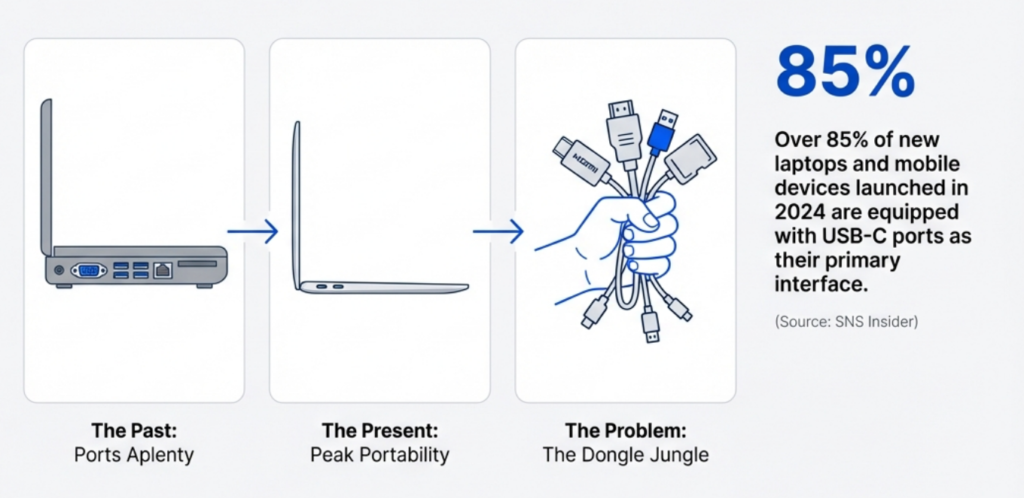
Over the last 7–8 years in particular, it has become very rare to see a laptop or portable device without a USB-C port. Back then, there were no docking stations or USB-C hubs.
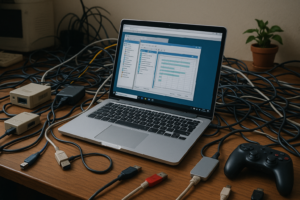
Older laptops had a variety of ports: At least three or four USB-A ports (the old, thicker, rectangular ones), SD or micro SD card slots, Ethernet ports, audio ports, VGA ports, HDMI ports, and many more besides. Connecting thousands of cables and peripherals to your mobile device was easier. However, the visual aspect was not the best. See below for an exaggerated visual representation of this scenario.
Why Docking Stations and USB-C Hubs Exist?
While our mobile devices have become thinner over time, engineers have had to sacrifice one of the most important features of a mobile device. The number and variety of ports. This affects us in many ways.
For example:
- The ROG Ally (gaming handheld) has only one USB-C port and no other ports.
- The MacBook Air M2 has two USB-C ports but no HDMI, USB-A or Ethernet ports.
- The Dell XPS 13 has two Thunderbolt 4 ports and no USB-A, SD or HDMI ports.
This is where USB-C technology could help. With a single, powerful port, we could bring back our beloved ports. How? By using docking stations or USB-C hubs. These tiny, powerful devices help us to get rid of cable clutter and allow us to connect multiple devices and peripherals to our mobile devices. They have Ethernet ports, SD/microSD card slots and audio inputs/outputs. The most important thing is that we can connect multiple monitors to our laptops and other mobile devices, allowing us to experience the full power of our system on a desktop setup without having to deal with cables or wear out ports over time.
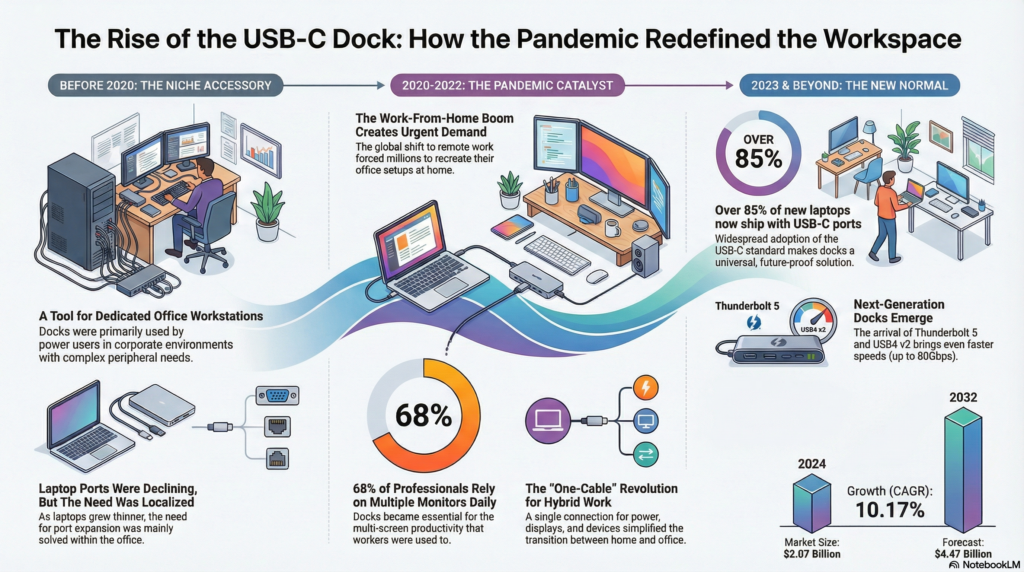
Especially after the COVID era, work from home trends jumped the highest of all time and people started using their laptops as desk setups connecting external webcams, speakers, wired internet and multi-monitors. And that made USB-C docking stations and hubs very popular in the recent years for both remote and in-house working class.
What is a USB-C Docking Station?
A docking station is a device that connects to your laptop via a single USB-C cable and expands the capabilities of the port, providing all the connections you need, such as:
- DisplayPort and HDMI, for video transmission
- USB-A for data transfer and connecting peripherals
- Ethernet port for high-speed internet
- SD/micro SD card readers
- Audio outputs: 3.5 mm or optical audio
- External GPUs
- Thunderbolt ports
- Charging port
- As well as legacy ports such as VGA or RS232.
This transforms your mobile setup into a fully-fledged workstation, providing all the comforts of a desk via a single USB-C port. Docking stations often have their own external power adapters/cables to achieve these port-extending capabilities without draining your mobile device’s power.
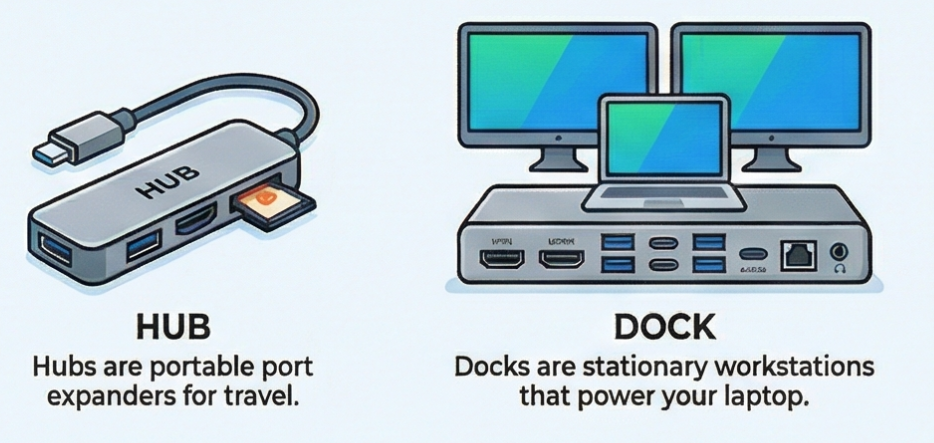
There are also smaller, less capable versions of docking stations. They are called “USB-C hubs”. They have fewer ports and limited functionality, but they are also smaller and more portable, and they draw power from your laptop, so you don’t need any external adapters. Let’s compare these two types.
USB-C Docking Stations vs USB-C Hubs
They do the same thing, but there are some serious differences. See the table below for the differences between these two categories.
| Feature / Use Case | USB-C Hub | USB-C Docking Station |
| Primary Purpose | Basic port expansion | Full workstation / desktop setup |
| Laptop Charging (Power Delivery) | Sometimes (15W–45W, not reliable) | Yes (Often 65W–100W+) |
| Multi-Monitor Support | Rare (Usually 1 display max) | Yes (Dual or Triple Display possible) |
| External Display Methods | Basic Alt Mode only | Alt Mode, Thunderbolt or DisplayLink |
| Performance for Productivity | Medium | High / Professional-level |
| Best Use Case | Travel, portable expansion | Permanent desk setup |
| Port Variety | Limited (USB-A, HDMI, SD) | Extensive (DP, HDMI, Ethernet, Audio, USB-A/C, SD…) |
| Ethernet (RJ45) | Rare | Standard |
| Thunderbolt Support | Usually No | Yes (TB3/TB4 docks available) |
| Data Transfer Speed | Standard USB speed (5–10Gbps) | Higher (Thunderbolt up to 40Gbps) |
| Gaming / Steam Deck / ROG Ally | Works but limited | Ideal for docking to TV/monitors |
| Build Quality | Light, portable | Heavier, premium build |
| Cable Type | Integrated attached cable | Replaceable, higher-quality cable |
| Price Range | $15–$60 | $80–$400+ |
| Longevity & Future-Proofing | Low–Medium | High |
| Ideal Users | Students, travelers, light users | Remote workers, creators, gamers, office setups |
If you need:
✔ Dual monitors
✔ Laptop charging through the same cable
✔ Ethernet
✔ Permanent desk setup
→ Buy a DOCK
If you need:
✔ Basic expansion on the go
✔ Occasional HDMI use
✔ Light accessories (USB stick, mouse, SD card)
→ A HUB is enough.
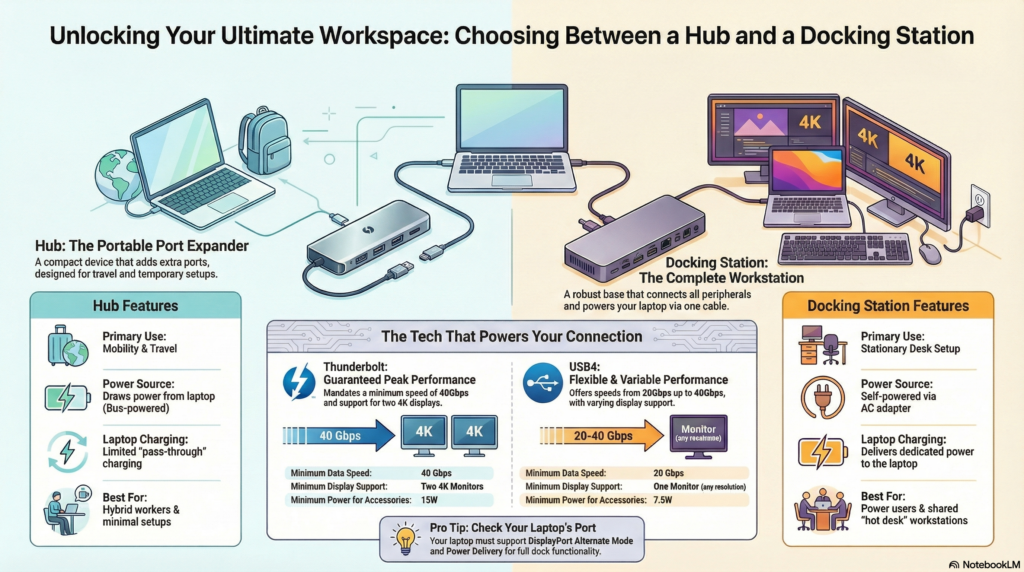
So long story short, if you just need a few extra ports occasionally, a USB-C hub is enough — but if you’re building a full desk setup with monitors, Ethernet, power, audio, and accessories, you need a USB-C docking station.
Key USB-C Technologies (Simplified)
We’ve been talking about USB-Cs and their capabilities, but I have some news for you. Not all USB-C ports are the same. While they may have the same shape, they may have different capabilities to suit different needs.
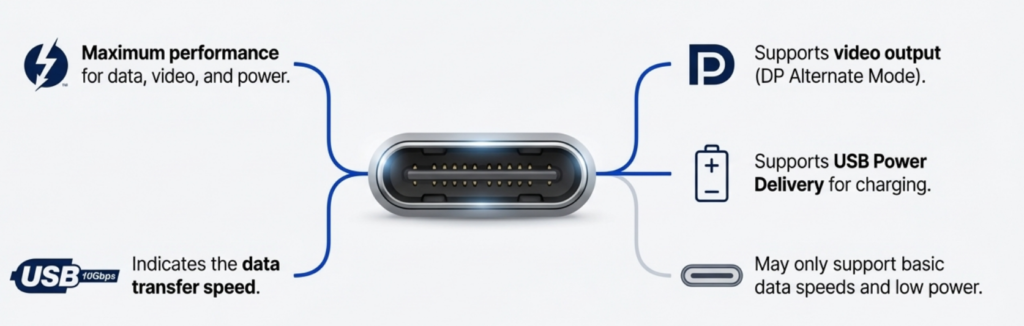
Some USB-C ports are just for charging, some are for data transfer, and some offer additional features. To choose the right one, you need to consider what you need it for.
Power Delivery
Power delivery is one of the very important key features for a docking station. If you want to use your laptop on a desk setup without worrying about to connect to a charger beside a docking station, you need a good value of power delivery. The best thing you could do is to check your laptop’s power need (you cand find this information online by searching for your “laptop model + power draw/adapter” like “Huawei D16 power draw” or you can check the manual/box info if you have that much time).
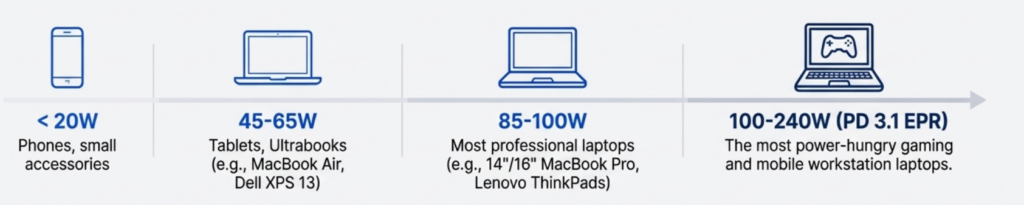
To ensure your new docking station provides enough power for your laptop and its connected peripherals, check your laptop’s power requirements. If you choose a docking station with a lower power output than required, your laptop’s battery may slowly drain, even when plugged in, particularly during heavy use.
USB-C Alt Mode
Alt Mode enables USB-C to transmit video signals equivalent to those of HDMI or DisplayPort. Without Alt Mode, a USB-C port cannot drive an external monitor unless DisplayLink is used.

If you are buying a docking station to connect multiple monitors with extended displays rather than mirrored ones, your laptop’s USB-C port will need to support Alt Mode.
Thunderbolt 3/4 and USB4
You could say that Thunderbolt is USB-C on steroids! It offers higher bandwidth, supports multiple monitors and enables faster data speeds. If your laptop has a Thunderbolt port, you don’t need to worry about its docking capabilities. Check your laptop’s USB-C ports for the “Thunderbolt” symbol to see if your laptop has it.

DisplayLink
DisplayLink uses a combination of hardware and software to enable you to connect extra monitors. Once you have installed the necessary drivers, you will be able to connect your laptop to multiple monitors, even if it doesn’t support this natively. This is useful if you have an M1 or M2 Apple MacBook.

Who Needs a Docking Station?
Anyone who uses a laptop or mobile device could benefit from using a docking station. Whether you need extra ports, want to connect some old hardware to your laptop, use multiple external screens, require high-speed Ethernet or data transfer, etc., a docking station will provide the best possible experience. In some cases, a USB-C hub could be sufficient.
If you belong to one of the user categories below, you should consider getting a docking station and saying “Dock yeah!” from the bottom of your heart.
- Freelancers
- Home office users
- Remote workers
- Creators
- Office users who carry a laptop
- Students

Even if you don’t belong one of the users groups above, extending your mobile device’s abilities and using it with the comfort of a chair, desk, bigger screen, always feels the difference.
How to Choose the Right Dock
I will share with you a detailed guideline to help you choose the best docking station or USB-C for your laptop. Below is a list of questions to help you choose the best docking station for your laptop.
1. What port does MY LAPTOP have?
The fastest way to find out is to check the logo next to your laptop’s USB-C ports. Refer to the table below to see if the port is only for charging, supports video output, or has Thunderbolt capabilities. Once you have established what type of USB-C port your device has, you can look for suitable docking stations or hubs.
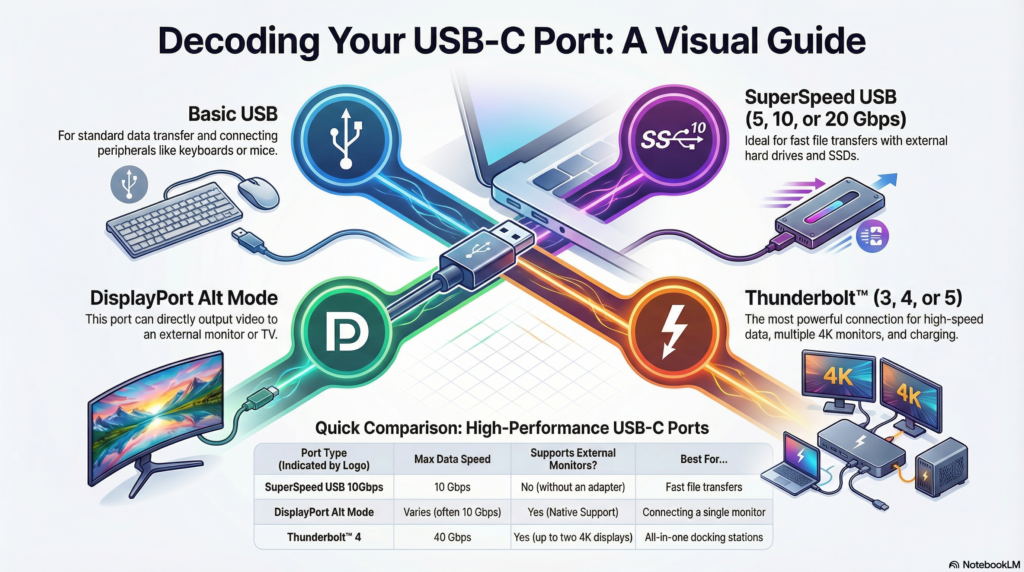
2. How much POWER do I need?
For the fastest result, check the wattage of the power adapter that came with your laptop. Once you have found this out, look for docking stations/hubs that meet or exceed your laptop’s required wattage (e.g. 65W, 96W or 140W). It is better to exceed this figure by at least 20–30 W to ensure that your laptop is sufficiently powered even under heavy load.
3. What DISPLAYS am I driving?
First, you need to determine your display requirements. How many monitors will you use? What is the maximum resolution of each monitor? What is the refresh rate for each monitor? For example, if you are going to connect your laptop to two 4K displays with a refresh rate of 60 Hz, you will need to ensure that your docking station can support these two monitors at 4K and 60 Hz. The same applies if you are using two 1080p monitors at 140 Hz.
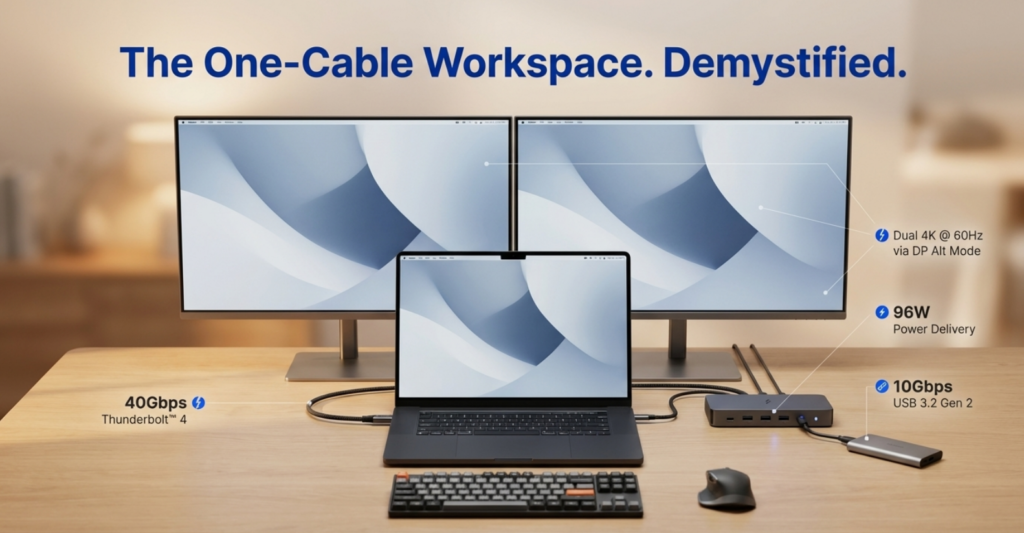
This is the most important factor to consider when choosing a docking station. Most docking stations have this information in the product details, so it’s an easy step.
4. What PERIPHERALS will I connect?
Make a list. Check your inventory and make a list of all the peripherals that you will connect to your laptop, either now or in the future. How many USB-A ports do you need? Will you be connecting an external SSD with a high bandwidth? Or an Ethernet port or an SD card reader? Make sure your docking station has all the ports you need.
5. What is my OPERATING SYSTЕM?
This step is crucial. While Windows supports Multi-Stream Transport (MST) for multiple extended displays via a standard USB-C connection, macOS does not. Therefore, if you are a Mac user and want two or more extended displays, you will need a dock that uses either Thunderbolt or DisplayLink technology. Make sure that the docking station you buy is compatible with your operating system. Don’t always believe it when it says ‘universal’. It is important to be certain about this in order to have the best possible desk setup experience.
Common Mistakes to Avoid
I have encountered many laptop users who were disappointed with the docking station they bought because it didn’t deliver the technologies promised on the product page. There are a few things you need to check thoroughly to avoid making these common mistakes.
The “Supports 4K” Trap

If you see the phrase “Supports 4K”, make sure you check it thoroughly. This often means a choppy 30 Hz 4K experience, and I can assure you that you won’t be happy with the results. Make sure the docking station supports a refresh rate of at least 60 Hz at 4K resolution for smooth video and mouse movement.
The Power Delivery Deception

If a dock is advertised as ‘100W Pass-Through’, consider that it may consume 15W itself, delivering 85W to your laptop. To ensure that your laptop’s battery isn’t drained while using a docking station, the best phrase to search for is “laptop charging wattage”. Make sure that it meets or exceeds your laptop’s original power requirements.
“Universal Compatibility” Claims

True compatibility lies in the details of the protocol, such as Thunderbolt or DisplayLink. The term ‘universal’ often ignores critical nuances, so don’t be fooled. Make sure your docking station supports the features you need for your operating system.
Ignoring Bandwith Limits

Did you see a docking station with five USB ports and just think, ‘Amazing’? Not necessarily. If they all share a single 5Gbps controller, connecting multiple fast devices will slow everything down, and it will be a nightmare. Always check for bandwidth limits. If you’re not sure or don’t consider yourself tech-savvy enough, go for the higher number.
Missing Certifications

For technologies like Thunderbolt or USB4, it is especially important to check for certification. A lack of certification can compromise performance and, most importantly, safety. Always avoid buying docks without e-mark chips, as these are needed for safe, high-wattage charging.
This is the ultimate docking station guide for 2025. I will update this page regularly with new advice, technologies and recommendations to help you choose the right product for your needs. Stay tuned!